Plugin and skin collection for the DSH Web UI: task board, Git graph, right-side panel, remote mobile UI, pet, live token stats, and a skin center.
Install
# from GitHub (first run asks for allowBuilds approval — follow the hint, retry)
dsh plugin --profile web add github:zhu1090093659/dsh-web-ui
GitHub-sourced plugins run build scripts on your machine at install time. Only install sources you trust, and pin a commit (github:owner/repo#sha).
README
中文 | English
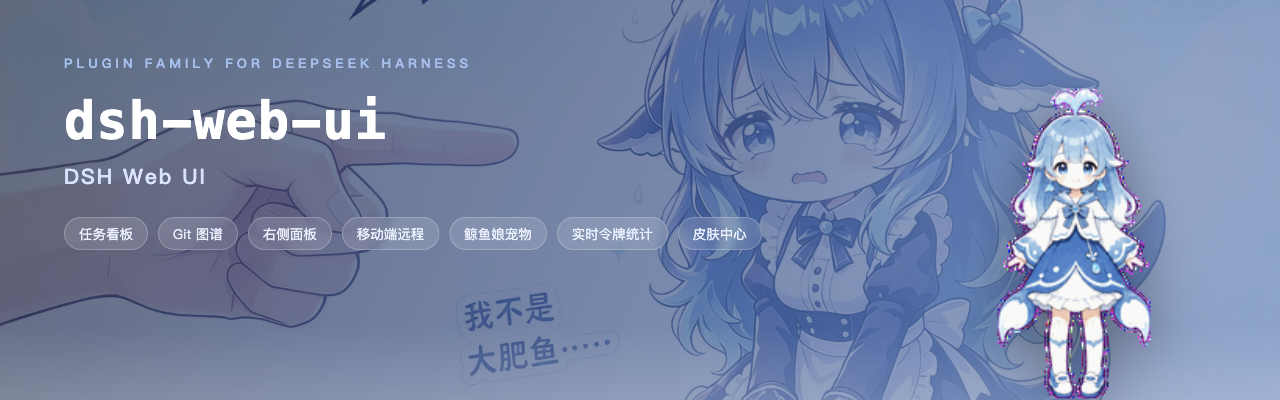
dsh-web-ui is a collection of plugins and skins for the DeepSeek Harness (DSH) Web UI: a task board, a Git graph, the right panel, mobile remote control, remote connection, a whale-girl pet, live token statistics, and the Skin Center. Every plugin can be installed individually, or all at once through the aggregate packages.
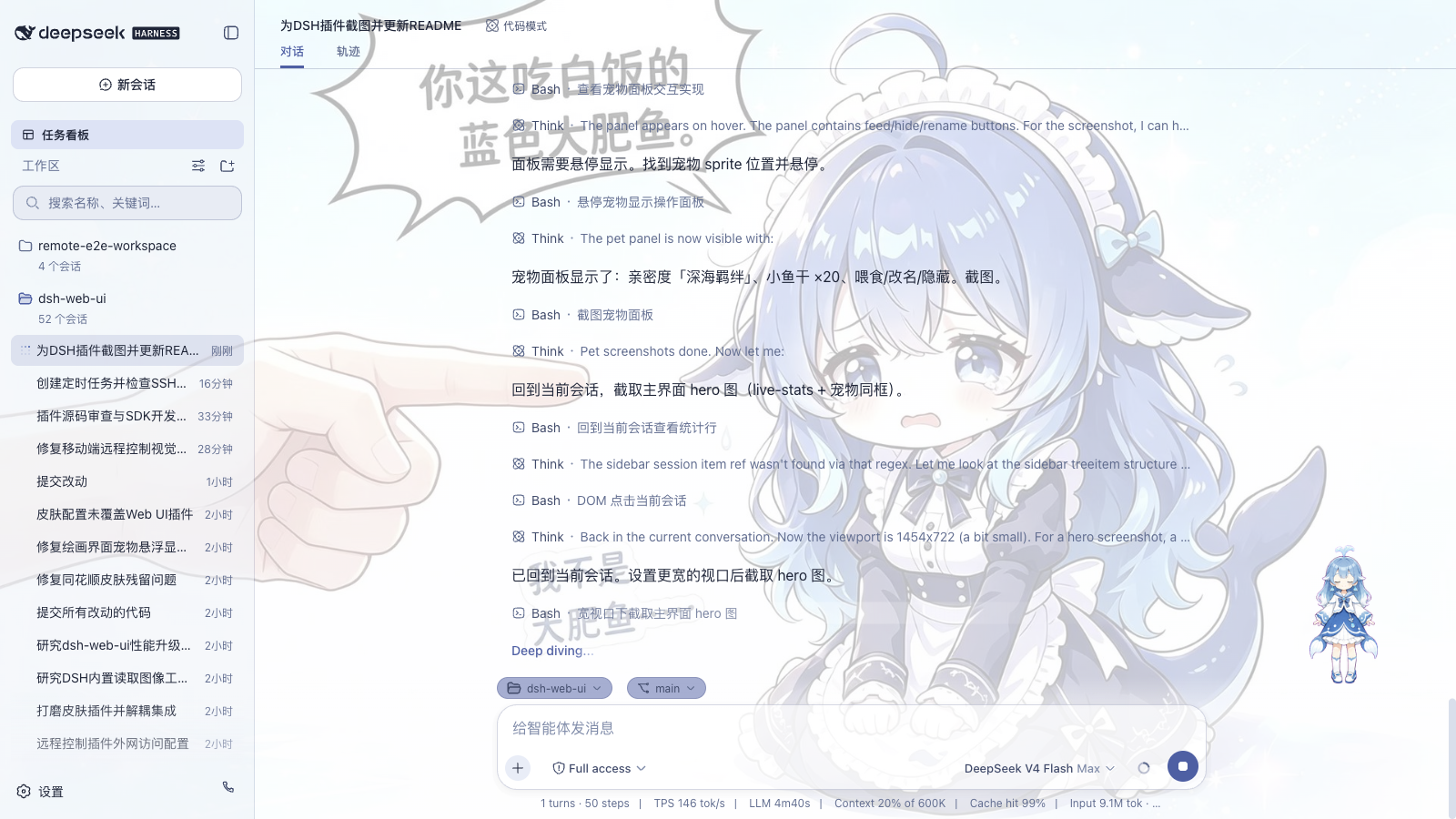
Feature Plugins
Task Board
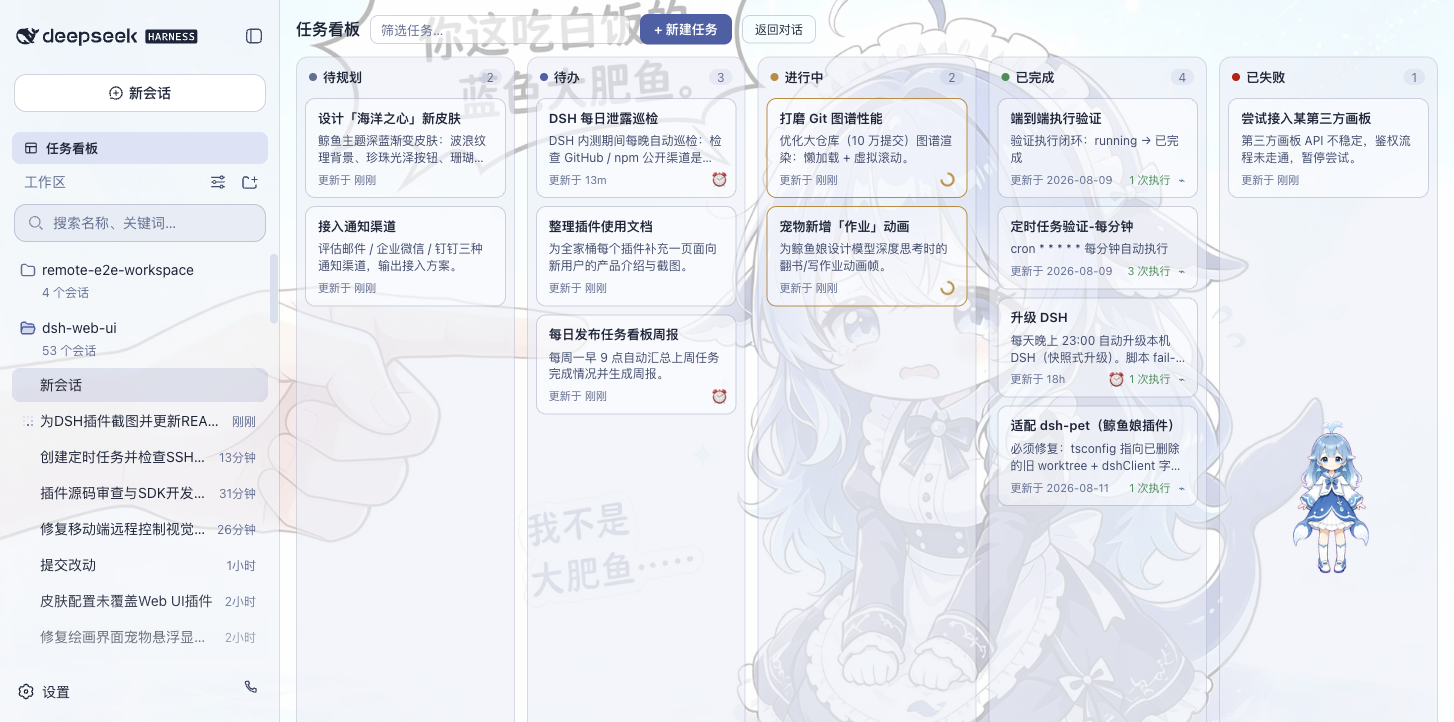
Open it from the sidebar. Tasks are organized into five columns: Planned, To-do, In Progress, Done, and Failed. Clicking "Run" on a card hands the task to a real DSH agent session; when it finishes, the card status updates automatically. To review what happened, jump directly into the execution session for the full transcript.
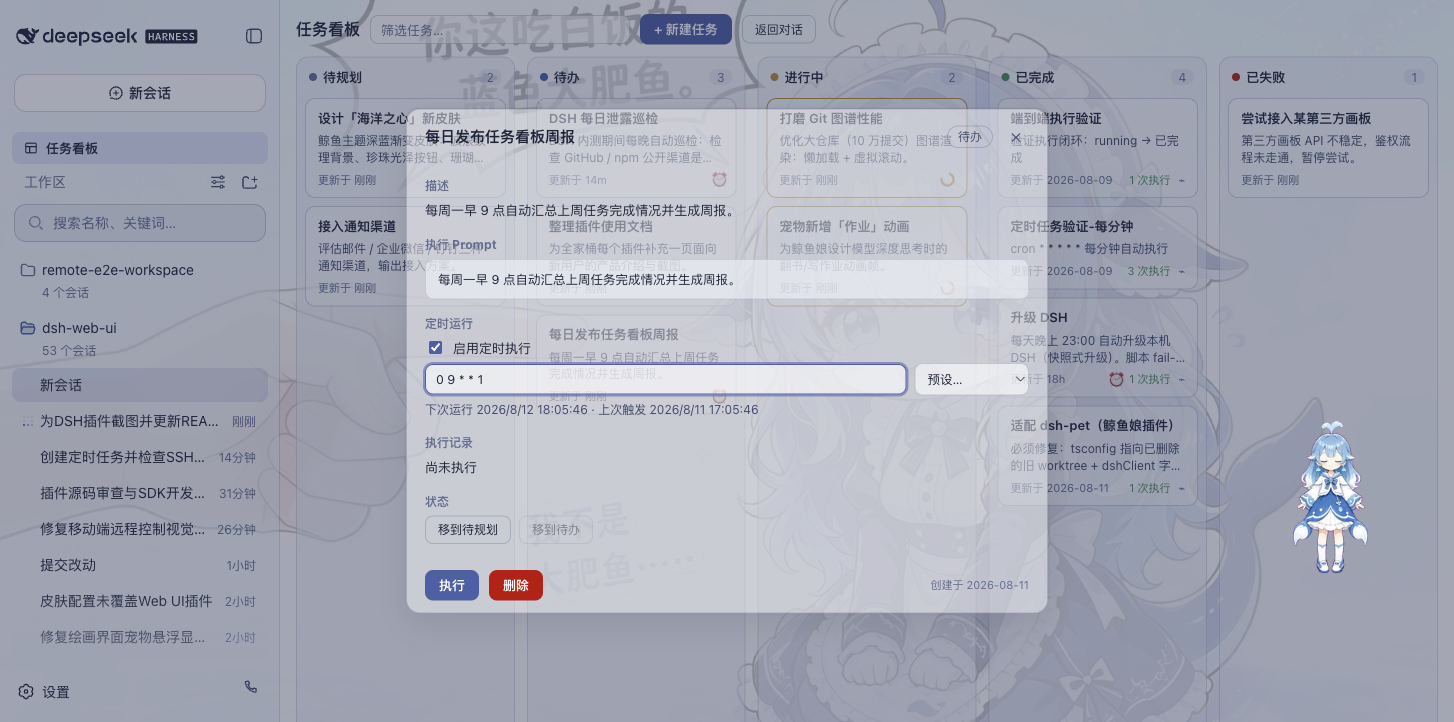
Tasks also support scheduled execution: configure a cron expression in the detail view (e.g. auto-upgrade DSH at 23:00 daily, generate a weekly report at 09:00 every Monday), and the task runs on its own at the scheduled time.
| Multi-column board | Scheduled execution |
|---|---|
 |
 |
Git Graph
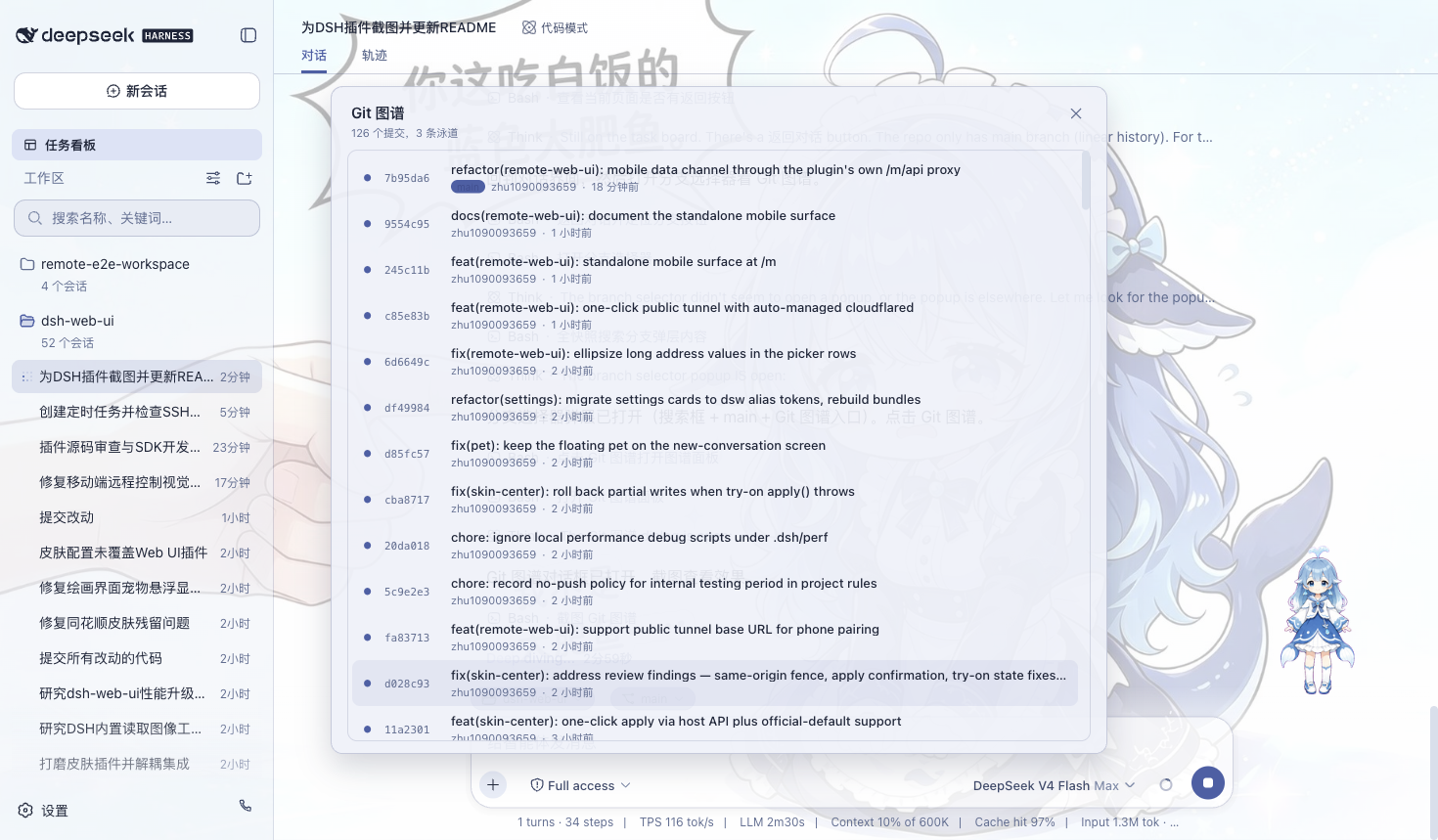
The branch picker above the input box handles branch switching and commit history browsing; the Git graph visualizes branch lanes and commit history, making it easy to trace changes along the timeline even in large repositories.
Right Panel
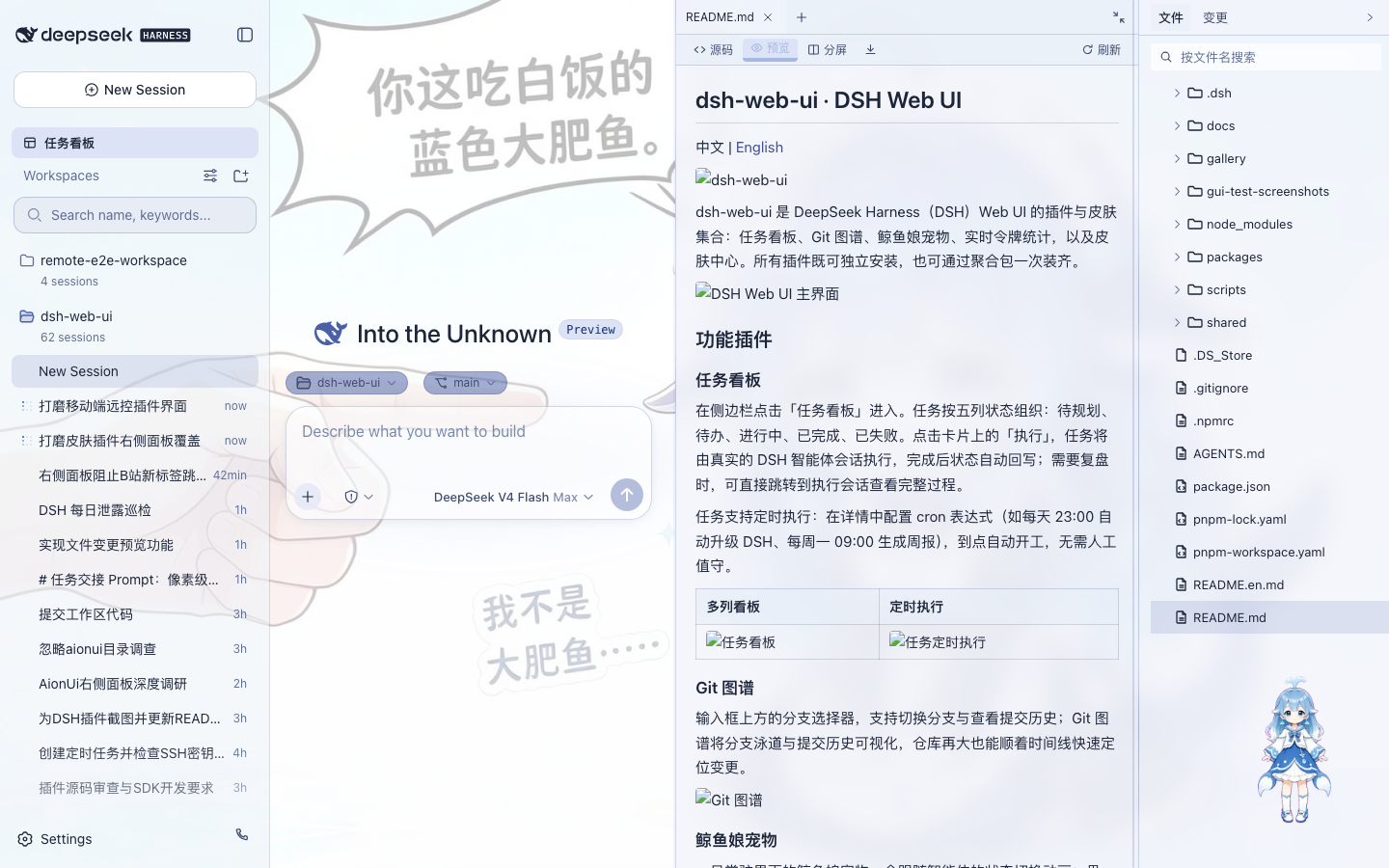
When a project session is open, two panels appear to the right of the chat area — "Preview" and "Files/Changes":
- File tree: browse the working directory; click a file to open it in the preview panel, click a folder row to expand it, and search for files by name;
- Preview: multi-tab preview for markdown, HTML, code, diff, CSV, PDF, Office, images and plain text, with source/preview switching, split-screen editing and saving;
- Changes (SCM): a real git changes panel with stage / unstage / discard;
- Panel widths are draggable (double-click a handle to reset), and the collapsed state plus widths persist per project;
- All nine skins adapt the right panel — switching skins restyles the panels to match the theme.
Whale-Girl Pet
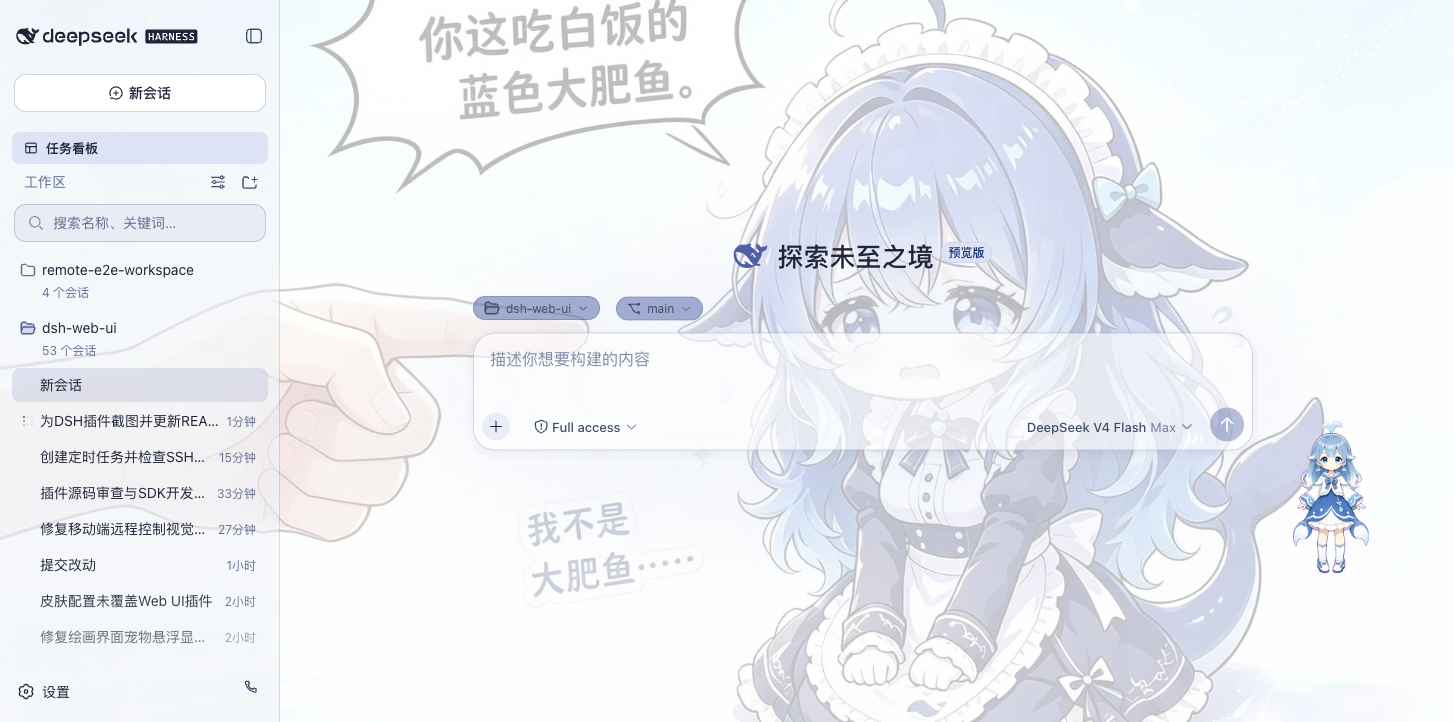
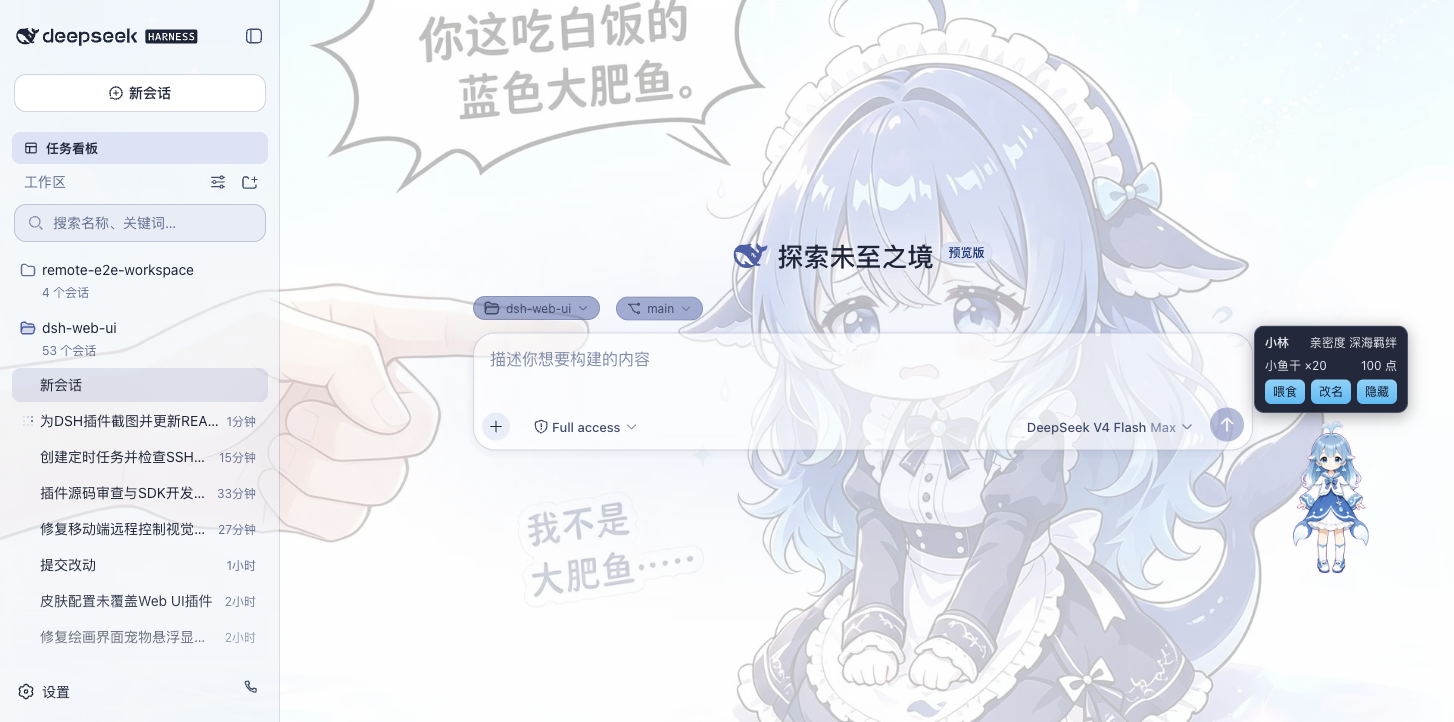
A whale girl who lives at the edge of the interface and switches animations with the agent's state: thinking, waiting, working, celebrating. Click her to interact (pet her head), feed her dried fish to raise affinity, and grow her from a baby whale to "deep-sea bond". She can be renamed, dragged to any position, or hidden whenever you want.
| Working companion | Interaction panel |
|---|---|
 |
 |
Live Token Stats
Real-time usage shown directly below the input box: generation speed (TPS), LLM time, context usage, cache hit rate, and input / output token counts — the cost of every generation stays visible at a glance.

Mobile Remote Control
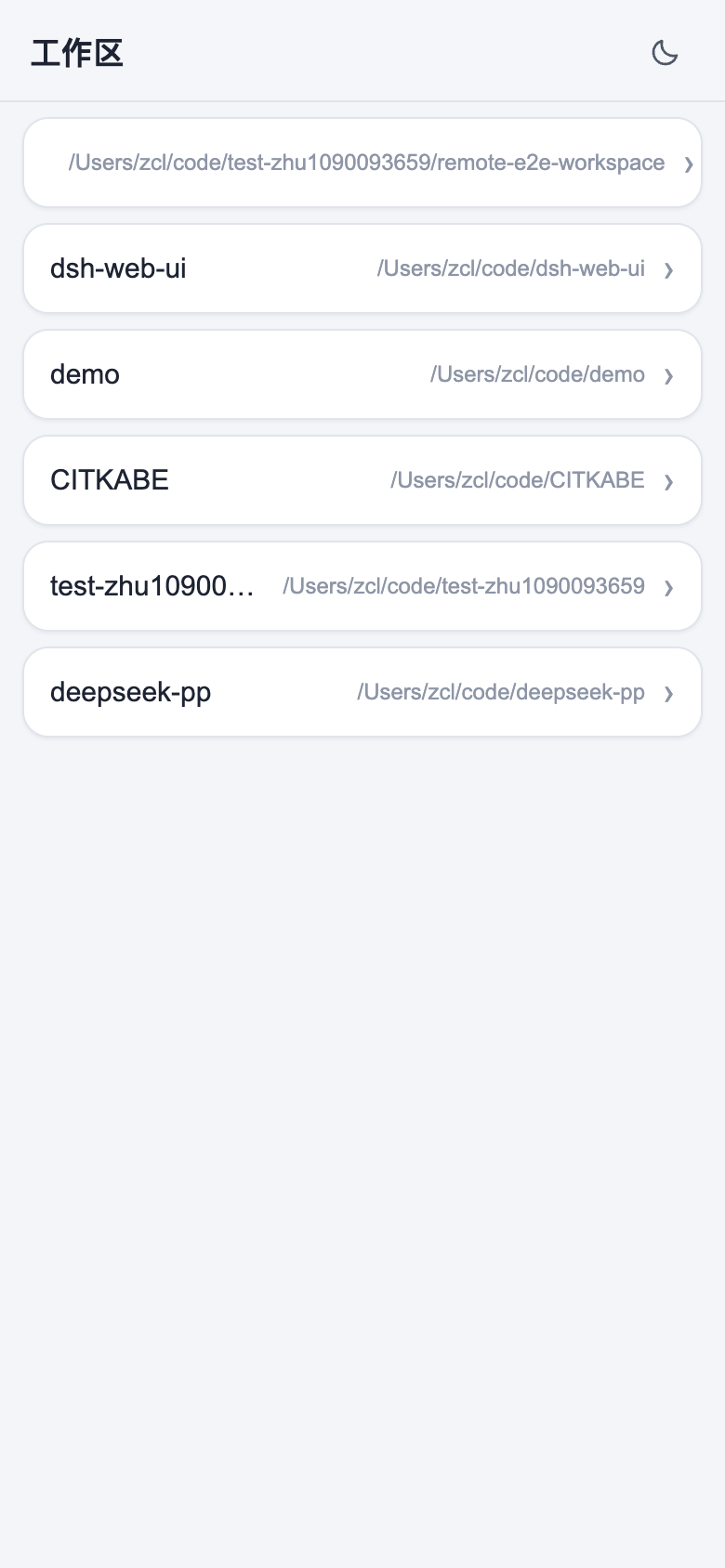
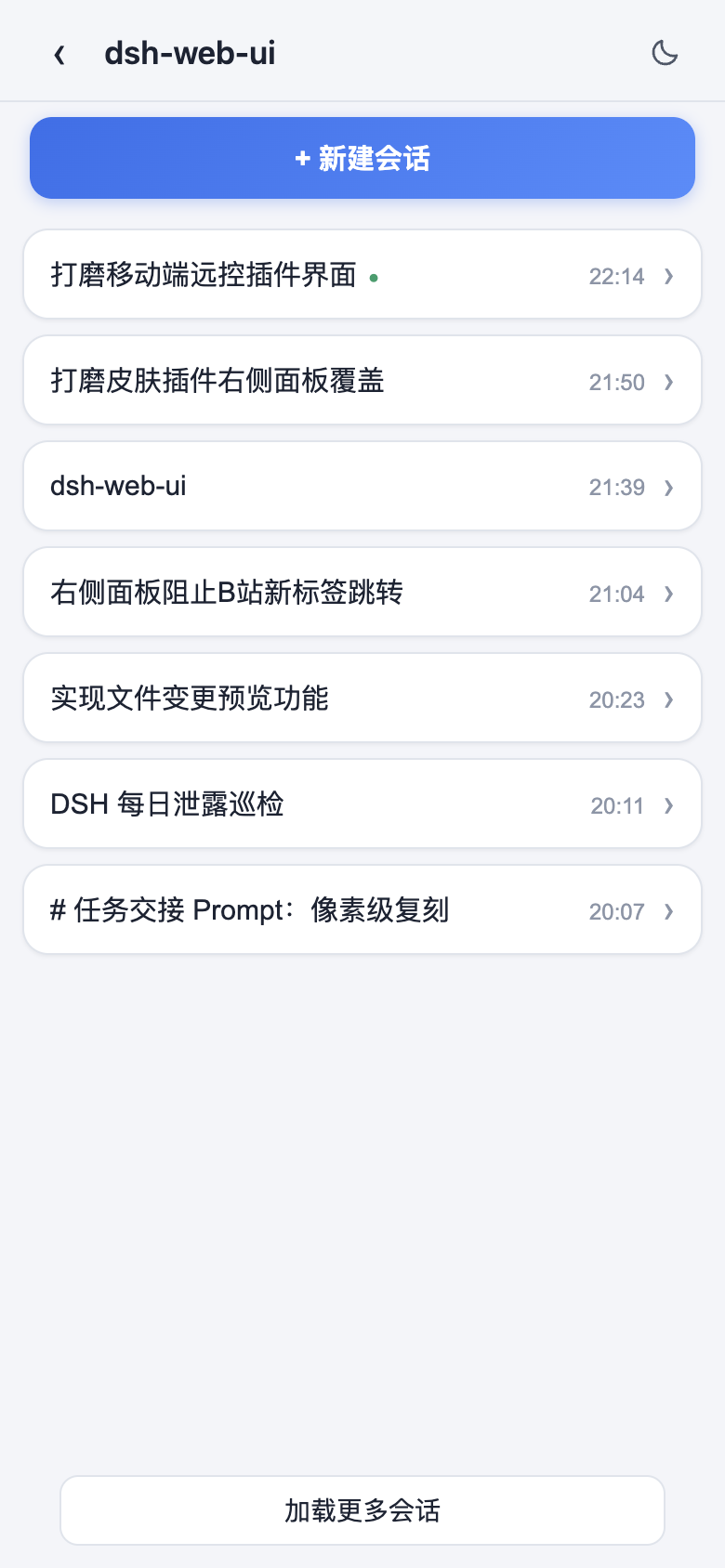
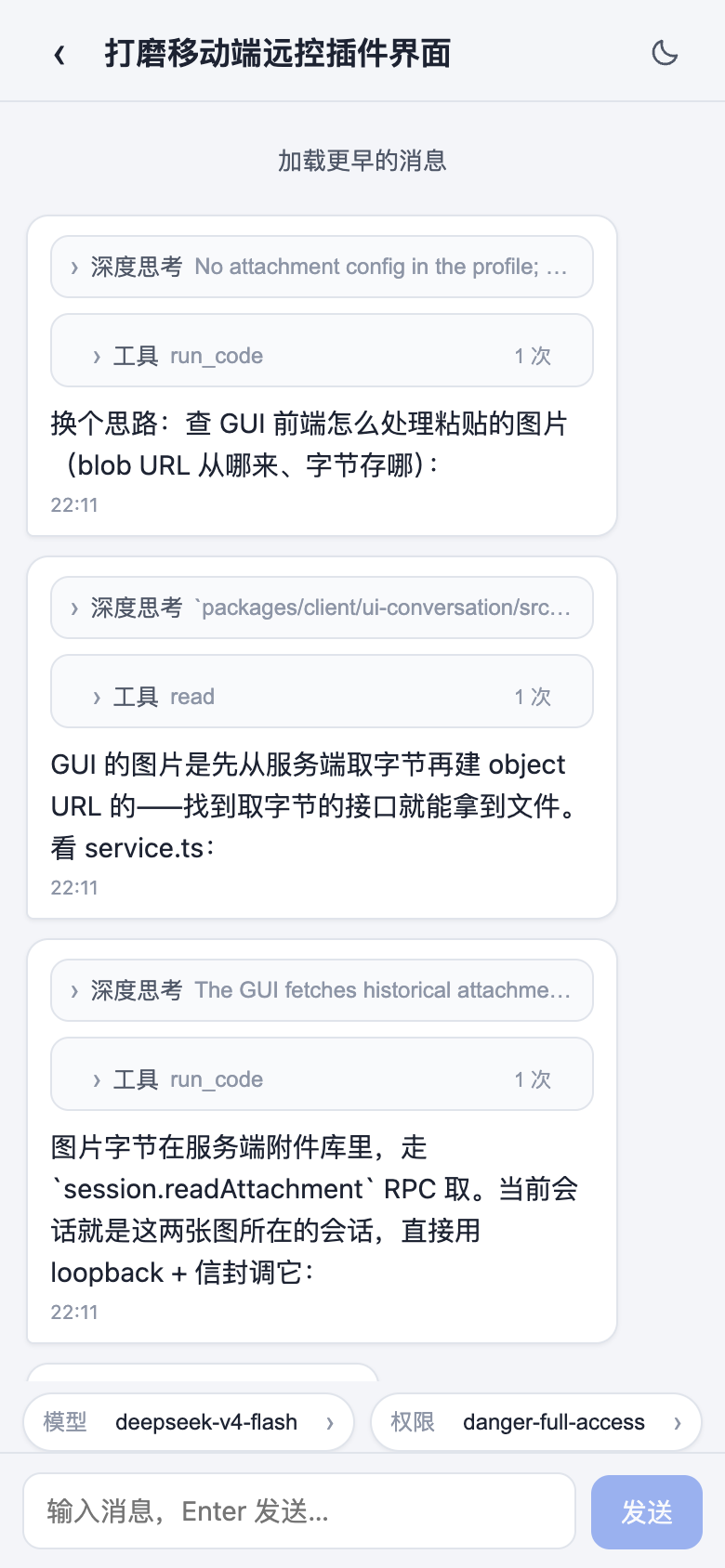
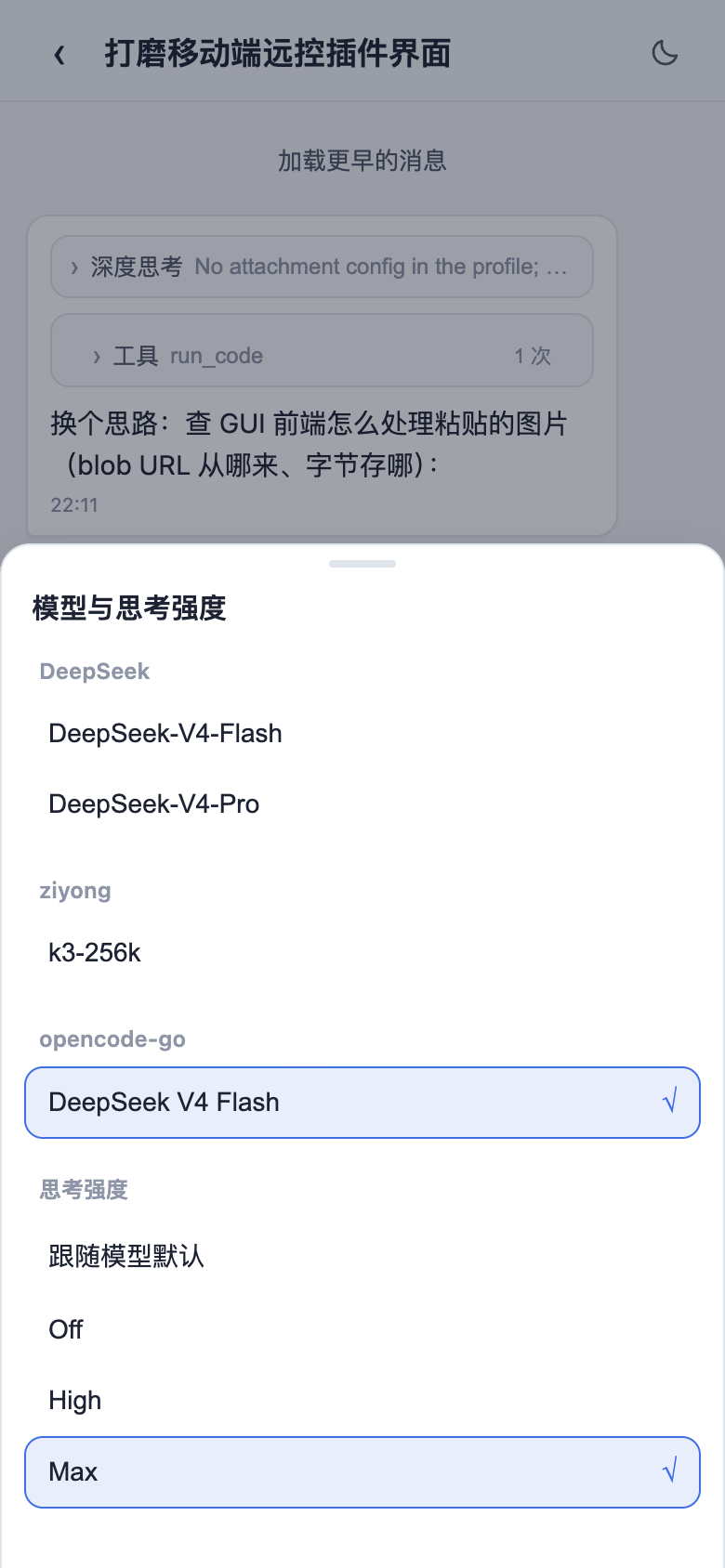
The phone icon at the bottom of the sidebar opens the pairing panel: scan the QR code (or copy the link) to pair, and the phone lands on a standalone mobile surface that remote-controls the current dsh web workspace — browse and create sessions, send and receive messages, switch models and reasoning effort, and adjust the permission preset, all in sync with the desktop. Pairing tokens are one-time and time-limited; "Stop" revokes every paired device at any time. The QR defaults to the LAN, or turn on the cloudflared public tunnel so the phone can pair from any network.
| Workspaces | Sessions & new session |
|---|---|
 |
 |
| Chat (folded reasoning & tool calls) | Model & reasoning-effort picker |
 |
 |
Remote Connection
The "SSH" sidebar entry opens the remote-ops panel. Hosts support key / password auth and one-click import from ~/.ssh/config; config lives in ~/.dsh/dsh-ssh.json. Real operations on configured hosts:
- Web terminal: xterm.js PTY with live output and auto-fit;
- File transfer: SFTP upload / download with progress and a remote directory browser;
- Port forwarding: local tunnels to remote internal services (databases, APIs, admin consoles), bound to 127.0.0.1 only;
- Cluster runs: one command across many hosts concurrently, filtered by alias / environment / tags;
- Agent direct control: agents share the same host config — just say "check xxx" in chat and the agent runs remote commands for you.
Image Understanding
Gives text-only models vision: when a conversation mentions an image (local path, http(s) URL, or session attachment), the describe_image tool sends it to a configured OpenAI-compatible vision endpoint (Qwen-VL, GLM-4V, GPT-4o, a local Ollama endpoint…) and returns the answer. Only the returned text enters the conversation — the image itself never enters the session log. Since text-only models have no image entry in the input box, the plugin adds an image button there: picking a file inserts an attachment reference into your draft, and the model can analyze it via describe_image; the tool also accepts a prompt argument for precise custom instructions (OCR, UI diagnosis, translation) that beat a generic description. Endpoint, model, key, and the default instruction are configured live under Settings > Plugin config > "Image understanding".
Settings Hub
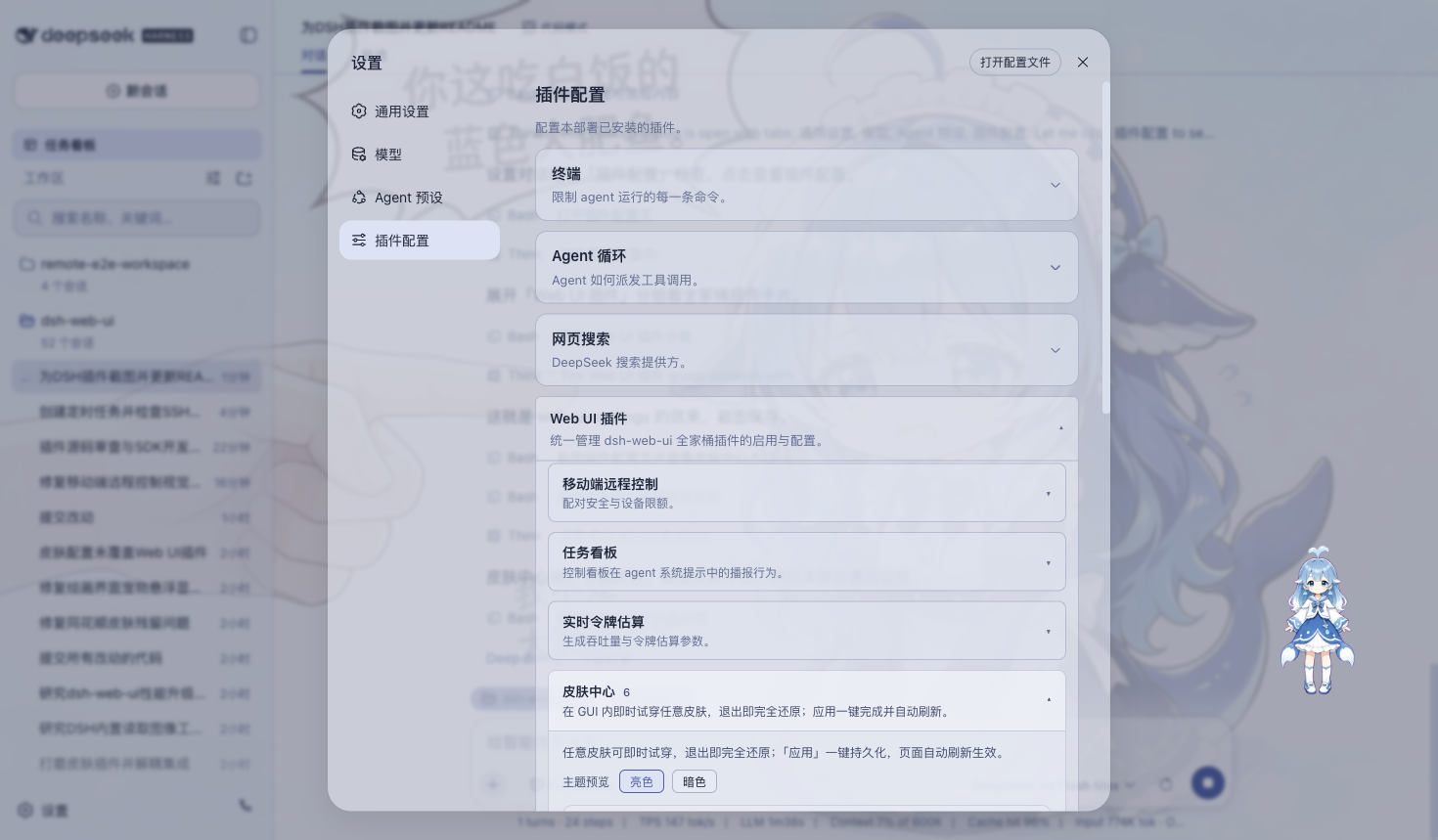
All family plugins' toggles and parameters live under "Settings > Plugin config", and changes apply immediately; a "Community plugins" card inside the group indexes plugins registered by community contributors and links to their repositories.
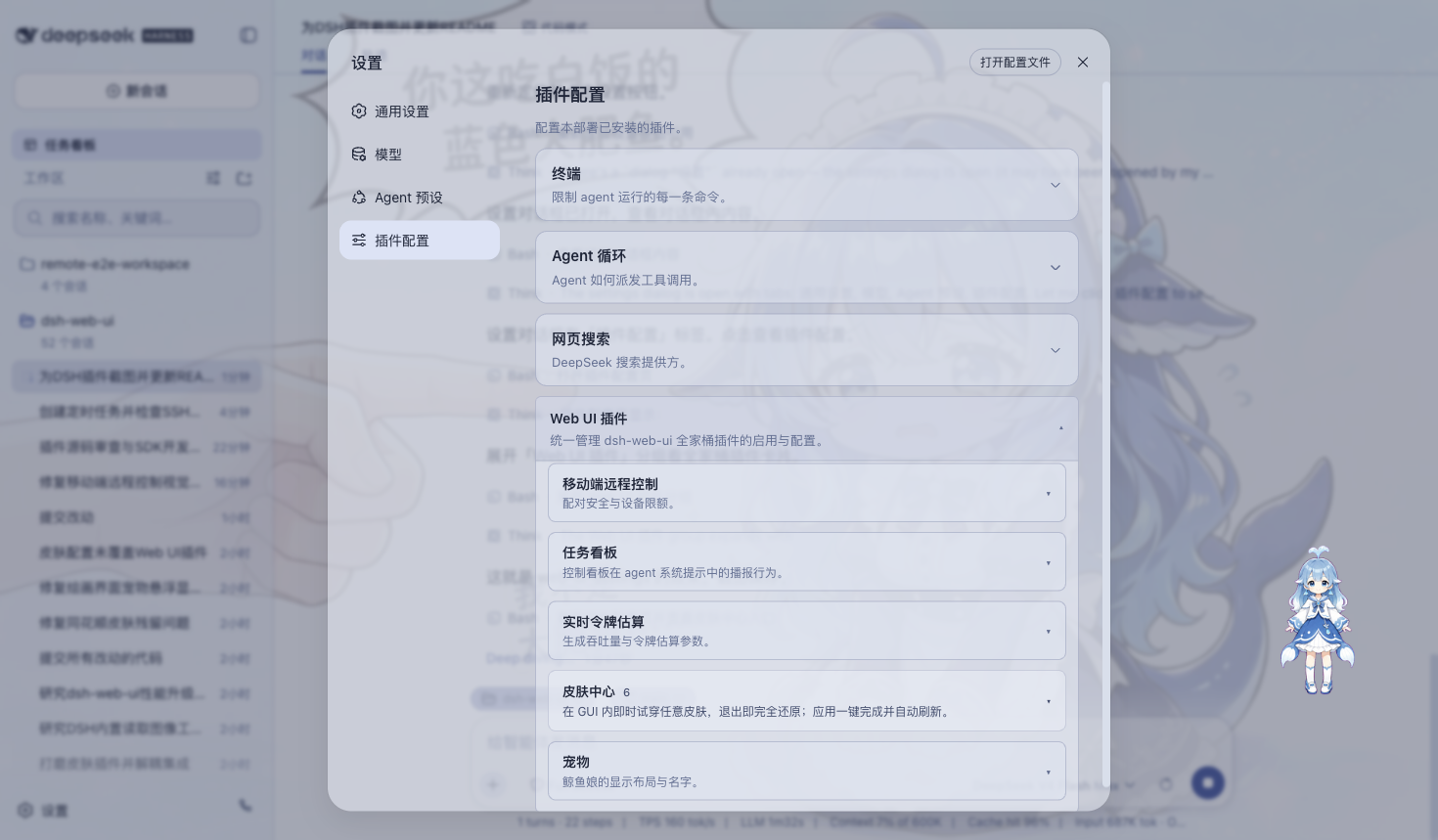
Skins
The skin center ships nine skins, each supporting try-on before applying: preview applies instantly and reverts fully on exit; once you are satisfied, apply it with one click.
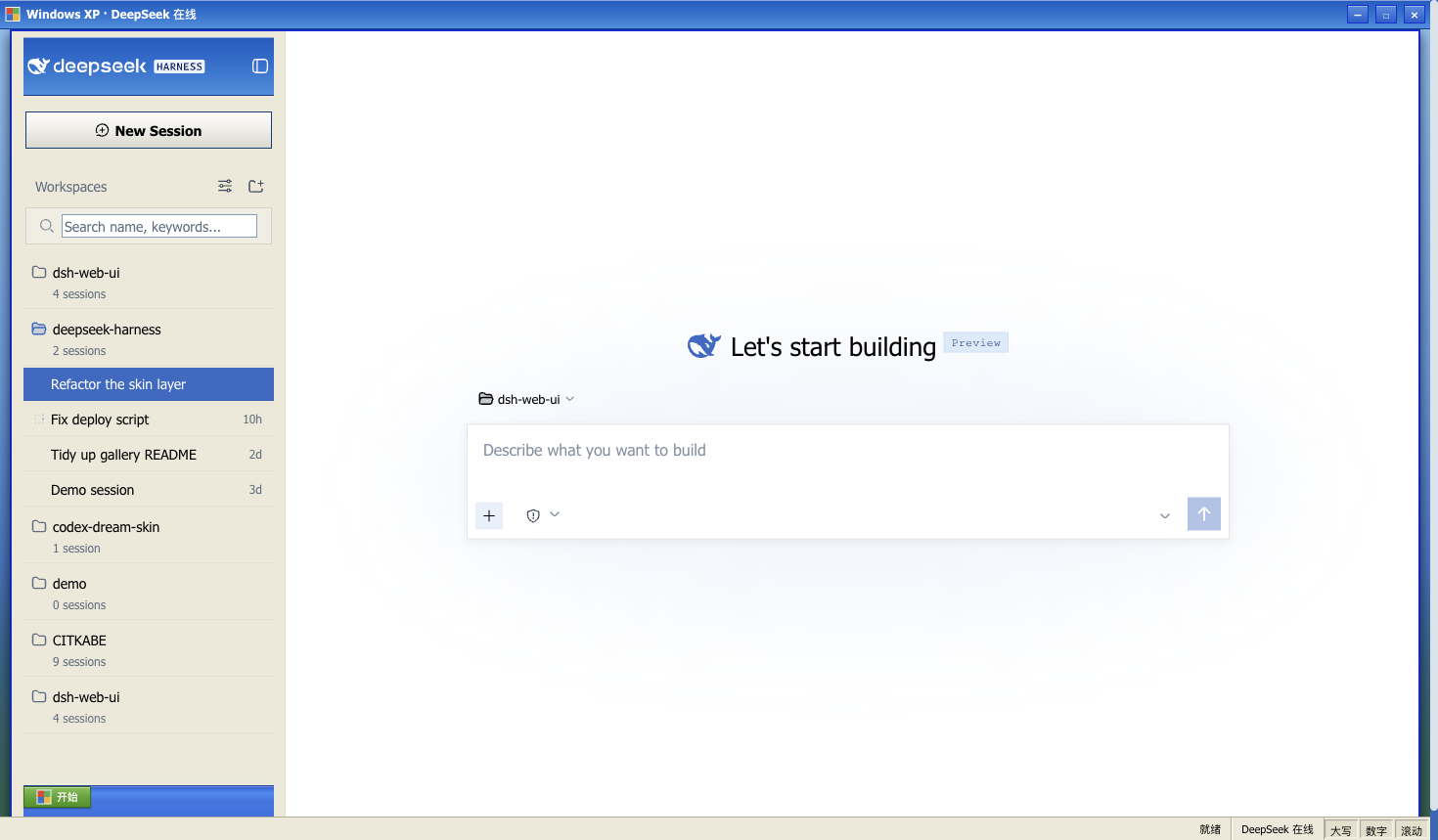
Windows XP (Luna)
A faithful recreation of the classic Luna interface: blue gradient window chrome, a green Start button, the Bliss blue-sky desktop, and square corners throughout.
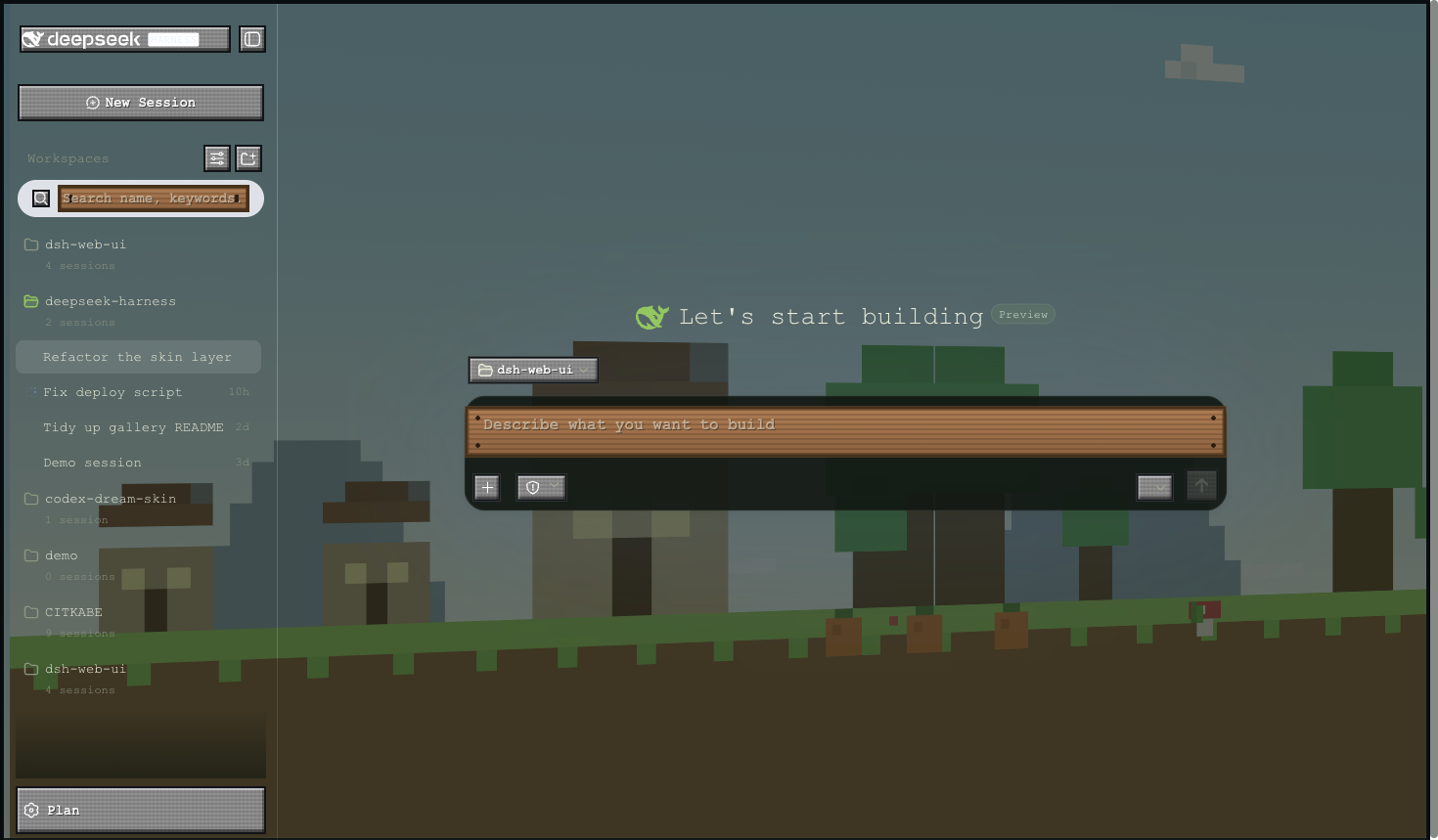
Minecraft Voxel
Inspired by the Minecraft main menu: a pixel-art panorama skybox rotates slowly behind the interface, buttons adopt the gray stone slab style, and inputs become wooden sign posts.
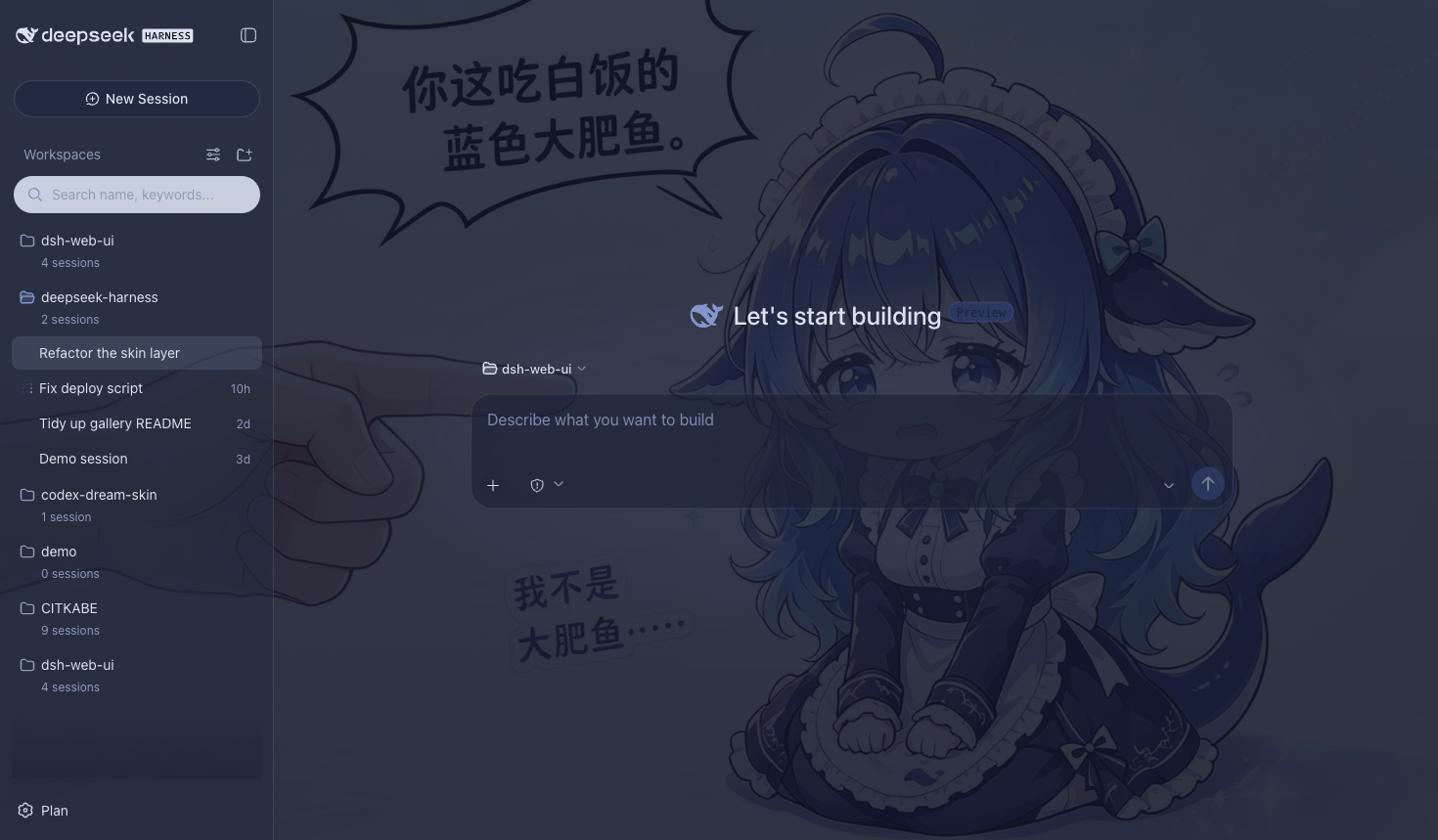
Blue Fantasy
Whale artwork lies beneath translucent panes, wrapped in a periwinkle-indigo palette — particularly striking in dark mode.
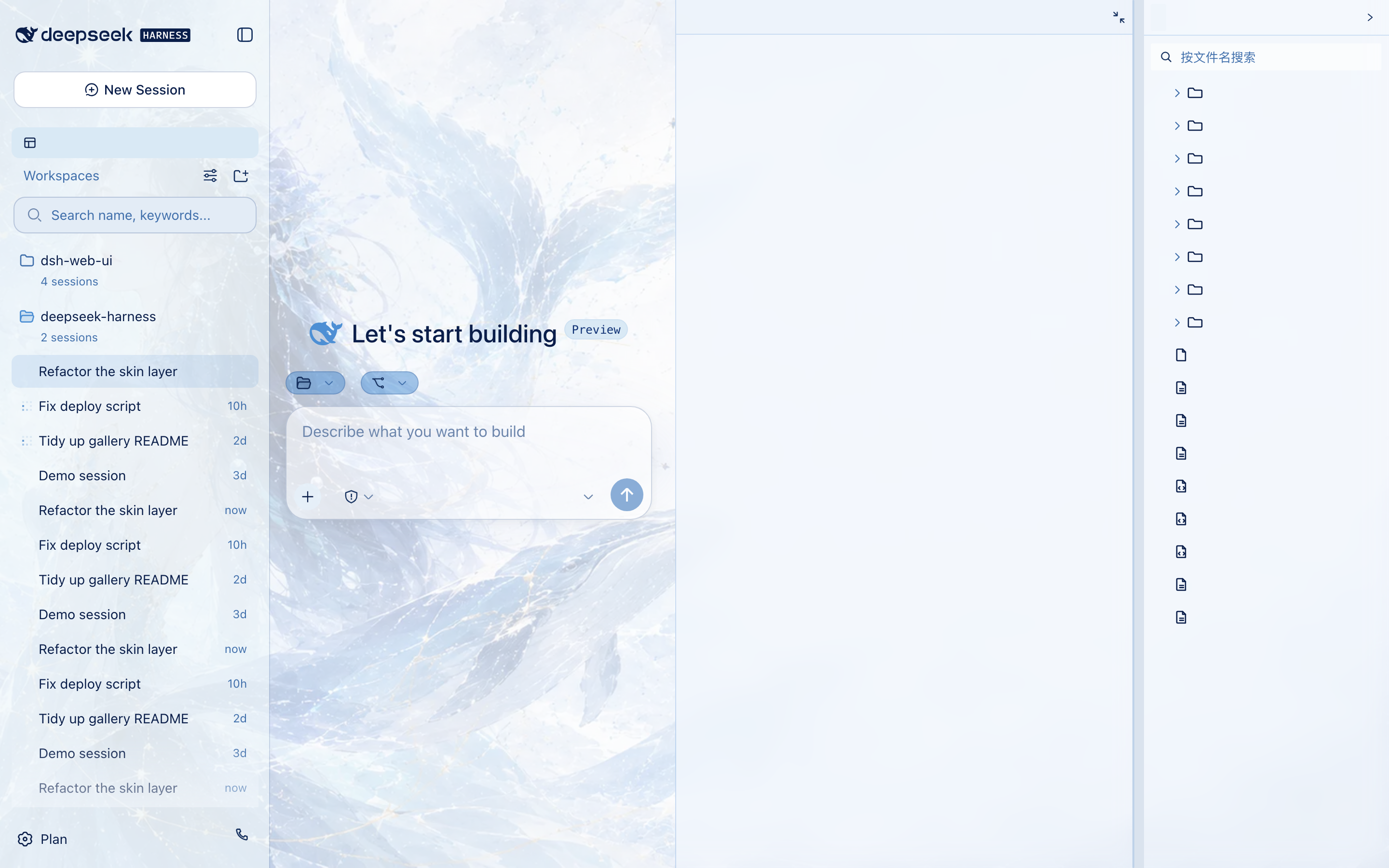
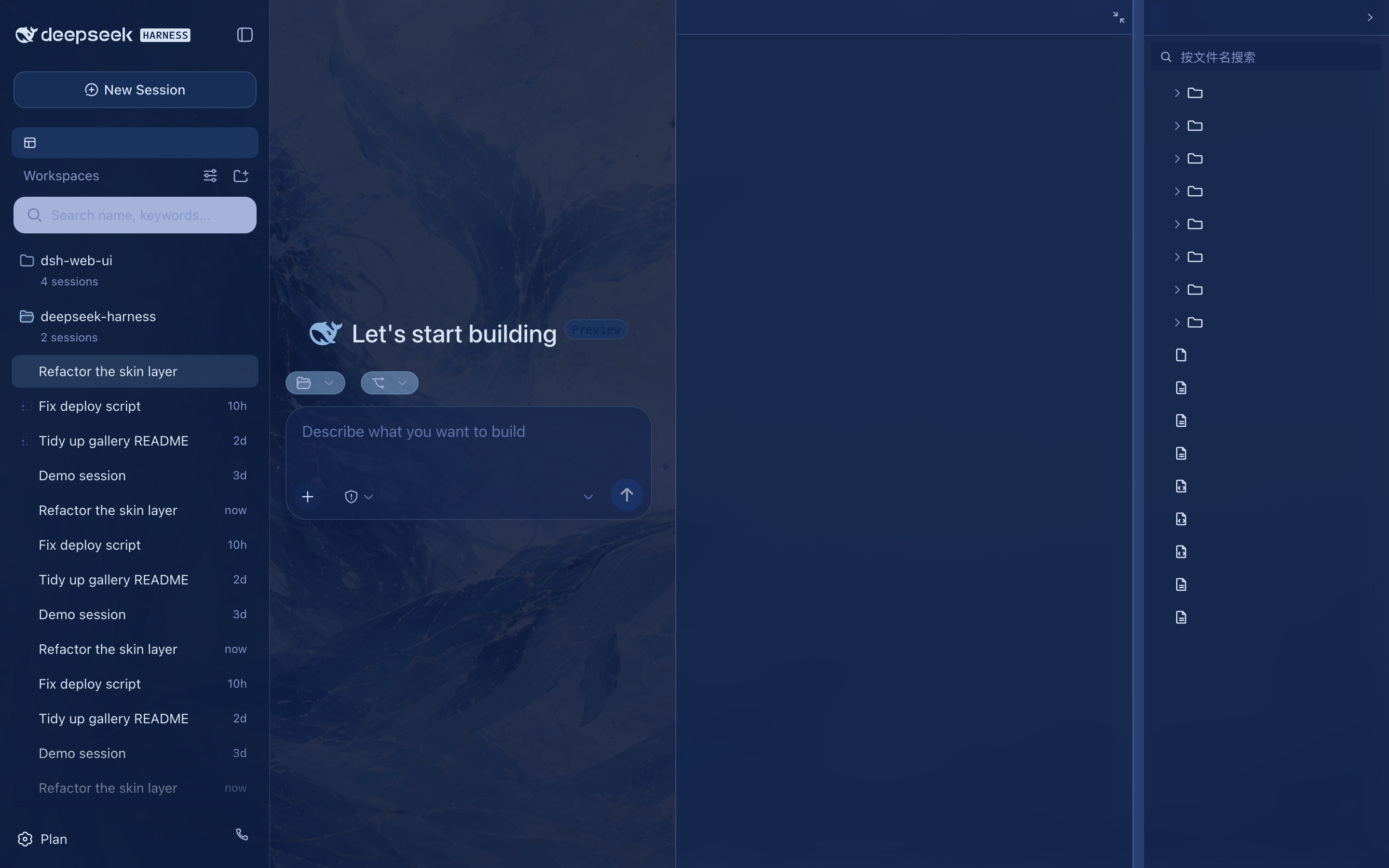
Whale Song
The deep-sea whale-goddess theme: a text-free ambience painting (a blue-haired goddess with a whale pod on the left, an ice-blue constellation grid with gold-thread accents, and generous open water on the right) sits beneath translucent panes, wrapped in an ice-blue / cyan / navy / cobalt palette — with a night-cruise dark variant.
 ·
· 
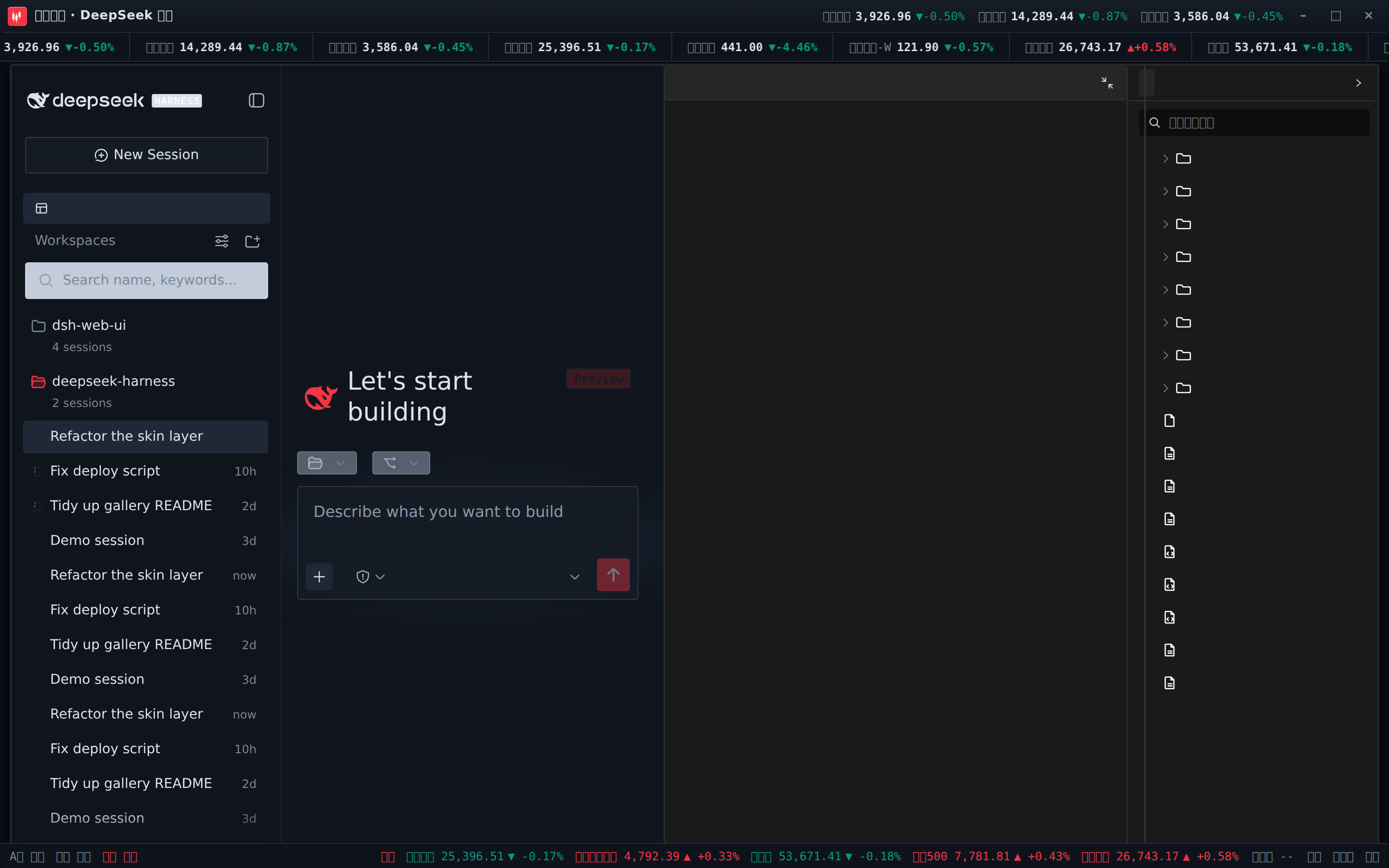
Trading Terminal
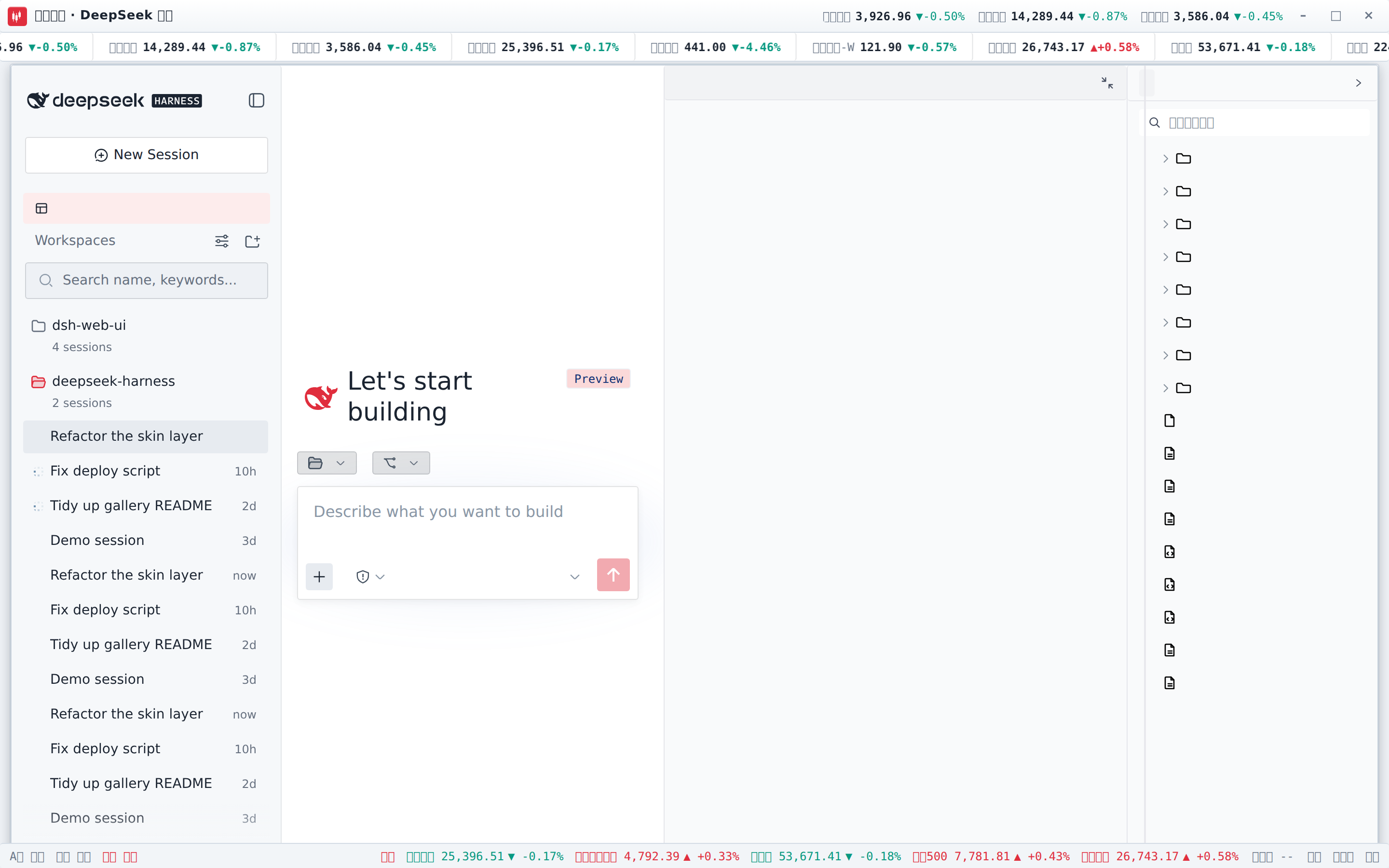
A live-data stock-trading skin: a scrolling ticker tape (A-shares / HK / US / indices / crypto / FX, 红涨绿跌), live quote chips in the title bar, and a status bar with A-share / HK / US trading sessions plus HK/US index cells. With dsh-fun-ticker installed the tape follows your watchlist (served through its same-origin proxy); with dsh-longbridge installed the index cells render the broker snapshot. With neither plugin installed the skin still works standalone on public feeds (Tencent / Binance / Frankfurter) — and every fetch path fails safe to -- cells.
 ·
· 
Four more: QQ2008 Retro (crystal blue with penguin motifs), Tonghuashun Trading (market elements woven into the interface), Dragon Heir (cinnabar dragon seal theme), and Miku (blue-violet-magenta gradients with frosted glass panels, light and dark themes).
Installation
DSH plugins are installed per profile with the dsh plugin command (dsh web runs the web profile). The recommended way is the aggregate package dsh-web-ui-all — one package with all plugins and skins; install dsh-skins instead if you only want the skins.
Option 1: Install from npm (recommended)
The plugins are published to npm (the @linxin666 scope) — one command installs everything:
dsh plugin --profile web add @linxin666/dsh-web-ui-all@0.1.12
Restart dsh web and all plugin entries appear in the sidebar. Skins only? Install @linxin666/dsh-skins instead.
Pinned to the current latest release
0.1.12. The0.1.1build ofdsh-petshipped without runtime files (lib/types/*.js), and some environments may resolve npm'slatestfrom a stale registry cache — pinning the version is the safest install; bump@0.1.12to the new version when upgrading.
First install may stop on
ERR_PNPM_IGNORED_BUILDS(pnpm blocks dependency build scripts): copy the printed keys (cloudflared/cpu-features/ssh2) into the profile'spnpm-workspace.yamlallowBuildslist and re-run.
Option 2: Install from the GitHub repository (development)
The packages are already on npm; installing from this repository is only for development (requires Node.js >= 22 and pnpm):
# 1. Clone the repository
git clone https://github.com/zhu1090093659/dsh-web-ui.git
cd dsh-web-ui

# 2. Install dependencies and build
pnpm install
pnpm -r build

# 3. Install the aggregate package into the web profile
dsh plugin --profile web add link:$(pwd)/packages/dsh-web-ui-all

# 4. Restart dsh web — all plugin entries appear in the sidebar
dsh web
Skins only? Point step 3 at
packages/dsh-skinsinstead.
Install a single plugin
Prefer individual plugins? Install them one by one (published on npm, so use the package name directly):
dsh plugin --profile web add @linxin666/dsh-client-ui-task-board   # Task board
dsh plugin --profile web add @linxin666/dsh-ssh                    # Remote connection (SSH)
dsh plugin --profile web add @linxin666/dsh-tool-describe-image    # Image understanding tool
dsh plugin --profile web add @linxin666/dsh-pet                    # Whale-girl pet
Verify and uninstall
After installing, restart dsh web — a working plugin shows up in the sidebar. You can also confirm the mounted config layers with dsh --profile web --dump-config. If nothing appears in the sidebar, you most likely forgot to restart dsh web.
Uninstall: dsh plugin --profile web remove @linxin666/dsh-web-ui-all, then restart dsh web.
Technical details live in docs/plugins.md.
Community
Join our Discord server to connect with developers and other users:
Join the dsh-web-ui community on Discord
Sources & Licensing
| Package | Origin | License |
|---|---|---|
| dsh-task-board / dsh-git-graph / dsh-aionui-panel / dsh-pet / dsh-remote-web-ui / dsh-live-stats / dsh-web-ui-settings / dsh-skins / dsh-web-ui-all / skins | Authored by zhu1090093659 | Apache-2.0 (zhu1090093659) |
| dsh-tool-describe-image | Ported from whitelonng/dsh-plugin-describe-image (deepseek-harness packages/vision/tool-describe-image) |
Apache-2.0 (zhu1090093659) |
Third-party code merged in must keep its LICENSE and attribution; active third parties with an upstream are forked or referenced as dependencies instead of vendored.
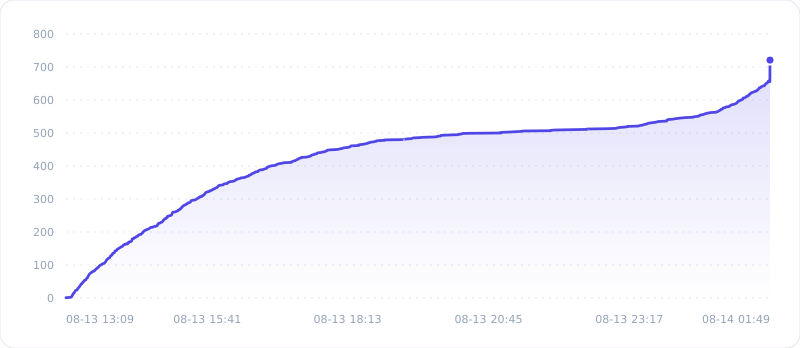
Star History
Links
More in this category
ccch1mneyyy/dsh-TUI★ 829
Claude Code-style full-screen terminal UI: pixel-whale header, live status line, and streaming thought expansion.
omdsh-dev/DSH-better-sidebar★ 705
Full sidebar workbench with file rendering and editing, terminal, Git, and subagents; third-party plugins can register new tabs.
huiliyi37/dsh-tianshu-tui★ 131
A terminal UI (TUI) for DeepSeek Harness.
omdsh-dev/dsh-at-file★ 117
Codex-style `@file` mentions: search workspace files in the composer and attach their contents to prompts.
Nagi-ovo/dsh-visualize★ 79
In-conversation generative UI: the model renders interactive HTML cards into the chat stream, with streaming preview and sandboxed rendering.
omdsh-dev/dsh-genui★ 72
Interactive UI components rendered inline in replies: layout, charts, forms, quizzes, mermaid, 3D scenes, and an action event loop back to the model.