DSH Web background settings: upload a local image or pick a preset ambiance, with live preview and persistent settings.
Install
# from GitHub (first run asks for allowBuilds approval — follow the hint, retry)
dsh plugin --profile web add github:leavestring/awesome-dsh-background-plugin
Any plugin you install runs third-party code with your own permissions — it can read your files, use your credentials, and reach the network, and tool approvals don’t sandbox it. GitHub-sourced plugins also run build scripts at install time — pnpm blocks those until you allow them, so an install can stop with ERR_PNPM_GIT_DEP_PREPARE_NOT_ALLOWED or ERR_PNPM_IGNORED_BUILDS; dsh prints the exact key to add under allowBuilds in your profile’s pnpm-workspace.yaml, and the install works on the next run. Allowing a build is a trust decision: only install sources you trust, and pin a commit (github:owner/repo#sha).
README
DSH Background
A DSH Cordis plugin that gives your DSH Web workspace a customizable background — atmosphere presets or your own image, persisted across restarts.
简体中文 | English
Why this plugin?
DSH Web ships with a single theme-colored background. If — like us — you want your workspace to feel yours instead of looking like everyone else's, you've probably already tried:
- Editing theme files / CSS directly — doesn't survive updates. DSH is plugin-architecture driven and its theme is built on CSS variables; any update overwrites your edits.
- Userscripts or browser extensions — invasive, selector-heavy, and needs to track every DSH release.
- Just living with it — staring at a flat monochrome surface all day is tiring and impersonal.
This plugin turns "background" into a first-class setting item using DSH's official Cordis plugin mechanism — and solves the three hardest problems along the way:
- Saves silently rejected — DSH's host only lets allowlisted settings namespaces be read and written by the browser, otherwise saving rolls back. The plugin ships
scripts/expose-namespace.mjsto addui-backgroundto the allowlist with one command. - The conversation area hides the background — the conversation pane, details panel and layout frame all paint opaque backgrounds. While a background is active the plugin makes those page-level containers transparent, while the sidebar, message bubbles and composer keep their own surfaces.
- Images vanishing after restart — large images are slow to write and are lost. The plugin compresses images to ≤1600px WEBP in-browser, then persists them the moment they are uploaded, so they survive restarts untouched.
Screenshots
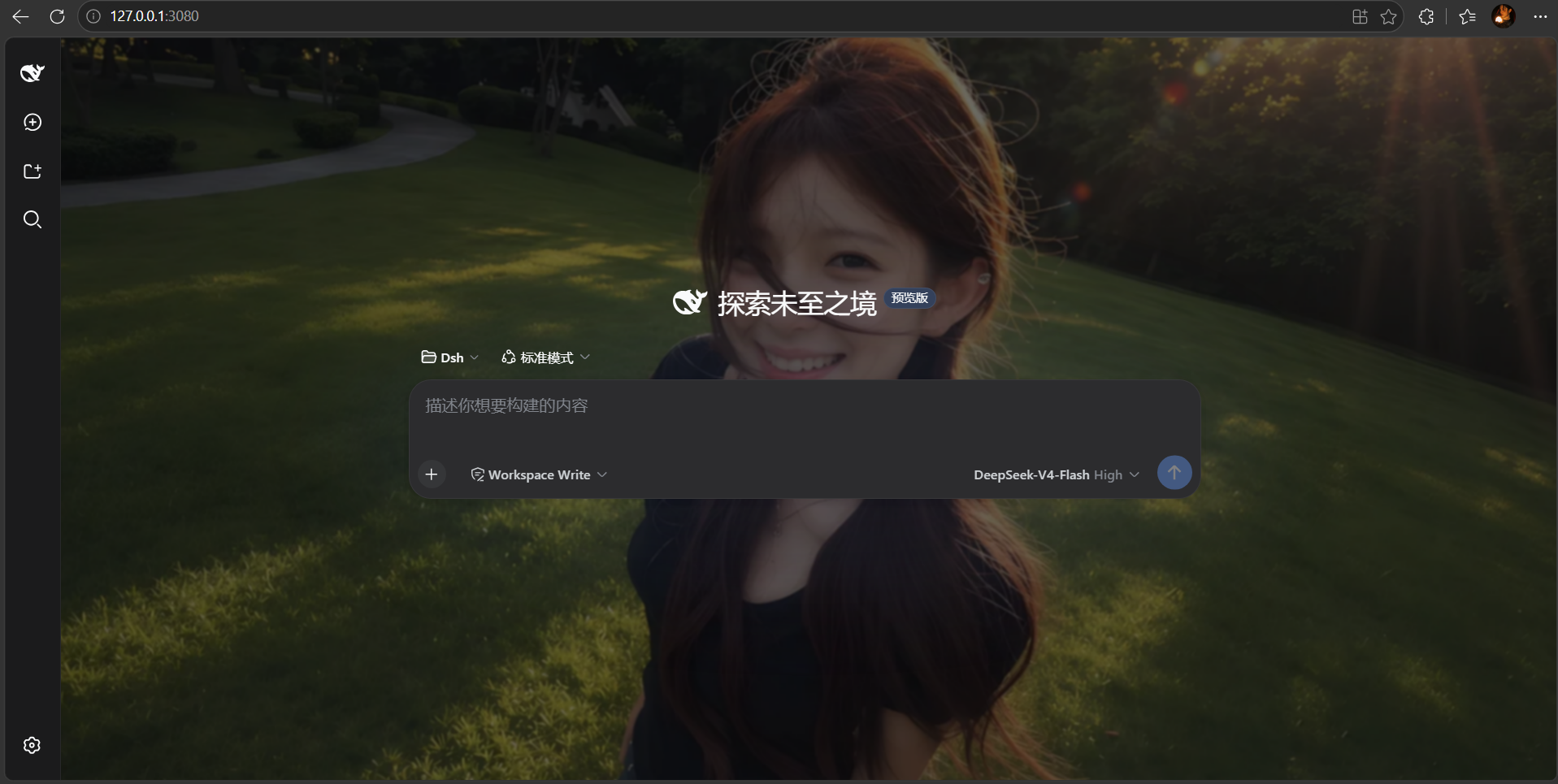
Dark mode with a custom image background:
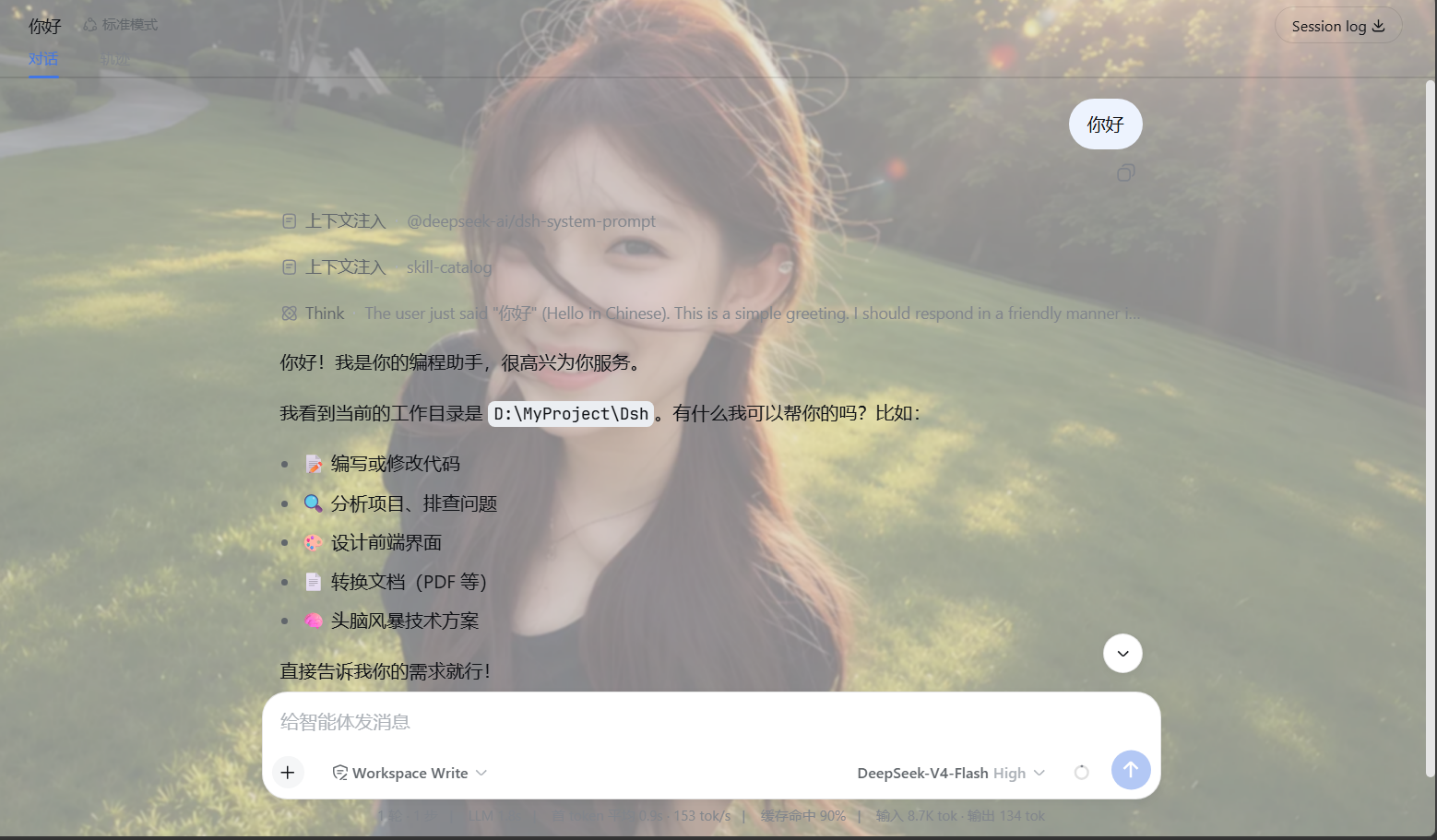
Light mode with a custom image background:
Features
- 🖼️ Upload your own image — JPG / PNG / WEBP / GIF, compressed locally with Canvas (max edge 1600px, WEBP output — a good balance of quality and size). Persisted immediately on upload, no separate save step, restored automatically after restarts.
- 🎨 Three atmosphere presets — Aurora, Ember, Paper; one click to switch, takes effect instantly. No image hunting required for a quick mood change.
- 🎚️ Five fine-tuning knobs — image presence (opacity), dark overlay (keeps foreground readable), soft focus (blur), fit mode (fill / contain / stretch) and focal position (center / top / bottom / left / right).
- 🔄 Live preview — what you see in the settings panel is what you get; drag a slider and watch the conversation area update in real time. Discard anytime before saving.
- 🔒 Privacy-friendly — the image is processed only in your browser and written to your local settings document; nothing is uploaded to any server.
- 🌐 Bilingual UI — 中文 / English.
- 🧩 Non-invasive, fully removable — the background is a fixed browser layer; conversation content is never modified or covered. Turn off the Enabled switch or click Restore default to remove it completely.
- 🌗 Theme agnostic — works in both light and dark themes (the dark-mode screenshot below is the real effect).
Installation
⚡ One-command install (recommended, beginner friendly)
One command does everything — build → install → allowlist:
# 1. Get the code: on GitHub click Code → Download ZIP and unzip, or:
git clone https://github.com/leavestring/awesome-dsh-background-plugin.git
cd dsh-background

# 2. Install (defaults to the "web" profile):
node scripts/install.mjs

# 3. Restart DSH:
dsh web
Then open http://127.0.0.1:3080 (Ctrl+F5 to bypass the browser cache) and go to Settings → General → Background.
Install into another profile:
node scripts/install.mjs --profile <your-profile>If it says the
dshcommand is missing (you launch DSH via npx), setDSH_CMDand re-run:
- Windows PowerShell:
$env:DSH_CMD = "npx @deepseek-ai/dsh"- macOS / Linux:
export DSH_CMD='npx @deepseek-ai/dsh'
🧑🔧 Manual install (understand each step)
Step 1: Build the plugin — turn the source into an installable .tgz:
pnpm pack --pack-destination .
Step 2: Install into a DSH profile:
dsh plugin --profile web add ./awesome-dsh-background-plugin-0.1.9.tgz
Step 3: Expose the settings namespace (required, first install only)
DSH's dsh-host-apiproxy only allows allowlisted settings namespaces to be read and written by the browser. If the namespace is missing, saves are silently rejected (settings-not-exposed) — you see the toggle flip back to "disabled" right after saving.
Run the bundled helper script to add ui-background to the allowlist (idempotent, safe to re-run):
node scripts/expose-namespace.mjs
If the script cannot locate your dsh installation, pass the file path explicitly:
node scripts/expose-namespace.mjs <path-to>/@deepseek-ai/dsh-host-apiproxy/lib/index.js
Manual alternative: add
"ui-background"to theWEB_SETTINGS_NAMESPACESarray (right after"ui-theme") inside the file above.
Step 4: Restart and refresh
dsh web
Open http://127.0.0.1:3080 (hard-refresh with Ctrl+F5 if needed), then go to Settings → General → Background.
❓ FAQ
| Symptom | Fix |
|---|---|
pnpm not found |
Install pnpm: npm install -g pnpm (or corepack enable) |
dsh command not found |
Set the DSH_CMD env var and re-run (see one-command section) |
| Toggle flips back to "disabled" after saving | Allowlist not applied: re-run node scripts/expose-namespace.mjs, or add it manually (manual step 3) |
| Background not showing / page looks stale | Ctrl+F5 hard refresh (browser cached the old bundle), or restart dsh web |
| Uploaded image lost after restart | Make sure the plugin is 0.1.6+ (uploads auto-save); older versions need "Save background" |
Usage
- Open Settings → General → Background.
- Click a preset, or upload an image (it is persisted immediately — no need to hit Save).
- Drag the Image presence / Dark overlay / Soft focus sliders to preview live, then press Save background to persist the tuning.
- To remove the background: click Restore default, or turn off the Enabled switch and save.
How it works
- The host plugin (
lib/index.js) registers theui-backgroundnamespace with a Schemastery schema via@deepseek-ai/dsh-settings, making the background a real part of DSH's settings system. - The browser plugin (
lib/client.js) registers the Background row in thesettings.general.itemslot and reads/writes settings through the DSHsettingsScope— the same persistence mechanism official settings use. - The background is a
position: fixed; z-index: 0layer (#dsh-background-layer) pinned to the very bottom of the page. While active:--dsw-alias-bg-baseis overridden totransparentso the conversation pane, details panel and layout frame reveal the background;- the sidebar, message bubbles and composer use their own dedicated variables and stay opaque for readability;
- dropdowns rendered via
createPortalinto<body>(e.g. the message "more" menu) keep their original positioning and stacking, so clicks keep working.
- Images are compressed to a data URL by Canvas and stored in the DSH settings document (
~/.dsh/settings.yaml). Everything happens locally — nothing is uploaded.
Project structure
dsh-background/
├── lib/
│   ├── index.js               # Host plugin: registers the ui-background namespace + schema
│   └── client.js              # Browser plugin: background layer, settings row, upload, persistence
├── scripts/
│   ├── install.mjs            # One-command installer (build + install + allowlist)
│   └── expose-namespace.mjs   # Helper: adds ui-background to the host allowlist
├── screenshots/               # Repo showcase screenshots
├── cordis.patch.yml           # DSH bundle patch: registers the plugin entry
├── package.json               # Plugin metadata (dsh.client injection)
├── CHANGELOG.md
└── LICENSE                    # MIT
Development
node --check lib/client.js && node --check lib/index.js   # syntax check
pnpm pack --pack-destination .                            # build tarball
License
Links
More in this category
Small-tailqwq/dsh-deep-whale#maid-atelier★ 2288
Whale-girl skin series for the DSH Web UI (maid-atelier).
elysia395/dsh-wallpaper-engine★ 397
Requires DeepSeek Harness 0.1.5-rc.1+ (DSH Desktop >= 2.0.7) and dsh-better-sidebar >= 0.19.0 - update both before installing or updating this plugin. Plays local Wallpaper Engine Video/Web wallpapers behind the chat, renders Scene wallpapers as extracted static frames, and adds content-rating/type filters, custom uploads and an iOS-style liquid-glass settings window.
d-dev0101/open-sea-skin★ 380
Realtime WebGPU ocean skin with quick controls for waves, daylight, glass opacity, and an automatic day cycle.
kingOfSoySauce/dsh-liang-skin★ 225
Adaptive reasoning slider skin that maps each model's available reasoning efforts onto a 0–30 visual intensity scale, with synchronized portraits, background, and interface colors.
RevolutionLA/dsh-dream-skin★ 195
One-command skin plugin: 8 original themes, translucent wallpaper with opacity/blur, per-user accent, and shareable theme-pack import/export, favorites and surprise-me — purely native on DSH's token system.
GGBond2424648901/deep-whale-day-night-theme★ 117
Non-commercial day/night whale-girl skin for official Harness rc.7: current no-viewport-frame layout, paired crystal-workshop and moon-tide scenes, chibi companions, translucent ornaments, and lightweight ambience.
Community comments
Comments are public GitHub Discussions. Loading them connects to GitHub and Giscus; a GitHub account is required to post.