Chrome side-panel browser agent for DeepSeek Harness with tools to inspect pages, navigate, click, type, scroll, and capture screenshots through a local bridge.
Install
# from GitHub (first run asks for allowBuilds approval — follow the hint, retry)
dsh plugin --profile web add github:jaibhasin/dsh-browser-agent#path:/dsh-plugin
Any plugin you install runs third-party code with your own permissions — it can read your files, use your credentials, and reach the network, and tool approvals don’t sandbox it. GitHub-sourced plugins also run build scripts at install time — pnpm blocks those until you allow them, so an install can stop with ERR_PNPM_GIT_DEP_PREPARE_NOT_ALLOWED or ERR_PNPM_IGNORED_BUILDS; dsh prints the exact key to add under allowBuilds in your profile’s pnpm-workspace.yaml, and the install works on the next run. Allowing a build is a trust decision: only install sources you trust, and pin a commit (github:owner/repo#sha).
README
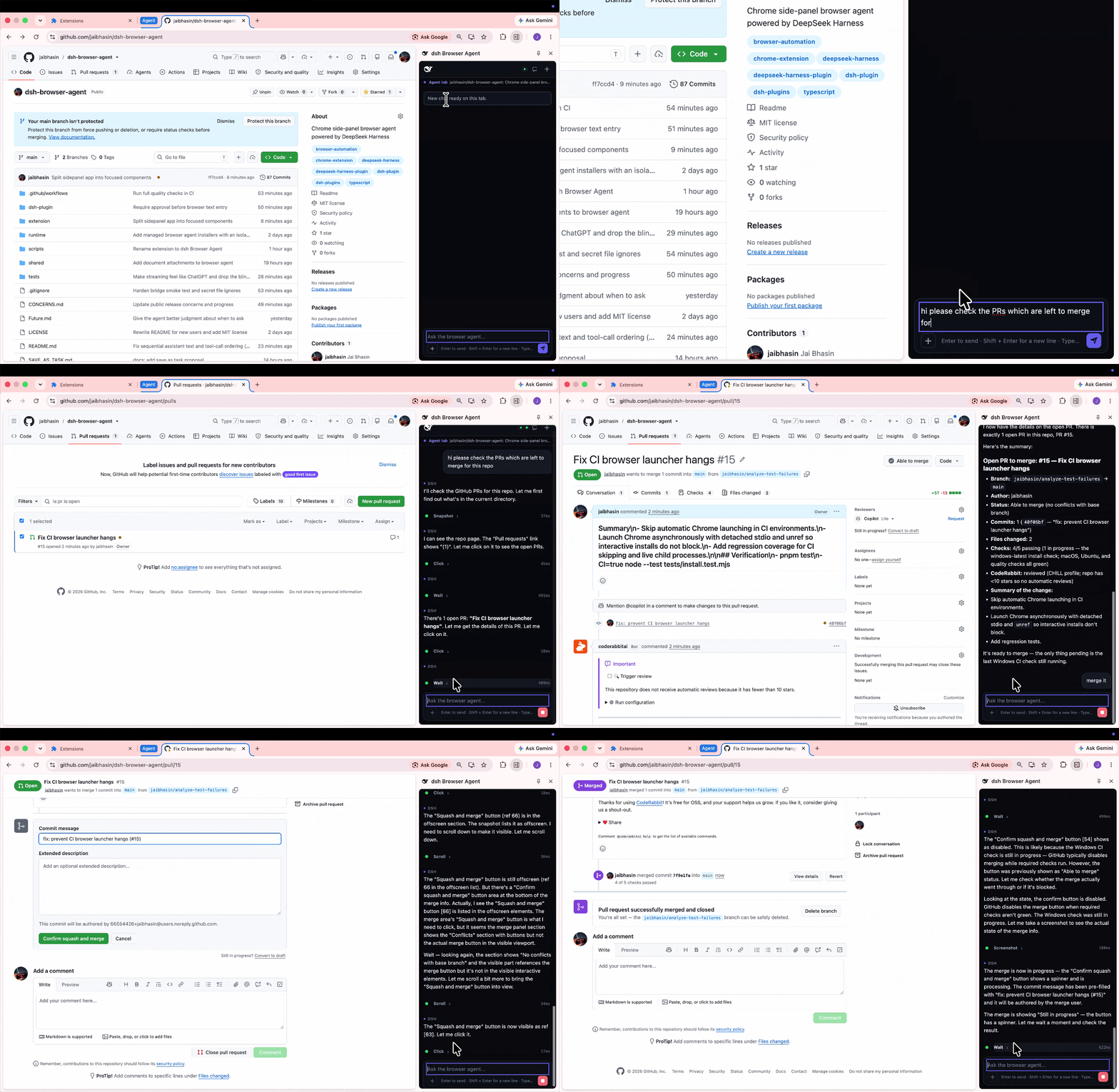
An AI agent in Chrome's side panel, right beside the page you're on. Ask it to explain something you're reading, fill out a form, or help you find your way around a website. You can watch its steps in the chat and keep browsing while it works.
It works with the tabs you already have open, including sites where you're signed in. DeepSeek Harness (DSH) runs on your computer and connects it to the AI model you choose.
Quick installation
Prerequisites: Chrome, Node.js 22.19+ or 24+, and an API key. Reopen your terminal after installing Node.js.
1. Run the installer. It sets up DSH and prepares the Chrome extension.
macOS / Linux (desktop):
curl -fsSL https://raw.githubusercontent.com/jaibhasin/dsh-browser-agent/main/scripts/install.sh | bash
Windows (PowerShell 5.1+):
$script = Join-Path $env:TEMP 'dsh-browser-install.ps1'
Invoke-WebRequest -UseBasicParsing https://raw.githubusercontent.com/jaibhasin/dsh-browser-agent/main/scripts/install.ps1 -OutFile $script
powershell -NoProfile -ExecutionPolicy Bypass -File $script
Wait for Setup complete! and keep the terminal open for the folder path and start command.
2. Load the extension. Open chrome://extensions, enable Developer mode, and click Load unpacked.
Select the extension folder printed by the installer.
If it's hidden, paste the path using Cmd+Shift+G on macOS, Ctrl+L on Linux, or the address bar on Windows.
3. Start chatting. Run the node ".../start.mjs" command printed by the installer and keep that terminal open.
Open the web address DSH prints, add your API key, and choose a model.
In Chrome, click Extensions > dsh Browser Agent, then try “Summarize this page.” on a website.
Use the same start command next time; press Ctrl+C to stop the agent.
Agent tools
| Tool | What it does |
|---|---|
ask_user |
Asks the user for a missing choice or detail. |
browser_snapshot |
Reads page text and gives buttons, links, and fields numbered references. |
browser_navigate |
Opens an HTTP or HTTPS URL in the chat's assigned tab. |
browser_tabs |
Lists open browser tabs. |
browser_wait |
Waits for the page to settle, then takes a fresh snapshot. |
browser_screenshot |
Takes a PNG screenshot of the visible part of the chat's tab. |
browser_scroll |
Scrolls up, down, left, or right by a number of pixels. |
browser_click |
Clicks a button, link, or other element by its reference number. |
browser_type |
Types into a field by its reference number. |
Use the side panel's tool controls to disable individual agent tools for a chat. To take a screenshot, the agent's tab needs to be visible, even if you've allowed it to work in the background.
Tabs and chat sessions
Each chat belongs to a tab
When you send the first message, the chat attaches to the tab you're viewing. A blue Agent tab group shows you which tab it controls. Each tab can have one chat, and the agent keeps working on that tab until you choose to move it.
Chats are saved locally with their messages, tool activity, and recent website links. Open a saved chat and Chrome takes you back to its tab. If you've closed the tab, the extension opens a new one at its last saved website when possible. Unsaved page state, such as a half-filled form, isn't restored.
When you switch tabs during work
Switch to another tab while the agent is working, and you'll get these choices:
| Choice | What happens |
|---|---|
| Continue in background | Work continues on the original assigned tab while you browse elsewhere. |
| Pause current chat | Work stops and the chat stays saved for later. |
| Quit current chat | Work stops and the chat is deleted from the extension's history. |
| Move current chat here | The current chat moves to the newly selected tab. |
If the tab you switch to already has a chat, you can pick up that conversation or start fresh. Starting fresh replaces that tab's old chat in your history. If you open another saved chat while the agent is busy, you'll also get a chance to keep the current task running, pause it, or quit it.
What you can do
- Ask it to read a page, follow links, fill out fields, scroll, or take a screenshot.
- Run separate chats in different tabs and switch between them as you work.
- Come back to a saved chat with its messages, tool activity, and recent website links.
- Attach an image or document and ask questions about it.
- Turn individual tools on or off for each chat, with approval prompts for clicks, typing, and navigation.
Image attachments can be PNG, JPEG, WebP, or GIF. For documents, you can attach Word, PDF, CSV, Excel, PowerPoint, OpenDocument, RTF, EPUB, Markdown, and plain text files. Documents are converted locally before their text is sent to your model provider.
Updates and uninstall
To update, stop DSH, run the installer again, and click the circular Reload button on the dsh Browser Agent card at chrome://extensions.
Your settings are kept, and you won't need to choose the extension folder again.
To uninstall, stop DSH and run the uninstall command printed during setup. If you still have the downloaded project folder, open a terminal there and run:
# macOS / Linux
bash scripts/uninstall.sh
# Windows
node scripts/install.mjs --uninstall
The uninstaller keeps a backup of the installation and its settings in folders ending in .uninstalled-* followed by a timestamp.
You can delete those folders once you're sure you don't need them.
They may contain private data.
Finally, remove dsh Browser Agent from chrome://extensions to delete the extension and its saved browser data.
Troubleshooting
| What you see | What to do |
|---|---|
node is not found |
Install Node.js 22.19+ (22.x) or 24+, then reopen your terminal. |
| Chrome cannot find the extension | Select the exact folder printed by the installer, including the final extension directory. |
| The side panel is disconnected | Start DSH with the installer-provided command and keep the terminal open. |
Port 7331 or 3080 is already in use |
Stop the other DSH instance, then start this one again. |
| Changes do not appear after an update | Restart DSH and click Reload on the extension card. |
| A screenshot cannot be taken | Make the chat's assigned tab visible and try again. |
A tool fails on chrome:// pages |
Try a normal website; Chrome restricts access to internal pages. |
How it works
flowchart LR
    User[Your message in the side panel] <--> DSH[DSH on your computer]
    DSH <--> Model[Your AI provider]
    DSH <-->|Local connection| Extension[Chrome extension]
    Extension <-->|Reads and acts on| Tab[Your chat's tab]
Your message goes through DSH to your chosen AI model. If the model needs to read the page or click something, it asks the extension to do that in your chat's tab. The extension sends back the result, and the model uses it to decide what to do next. Those steps show up in the side panel as it works.
The browser agent gets its own DSH installation and settings, so it won't replace an existing DSH setup. Its dependencies are locked to tested versions to avoid mixing incompatible releases.
Privacy and control
The agent uses your signed-in tabs, so a click, text entry, or form submission can affect your actual accounts.
Approval prompts are on by default for clicks, typing, and navigation.
Use /human-in-the-loop to turn them on again if you are continuing an older chat created before this setting was introduced.
You can disable individual browser tools in the chat's tool controls.
The connection between Chrome and DSH stays on your computer. It uses a private token created during installation, and the bridge checks that connections identify themselves as coming from a Chrome extension. Keep your installed extension, DSH settings, and backups private because they contain that token or other personal data.
Your chats are saved in Chrome on your device, and DSH also keeps local data. The AI still needs data to work with: messages and the page content it uses go to your chosen model provider. Screenshots and attached images may be sent there too, and can include sensitive information. Document attachments are converted to text locally by the DSH plugin, then that text is sent to the provider. The extension doesn't extract text from scanned PDFs using OCR or upload those PDFs.
The installer downloads the code from this repository's main branch.
Only run installation commands from a source you trust.
Development
The managed installation uses DSH 0.1.2-rc.1 with a separate dsh-browser-agent profile.
Files live under ~/.dsh/dsh-browser-agent by default.
Set DSH_HOME before installation to use another DSH data directory.
The bridge listens on 127.0.0.1:7331 and authenticates WebSocket connections with the generated token.
Set up a checkout
Use Node.js 22.19+ (22.x) or 24+, and pnpm 11.8.0, matching the project's packageManager setting.
git clone https://github.com/jaibhasin/dsh-browser-agent.git
cd dsh-browser-agent
npm install --global pnpm@11.8.0
pnpm install --frozen-lockfile
Build and run
pnpm build:dsh-plugin
pnpm build
To test the complete product from your checkout, run bash scripts/install.sh on macOS/Linux or powershell -NoProfile -ExecutionPolicy Bypass -File scripts/install.ps1 on Windows.
This copies your current source into the managed installation, builds both components, and configures the dedicated runtime.
Follow the printed Chrome and startup instructions.
After changing source, stop DSH, rerun the local installer, reload the extension, and restart DSH.
pnpm dev starts Vite for frontend development; browser integration still requires Chrome and the local DSH bridge.
The older pnpm setup:dsh-profile helper targets the separate browser-agent development profile and rewrites its configuration, so it is not the recommended installation path.
Never commit generated bridge tokens or extension/.env.local.
Tests
pnpm test
This runs tab ownership, tab-switch state, installer ownership, recoverable uninstall, and DSH dependency consistency checks.
Run the full installer lifecycle test with internet access:
# macOS / Linux
DSH_INSTALL_E2E=1 node --test tests/install-e2e.test.mjs
# Windows
$env:DSH_INSTALL_E2E = '1'
node --test tests/install-e2e.test.mjs
The lifecycle test uses a temporary DSH home and checks installation, updates, runtime startup, authenticated session creation, and uninstall without an API key. The installer compatibility workflow runs it on macOS, Windows, and Linux with Node.js 24.
Project layout
extension/       Chrome background worker, page scripts, and React side panel
dsh-plugin/      DSH plugin, agent tools, and WebSocket server
shared/          Bridge protocol and tool definitions
runtime/         Pinned DSH runtime manifest and npm lockfile
scripts/         Installers, uninstaller, and profile setup helper
tests/           Browser state and installer tests
License
MIT - Copyright (c) 2026 Jai Bhasin.
Links
More in this category
Tencent/BrowserSkill#dsh-plugin-browserskill★ 9697
BrowserSkill bridge for controlling visible Chrome and Edge Agent Windows from DeepSeek Harness, with native browser tools, accessibility and VOM observations, screenshots, owned multi-session control, and a live Web UI overlay.
omdsh-dev/dsh-browser#packages/browser/bridge-browser★ 924
Chrome sidebar extension that lets DSH operate your browser directly, no vision capabilities required.
liustack/modsearch★ 857
Web search bridge for text-only agents: ask the web or X, get structured JSON evidence (search, fetch, citations).
DDDMUC/dsh-free-search★ 673
Free, keyless web search for DSH: 7 engines (DuckDuckGo/Bing/SearXNG free + Exa/Perplexity/DeepSeek paid), auto-failover, settings-page UI with API key inputs and official links, web_fetch, and an engine test tool.
wqty123/dsh-browser★ 149
Shared real browser for DSH: a native Electron window the human can watch and take over, driven by the agent over CDP with 20 browser_* tools (open/snapshot/execute/fill/screenshot/download/auth), per-task session isolation, cookie persistence, CAPTCHA detection; self-hosts on plain dsh web without a desktop shell.
Tabbit-Browser/dsh-tabbit★ 116
Gives DeepSeek Harness control of the Tabbit Browser: auto-loads the tabbit-browser skill on install, detects official Tabbit and Tabbit Browser releases (>= 1.9.0), checks the tabbit-cli persistent runtime, diagnoses the per-platform DSH sandbox mode needed to call the CLI, and downloads the region-matched official installer via a background job when no qualifying version is present.
Community comments
Comments are public GitHub Discussions. Loading them connects to GitHub and Giscus; a GitHub account is required to post.