DeepSeek Harness 的 Chrome 侧边栏浏览代理,通过本地桥接提供页面读取、导航、点击、输入、滚动和截图工具。
安装
# GitHub 源码(首次需按提示配置 allowBuilds 构建授权后重试)
dsh plugin --profile web add github:jaibhasin/dsh-browser-agent#path:/dsh-plugin
装任何插件都等于在你的机器上跑第三方代码,权限和你本人一样大——能读你的文件、用你的凭据、访问网络,工具审批管不到它。GitHub 来源的插件还会在安装时执行构建脚本——pnpm 默认拦截,所以安装可能停在 ERR_PNPM_GIT_DEP_PREPARE_NOT_ALLOWED 或 ERR_PNPM_IGNORED_BUILDS;dsh 会打印出需要添加的确切键名,把它加进该 profile 的 pnpm-workspace.yaml 的 allowBuilds 下,重跑一次即可装上。放行构建本身就是一次信任判断:请只安装可信来源,并尽量锁定 commit(github:owner/repo#sha)。
README
该插件的 README 只有英文版本。
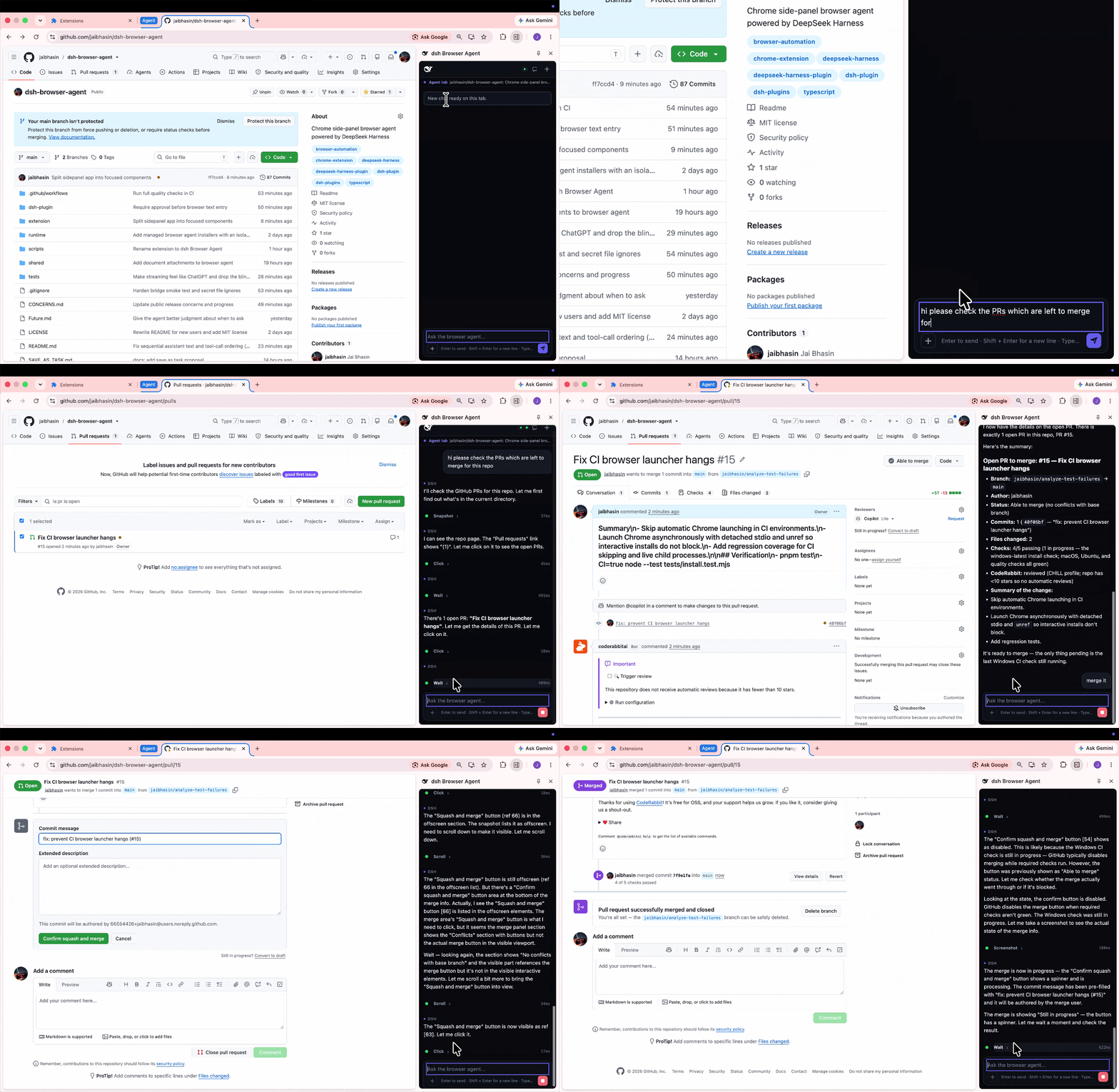
An AI agent in Chrome's side panel, right beside the page you're on. Ask it to explain something you're reading, fill out a form, or help you find your way around a website. You can watch its steps in the chat and keep browsing while it works.
It works with the tabs you already have open, including sites where you're signed in. DeepSeek Harness (DSH) runs on your computer and connects it to the AI model you choose.
Quick installation
Prerequisites: Chrome, Node.js 22.19+ or 24+, and an API key. Reopen your terminal after installing Node.js.
1. Run the installer. It sets up DSH and prepares the Chrome extension.
macOS / Linux (desktop):
curl -fsSL https://raw.githubusercontent.com/jaibhasin/dsh-browser-agent/main/scripts/install.sh | bash
Windows (PowerShell 5.1+):
$script = Join-Path $env:TEMP 'dsh-browser-install.ps1'
Invoke-WebRequest -UseBasicParsing https://raw.githubusercontent.com/jaibhasin/dsh-browser-agent/main/scripts/install.ps1 -OutFile $script
powershell -NoProfile -ExecutionPolicy Bypass -File $script
Wait for Setup complete! and keep the terminal open for the folder path and start command.
2. Load the extension. Open chrome://extensions, enable Developer mode, and click Load unpacked.
Select the extension folder printed by the installer.
If it's hidden, paste the path using Cmd+Shift+G on macOS, Ctrl+L on Linux, or the address bar on Windows.
3. Start chatting. Run the node ".../start.mjs" command printed by the installer and keep that terminal open.
Open the web address DSH prints, add your API key, and choose a model.
In Chrome, click Extensions > dsh Browser Agent, then try “Summarize this page.” on a website.
Use the same start command next time; press Ctrl+C to stop the agent.
Agent tools
| Tool | What it does |
|---|---|
ask_user |
Asks the user for a missing choice or detail. |
browser_snapshot |
Reads page text and gives buttons, links, and fields numbered references. |
browser_navigate |
Opens an HTTP or HTTPS URL in the chat's assigned tab. |
browser_tabs |
Lists open browser tabs. |
browser_wait |
Waits for the page to settle, then takes a fresh snapshot. |
browser_screenshot |
Takes a PNG screenshot of the visible part of the chat's tab. |
browser_scroll |
Scrolls up, down, left, or right by a number of pixels. |
browser_click |
Clicks a button, link, or other element by its reference number. |
browser_type |
Types into a field by its reference number. |
Use the side panel's tool controls to disable individual agent tools for a chat. To take a screenshot, the agent's tab needs to be visible, even if you've allowed it to work in the background.
Tabs and chat sessions
Each chat belongs to a tab
When you send the first message, the chat attaches to the tab you're viewing. A blue Agent tab group shows you which tab it controls. Each tab can have one chat, and the agent keeps working on that tab until you choose to move it.
Chats are saved locally with their messages, tool activity, and recent website links. Open a saved chat and Chrome takes you back to its tab. If you've closed the tab, the extension opens a new one at its last saved website when possible. Unsaved page state, such as a half-filled form, isn't restored.
When you switch tabs during work
Switch to another tab while the agent is working, and you'll get these choices:
| Choice | What happens |
|---|---|
| Continue in background | Work continues on the original assigned tab while you browse elsewhere. |
| Pause current chat | Work stops and the chat stays saved for later. |
| Quit current chat | Work stops and the chat is deleted from the extension's history. |
| Move current chat here | The current chat moves to the newly selected tab. |
If the tab you switch to already has a chat, you can pick up that conversation or start fresh. Starting fresh replaces that tab's old chat in your history. If you open another saved chat while the agent is busy, you'll also get a chance to keep the current task running, pause it, or quit it.
What you can do
- Ask it to read a page, follow links, fill out fields, scroll, or take a screenshot.
- Run separate chats in different tabs and switch between them as you work.
- Come back to a saved chat with its messages, tool activity, and recent website links.
- Attach an image or document and ask questions about it.
- Turn individual tools on or off for each chat, with approval prompts for clicks, typing, and navigation.
Image attachments can be PNG, JPEG, WebP, or GIF. For documents, you can attach Word, PDF, CSV, Excel, PowerPoint, OpenDocument, RTF, EPUB, Markdown, and plain text files. Documents are converted locally before their text is sent to your model provider.
Updates and uninstall
To update, stop DSH, run the installer again, and click the circular Reload button on the dsh Browser Agent card at chrome://extensions.
Your settings are kept, and you won't need to choose the extension folder again.
To uninstall, stop DSH and run the uninstall command printed during setup. If you still have the downloaded project folder, open a terminal there and run:
# macOS / Linux
bash scripts/uninstall.sh
# Windows
node scripts/install.mjs --uninstall
The uninstaller keeps a backup of the installation and its settings in folders ending in .uninstalled-* followed by a timestamp.
You can delete those folders once you're sure you don't need them.
They may contain private data.
Finally, remove dsh Browser Agent from chrome://extensions to delete the extension and its saved browser data.
Troubleshooting
| What you see | What to do |
|---|---|
node is not found |
Install Node.js 22.19+ (22.x) or 24+, then reopen your terminal. |
| Chrome cannot find the extension | Select the exact folder printed by the installer, including the final extension directory. |
| The side panel is disconnected | Start DSH with the installer-provided command and keep the terminal open. |
Port 7331 or 3080 is already in use |
Stop the other DSH instance, then start this one again. |
| Changes do not appear after an update | Restart DSH and click Reload on the extension card. |
| A screenshot cannot be taken | Make the chat's assigned tab visible and try again. |
A tool fails on chrome:// pages |
Try a normal website; Chrome restricts access to internal pages. |
How it works
flowchart LR
    User[Your message in the side panel] <--> DSH[DSH on your computer]
    DSH <--> Model[Your AI provider]
    DSH <-->|Local connection| Extension[Chrome extension]
    Extension <-->|Reads and acts on| Tab[Your chat's tab]
Your message goes through DSH to your chosen AI model. If the model needs to read the page or click something, it asks the extension to do that in your chat's tab. The extension sends back the result, and the model uses it to decide what to do next. Those steps show up in the side panel as it works.
The browser agent gets its own DSH installation and settings, so it won't replace an existing DSH setup. Its dependencies are locked to tested versions to avoid mixing incompatible releases.
Privacy and control
The agent uses your signed-in tabs, so a click, text entry, or form submission can affect your actual accounts.
Approval prompts are on by default for clicks, typing, and navigation.
Use /human-in-the-loop to turn them on again if you are continuing an older chat created before this setting was introduced.
You can disable individual browser tools in the chat's tool controls.
The connection between Chrome and DSH stays on your computer. It uses a private token created during installation, and the bridge checks that connections identify themselves as coming from a Chrome extension. Keep your installed extension, DSH settings, and backups private because they contain that token or other personal data.
Your chats are saved in Chrome on your device, and DSH also keeps local data. The AI still needs data to work with: messages and the page content it uses go to your chosen model provider. Screenshots and attached images may be sent there too, and can include sensitive information. Document attachments are converted to text locally by the DSH plugin, then that text is sent to the provider. The extension doesn't extract text from scanned PDFs using OCR or upload those PDFs.
The installer downloads the code from this repository's main branch.
Only run installation commands from a source you trust.
Development
The managed installation uses DSH 0.1.2-rc.1 with a separate dsh-browser-agent profile.
Files live under ~/.dsh/dsh-browser-agent by default.
Set DSH_HOME before installation to use another DSH data directory.
The bridge listens on 127.0.0.1:7331 and authenticates WebSocket connections with the generated token.
Set up a checkout
Use Node.js 22.19+ (22.x) or 24+, and pnpm 11.8.0, matching the project's packageManager setting.
git clone https://github.com/jaibhasin/dsh-browser-agent.git
cd dsh-browser-agent
npm install --global pnpm@11.8.0
pnpm install --frozen-lockfile
Build and run
pnpm build:dsh-plugin
pnpm build
To test the complete product from your checkout, run bash scripts/install.sh on macOS/Linux or powershell -NoProfile -ExecutionPolicy Bypass -File scripts/install.ps1 on Windows.
This copies your current source into the managed installation, builds both components, and configures the dedicated runtime.
Follow the printed Chrome and startup instructions.
After changing source, stop DSH, rerun the local installer, reload the extension, and restart DSH.
pnpm dev starts Vite for frontend development; browser integration still requires Chrome and the local DSH bridge.
The older pnpm setup:dsh-profile helper targets the separate browser-agent development profile and rewrites its configuration, so it is not the recommended installation path.
Never commit generated bridge tokens or extension/.env.local.
Tests
pnpm test
This runs tab ownership, tab-switch state, installer ownership, recoverable uninstall, and DSH dependency consistency checks.
Run the full installer lifecycle test with internet access:
# macOS / Linux
DSH_INSTALL_E2E=1 node --test tests/install-e2e.test.mjs
# Windows
$env:DSH_INSTALL_E2E = '1'
node --test tests/install-e2e.test.mjs
The lifecycle test uses a temporary DSH home and checks installation, updates, runtime startup, authenticated session creation, and uninstall without an API key. The installer compatibility workflow runs it on macOS, Windows, and Linux with Node.js 24.
Project layout
extension/       Chrome background worker, page scripts, and React side panel
dsh-plugin/      DSH plugin, agent tools, and WebSocket server
shared/          Bridge protocol and tool definitions
runtime/         Pinned DSH runtime manifest and npm lockfile
scripts/         Installers, uninstaller, and profile setup helper
tests/           Browser state and installer tests
License
MIT - Copyright (c) 2026 Jai Bhasin.
链接
同类插件
Tencent/BrowserSkill#dsh-plugin-browserskill★ 9697
BrowserSkill 的 DeepSeek Harness 浏览器自动化桥接插件,通过原生浏览器工具控制可见的 Chrome 和 Edge Agent Window,支持可访问性与 VOM 页面观察、截图、隔离的多会话控制和 Web UI 实时观察浮层。
omdsh-dev/dsh-browser#packages/browser/bridge-browser★ 924
Chrome 侧边栏扩展,让 DSH 直接操控你的浏览器,无需视觉能力。
liustack/modsearch★ 857
纯文本 agent 的联网搜索桥:搜索网页与 X,返回结构化 JSON 证据(search/fetch/引用)。
DDDMUC/dsh-free-search★ 673
DSH 免费搜索插件:7 个引擎(DuckDuckGo/Bing/SearXNG 免费 + Exa/Perplexity/DeepSeek 付费)、自动回退、设置页 UI(API key 输入 + 官网链接)、web_fetch、引擎测试工具。
wqty123/dsh-browser★ 149
共享真实浏览器:用户可观看并随时接管的原生 Electron 窗口,agent 通过 CDP 驱动,内置 20 个 browser_* 工具(打开/快照/执行/填表/截图/下载/登录态);任务级会话隔离、登录态持久化、人机验证识别,纯 `dsh web` 无需桌面外壳即可自托管。
Tabbit-Browser/dsh-tabbit★ 116
让 DeepSeek Harness 能够控制 Tabbit 浏览器:安装即自动加载 tabbit-browser skill,检测国际版 Tabbit 与国内版 Tabbit Browser 正式版(>= 1.9.0),检查 tabbit-cli 常驻运行时,按平台诊断调用 CLI 所需的 DSH sandbox 模式,并在没有合格版本时通过后台任务下载与系统地区匹配的正式版安装包。
社区评论
评论公开保存在 GitHub Discussions。加载评论会连接 GitHub 和 Giscus;发表内容需要 GitHub 账号。