Voice conversation mode for the DSH Web GUI: tap the mic to start a full-screen call, talk hands-free, and hear each reply read aloud as it streams. Bilingual (Chinese/English) UI, light and dark themes, adjustable speech rate, and switchable voices.
Install
# from npm (prebuilt)
dsh plugin --profile web add dsh-voice-talk
# from GitHub (first run asks for allowBuilds approval — follow the hint, retry)
dsh plugin --profile web add github:duoduoqian708/dsh-voice-talk
Any plugin you install runs third-party code with your own permissions — it can read your files, use your credentials, and reach the network, and tool approvals don’t sandbox it. GitHub-sourced plugins also run build scripts at install time — pnpm blocks those until you allow them, so an install can stop with ERR_PNPM_GIT_DEP_PREPARE_NOT_ALLOWED or ERR_PNPM_IGNORED_BUILDS; dsh prints the exact key to add under allowBuilds in your profile’s pnpm-workspace.yaml, and the install works on the next run. Allowing a build is a trust decision: only install sources you trust, and pin a commit (github:owner/repo#sha).
README
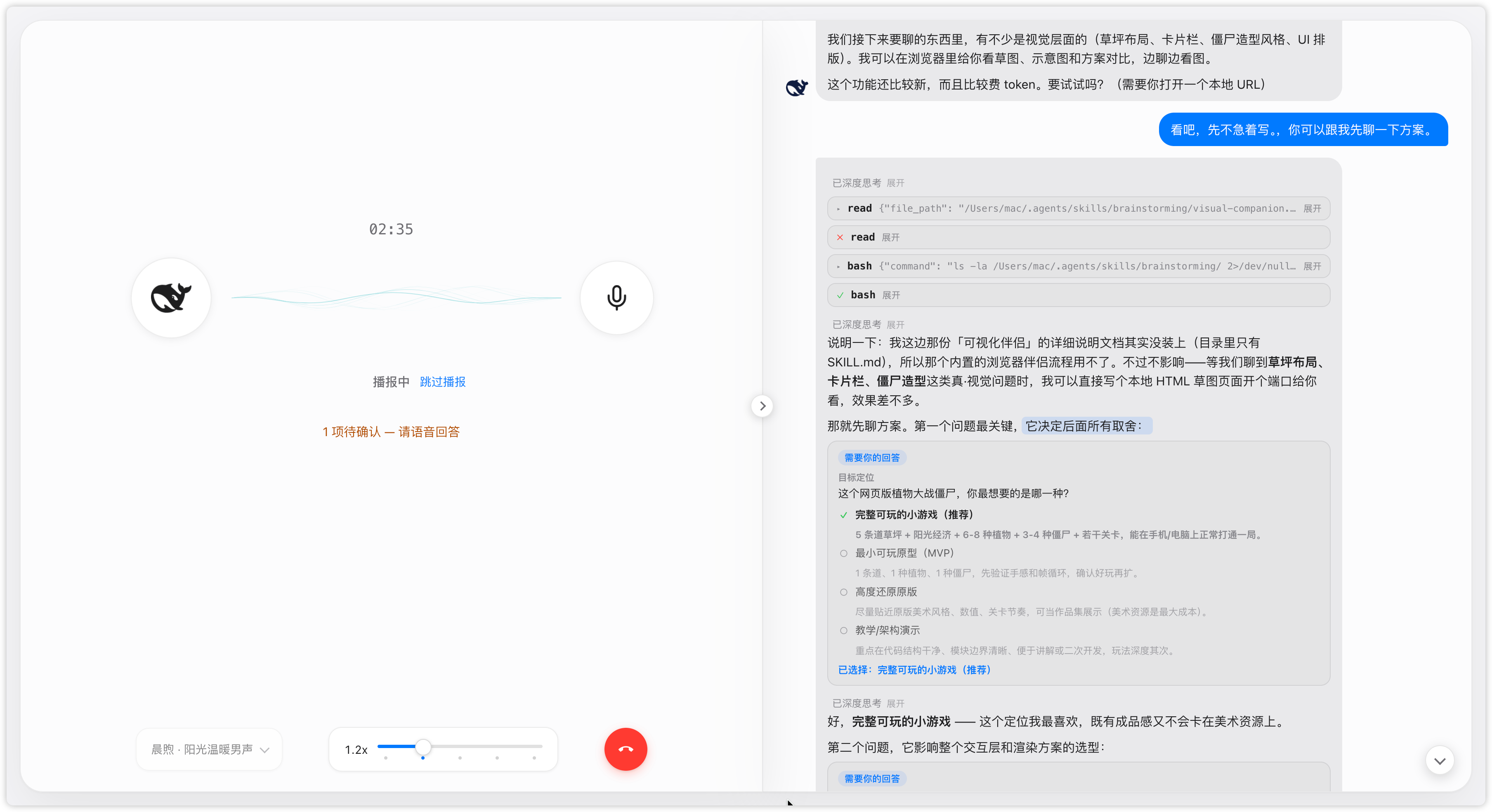
Voice chat mode for DSH Web: tap the mic to enter a full-screen call, speak and listen as you go, and replies are read aloud as they stream. Bilingual UI, light/dark theme aware, with speech-rate and voice controls.
English | 中文
Quick start
1. Install
dsh plugin --profile web add dsh-voice-talk
dsh web   # restart after install
Install from source:
git clone https://github.com/duoduoqian708/dsh-voice-talk.git
cd dsh-voice-talk && npm install && npm run build
dsh plugin --profile web add /path/to/dsh-voice-talk
Requires the dsh web profile: 0.1.0-rc.7+ (both the 0.1.0-rc.x and 0.1.5-rc.x host lines are supported); Chrome / Edge, microphone permission and a network connection are also needed.
2. Configure voice
Speech playback defaults to the system voice, free of charge: voice and rate are both adjustable — pick a voice that suits you and tune the rate, and it sounds great. For a more natural timbre, switch to Qwen (usage-based, ≈¥1 per 10k chars).
Speech recognition needs a cloud engine: get an API Key from Alibaba Cloud Model Studio, then paste it into Qwen's "Settings" under Settings → Plugins → Voice chat; the model and endpoint are built in.
3. Start talking
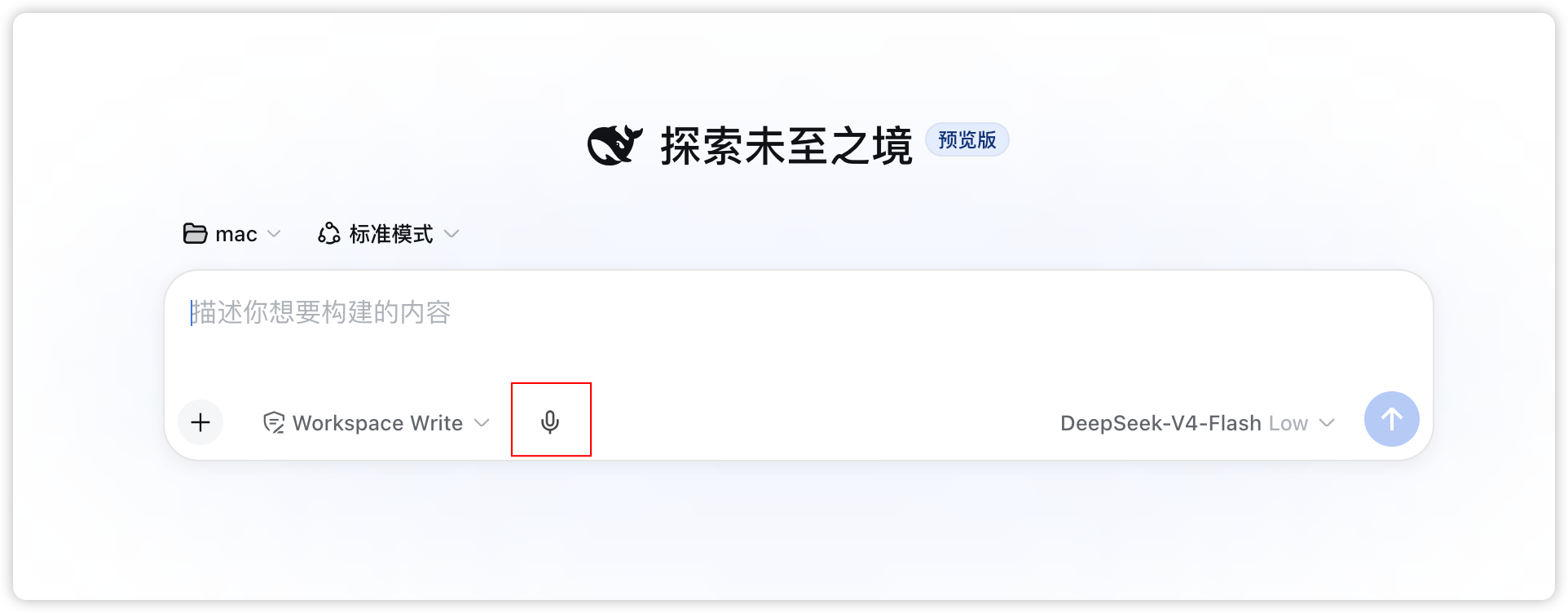
There is a mic icon next to the input box on the conversation page or workspace; tap it to enter the full-screen call and just start speaking. The red hang-up button or Esc exits; you can mute or collapse the panel mid-call.
Settings
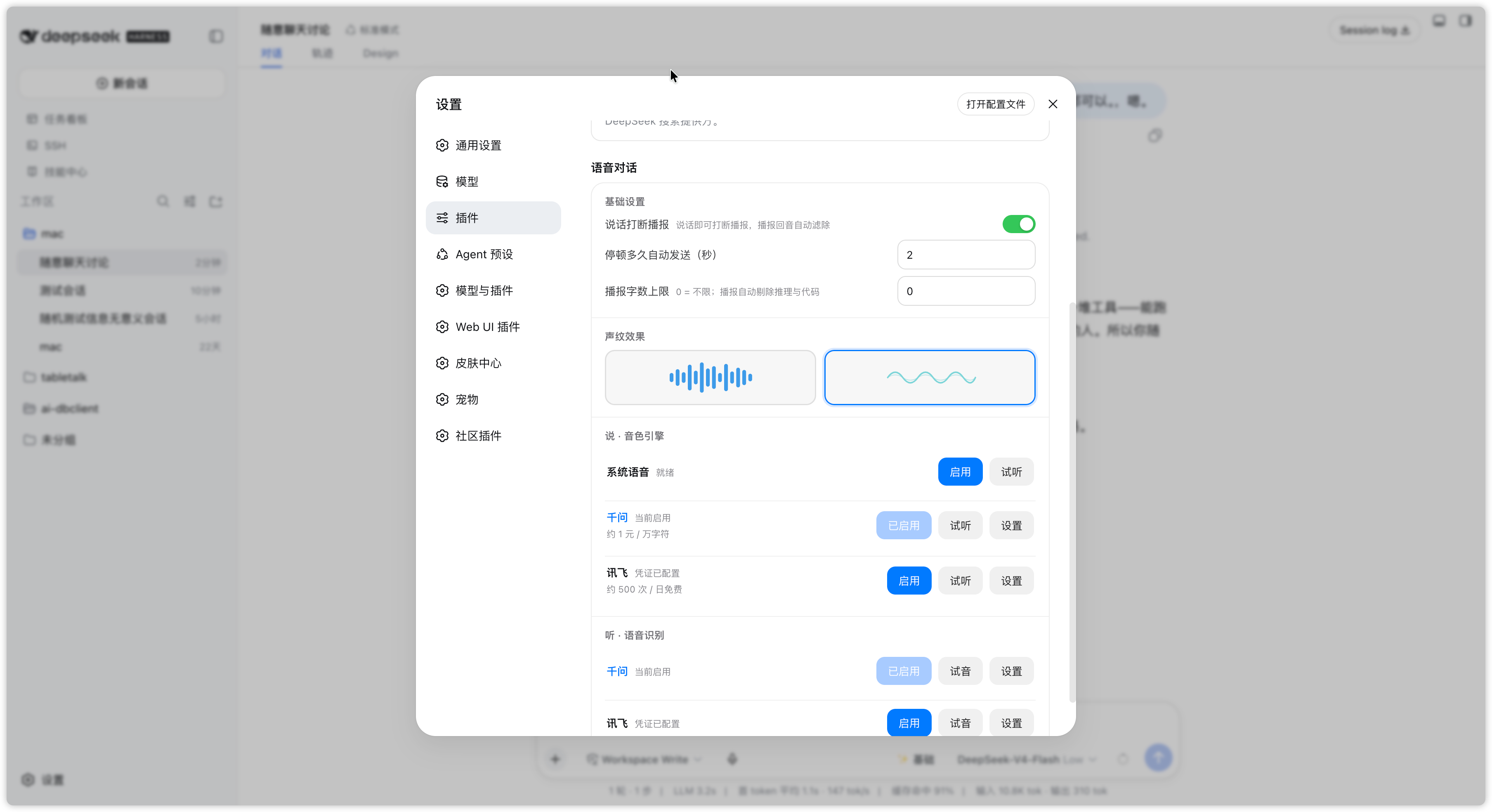
Changes on the settings page are persistent defaults; changes made in the call overlay apply to the current call only.
| Setting | Description | Default |
|---|---|---|
| Barge-in while speaking | Interrupt the readout by speaking; headphones recommended | Off |
| Auto-send after a pause (s) | How long a pause submits the utterance | 2 |
| Voice wave | Call-overlay waveform style: equalizer / ripple | Ripple |
| Rate | Readout speed, default per engine, adjustable per session | 1.0x |
Highlights
- Follows the system theme: light / dark out of the box.
- Bilingual UI (Chinese / English): follows the platform language setting.
- Keys stay on your machine and are never uploaded: the browser never sees them, and speech requests are proxied by the host.
- Open source under MIT: auditable and self-hostable.
Easter egg
Suppose you would rather not stare at a screen and feel like getting outdoors; suppose you happen to have a proxy port open — then take your phone out for a walk and talk through your development while strolling.
Feedback
Found a bug or have an idea? Reach us either way:
- Open a GitHub issue (preferred, easiest to track and fix)
- Comment on the plugin's card in the marketplace (shared with the plugin's discussion thread)
License
Links
More in this category
Yuuyuko-uu/dsh-tts-bridge★ 158
Reads DSH conversations aloud using the DeepSeek web page's built-in read-aloud, driven by a small browser extension.
PolinniZhong/dsh-omi-voice★ 75
In-chat read-aloud for DeepSeek Harness: tap to read, pause and resume AI replies with natural Doubao TTS voices (BYOK), reading only the final answer with code, tables and diagrams filtered; local engine, plugin keeps no API key.
1624318455/dsh-plugin-tts★ 44
Reads assistant replies aloud via free Edge TTS or your own RVC voice models: read-aloud buttons + auto-read, adaptive chunked progressive playback (gapless long reads), one-click voice-pack installs from a registry, and a portable RVC runtime.
beiyege-01/dsh-voice-ai-girlfriend-plugin★ 44
Voice AI girlfriend for the Web UI: FunASR mic input, Qwen3-TTS spoken replies, companion animation window, and two-way QQ chat (text/voice/image push) via NapCat.
PensiveFei/dsh-voice-scribe★ 35
Voice input for the web UI: tap Alt (or Alt+Space) to start/stop dictation, browser Web Speech (zero-config) or OpenAI-compatible cloud ASR, optional polish through DSH-configured LLM, settings UI.
ppy-web/dsh-plugin-xiaomi-mimo-tts★ 35
Adds Xiaomi MiMo, Doubao, and browser text-to-speech to DSH, with automatic read-aloud, custom voices, and optional UI sound effects.
Community comments
Comments are public GitHub Discussions. Loading them connects to GitHub and Giscus; a GitHub account is required to post.