Three-pane workspace layout with file-tree browsing, file editing, a non-linear conversation mindmap view, and mobile mode support.
Install
# from GitHub (first run asks for allowBuilds approval — follow the hint, retry)
dsh plugin --profile web add github:yishengjun8/dsh-workspace-studio
Any plugin you install runs third-party code with your own permissions — it can read your files, use your credentials, and reach the network, and tool approvals don’t sandbox it. GitHub-sourced plugins also run build scripts at install time — pnpm blocks those until you allow them, so an install can stop with ERR_PNPM_GIT_DEP_PREPARE_NOT_ALLOWED or ERR_PNPM_IGNORED_BUILDS; dsh prints the exact key to add under allowBuilds in your profile’s pnpm-workspace.yaml, and the install works on the next run. Allowing a build is a trust decision: only install sources you trust, and pin a commit (github:owner/repo#sha).
README
English | 中文
This bundle replaces the DeepSeek Harness Web root layout with three panes from left to right: a left sidebar (session/workspace selector + file-tree view switch) · a highlighted file view and guarded editor · chat. The file browser pane sits left of the chat by default and can be moved to its right in Workspace Settings → Browsing & preview; the file tree no longer owns a pane: it is fused into the left sidebar and toggled against the session list via the buttons at the top. The session header's Mind map button enters mind-map mode anytime: the conversation branch tree opens as a tab in the preview area while the chat stays visible and usable on the right.
It preserves the existing sidebar, conversation, details, and global-overlay Slot contracts, so the built-in plugins keep owning new-session creation, session lists, settings, chat, tool details, and approvals. Tool details open as a right-side drawer over the three-pane layout instead of consuming a permanent pane.
📸 Screenshots
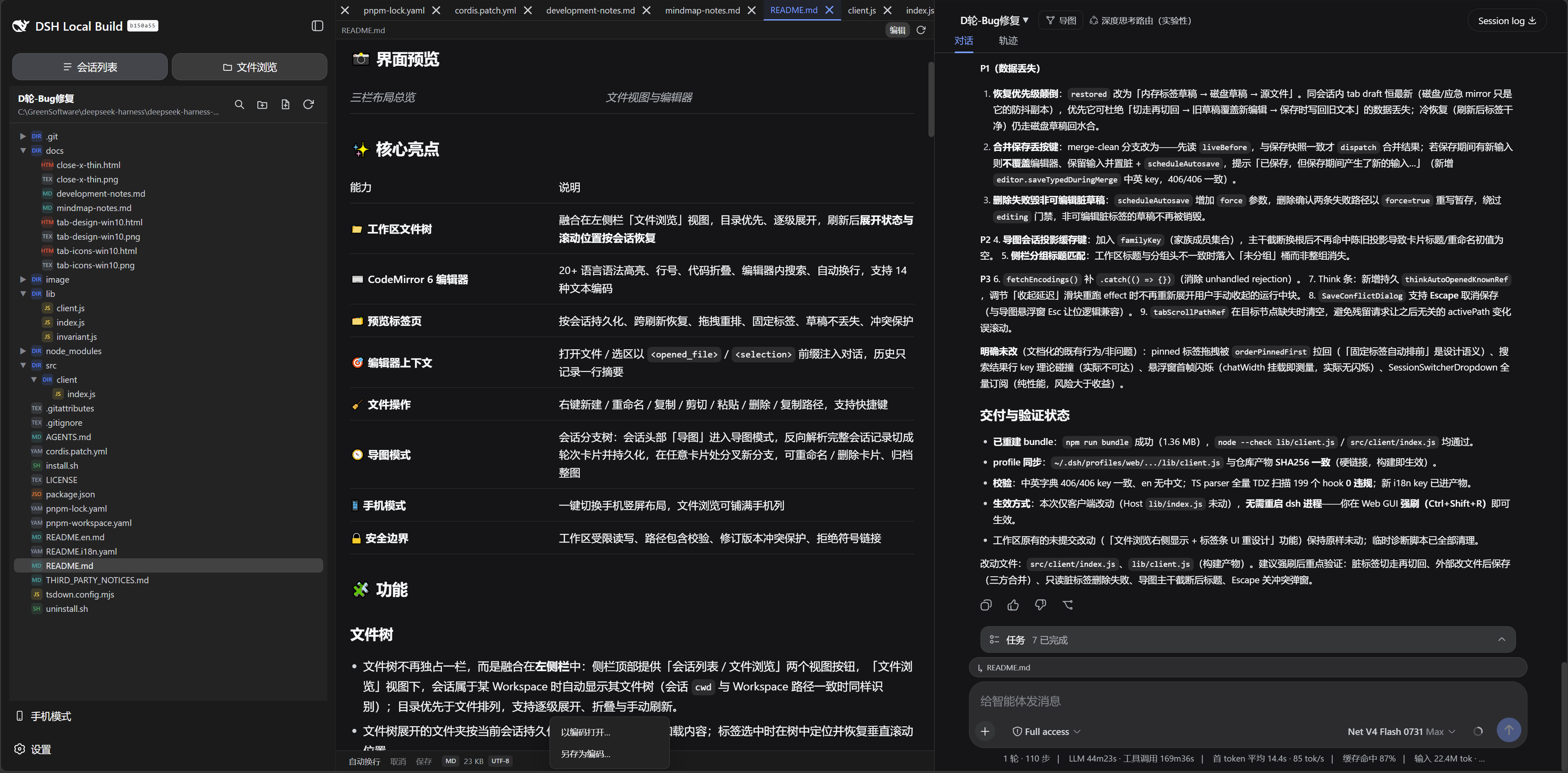 |
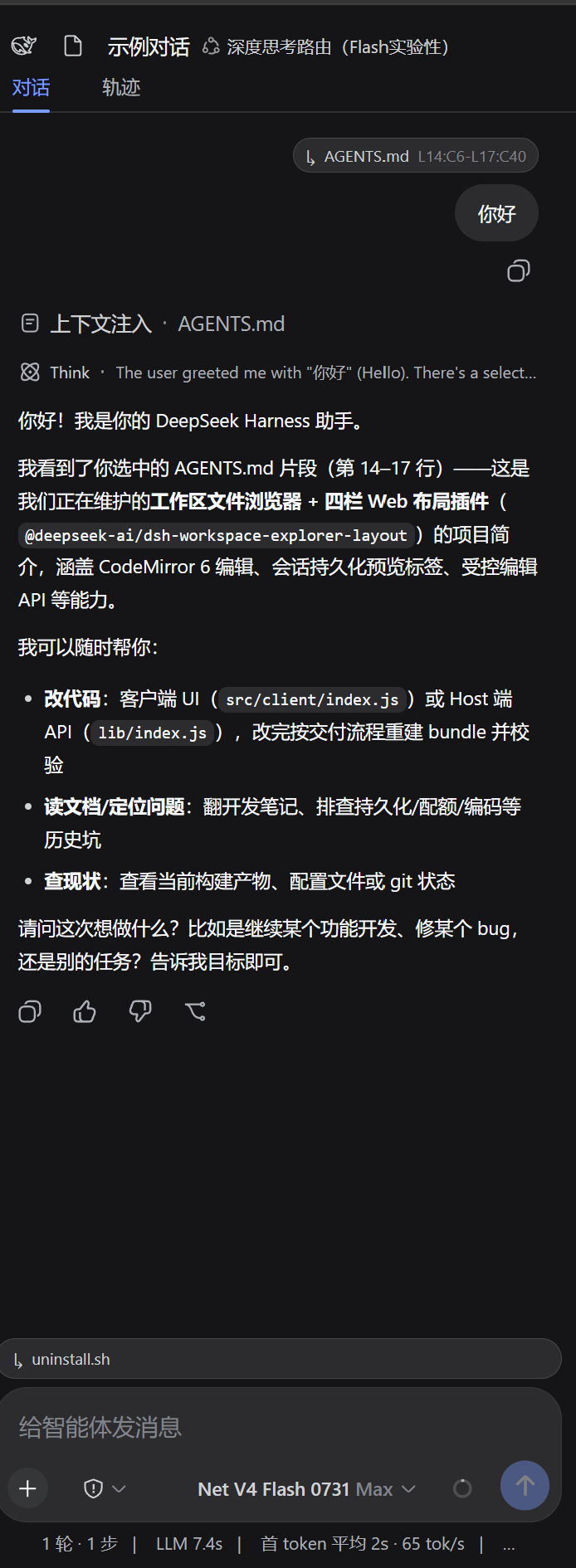 |
|---|
⭐ Four Core Capabilities
| # | Capability | What it buys you |
|---|---|---|
| 1 | 🗂️ Workspace browsing and preview tabs | Browse the workspace like an IDE next to the chat: file tree, per-session preview tabs, 14 encodings, and rendered Markdown / HTML / image / PDF / Office document views |
| 2 | ✏️ Open-and-edit built-in editor | CodeMirror 6 edits on open, every keystroke lands in a staging draft, and saving three-way merges against the disk — it never silently overwrites |
| 3 | 🧭 Conversation branch mind map | Turn one conversation line into a freely branching map: fork a new branch at any turn, manage branch sessions in one place, watch streaming output live |
| 4 | 🎯 Editor context injection | The open file or the selected code enters the conversation as <opened_file> / <selection>, so the model sees exactly what you picked |
1️⃣ Workspace Browsing and Preview Tabs
- The file tree is fused into the left sidebar, whose top row switches between Sessions / File Explorer views. The Workspace file tree appears automatically when the current Session belongs to a Workspace (also recognized when the Session
cwdequals its path), sorting directories before files, expanding incrementally, and refreshing on demand. Expanded state persists per session and comes back after a reload; the tree's scroll position is also restored after a refresh re-lists the directories (preview-tab scroll positions ride the same per-session snapshot). - Preview tabs are saved per Session: close them, drag to reorder, scroll the tab strip with the wheel, and they survive reloads. Right-click a tab to pin it (pin icon, sorts first, and Close Other Tabs only closes unpinned ones) or to open it outside the GUI (an HTML tab goes through Open the file in your browser, which lets the system default browser open the file itself; every other text file, Markdown included, still opens in a new tab). Unsaved edits show a
·after the tab label and after the filename in the preview panel title. - A single file-tree click opens a temporary tab (italic); a double-click keeps it: a single click is only a preview — clicking another file adds no tab, it swaps that italic tab for the new file in place; a double-click (or double-clicking the italic tab in the strip, pinning it, or starting to edit it) turns it into a real tab. There is at most one temporary tab at a time, a displacement never swallows unsaved work (a tab with edits is promoted first), and tabs restored after a reload are always permanent. Search results and chat file-opens keep opening permanent tabs.
- View-as menu (driven by a renderer registry, the same lineage as the Harness right-Sidebar document preview): Markdown switches between source editing / rendered preview and opens in the rendered preview by default (GFM: tables, task lists, strikethrough); HTML switches between source editing / page preview and opens in the page preview by default — the frame is given a one-shot, Host-issued token as its base URL, so the browser itself resolves every relative URL:
<img>(static and script-generated alike),srcset,video[poster], stylesheeturl(), fonts and media,<script src>/<link rel=stylesheet>, the page's ownfetch()/ XHR, and sibling HTML files; edits apply live (debounced by 400 ms). Images (png / jpg / jpeg / gif / webp / bmp / ico / svg) preview directly; read-only text files can page through the full content. The view mode resets to that file's default on a file switch and is not persisted. - PDF and Office document previews (two new renderer-registry kinds,
pdfandoffice): a.pdfis read as its own bytes through the standard workspace-files API; a.doc / .docx / .ppt / .pptx / .xls / .xlsxis handed to the Harness Host'sofficeToPdfservice, which converts it to PDF locally with LibreOffice (bounded queue, content-addressed cache, so reopening does not convert again). Both end as a blob URL given to the browser's own PDF viewer, so zoom, paging, text selection and printing all work without shipping a PDF engine in this bundle; missing fonts are listed in a banner. Such a tab is read-only like an image tab — no draft, no editor context — and a disk change re-converts it. When the Host does not mount the conversion service the tab says so instead of rendering nothing. - Encodings: 14 encodings are auto-detected (UTF-8 / UTF-8 BOM / UTF-16 LE / BE / GBK / GB18030 / Big5 / Shift_JIS / EUC-JP / EUC-KR / ISO-8859-1 / Windows-1252 / Windows-1251 / ASCII); right-click the preview header to Open With Encoding… (re-decode) or Save As Encoding… (write back), with the current encoding shown as a badge. The encoding list is authoritative from the Host
/workspace-studio/api/encodings, and a failed request falls back to the built-in list, so the actions never dead-end. - Chat file-opens land in the preview tabs: opening a workspace file from the chat (a
dsh-resource://file/...address) no longer goes to the Harness right Sidebar — it is resolved against the current session's workspace and opened directly as a preview tab here. A file outside the workspace becomes a session-only read-only preview tab (labelled "outside-workspace file"; nothing is written to the workspace and the tab is never persisted); only a session with no workspace reports an explicit notice. - Plan-opens land in the preview tabs too: the review strip's "View full plan" link and the turn's plan card "Open" action (the
dsh-resource://plan/...anddsh-resource://plan-review/...addresses) open the complete plan as rendered Markdown in a preview tab here. A logged plan is read from session history through the Harness plan resource; a temporary review document exists only in this page (its tab is not restored after a reload). Plan tabs are session-only and never enter the persisted preview snapshot. - Change reviews land in the preview tabs as well: the closing turn's "changed files" card (its header or any file row; a
dsh-resource://changes-review/session/...address) opens that turn's change review in a preview tab here — the turn's changed files on the left (with their +/− counts, and a label for binary or oversized ones) and the selected file's unified diff on the right, read through the Harnessapi/changes.summary/api/changes.diffroutes (line numbers,@@hunk headers, added/deleted coloring, a truncation note past 5000 lines). The header offers "Open in editor" for the selected file (a file outside the workspace opens as the read-only preview). The tab selects the row that was clicked, and clicking another row of the same turn moves that tab instead of opening a second one; review tabs are session-only and never enter the persisted preview snapshot. The split between the file list and the comparison is draggable (arrow keys also step it), and its width is page-local state: it survives switching preview tabs, sessions, and workspaces, and returns to its default after a reload (like the review tab itself, it is never persisted). - Drop external files into the preview pane to view them as read-only tabs (session-only; nothing is written to the workspace). Only text files are accepted; images belong to the chat composer, which is intentional.
- Runnable files get a code preview plus a run console: opening
py / pyw / sh / bash / zsh / ps1 / psm1 / bat / cmd / exe / com(and, on POSIX, an extension-less file with its executable bit set) turns the preview column into two stacked halves — the upper half is the code preview exactly as before (editing, saving, search, the change gutter and the scrollbar ruler are untouched), and the lower half is a run console. Its bar carries a state chip (not running / running with elapsed time / exit code and duration / stopped / cannot run), the command the Host resolved (the interpreter and file are a fixed read-only prefix, the trailing arguments stay editable and Enter runs), and six buttons: run / stop / rerun / clear / copy / follow-the-tail. A narrow preview column wraps the button group onto a second row instead of clipping a button. The divider between the halves is draggable (arrow keys step it; Enter or a double-click resets it to 62/38) and the height plus the collapsed flag are page-local per tab. The new Console button in the file header collapses the lower half, and a file that is running shows a blue pulsing dot on its tab whichever tab you are looking at. Output streams line by line (stdout in the label color, stderr in red, a blinking cursor at the tail while running) and a closing line summarizes the exit (for example "· process exited with code 1 · 1.24s"). A page reload does not interrupt the process: reopening the file re-attaches to it (the Host keeps a 256 KB ring buffer and the run record). One process per file, up to 8 files in parallel. - Interpreters are configurable (per file, and globally per suffix): the trailing "interpreter py -3" item in the console's meta row is not plain text but a button that names the interpreter in effect and where it came from (auto-detected / set for this file / global
.py/ direct execution). Clicking it sets an absolute interpreter path for that one file (optionally testing it for a version string, clearing it back to auto-detection, or pushing the same value to the global.pyentry in the same step). Settings → Workspace settings → Interpreters gains Custom interpreters: one row per runnable suffix listing what it resolves to right now (auto-detected values included, and a missing one such as.zshsays so), where each suffix can be given an interpreter shared by every workspace, plus the full list of per-file overrides (clear one or all). Resolution is fixed at file > global suffix > auto-detection; saving checks "absolute path + file exists + executable" and refuses to store anything else, and when an interpreter is later uninstalled or moved the console says in an amber line which tier broke, which path failed and what it fell back to instead of silently switching. The flags of a custom interpreter are judged by that program (-3belongs to thepylauncher only, so pointing.pyatpython.exeno longer builds the brokenpython.exe -3). - The run console's safety boundary: the command is handed to
spawnas an argv array and never goes through a shell (so the argument text has no escaping surface). Interpreters are resolved only inside a whitelist by PATH (py -3thenpythonon Windows,cmd /cfor.bat,powershell -NoProfile -NonInteractive -ExecutionPolicy Bypass -Filefor.ps1,.exeexecuted directly), and the first run of every file asks for confirmation with the exact command, working directory, interpreter (and its source) and a risk note, plus a "do not ask again in this workspace" checkbox whose trust flag lives on the Host (shared by both ends). The working directory is the file's own directory and the path goes through the same workspace containment fence as every other endpoint;stdinis closed (a script that reads input gets EOF instead of hanging the panel) and the child environment drops theDSH_*variables. Stop sendsSIGTERM(ortaskkill /T /Fon Windows) and force-kills the whole process tree after 1.5 s; quitting dsh terminates every process it started. When no interpreter is found an amber card lists the names that were tried and offers Re-detect or set an absolute interpreter path for this file (also stored Host-side). - Running
.shon Windows: the only interpreter accepted is Git for Windows' bash (probed first at the three standard install locations such as%ProgramFiles%\Git\bin\bash.exe, then from PATH). Thebash.exethat ships with Windows is not used — it is the WSL launcher, which with no distribution installed only prints an "install a distribution" notice, and which even with one cannot take the arguments this plugin passes (the file and the working directory are Windows paths). When neither exists, the console explains "install Git for Windows, or set a bash path" instead of dumping an unreadable error. For the same reason a zero-bytepython.exeplaceholder (the Microsoft Store app-execution alias) is never accepted as an interpreter. - Child output is decoded, not assumed: a process's bytes carry no declared encoding, and on Windows they are usually not UTF-8 (WSL and PowerShell 5.1 write UTF-16LE to a pipe, tools under
cmdwrite the system codepage such as GBK). The console detects the encoding in the order BOM → NUL signature → strict UTF-8 → the system locale's legacy codepage, per stream and with state kept across chunks, so Chinese output from a Chinese script is not turned into mojibake.
2️⃣ Open-and-Edit Built-in Editor
- Open directly in edit mode: editable files need no Edit button; the panel header offers Cancel, Save, Word wrap, and Reload from disk (refresh). Read-only files (dropped external files, oversized, truncated, mixed line endings, symlink paths, or editing disabled) show a read-only reason banner.
- Preview text size (remembered per tab, shown only in the source editor): the first control of the file header's right-hand group (left of the run console button) is an
A− 100% A+stepper that sizes that tab's source editor text:A−/A+step by 10% (60%–200%, with the button greyed out at either end), and clicking the number in the middle turns it into an input (digits only, 3 characters at most) whereEnterapplies the value immediately (Esccancels, clicking elsewhere commits). A value outside the range is clamped to the limit and explained in the bottom status bar, and clearing the field (or typing 0) and pressing Enter clears this tab's own size and goes back to the base size (the ghosted number in the input is that base size). Applying a size reportsText size: 150%in the bottom status bar.- Hidden in preview states: the control sizes the file content of the edit state only, so a rendered view (Markdown / HTML preview, the paged read-only browse) shows no control at all — those views take their type sizes from the harness itself (a Markdown / HTML tab opens straight into its rendered view, so the control appears once you switch to Edit).
- It follows the tab: the size belongs to the tab, not to a global switch, so switching away and back keeps it, and a page refresh or a dsh restart restores it with the tab (the same storage and the same lifetime as the tab list itself, so a tab never comes back without its size). Closing a tab and reopening the same file goes back to the base size — there is no per-file history.
- The base size lives under Workspace Settings → Browsing & preview (see below); every tab that never had a size of its own keeps following it, while tabs with their own size are untouched. The tab strip, the file header, the bottom status bar and the rest of the chrome keep their own sizes (gutter slots, fold arrows and change bars keep their widths too). Image / PDF / Office-converted previews show no such button.
- Staging draft file: entering edit mode takes one snapshot (the source content); all later temporary edits are debounce-written to a draft file outside the workspace (
~/.dsh-plugin/dsh-workspace-studio/drafts/<workspaceId>/, long-lived), and the source file is never touched. A page refresh restores the draft, the snapshot, and the encoding together. Writing the draft is not a "save", so the·stays until an explicit save; localStorage only keeps the dirty marker, never content. - Saving three-way merges: saving re-reads the source and compares it with the snapshot — an unchanged source is silently written back and its draft file deleted; changes in different places merge automatically, keeping both sides; a same-place conflict opens a dialog per region (the top two columns show the inline add/delete diff of My changes / Disk version, the bottom two the resulting code) where you pick Keep my version / Keep disk version, or cancel the save. Cancel deletes the draft and restores the editor to the source content without changing the source file.
- External-change auto-sync: on by default, checking each open tab against the disk roughly every 2 seconds. A clean, active tab changed by another tool reloads automatically (the tab flashes to show the content was swapped) and keeps its scroll position (switchable to notify-only without auto-reload); every tab carries its own disk-state marker — a blue ring = changed on disk (turns into ↻ on hover, click to reload in place, and background tabs are marked too), an amber dot = unsaved edits, an amber core with a blue ring = changed on disk while you have unsaved edits, and a red slashed ring with a struck-through name = the file was deleted; the tab context menu also offers Reload. Dirty tabs are never overwritten — only a notice is shown and you decide (saving merges or asks per region); a background tab is only marked, never reloaded automatically.
- Highlighting and editing experience: 20+ language highlighting, line numbers, change marks and fold arrows, and in-editor search (
Ctrl/Cmd+F,F3);Ctrl+K+Junfolds every collapsed region,Ctrl+K+1..9folds by nesting level (e.g.Ctrl+K+2folds every second-level region), andCtrl/Cmd+Sworks from any focus state (including the chat input). Each file-type group picks one of 10+ highlight presets (Default, Classic, Warm, Cool, Monochrome, XML (VS Code), …) from the settings page, remembered per type.- Change marks (against the repository base): the gutter order is
line numbers → add/modify/delete bars → fold arrows; a green bar means added, a blue bar means modified, and a red triangle means lines were deleted here (a pure deletion puts the triangle at the top edge of the following line, or at the bottom edge of the last line when the deletion was at end of file). The line background is on by default (green wash for added, blue for modified, a thin red rule at the top of a deletion point) and can be turned off or recoloured in settings. Marks compare against the editor's live content, unsaved edits included, so they never jump when a save lands; when the base (GitHEAD/ SVNBASE) cannot be read, the file is too large (over 20,000 lines or 2 MB), it is binary, or the diff exceeds the compute budget, nothing is painted and a grey Changes not computed item in the bottom status bar explains why. - Change ruler on the scrollbar (VS Code's overview ruler): the preview column's vertical scrollbars are widened (14px by default, 10–18px configurable) and the editor paints the same change map onto the track background — a green band means added, a blue band modified, a 2px red line a deletion point. The ruler is positioned over the whole document rather than the visible window (so it reads more compressed than the gutter), a single changed line keeps a 2px floor, and the slider is translucent — including while hovered or dragged (55% idle / 65% hovered, of the hover token) — so it never hides the marks underneath it; while the pointer is on the editor's slider it also gains a 1px accent ring (no other scrollbar gets one), so the translucent slider still reads at a glance. Because the marks live on the track instead of a self-drawn scrollbar, dragging, track paging, keyboard and trackpad scrolling and the platform's auto-hide all stay native, and the preview column's bars use the same colour tier as the file tree (l2). Rendered views (Markdown / HTML / image / PDF / Office / paged read-only) are merely widened without marks, since their line numbers are not source line numbers. It relies on
::-webkit-scrollbar-*, so it applies to Chromium engines (Chrome / Edge / the desktop app); on Firefox the track cannot be painted, which shows up as the default 8px bar with no marks and affects nothing else. - Fold arrows: a vector chevron replaces the old
⌄/›text glyphs — pointing down when expanded and rotating to point right when folded; half-transparent at rest and fully visible on row hover (or whenever the row is folded), with a full row-height hit area.
- Change marks (against the repository base): the gutter order is
- Rejects binary, non-UTF-8, and out-of-Workspace symlink files; truncated large files, mixed-line-ending files, and symlink-traversing paths are read-only.
3️⃣ Conversation Branch Mind Map
- The session header's Mind map button enters mind-map mode: the map opens as a preview tab (inside
dsh-ws-preview, switchable against file tabs) while the chat stays visible and usable on the right; closing is the tab's × button. On first entry the plugin reverse-parses the session's full event log into all its turns, renders the whole session as one chain of question cards, and persists them to~/.dsh-plugin/dsh-workspace-studio/mindmap/— that persisted document is the mind map's single source of truth. - Entry asks for confirmation first: once the ordinary session is converted into a mind-map session, it is hidden from the sidebar session list and replaced by a self-drawn entry at the end of the session list under its workspace group (clicking it opens the session and docks the map as a preview tab); every fork session derived from the map is hidden from the list too and managed from the map only. The entry supports drag-reordering (order persisted per workspace group), right-click to rename the map's own title (independent of the root session title) or Reveal in Explorer; its icon spins while any session in the family is streaming.
- A virtual root node sits at the top of the map: clicking it creates a blank top-level session (no inherited turns, same workspace cwd, opened immediately so you can ask right away); right-clicking the root lets you choose the workspace new sessions belong to or archive the entire map. The toolbar can archive the whole map (with every branch session; the tab closes after archiving).
- Clicking a card is switch-first, fork-as-fallback: a card where a branch is parked (a chain-tail card) switches to that branch (the right-side chat follows, the highlight moves — free branch switching); a middle card with no parked branch (e.g. card 6 inside branch 6-7) forks a new branch there and enters chat, its new turns sitting beside its sibling (6 → 8, 9 beside 7). Every fork belongs to the same main mind map — a fork never creates a new map — and the new branch session stays hidden from the sidebar session list. The branch's new turns are folded back into the document by the Host sync from the branch session's full log.
- Right-click a branch to rename it; right-click any card (root-session cards included) to delete the card (a true truncation): a new session is forked from the previous card and replaces the original — this card, the turns after it, and every branch derived from them are removed, and the original session is archived (currently no restore path), so the chat and the map both continue from the truncation point with matching numbering. The map supports grab-pan, wheel zoom, and Restore view.
- Streaming visualization: while a branch is generating (a question was submitted and the agent is streaming), the map shows one live "Generating…" card for every generating session in the family, each carrying the in-flight question. Each streaming card and its parent card receive a matching colorful flowing gradient ring, and the connecting edge uses matching flowing dashes; when the turn completes the card converts into a normal card and the ring and flowing edge disappear. The streaming card is clickable: it switches to the generating session so the right-side chat follows it and you can watch the output live (the highlight moves along; an unfinished turn has no turn/end sequence, so it can never be a fork point, and its context menu stays disabled). The last completed card of a currently generating session is then treated as a middle card — clicking it forks a new branch there.
- AI card summaries (optional, off by default): once enabled under Workspace settings → Mind map → AI card summary, the map summarizes each question with the chosen model (one small call per turn, minor token cost; the summary is a suggestion — hover a card to see the full text). Right-click a card to regenerate its summary, the toolbar can regenerate all summaries, the toolbar can also regenerate all session summaries (session head cards only — existing card summaries are never recalculated, and sessions missing card summaries have the missing ones generated first), and right-clicking a session head offers summarize this session. The summary model can follow the session model or be picked explicitly; the summary length and the session-summary length are adjustable separately (20–200 / 20–500 characters).
- Hover actions on cards: hovering a question card reveals a Fold text pill at its bottom-left (marks that turn folded, merging with adjacent folded cards into one ×N folded card); after clicking a folded card to expand it temporarily, each expanded card shows Unfold at its bottom-left (unfolds that one card only — the run's other turns collapse back into a folded card) and Fold now at its bottom-right (folds the whole temporary expansion back into the folded card, no document write). The pill replaces the card's status text in place (same font size, same left edge, with the status row fading out while hovered), so nothing shifts or gets squeezed. A folded card (×N) itself carries no pill. Hovering a session head card instead shows Archive (bottom-left) and Summarize (bottom-right). The pill and the right-click menu's Fold / Fold now share one implementation; touch devices have no hover and keep using the right-click menu.
4️⃣ Editor Context Injection
- The editor context appears as a non-editable prefix outside the textarea through the existing input dock: active sends freeze the context and render
<opened_file>...</opened_file>or, for selected text,<selection>...</selection>(no file bytes without a selection); gray sends attach nothing. - The Host validates it and prepends it to the direct user prompt; the conversation view folds that envelope into a one-line summary above the bubble showing the file name and range (hover to reveal the full injected XML), and history renders the logged user message only.
- A prompt that starts with a command carries the context too: a slash command whose argument IS the prompt (such as
/plan <message>) submits through the harness's command-claim transaction (claim.submit→commands.execute), which never reachessendSession; the plugin prepends the envelope to the command's argument text. Both entry routes inject — typing the whole line and pressing Enter, and picking the command from the/menu (or the Space gesture) before typing the argument; on the second route the harness writes the claim token into the draft and Enter submits that stored claim without adjudicating, so the plugin wraps the claim where it is created. The model therefore still sees "file/selection + your message", and the bubble folding and title guard keep working. Control words (/plan off) and bare commands inject nothing./goalis currently outside the injection list (its argument is persisted as the durable objective, where an XML envelope does not belong). - A title guard in the client cleans envelope prefixes that leak into session titles.
- See Model Experience below for the token and KV-cache effect.
➕ Other Capabilities
| Capability | Description |
|---|---|
| 🧹 File operations | Right-click create / rename / copy / cut / paste / delete / copy name and path / Reveal in Explorer, with F2, Ctrl/Cmd+C/X/V, and Del; cut + paste = move, colliding targets auto-rename (a.txt → a-1.txt); the clipboard is in-memory and workspace-isolated, resetting on reload |
| 🔎 Search | Results group by file: click a file header to collapse / expand its matches, click a match to open the file at that line; case-sensitive toggling is supported; files only partly searched are marked Partial |
| 🌿 Version control status | When the workspace is a Git / SVN checkout, every piece of change information lives in the file tree itself (no extra panel): rows carry a status badge (modified / added / untracked / deleted / renamed / conflicted / ignored), directories roll up a change count, and deleted files appear as struck-through ghost rows under their original parent (not previewable). A strip above the tree names the repository, its branch (Git) or r<revision> (SVN) plus the total change count, and drives two filters: Changes keeps only changed files in the same tree and auto-expands every directory that contains a change (nothing to click open; session-only, and a refresh restores the full tree), while Ignored dims ignored entries. The editor paints the same semantics right of the line numbers (change marks, see Built-in editor), and the bottom status bar gains a +n ~n −n recap between its existing items (only when there are changes, and it says why when they could not be computed). Status comes from the local git / svn commands and is read-only: no network, no staging, no commits, no index.lock writes; a missing command or a failed read is reported in the strip (click to retry) instead of silently showing nothing |
| 💬 Chat enhancements | Think blocks and edit/write diffs stay visible as persistent cards whose body viewport lines are adjustable (5–30, default 10), scrollable for history, and collapsible from the title row |
| 🪟 Open externally | Right-click a tab: HTML gets Open the file in your browser — the Host hands the file's real path to the system default browser, so the page opens as file:// and its relative stylesheets, scripts and images load as usual (the file:// page's own fetch() / XHR / ES modules stay blocked by browser CORS); Markdown keeps Open in new window, rendered into a document by the Host (GFM, no scripts on the page; links and images are allowlisted to http / https / mailto); every other text file also stays in an Open in new window browser tab — deliberately NOT handed to the system default program, because on Windows that RUNS a script (.js is associated with WScript.exe, and .bat / .cmd / .ps1 / .sh are no better), bypassing the run console's first-run confirmation. Image / PDF / Office tabs do not offer it, and an out-of-workspace read-only tab has no file to open |
| 📄 Document preview | PDFs preview directly; Word / PowerPoint / Excel (.doc/.docx/.ppt/.pptx/.xls/.xlsx) preview as a PDF converted locally by the Harness Host, with a banner naming any missing fonts |
| 📊 Token statistics | A settings panel aggregates token usage from every session log over a standard week / calendar month (today, this week, last week, this month, last month, all) or a custom date range, as totals or a per-model breakdown (input, cache read, output; cache-write tokens are neither shown nor priced), including archived sessions by default; the panel is split into two columns drawn as the same bordered card — on the left the per-model detail, with the Model filter framed as its own bordered field (narrows the table by a name fragment, case-insensitive, separate multiple keywords with spaces or commas) and each row's checkbox sitting right before the model name — it no longer occupies a column of its own, two thirds of which was empty, which is also why the 模型 header and the summary row now start flush at the left edge; on the right the Quick calculator (no collapse button): enter input / cache read / output unit prices (per 1M tokens, with an editable currency symbol and optional per-row overrides) and it turns the models currently shown and checked into a cost. Both column headers end in the same "N models selected" figure, which counts only the models currently visible and checked and follows the checkboxes live. The two tables line up row for row: the calculator's 模型 column is the same width as the model table's (its row toggle takes exactly the checkbox's 19px) and both tables' data rows are the same height. Each column scrolls on its own, and the divider between them is draggable (or ←/→) with a double-click to reset — its position is remembered, so the panel reopens at the width you left it. A summary strip across the top shows calls / input / cache read / output / total and finally amount — that last card previews the Quick calculator's money total and follows every price edit or checkbox immediately |
| 🔄 Plugin update | The settings page checks the GitHub (yishengjun8/dsh-workspace-studio) main branch for a newer version, downloads and replaces this end's installed files inside its own profile in one click, and states the per-end activation step (Web: restart the process and refresh the page; Desktop: quit and reopen the app; a local file: install only replaces the profile copy) |
⚡ /init command |
The workspace-init task entry; the popup always lists four rows: Generate AGENTS.md (becomes Update AGENTS.md when that file exists, merging updates into the existing content), Organize project logic (read-only analysis that writes docs/interface-audit.md with the interface-to-implementation map, the redundancy list, and the architecture review, changing no business code), Remove stale content (deletes outdated documents, dangling references, useless comments and design leftovers, subtraction only; picking it goes through one risk confirmation first, and a workspace outside version control only gets the list), and Cancel; the current agent runs all three tasks |
| 📱 Mobile mode | A sidebar-footer toggle collapses the layout into a centered phone column: the sidebar becomes a floating drawer opened by the whale at the top-left, and a Browse files button in the conversation header fills the phone column; transient, so a reload returns to the desktop layout |
| 🗂️ Workspace collections | The session list's section title becomes a collection dropdown: group workspaces into named collections (a workspace may belong to several collections at once), and only the shown collection's workspaces are listed below. The dropdown creates / renames (inline) / deletes / drag-reorders collections (or Alt+↑/Alt+↓), offers "Manage members…" per collection, and a right-click on a workspace group row offers "Add to collection ▸ / Remove from this collection". The built-in "All workspaces" (click it any time to go back to the overview; it cannot be renamed, deleted or dragged) is the overview and the fallback, and directly below it a second built-in view lists the unowned workspaces — only those that belong to no collection at all (a filter, not a collection: equally not renameable, deletable or draggable, and never persisted), which is how you spot what is still unsorted; switching collections opens that collection's most recently updated session and reports it in a transient sidebar notice (clicking the collection already on screen never jumps — it only says so, so you are not moved off the session you are working in). Every workspace group row carries a permanent collection icon (the same ▤ as the dropdown): clicking it is the same as right-clicking that workspace, and the menu lets you freely add or remove it from any collection (the icon is dimmed when the workspace is in none, and hover names the collections or says "in no collection · click to choose"). A +N pill on the row also says how many other collections hold it (hover for the names), and while the session being viewed lives outside the shown collection its group appears temporarily, dashed and labelled "Not in this collection" (it disappears as soon as you leave). The dropdown and its filtering are disabled in the "Workspace Tree" / "In one list" groupings. Collections live on the Host (~/.dsh-plugin/dsh-workspace-studio/collections/), so the Web app and the desktop app share one copy; up to 50 user collections |
| 🌐 Bilingual UI | The UI language follows Harness Settings → General → Language (Chinese / English) and switches live, with no restart or reload |
| 🔒 Security boundary | Workspace-confined read/write, path containment, revision conflict protection, and rejection of symlinks and Windows reserved names — see Security Boundary below |
| 🏃 Run console | Previewing a runnable file (script or .exe) puts a run console below the code: run / stop / rerun / clear / copy / follow-the-tail, stdout and stderr colored apart, exit code and duration, a draggable height and a per-tab collapsed flag; the command never goes through a shell, the first run asks for confirmation, and stopping kills the whole process tree — see Workspace Browsing and Preview Tabs |
🛠️ Workspace Settings
The page is a stack of cards: a sticky bar carries card anchors (Maintenance / Browsing / Colors / Version control / Mind map / Conversation / Interpreters) and a search box (filters rows by their text live, keeping only the matching rows and cards and reporting "N matches"), each card's top-right About block holds the long explanations that used to be scattered around (collapsed by default), and every "reset" is the same ↺ icon at the end of the row (always visible once a value changed, revealed on hover otherwise).
- Maintenance & stats (first card): Plugin update and Token statistics. The update row carries a permanently visible 「Installed v…」 badge (it is on screen the moment the settings page opens, without waiting for any check) — the Host reads the
package.jsoninstalled in this end's profile (a local read with no network request), and when the Host cannot report it (an older Host without that route, or offline) it falls back to the version the running client was built with, so it is there before any check, offline, and after a failed check; only pressing Check for updates goes online, and once an update has been downloaded but dsh has not been restarted the badge shows the new version highlighted with a restart notice; withenableUpdateCheck: falsethe row stays (the button is replaced by an explanation). Token statistics: see Other Capabilities — the index is cached Host-side and warmed up in the background on every dsh start, so the panel answers instantly; while a background scan is still running it shows partial results and refreshes every 1.5 s (the footer reports "N / M sessions done"). - Browsing & preview: tree row height, search result display (expanded / collapsed by default), preview text size (60%–200% in 10% steps, default 100%), save-conflict dialog font size, whether the file browser pane sits left or right of the conversation column (default: left), and file watching with auto-sync (on by default, switchable to notify-only without auto-reload). The preview text size is the base size of the source editor text: newly opened tabs and every tab without a size of its own follow it (tabs with their own size are untouched), and the button beside it clears every tab's own size at once; 100% is the current body text size, and rendered views plus the run console are unaffected.
- Icon & highlight colors: the file-tree icon badge palette (directory / per-language / log / blocked and so on, 15 tones — badges only, never code colouring) and the per-file-type highlight presets (17 presets, where Default follows the current app theme); each can be reset per cell or all at once.
- Version control: whether the file tree shows version control status at all (master switch — turning it off hides the strip, the badges and the Changes view and stops every request), whether ignored entries are dimmed (off by default; enabling it costs one extra ignore-list scan, and the switch is greyed out in the Changes view because an ignored file is not a change), whether
.git/.svndirectories are hidden (hidden by default, display only), whether the status auto-refreshes (on by default, every 20 seconds and only while the file-browsing page is visible), and a per-tone badge palette (modified / added / untracked / deleted / renamed / conflicted / ignored, each resettable individually or all at once). The editor's change display lives on this card too, because it shares the same repository baseline as the tree badges: the change marks (added / modified / deleted colours, defaulting to green#1a7f37/ blue#1a63d8/ red#d92f24, each resettable individually or all at once), the line background switch (on by default: washes each row with its add/modify/delete colour), and the change ruler on the scrollbar (master switch, on by default; scrollbar width 10 / 12 / 14 / 16 / 18px, default 14; marks span the track (off by default = 3px either side); full-width slider (off by default = the slider keeps its 8px look centred in the widened track); turning the master switch off restores the default 8px bar; these rows are greyed out together with the master switch and the host'senableVcsStatus). - Mind map: hover and selected highlight colors, session-head and end-card accent colors, the mount-edge curve amount (0–6x, default 5x, where 0 is a straight line), the spin speed of the sidebar mind-map entry icon while the family streams (a 0–3x multiplier, default 1.2x, where 0 means no rotation), and AI card summaries (an enable toggle, the summary model, the summary length 20–200 chars with a 48 default, and the session-summary length 20–500 chars with a 64 default).
- Conversation: Think lines and edit lines (5–30 each, default 10).
- Interpreters: Custom interpreters on a card of its own (one interpreter per runnable suffix, shared by every workspace, with the effective value and its source shown per row and Test / Set / Change / Clear actions plus the per-file override list; see the runnable-files section above).
🎨 Syntax Highlighting
Built in for 20+ languages: JavaScript/JSX, TypeScript/TSX, JSON, HTML, CSS/SCSS/Less, Markdown/MDX, Python, SQL, XML/SVG, YAML, C/C++, C#, Java, Rust, PHP, Go, Shell, PowerShell, Ruby, TOML, INI, and Dockerfile.
Makefile, .gitignore, LICENSE, and unknown extensions stay browsable and editable in plain text.
📦 Installation
Run from Git Bash, Linux, or WSL. First cd into the directory that holds this bundle (use your own path):
cd <bundle-dir>
bash ./install.sh          # default target is the web profile
bash ./install.sh web      # a profile can be supplied explicitly
In the sample path
C:/GreenSoftware/deepseek-harness/deepseek-harness-plugin/dsh-workspace-studiothedeepseek-harness-pluginsegment is the author's custom plugin folder name, not a requirement.install.shresolves the Harness root as two levels above the bundle directory (for thepnpm --dirfallback whendshis not on PATH), so the recommended layout is a plugin folder two levels under the Harness root (as in the example); withdshon PATH the bundle can live anywhere.
The script picks the executable in this order: DSH_BIN when set, then dsh from PATH, then pnpm --dir <harness-root> dsh for a Harness checkout. After installation, stop and restart the existing Web process (stop it first, then start it again so the bundle reloads into the Web process), then refresh http://127.0.0.1:3080; the script does not start a second server.
Install directly from Git
Install straight from the plugin repository without a local checkout. The repository commits its built artifacts (lib/client.js, lib/index.js, and cordis.patch.yml) alongside the sources, so an install needs no build on the user's machine and pnpm ≥ 10 never asks for an allowBuilds entry:
bash ./install.sh --git          # default target is the web profile
bash ./install.sh --git web      # a profile can be supplied explicitly
The script resolves the git spec to this plugin's GitHub repository (override with the GIT_SPEC environment variable) and pins it to the current HEAD commit (github:<owner>/<repo>#<commit>), so a later push cannot silently change the installed code.
Install through the built-in plugin manager
In the Web or Desktop "Plugins" panel choose "Add plugin" and enter one of these install sources (restart DSH afterwards):
github:yishengjun8/dsh-workspace-studio              # follow main
github:yishengjun8/dsh-workspace-studio#<commit>     # pin a commit
https://github.com/yishengjun8/dsh-workspace-studio  # equivalent form
💡 Only older commits that still declare an install-time build script make pnpm ≥ 10 refuse a git dependency and demand an allowance: copy the allowBuilds key pnpm prints into that profile's
pnpm-workspace.yamland retry (install.sh --gitdoes this automatically). The current version ships nopreparescript, so no allowance is needed.
Desktop (packaged Electron app, Windows / macOS)
The Desktop app shares the same profile mechanism and the same Web frontend as the Web app (it is the Web application inside an Electron shell, and its Host is the complete Web composition), so this plugin has no separate Desktop build and needs no Desktop-specific code. The differences are which profile it installs into, which origin serves the page, and who restarts:
| Aspect | Web | Desktop |
|---|---|---|
| Profile | $DSH_HOME/profiles/web |
$DSH_HOME/profiles/desktop (owned exclusively by the Desktop app) |
| Install | install.sh / Plugins panel |
the Desktop app's Plugins page only (or the Desktop-provided dsh command) |
| Activation | restart the Web process, then refresh | restart the app (follow the Plugins page notice: "takes effect at the next start" means restart; refreshing the page does nothing on Desktop, which loads the bundled frontend) |
| Page origin | http://127.0.0.1:3080 |
dsh-app://app (its Host always listens on 127.0.0.1:19387) |
- Install: Desktop → Plugins → Add plugin, with the same sources as Web (
github:yishengjun8/dsh-workspace-studio, a pinned-commit form, or afile:/ absolute local path), then restart the app. The Desktop and Web profiles are two independent installed copies: the "plugin update" action replaces only the copy it runs from (both update from the same GitHub repository). - "Plugin update" works on both ends and never crosses over: each end's settings page fetches the same GitHub main branch and replaces only its own profile copy. On Desktop it takes effect only after you quit and reopen the app (refreshing the page does nothing there — it loads the frontend bundled into the app); on Web, restart the process and refresh the page. The panel picks its note from the install shape: a
file:install says only the profile copy was replaced, a git install says the lockfile still pins the commit recorded at install time. - Desktop installs are usually git installs → the update does not change lockfile bookkeeping: the Desktop profile's
pnpm-lock.yamlstill pins the commit resolved at install time and the update only swapped the directory undernode_modules/, so a later plugin-page reinstall or dependency re-resolve ca
…
Links
More in this category
zhu1090093659/dsh-web#packages/dsh-task-board★ 8707
Task board for the dsh web GUI: a sidebar multi-column kanban whose cards run in real DSH agent sessions and can also be scheduled with cron expressions, executed host-side even with the browser closed.
zhu1090093659/dsh-web#packages/dsh-web-all★ 8707
Plugin and skin collection for the DSH Web UI: task board, Git graph, right-side panel, remote mobile UI, pet, live token stats, and a skin center.
MeteorNOX/DeepSeek-Balance-Whale-Widget★ 4719
A fixed-corner whale widget for the DSH web GUI — balance, today's usage and per-turn cost with peak/off-peak pricing, editable balance-alert and daily-budget bubbles, a module-based custom bubble queue with A/B weighted choices and random lines or images, 30+ vendor templates (OpenAI, OpenRouter, Kimi, SiliconFlow, Ark, Zhipu, MiniMax and more) with per-model balance and subscription quota, plus task-end sound, imported audio, custom roles and a resource manager. Local-only, no telemetry.
ccch1mneyyy/dsh-TUI★ 4557
Claude Code-style full-screen terminal UI: pixel-whale header, live status line, and streaming thought expansion.
omdsh-dev/DSH-better-sidebar★ 4153
Full sidebar workbench with file rendering and editing, terminal, Git, and subagents; third-party plugins can register new tabs.
Devin-AXIS/deepseek-design#deepseek-idesign★ 1454
Visual design studio for websites, app prototypes, posters, cards, reports, and magazines, with templates, direct element editing, selection-aware AI draft handoff, and export.
Community comments
Comments are public GitHub Discussions. Loading them connects to GitHub and Giscus; a GitHub account is required to post.