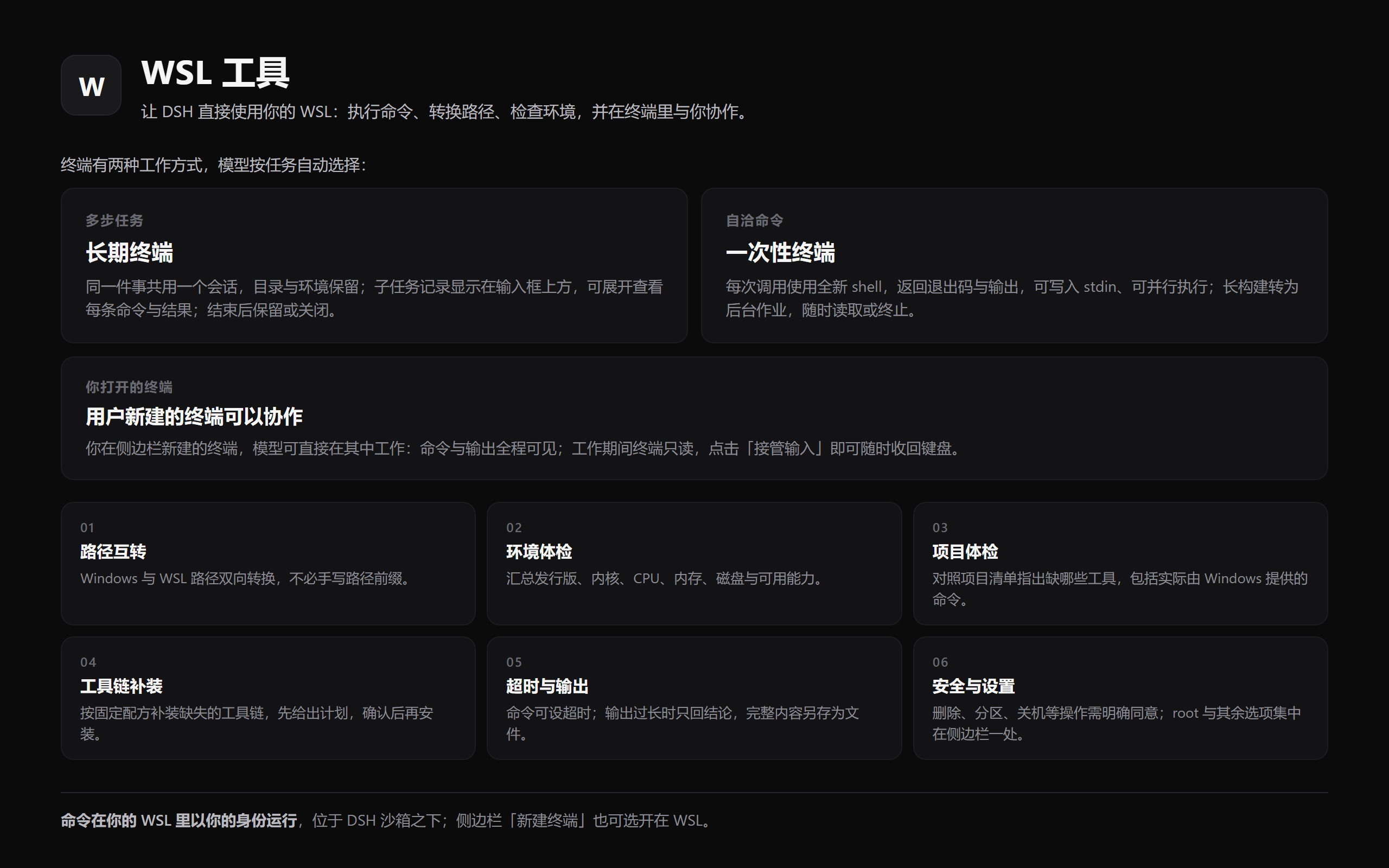
WSL tools for DSH: Linux commands with exit codes, timeouts and spill files; background jobs; path conversion; environment and project checks. Per task: a long-lived session for multi-step work, a fresh shell otherwise, subtasks above the composer. It also works in a terminal you opened, read-only while it runs, one click to take back the keyboard. Destructive commands need consent; root is a switch. Commands run as you, below the DSH sandbox.
Install
# from npm (prebuilt)
dsh plugin --profile web add dsh-wsl-tool
# from a prebuilt release tarball
dsh plugin --profile web add "https://github.com/XINY11451/dsh-wsl/releases/latest/download/dsh-wsl.tgz"
# from GitHub (first run asks for allowBuilds approval — follow the hint, retry)
dsh plugin --profile web add github:XINY11451/dsh-wsl
Any plugin you install runs third-party code with your own permissions — it can read your files, use your credentials, and reach the network, and tool approvals don’t sandbox it. GitHub-sourced plugins also run build scripts at install time — pnpm blocks those until you allow them, so an install can stop with ERR_PNPM_GIT_DEP_PREPARE_NOT_ALLOWED or ERR_PNPM_IGNORED_BUILDS; dsh prints the exact key to add under allowBuilds in your profile’s pnpm-workspace.yaml, and the install works on the next run. Allowing a build is a trust decision: only install sources you trust, and pin a commit (github:owner/repo#sha).
README
A model-facing WSL tool plugin for DeepSeek Harness (DSH). It lets an agent run
Linux commands through wsl.exe directly — no hand-written .sh scripts or pwsh
wrappers — and for command execution it essentially matches a native Linux DSH: a
real Linux kernel and bash, exit codes and signals, timeouts, truncation with spill
files, background jobs the built-in job tools read back, stdin, and automatic
Windows/WSL path translation.
It can also work the way you would, in a terminal you can watch: one shell per piece of work, every command visible as it is typed, a record of each piece above the composer, and the keyboard back in your hands with one click.
Two limits are worth knowing before you rely on it. A wsl call runs below DSH's
sandbox, so a file policy does not confine it (see Sandboxing); and a
project kept on a Windows drive keeps Windows filesystem semantics — no POSIX
permissions, case-insensitive names, no file-change notifications — at a fraction
of the speed (see Notes).
Tools
The plugin registers six tools (only wsl-bootstrap has a switch of its own, and it is
OFF by default):
| Tool | Purpose |
|---|---|
wsl |
Run a Linux command and return stdout/stderr with exit-code, timeout and truncation markers. |
wsl-path |
Convert between Windows and WSL paths via wslpath. |
wsl-env |
Summarize the WSL environment (distros, kernel, cpu, mem, disk). |
wsl-doctor |
Compare what a project needs with what the distribution has — including commands that are really Windows binaries. Read-only. |
wsl-bootstrap |
Install the missing toolchain inside the distribution, from a fixed recipe list, plan first. |
wsl-term |
Work in the session's terminal: one shell per piece of work, with a record of each above the composer. |
wsl
Runs:
wsl.exe [-d <distro>] -e bash -lc "cd <workdir> && <command>"
and returns stdout/stderr with [exit code: N] / [killed by signal: ...] /
[timed out after Nms; the command was killed] / [output truncated: ...] markers.
<distro> is the caller's distro argument, else DSH_WSL_DISTRO, else omitted
entirely so wsl.exe uses the system default distribution — that is what makes
the package portable to a machine that has no Ubuntu-22.04.
A script longer than the Windows command-line limit (32767 characters) is fed to
wsl.exe [-d <distro>] -e bash -ls on stdin instead, so long commands work
without any size ceiling.
Pass stdin to write text into the command (the default is /dev/null, so an
interactive command gets EOF), and runInBackground: true for work that outlives
the call: the command becomes a job in the host's registry, which the model then
reads with the job_output tool and stops with job_kill — no extra tool
is involved. Background jobs need @deepseek-ai/dsh-tool-jobs in the preset's
composition; without it the call fails with that instruction instead of silently
running in the foreground.
wsl-path
Converts a path in either direction: C:\Users\me\a.txt -> /mnt/c/Users/me/a.txt
or /home/me/a.txt -> \\wsl.localhost\Ubuntu-22.04\home\me\a.txt. Direction is
auto-detected from the path, or forced with direction: 'win' | 'linux'.
wsl-env
Returns the distribution list, the probed distro, kernel and architecture, CPU count, memory and disk usage, and what the machine can actually do:
distro: Ubuntu-22.04 (system default)
Linux 6.6.87.2-microsoft-standard-WSL2 x86_64
nproc: 24
Ubuntu 22.04.5 LTS · WSL2 · cgroup v2
systemd: yes · docker: not installed
GPU: /dev/dxg present (GPU passthrough enabled) · nvidia-smi: GPU 0: NVIDIA GeForce RTX 5070 Laptop GPU
drives: /mnt/c /mnt/d
/etc/wsl.conf: [boot];systemd=true;[user];default=xiny; · .wslconfig: not set
launcher: WSL 版本: 2.6.3.0 · 内核版本: 6.6.87.2-1 · WSLg 版本: 1.0.71 · Windows: 10.0.26200.9457
so an agent can decide what is available before running commands: WSL1 vs WSL2,
whether systemd manages services, the cgroup version (matters for containers),
GPU passthrough, docker (installed / cli-only / daemon version), which drives are
mounted, and how /etc/wsl.conf and the Windows-side .wslconfig are
configured. Takes an optional distro.
Every fact is optional and degrades honestly: a probe that cannot run leaves its
line out, an empty value is stated (docker: not installed, .wslconfig: not set), a failed probe is reported in the summary instead of being dropped, and an
unknown distro is an error rather than a partial answer. Note that wsl --version
is localized, so its labels are passed through as the launcher printed them
rather than parsed by name; the Direct3D/MSRDC/DXCore versions are omitted.
wsl-doctor
Answers the question a project's own README cannot: will the tooling this
checkout expects actually work inside this distribution? It reads the manifests
in the directory (package.json and lockfiles, .nvmrc, tsconfig.json,
Cargo.toml, go.mod, pyproject.toml, requirements.txt, Dockerfile,
docker-compose.yml, Makefile, CMakeLists.txt) and reports, per need, whether
it resolves on the Linux side:
distro: Ubuntu-22.04 (system default)
workspace: /mnt/d/proj (Windows drive mount /mnt/d — builds, installs and git are much slower here; …)
project: package.json, pnpm-lock.yaml

needs (from the project): node, npm, pnpm
  MISSING node — not on PATH in this distribution (from package.json)
  WINDOWS npm — resolves to /mnt/c/Program Files/nodejs/npm, a Windows binary reached through interop; …
  MISSING pnpm — not on PATH in this distribution (from pnpm-lock.yaml)

usable on the Linux side: python3 3.10.12, gcc 11.4.0, make 4.3, git 2.34.1, curl, rsync, tar, sudo
Windows binaries on the Linux PATH (interop): npm -> /mnt/c/Program Files/nodejs/npm, npx -> …
privileges: uid=1000 (xiny) · sudo: requires a password (unusable from a tool call) · root: switched off

next: node, npm are not usable — wsl-bootstrap({ recipes: ["node", "pnpm"] }) installs them …
That WINDOWS row is the reason the tool exists. WSL appends the Windows PATH
to the Linux one, so npm resolves on a machine whose distribution has no node
at all — measured here as /mnt/c/Program Files/nodejs/npm — and the errors a
model gets from running it against a Linux directory name neither cause. Overall
it is read-only, cheap, and worth running before blaming a failed command on the
command. Takes an optional workspace (a Linux directory; default: the configured
directory, else the session workspace) and distro.
wsl-bootstrap
Installs the missing toolchain inside the distribution, from a fixed recipe
list and nothing else: node (Node.js LTS into /usr/local, checksum-verified,
with corepack), pnpm, python (python3 + pip + venv), build
(build-essential), tools (jq, rsync, curl, git, ca-certificates). Dependencies
are added when they are needed: pnpm brings node, and node brings tools
when curl is missing.
It is off by default, and its dryRun defaults to true, so the first call
prints the plan and changes nothing:
dry run — nothing has been installed (distro Ubuntu-22.04)

already present:
  python — python3, pip and venv (apt)

to install (python, tools):
  [tools] apt packages: ca-certificates curl git jq rsync — runs as root inside the distribution
      export DEBIAN_FRONTEND=noninteractive; apt-get update && apt-get install -y ca-certificates curl git jq rsync

apt would report:
  Inst libjq1 (1.6-2.1ubuntu3.2 Ubuntu:22.04/jammy-updates [amd64])
  …

run it for real with `dryRun: false`.
Recipes that are already satisfied are skipped, and the plan includes what apt itself would do, so you can see the exact changes before anything is installed. Installation runs as root; a failing step stops the run.
wsl-term
Every other tool here starts a fresh shell per call. That is what makes them
safe to run in parallel, and it stays the default. wsl-term is the other way
round: one shell for one piece of work. It is for the jobs where the shell's own
state is the point — a build worth watching, an interactive program, a directory or
an environment that has to survive between steps.
wsl-term works in that terminal:
wsl-term({ action: "list" })                                  → which terminals are open
wsl-term({ action: "read" })                                  → the current screen
wsl-term({ action: "run", command: "make sta", subtask: "跑通 sta 流程" })
                                                               → runs it there, returns output and exit code
wsl-term({ action: "input", data: "ls", submit: true })        → raw keystrokes
wsl-term({ action: "interrupt" })                              → Ctrl-C
wsl-term({ action: "close", id: "…" })                         → ends a terminal you name
wsl-term({ action: "subtask-done", subtask: "跑通 sta 流程", result: "三条连跑全通过" })
                                                               → writes the result and decides the shell
Which shell it drives depends on the DSH generation. Up to DSH 0.2.0 the host
exposes its browser terminals to plugins, so wsl-term joins the one you opened in the
sidebar (or opens one); while it works there your view is read-only until you press
接管输入. DSH 0.2.1 replaced that API with an attachment only a Remote caller can
open, which a plugin cannot supply, so wsl-term opens a private WSL shell per
subtask instead: the same actions and the same records above the composer, but the
shell does not appear in the sidebar and only the tool types into it.
Work is recorded as subtasks
Naming a subtask on run opens a record for that piece of work and logs every command
it ran with its exit code. The dock above the composer lists those records — running ones
first, then finished ones with their result — and clicking a row opens its detail: the
terminal's full description, the result, and the commands. subtask-done writes the
result and decides the shell: keepTerminal: true (the default) leaves it idle for a
follow-up step, false closes a shell the tool opened. A terminal you opened is never
closed this way, and close is the other way to end one. The records live in memory for
the current DSH run — they describe this conversation's work, and a restart clears them
along with the terminals.
You do not have to open a terminal first. run and read work in the newest running
terminal of this session, and you can watch what happens; if the session has none, the tool
opens its own — a normal shell for that session, but not a sidebar tab, so open your own
when you want to see or use it. Terminals belong to the current DSH run — restarting DSH
ends them — and the app can re-create one under a new id when its tab is re-created, so
an id from an earlier answer may no longer exist. The tool then falls back to the newest
running terminal and says which one it used.
Four things worth knowing:
- The terminal is read-only while the model works in it, and it stays read-only afterwards: click 「接管输入」 in that terminal to type again. If you are typing when the model calls, the call is refused instead of landing in the middle of your line.
readreturns the screen. Anything that has scrolled away is gone, and full-screen programs (vim,htop) come back as their raw screen.runneeds a POSIX-style shell (sh,bash,zsh). Oncmd.exeor PowerShell, useinput.- Long output is not thrown away. A build or synthesis log's answer is at the bottom, so what comes back is the end of the output; the complete text is written to a file and the result names it.
Commands run as you, exactly as if you had typed them — and you see each one as a short,
readable line (__dsh_term_run 'make syn'), because the first command in a terminal defines
that one-line helper there. What comes back is the output between its two markers, plus the
exit code. There is no switch for this tool: it is always available, the terminal it
works in is either yours or one it opened for this session, and every command it types is
visible there. A destructive command still stops at the guard unless the caller says it is
intended.
Reach for it only when the work needs one shell across several steps — a long build worth
watching go by, an interactive program, a directory or environment that has to persist. For
everything self-contained the plain wsl tool is the better deal: a fresh shell per call runs
in parallel, needs no terminal at all, and never takes the keyboard away from you.
Running privileged commands (asRoot)
WSL's root does not need a password, so a single call can run as root (that is
wsl -u root). It is gated by a panel switch (「管理员模式(root)」, off by default):
wsl({ command: 'apt-get install -y jq', description: 'install jq', asRoot: true })
The switch is the authorisation, not the parameter: with it off, asRoot: true is
refused and told which switch to turn on, never quietly downgraded to your user
account. Every privileged result is marked ([ran as root: wsl -u root]), and the
destructive-command guard still applies on top: rm -rf needs allowDangerous: true
whether or not the call runs as root.
Install
The published npm package is dsh-wsl-tool, not dsh-wsl: the registry
refuses dsh-wsl as too similar to the existing package is-wsl, and no token
or setting overrides that. The repository, the plugin and the market listing keep
the dsh-wsl name. The bundle patch points at its own entry by relative path, so
the folder under node_modules is free to differ — what has to match is the
specifier you install under.
Add the package to your DSH profile (
profiles/<profile>/package.json):{ "dependencies": { "dsh-wsl-tool": "file:<path-to-this-repo>" } }or run
dsh plugin add --profile <profile> dsh-wsl-toolto install from npm, ordsh plugin add --profile <profile> file:<path-to-this-repo>from a checkout (which names the dependency after this package).Nothing else. The package's
cordis.patch.ymlinserts thetool-wslrow itself when the bundle is loaded, process-wide, so the tools are available to every agent preset without further wiring. There is no mode to pick and nothing to add to a preset — the left-sidebar WSL panel arrives the same way.Do not also list
tool-wslin a preset: DSH registers tools by name, and the second registration fails withtool "wsl" is already registered in this scope. One row, from the bundle.Restart DSH.
The settings panel is the one optional piece: its form needs
@deepseek-ai/schemastery, which most profiles already have (any plugin that
depends on it brings it in — add it to the profile's dependencies if yours does
not). Without it, the tools and the panel's 「WSL 终端启动路径」 field work
as usual and only the switches are absent — the panel says so instead of waiting
forever.
Compatibility
The manifest declares the DSH it needs — "engines": { "dsh": ">=0.1.7-rc.2" } —
which is the floor this section documents. Two readers act on that declaration:
the plugin market shows it as a requirement on the entry (DSH >=0.1.7-rc.2) and
warns before an install onto an older host, and the host's own install gate
refuses a release whose declared range excludes the running DSH. Both evaluate
prereleases, so 0.2.1-rc.2 is inside this range. The -rc.2 is load-bearing:
>=0.1.7 alone excludes the 0.1.7-rc.2 release this line was verified on, and
the market would then report the plugin as incompatible with its own verified
host.
Verified against DSH 0.2.1-rc.2 and 0.1.7-rc.2 (earlier releases of this
plugin were verified on 0.1.5-rc.2): the tool schemas pass DSH's own
assertSupportedJsonSchema, the subprocess seam is exercised against the real
provider rather than a shim, and the background-job path is checked against the
real job registry, including the session-id ownership fence that 0.1.7 tightened
(0.2.1 hands out kind-<16 hex> job ids, so the check reads the registry's own
id instead of assuming a shape). test/real-seam.mjs is that check and it
re-verifies a host in about a minute, so point it at any DSH installation after
an upgrade:
DSH_SUBPROCESS_LOCAL=/path/to/dsh/node_modules npm run test:real
A background job is owned by the calling session (owner: exec.agent.id), which
is what lets the model read it back with job_output/job_kill and what keeps
other sessions out; an execution with no agent starts the job unowned.
One behaviour differs by host generation. Up to 0.2.0 the terminal tool drives a
browser terminal through terminalController.follow/write; 0.2.1 replaced
those with an attachment only a Remote caller can open, so the same tool opens
its own PTY through subprocess.spawnTerminal — same actions, same records above
the composer, with a shell private to the tool.
The WSL panel (left sidebar)
The plugin ships a small client half: a WSL entry in the desktop app's left sidebar, whose panel carries one switch per feature, each with a one-line explanation.
| Switch | What it controls |
|---|---|
wsl 命令执行 |
registers the wsl tool |
wsl-path 路径转换 |
registers the wsl-path tool |
wsl-env 能力体检 |
registers the wsl-env tool |
wsl-doctor 项目体检 |
registers wsl-doctor |
wsl-bootstrap 安装工具链 |
registers wsl-bootstrap, which may install into the distribution. Off by default, and its dryRun still has to be turned off per call |
| 后台任务 | whether wsl accepts runInBackground |
| 自动转换路径 | the default for the per-call translatePaths |
| 默认跟随会话工作区 | start in the session's directory instead of ~ when workdir is omitted. On by default: with it off, every relative path an agent writes lands in the Linux home, which is invisible from Explorer and grows the WSL disk image |
| Linux 默认工作目录 | a fixed Linux directory (for example /mnt/d/project) used when workdir is omitted. Filling it in wins over the switch above; clearing it goes back to following the session |
| WSL 终端启动路径 | the optional sidebar terminal's startup directory — --cd <dir> on the terminal-controller row of your profile patch (see Optional: a WSL terminal in the sidebar). Empty clears it, and the panel reads the current value from the same file |
| 终端历史行数 | how many lines of output that terminal keeps (scrollback on the same row). The platform default is 1000; 0 keeps none and an empty box restores the default. Both fields take effect at the next DSH start |
| 危险命令守卫 | whether a destructive command needs an explicit allowDangerous |
| 管理员模式(root) | whether wsl accepts asRoot: true (wsl -u root). WSL's root needs no password, so this switch is the authorisation itself; off by default |
The panel edits the plugin's own configuration, so the same values can be written
by hand (- id: tool-wsl with config: in a profile patch) or by environment
variables. lib/config.js owns the precedence — plugin configuration, then the
environment, then the built-in defaults — and a switch left at its default lets
the layer below decide, which is why DSH_WSL_WORKDIR=session keeps working for
someone who never opened the panel.
「WSL 终端启动路径」 is the one exception: the sidebar terminal belongs to another
plugin, so that field edits your profile's patch layer instead — the file is backed
up before every write, only the terminal row's args line is rewritten, and the
result is read back and undone if it is not exactly that one line.
A change takes effect immediately, tool switches included: registering a tool
returns its own disposer, so every settings update is diffed into the tool registry
and a switch flips the tool on or off in place — no restart, which matters because
the panel is where these get flipped. The one exception is 「WSL 终端启动路径」: it
edits another plugin's startup arguments in your profile patch, which that plugin
reads at boot, so that field applies after a restart. Distro and timeout are values
rather than features — set them in the patch or with DSH_WSL_DISTRO /
DSH_WSL_TIMEOUT_MS, and the panel shows what is currently in effect.
The settings surface needs @deepseek-ai/schemastery, which the plugin declares as
an optional peer dependency: without it the tools still run on their defaults
and only the panel is missing.
At the bottom of the panel there is one feedback entry, next to it a short
submission guide, and — see Feedback — a 「复制插件信息」 button. The
button asks the host half on /dsh-wsl-tool/info for this plugin's own facts (name,
version and repository read from its manifest, Node, platform), the DSH build it is
running inside, and the WSL facts wsl-env reports (default distribution, kernel,
capability flags) — then copies the result together with the effective
configuration. Nothing here is a string a release has to remember to edit, and a
probe that fails says so instead of inventing a value.
Optional: a WSL terminal in the sidebar
The desktop app's sidebar terminal can open WSL instead of a Windows shell. It is
opt-in — installing this plugin does not change which shell your terminals
open — and the patch that enables it ships in the package as
extras/terminal-wsl.patch.yml.
To turn it on, copy that entry into your profile's own patch layer
($DSH_HOME/profiles/<profile>/cordis.patch.yml); a CLI launch can instead pass
--patch <path to the installed file>. It applies at the next app start.
The panel can set the startup directory for you: 「WSL 终端启动路径」 (beside 「默认
Linux 工作目录」) reads the current value out of that file and writes --cd <dir> onto
the row's args line — backing the patch up first, changing only that one line, and
checking what landed before it is kept. Clearing the field removes the flag, which puts
the terminal back on the session workspace (the Windows directory it is started from,
translated to /mnt/…); ~ pins it to the Linux home. It takes effect at the next app
start too.
Beside it, 「终端历史行数」 sets scrollback on the same row: how many lines of output
the terminal keeps, so long builds stay readable instead of scrolling away (the platform
default is 1000). 0 keeps none, and an empty box goes back to the default. A longer
history costs memory in both the app and the Host, which is why it is a number you
choose rather than a fixed large value. Same write rules and the same next-start rule.
- id: terminal-controller
  config:
    shell:
      path: 'C:\Windows\System32\wsl.exe'
      name: WSL
      args: ['-e', 'bash', '-l']
- The sidebar's 新建终端 list is built from the composed
terminal-controllerrow: it lists the configuredshellfirst and keeps the shells it discovers (powershell,cmd,bash, …) selectable. The picker is core UI, so overriding that row is the supported way in — which is also why this cannot be a plain plugin entry. - No distribution is pinned, so
wsl.exefollows the system default — the same rule the tools use whenDSH_WSL_DISTROis unset. Add-d <name>toargsto pin one. - The session workspace is a Windows path that
wsl.exetranslates, so the terminal opens in/mnt/<drive>/…exactly like the Windows shells do; and it is a real PTY (xterm-256color), so full-screen programs work. - An id-targeted patch replaces that row's whole config, so restate anything else
you had set on it (terminal limits, scrollback, a custom
shellCandidateslist).
wsl parameters
| Param | Required | Type | Notes |
|---|---|---|---|
command |
yes | string | Linux command to execute |
description |
yes | string | short UI label |
workdir |
no | string | Linux path (/home/me, ~/src) or Windows path, default ~ |
timeoutMs |
no | number | timeout in milliseconds, default 600000 (10 min); the process is killed and the result marked as timed out |
distro |
no | string | WSL distribution; defaults to the system default distribution |
env |
no | object | extra environment variables to export (keys must be valid shell names) |
stdin |
no | string | text written to the command stdin (UTF-8) before it runs |
runInBackground |
no | boolean | run as a job and return its id immediately; read with job_output, stop with job_kill |
allowDangerous |
no | boolean | set true to run destructive commands |
asRoot |
no | boolean | run this call as root (wsl -u root); refused unless the panel's 管理员模式 switch is on |
translatePaths |
no | boolean | default true; set false to pass command through verbatim |
Configuration
The panel's switches and value fields (tools.wsl, tools.path, tools.env,
tools.doctor, tools.bootstrap, backgroundJobs, translatePaths,
startInSessionWorkspace, workdir, dangerGuard, allowRoot, distro,
timeoutMs) live in the profile patch and take effect as described on each row.
Two of them have no environment variable on purpose: dangerGuard (its OFF
position is the footgun) and allowRoot (WSL's root needs no password, so the
switch IS the authorisation). The environment layer:
| Environment variable | Default | Effect |
|---|---|---|
DSH_WSL_DISTRO |
(system default) | Pin the distribution for every call. |
DSH_WSL_TIMEOUT_MS |
600000 |
Default deadline for a model-issued command; timeoutMs overrides it per call. |
DSH_WSL_MAX_TIMEOUT_MS |
86400000 |
Ceiling for a per-call timeoutMs, mirroring the platform shell tools' maxTimeoutMs. The default deadline obeys it too. |
DSH_WSL_WORKDIR |
home |
Where a call starts without a workdir: home (the Linux ~), session (the session working directory, i.e. /mnt/<drive>/... for a Windows checkout), or any explicit path. |
DSH_WSL_MAX_OUTPUT_BYTES |
65536 |
Per-stream in-memory window (1 KiB – 8 MiB). Also raises the spill ceiling when set above 64 MiB. |
An unparsable or out-of-range value falls back to the default: one bad variable must not take every tool down. Values are read once per mount, so a change takes effect on restart.
Notes
Each call runs in a fresh shell — no cwd/variables/functions persist between calls.
stdin is
/dev/nullunless you passstdin. An interactive command (read,cat, asudopassword prompt without-S) otherwise gets EOF immediately and cannot wait for input; nothing in this plugin can prompt. A password passed viastdinis recorded in the session transcript.The default
workdiris~; setDSH_WSL_WORKDIR=sessionto start in the session's working directory instead (see Configuration).The distro is the caller's
distro, elseDSH_WSL_DISTRO, else the system default; there is no hardcoded fallback name.An unknown distro is reported as a clear error (
distribution "X" is not registered) instead of a raw-1exit code, and any other launcher failure (Wsl/Service/WSL_E_*) is surfaced with its code rather than passed off as the command's own exit status.A background job outlives the call.
runInBackground: truereturns a job id (wsl-N) immediately and registers the work with the host's job registry, sojob_outputreads it (with the same markers as a foreground call) andjob_killstops it. The 10-minute default deadline does not apply in the background; an explicittimeoutMsstill does. A non-zero exit is reported ascompletedwith the exit code in the detail, exactly like the foreground rendering.Windows paths in
commandandworkdirare translated to/mnt/...automatically:C:\Users\me\a.txt->/mnt/c/Users/me/a.txt, and paths containing spaces work in either slash style and with several paths on one line:C:\Program Files\Git,C:/Program Files/Git,C:\Program Files (x86)\Steamandcp C:\a.txt D:\b.txt(both paths are translated) all behave;\\wsl.localhost\<distro>\home\xand\\wsl$\<distro>\home\x->/home/x;- text that only looks like a drive path is left alone: a single lowercase letter followed by
/(a:/b), a drive letter inside another expression (sed "s/C:\x/y/"), and a drive-like segment inside a URL; - set
translatePaths: falsewhen the path belongs to a Windows program launched through interop — WSL does not translate/mnt/c/...back, sonotepad.exe C:\file.txtneeds its original spelling. This affectscommandonly;workdiris always translated.
A
~inworkdiror in awsl-pathargument is expanded by the shell (~/my dirworks). Any other path is single-quoted, so$VARinside a path is not expanded.Output is capped at 64 KiB per stream. The tail is kept and the marker names the spill file holding the complete stream, so nothing is unrecoverable:
[stdout truncated: at most the last 65536 of 1288895 bytes were kept; full stream: C:\...\stdout.log]Host shell facts are forwarded into the distro, because WSL does not pass Windows environment variables across on its own:
DSH_SESSION_ID,DSH_SHELLandDSH_HOME(translated to its/mnt/...view) are exported ahead of the command, so a script sees the same session facts the platform's own shell tools inject. They are resolved per call from the host'sshellEnvregistry — the same source the other shell tools read — because they are session-scoped, not host constants; reading the host's ownprocess.envfinds nothing and silently forwards nothing.DSH_WEB_URLis deliberately not forwarded — it is a127.0.0.1URL for the Windows-side server, and in the default NAT networking mode WSL cannot reach Windows loopback (measured: HTTP 000 on both127.0.0.1and the host IP, which the server does not bind either). An explicitenventry always overrides a forwarded one.timeoutMsdefaults to 10 minutes so a wedgedwsl.execannot hang the call forever; pass a larger value for genuinely long work, up to theDSH_WSL_MAX_TIMEOUT_MSceiling (24 h by default) — a slip of the keyboard cannot mean "never time out". The value reported back is always the deadline actually armed. The timeout also kills the Linux-side process (the provider usestaskkill /T /Fon Windows).wsl-envalso states where the session's own files live, and whether that is a Windows drive mount:workspace: /mnt/d/DSHworkarea (Windows drive mount /mnt/d — builds, installs and git are much slower here; prefer a path under /home when it matters)It is worth believing. Measured on the author's machine: a 128 MB sequential write ran at ~2.1 GB/s on ext4 against ~247 MB/s on
/mnt/d, and creating 400 small files took under 10 ms against 0.72 s (a later re-run: 885 vs 116 MB/s, and 13 ms against 745 ms — the ratios hold at roughly 8× and 50×).It is not only slower.
/mnt/<drive>is a 9p (drvfs) mount, so it keeps Windows filesystem semantics:chmod/chowndo not stick (achmod 600reads back as777), names are case-insensitive (so a case-sensitive import only fails on Linux CI), symlinks and the executable bit are synthetic, and inotify does not work at all — a watcher inside the distro receives no events for writes from either side (measured with an inotify probe on/mnt/d: zero events for a Windows-side write and for a Linux-side write, while the same probe on ext4 reported create, modify and close-write). Dev servers,--watchmodes and file-watching tests are therefore blind on a Windows drive. Keep a project under/homewhen it matters: it recovers real semantics, real watch events, and the speed above.Destructive commands are refused unless the call passes
allowDangerous: true:- any recursive delete —
rm -r,rm -rf,rm -r -f,rm -R --force,rm --recursive— because with stdin on/dev/nullnothing prompts, sorm -r treedeletes silently. Eachrminvocation is judged on its own command segment, sorm a -f; rm b -rcannot combine into a pass; anrmthat is an ARGUMENT is a mention, not an invocation, sonpm rm -r fooandls rm -rare left alone; ddonto a block device,mkfs/mke2fs, partitioning/wiping tools (fdisk,parted,wipefs,mkswap, …),truncateaimed at a device,find … -delete, agit cleanthat would remove rather than report, power control (shutdown,reboot,systemctl reboot, …), redirection onto a block device (SATA/NVMe/virtio,md,dm-*, LVMmapper), and fork bombs;- the guard reads a wrapper's own option VALUES and a shell's
-cscript, sosudo -u root mkfs.ext4 …,nice -n 19 reboot,timeout 5 reboot,xargs -I{} poweroffandsh -c "reboot"are judged on the command they really run. Device/power tools are matched at command position, so inspecting them is fine:man fdisk,grep -rn reboot /var/log/syslogandecho "the mkfs tool formats disks"all run — and a quoted mention is not an invocation (grep -rn "rm -rf" docs/,git commit -m "fix rm -r").
- any recursive delete —
Repeated launcher noise is stripped from stderr: the localhost-proxy warning and procps'
screen size is bogusline.Uses
wsl.exe -e(--exec) so quoting and$VARexpansion behave like a normal shell; the default--pass-through mangles single quotes and variables.
Sandboxing
DSH's file sandbox is enforced at two points: the shell executors
(@deepseek-ai/dsh-bash-sandbox, -pwsh-sandbox, which wrap the exact argv
through ctx.sandbox) and the filesystem service (@deepseek-ai/dsh-fs-sandbox,
a policy fence on the two mutations). wsl is in neither. It spawns
wsl.exe through the host subprocess service, below that layer, so a
workspace-write policy does not confine it: it can write anywhere the Linux
side can, and anywhere under /mnt/<drive> that Windows permits.
That is not a gap this plugin can close by "joining" the sandbox. On Windows the
sandbox resolves to an ACL / restricted-token runner, while the file work happens
inside the Linux kernel: a write to /home/... touches the distro's own
filesystem image, which no Windows token constrains, and a write to /mnt/c/...
travels through the filesystem bridge, where ACL enforcement is not something to
rely on. Wrapping wsl.exe would confine the launcher, not the writes — and a
false sense of isolation is worse than a documented absence. (The platform's own
dsh-fs-sandbox is candid about its own limits too: "containment, not a security
boundary".)
What wsl does have is the destructive-command guard described above: a
deterministic refusal list, not a kernel boundary. Treat this tool as able to
touch anything your WSL installation can, and grant it accordingly.
Install from the plugin list
The package declares a dsh.bundle manifest (see package.json), so once the
repository is listed it can be installed by name, e.g.
dsh plugin add dsh-wsl-tool, and storefronts will offer it for one-click
install. Installing from a local path (file:) as shown above keeps working
either way.
How it works
The plugin is a cordis module that injects the host-plane tools and
subprocess registries. index.js is only the entry point; the implementation
is split by concern:
| Module | Responsibility |
|---|---|
lib/config.js |
Defaults and environment overrides, resolved once per mount. |
lib/paths.js |
Shell quoting and Windows -> WSL path translation. |
lib/guard.js |
The destructive-command rules. |
lib/result.js |
Launcher-noise filters, truncation facts, marker rendering. |
lib/diagnostics.js |
The wsl-env capability probe, its parser and its lines. |
lib/runner.js |
The single spawn path plus launcher-error classification. |
lib/tools/*.js |
The tool definitions (schema, execute, presentCall). |
lib/doctor.js |
The project probe for wsl-doctor: one shell script, its parser, the report composer. |
lib/bootstrap.js |
The recipes, plan builder and outcome rendering for wsl-bootstrap. |
lib/terminal.js |
The text and selection work behind wsl-term: escape stripping, command markers, terminal picking. |
apply()resolves the configuration and registers the enabled tools, each with a JSON-schema parameter definition, an output schema, arenderhook and an asyncexecute.- Every call goes through one spawn path (
runner.runWsl):wsl.exe -d <distro> -e bash -lc "<exports; cd workdir && command>"through the hostsubprocessservice, with stdout/stderr capped at the configured window (spilling to disk up to 64 MiB), a 3 s grace period after abort, and a deadline that defaults to 10 minutes. The plugin's own probes get a 30 s ceiling so a wedged WSL service cannot hang a tool call forever. enventries are exported at the front of the command so they reach the Linux side reliably; Windows drive paths are rewritten to/mnt/...before the command is built.- Output is returned as
{ exitCode, signal, timedOut, timeoutMs, truncated, stdout, stderr, stdoutTotalBytes, stdoutDroppedBytes, stderrTotalBytes, stderrDroppedBytes, stdoutSpillPath, stderrSpillPath, jobId }; therenderhook formats it into text with the markers listed above. The truncation marker quotes the window size rather than a count derived from the decoded text, which can be off by a byte or two when the window starts inside a multi-byte character. jobIdis set only by a background start; every other path returnsnull, so the declared shape holds for both.- Launching and settling are separate steps (
runner.launch/settle) because a background job has to hand the registry a synchronouscancel/donepair while a foreground call simply awaits the same settle. A cancelled job maps the provider's early-termination rejection ontokilled, sinceJobHooks.donemust never reject. - A destructive-command guard splits the command into
;/&/|/newline segments, judges eachrminvocation on its own flags, and matches the device/power tools at command position before dispatch.
The plugin publishes no services of its own and is inserted process-wide by its own bundle patch, so it needs no realm — and no preset entry either.
Development
The plugin is plain ESM with no build step or runtime dependencies outside the DSH host plane. Iterate by pointing a profile dependency at the checkout:
{ "dependencies": { "dsh-wsl-tool": "file:/path/to/dsh-wsl" } }
then restart DSH and call the tools from any session: the bundle patch registers them process-wide, so no preset declares the row.
Tests
npm test          # 885 host checks against real WSL (shim for ctx.subprocess) + 170 client checks
npm run test:real # the same checks against the REAL provider, plus the seam-fact suite
npm test substitutes only ctx.subprocess, with a shim that reproduces the
seam's bounded tail windows, spill files and termination ladder, and drives the
the tools against the real WSL installation. It covers path translation,
workdir quoting, the destructive guard, distro selection, exit-code/timeout/
truncation markers, wsl-path, wsl-env, argument validation, configuration
parsing, launcher-error classification, the returned shape against each declared
output.schema, and a token budget for the model-facing catalog.
npm run test:real runs that same suite against LocalSubprocessRuntime — the
shim must not drift from the real seam — and then test/real-seam.mjs, which
checks the facts a shim cannot vouch for (that readFrom(0).nextOffset is the
whole-stream total, that the spill file holds the complete stream, that a
timeout really kills the Linux side of wsl.exe) and validates every published
schema with DSH's own assertSupportedJsonSchema. It needs a DSH installation:
DSH_SUBPROCESS_LOCAL=/path/to/dsh/node_modules npm run test:real
Syncing a profile
A file: dependency is a copy, so editing this checkout does not change what
DSH loads. After any change:
npm run sync                  # copies into ~/.dsh/profiles/desktop/node_modules/dsh-wsl
npm run sync -- /path/to/profiles/<profile>/node_modules/<your-key>
The target must be the folder your profile's dependency key created (the default above is this checkout's own key); the plugin loads its entry by relative path, so the folder name itself never matters.
then restart DSH — the plugin is imported once at load.
Releasing — the tag-triggered workflow, the npm name, and the catalog entry — is
documented in PUBLISHING.md.
Listing
The repository carries the dsh-plugin topic and is listed under the wsl
category of the awesome-dsh-plugin community list.
Feedback
The sidebar panel ends with one feedback entry, and it sends nothing by itself.
- A bug or a concrete request → open an issue. The templates ask for the environment once, which is the difference between a report that can be reproduced and a round trip.
- Usage questions and ideas → Discussions.
- GitHub unreachable? The panel's 「复制插件信息」 button asks the host half for
this package's own facts — name, version and repository straight out of its
package.json, plus Node, the platform and the effective configuration — and copies them, together with the switch states the panel is already showing. Paste that into the issue's 「补充」 field and only the prose is left to write. The submission guide sits next to the button, in the panel.
Everything in that block is text you can read and edit before it goes anywhere: no paths, host names or credentials are collected, and the plugin makes no request of its own — the route the button reads is served by the local host, not the network. Problems that belong elsewhere go to their own repositories — DSH itself → deepseek-harness, the market UI → dsh-market, the catalog listing → awesome-dsh-plugin. The full routing table is in SUPPORT.md.
Links
More in this category
6Mikao9/dsh-wsl-workspace★ 88
Add a WSL workspace from the web GUI without needing to install dsh or related tools again inside WSL. Bash commands and file read/write operations run within the local WSL distribution on the host machine, while Windows files remain accessible.
Edge-Echo/dsh-win-toolkit★ 4
Windows-native tools for DSH agents: clipboard read and write, system notifications, hosts file inspection and network diagnostics, each returning structured data with UI cards from injection-safe PowerShell.
173787247/dsh-wsl-open★ 3
Opens WSL Linux paths from DeepSeek Harness chat in the Windows default app or Explorer.
liyu34/dsh-wsl-tray★ 3
Windows desktop shortcut and system-tray launcher for DSH running in WSL, with fully hidden startup, tray open/restart/exit menu, and a plugin-configuration card to manage the shortcut.
173787247/dsh-wsl-env★ 2
Injects WSL distro, Linux path mapping, /mnt/c CRLF and git caveats, and NODE_USE_ENV_PROXY into the system prompt.
173787247/dsh-wsl-net★ 2
Adds a net_doctor tool that reports proxy environment, NODE_USE_ENV_PROXY, and reachability of the DeepSeek API and the npm registry, and sets NODE_USE_ENV_PROXY on bash and npm child processes.
Community comments
Comments are public GitHub Discussions. Loading them connects to GitHub and Giscus; a GitHub account is required to post.