Node-based creation studio for DeepSeek Harness - script, storyboard, reference images and multi-shot video generation on an infinite canvas, drivable from the chat in batches; bring your own image/video/TTS providers (OpenAI-style endpoints or Seedance/Sora-style video APIs), and with none configured the pipeline runs offline in demo mode with placeholder media.
Install
# from npm (prebuilt)
dsh plugin --profile web add @ninkch/dsh-infinite-canvas
# from GitHub (first run asks for allowBuilds approval — follow the hint, retry)
dsh plugin --profile web add github:NINKCH/dsh-infinite_canvas
Any plugin you install runs third-party code with your own permissions — it can read your files, use your credentials, and reach the network, and tool approvals don’t sandbox it. GitHub-sourced plugins also run build scripts at install time — pnpm blocks those until you allow them, so an install can stop with ERR_PNPM_GIT_DEP_PREPARE_NOT_ALLOWED or ERR_PNPM_IGNORED_BUILDS; dsh prints the exact key to add under allowBuilds in your profile’s pnpm-workspace.yaml, and the install works on the next run. Allowing a build is a trust decision: only install sources you trust, and pin a commit (github:owner/repo#sha).
README
A node-based short-drama studio inside DeepSeek Harness. Start from a one-line idea, walk out with a storyboarded, voiced, subtitled video cut — right on an infinite canvas.
English | 简体中文 · User guide: English · 操作手册(中文)
What is this?
Infinite Canvas is a DeepSeek Harness plugin that turns the web GUI's sidebar into a full creation studio. Instead of chat round-trips, you work the way directors do: nodes on an infinite canvas, wired into a pipeline — script, storyboard, character & scene assets, image generation, video generation, and a final cut with transitions, subtitles and dubbing.
Everything runs locally in your Harness. Bring your own generation APIs, or use the built-in demo mode to learn the whole flow with zero configuration.
Drive it from the chat
The canvas and the agent share one brain. Every node is an AI workbench, and the chat side is the director: ask in plain language and the agent operates the canvas tools for you — batch work especially.
"Create a project called Time-Postman, write the world view and series bible first." "Write episode 1 based on the bible." → the script node generates one episode (60–120s), every scene marked with a
【场N】header. "Expand episode 1 into scenes." → per-scene text nodes + storyboard nodes appear, wired automatically. "Generate reference images for every character, scene and prop." → ten image nodes created and generated in one go. "Generate scene 1's video." → storyboard shots + reference images compose one multi-shot video call. "Send episode 1 to FilmCraft for an MP4 render." → FCP7 XML + SRT land in your data root for the Craft suite.
The heavy lifting — bibles, episode scripts, storyboard breakdowns, batches of reference images — is exactly what the agent is fast at. You then fine-tune the 20% you care about directly on the nodes: tweak a prompt, reorder references, re-roll one shot, pull an older result from history.
Case study: 门缝里的字条
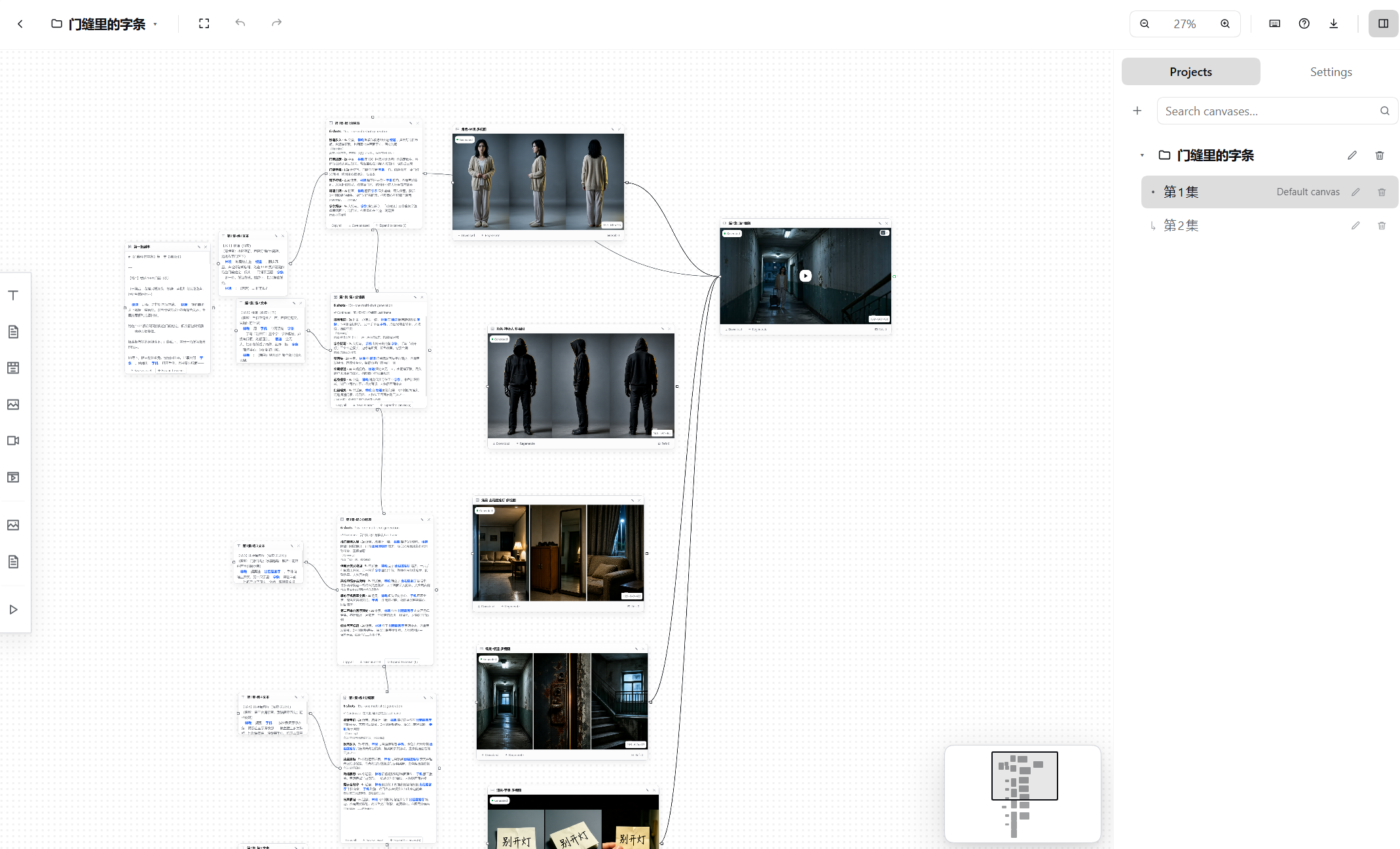
A full episode produced end to end with the flow above. The canvas with the whole episode laid out — the icon rail on the left adds nodes, the Projects panel on the right manages the canvases of the current project (第1集 / 第2集), while assets and the bible stay shared across the project:
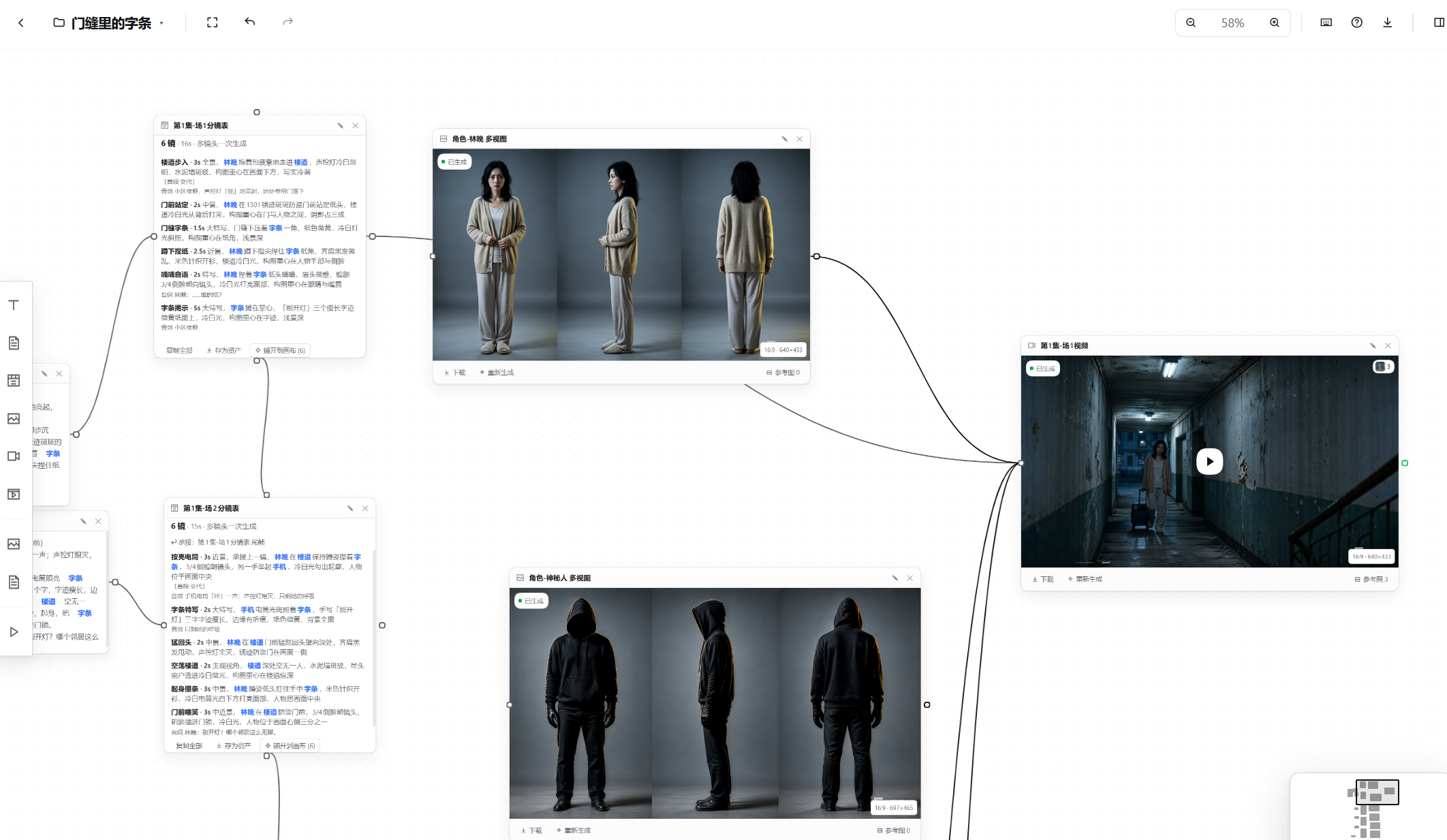
Shot 1 up close — storyboard → character/scene turnaround images → video, with the reference relationships drawn as edges:
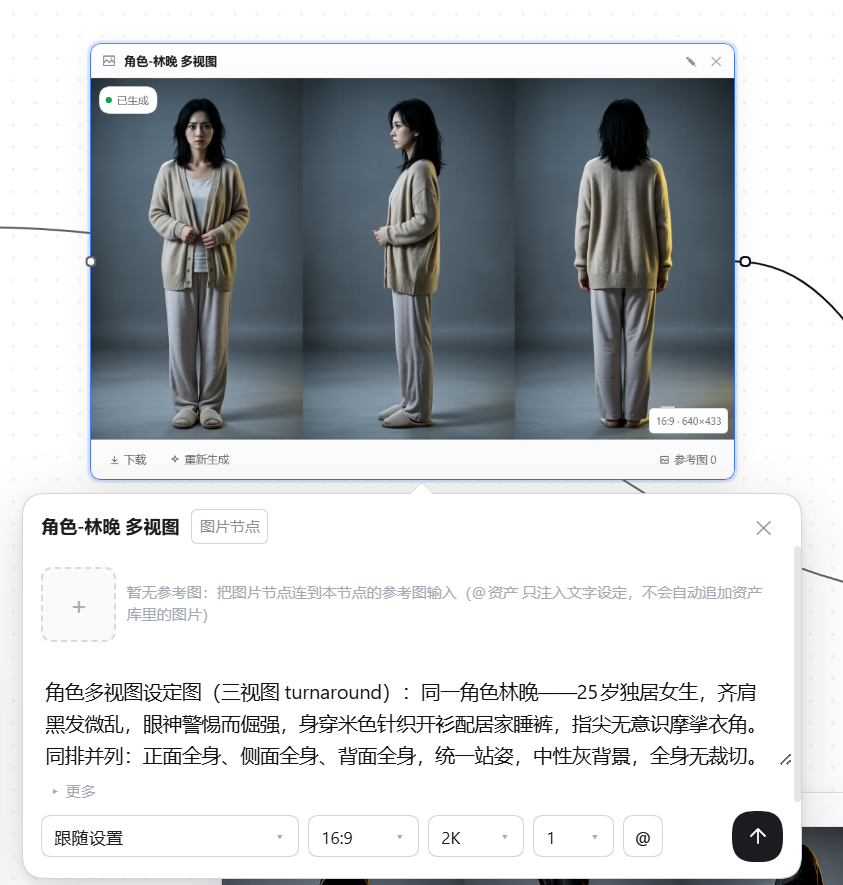
A node with its generation panel: click the content area to open it — references live in a draggable strip at the top, and model / ratio / quality / count sit on one row:
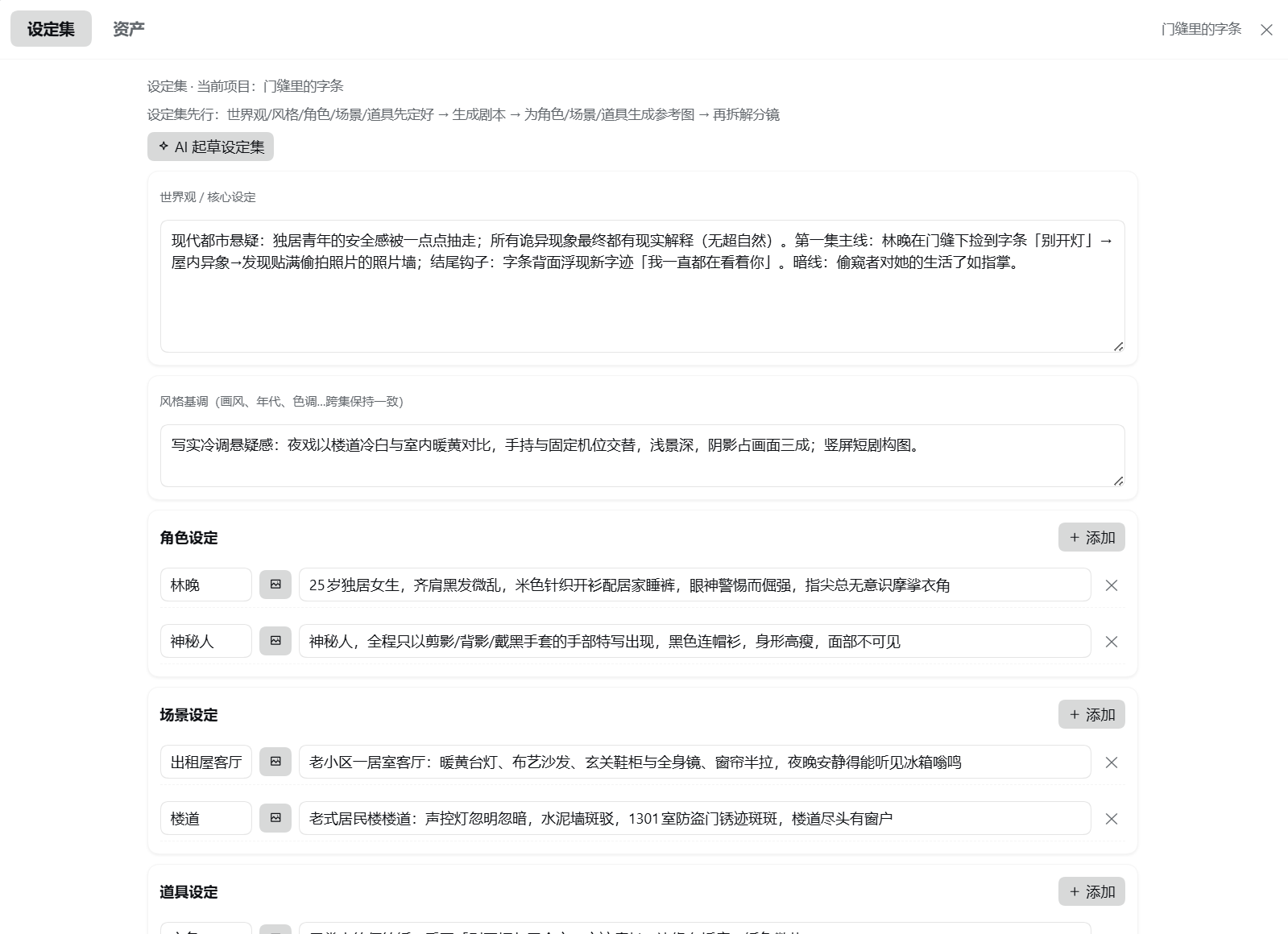
The bible modal — world view, style, character/scene/prop entries, each able to bind reference assets:
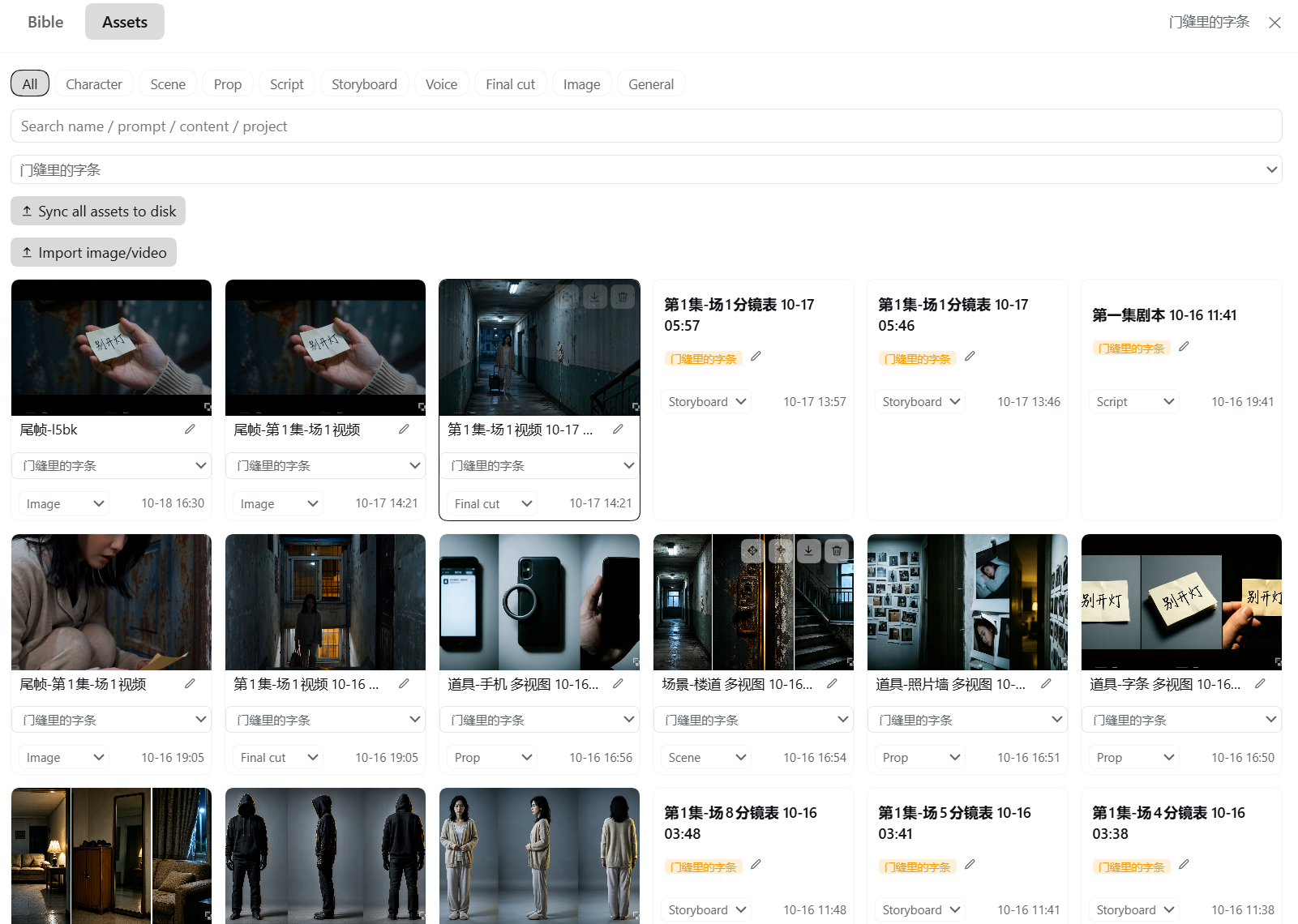
The assets modal — a card grid with search, category and project filters; videos use their first frame as the thumbnail (EN UI):
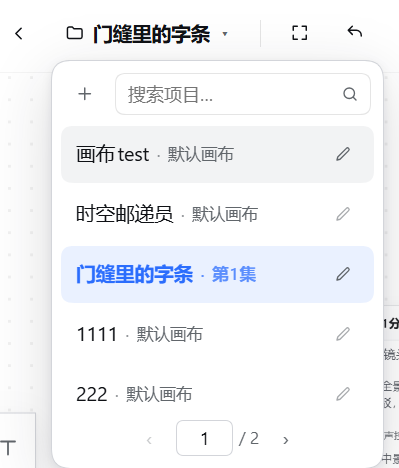
The project dropdown on the top-left project name: every row shows project · canvas, renames happen in place, and more than five projects paginate with a page-jump box (ZH UI):
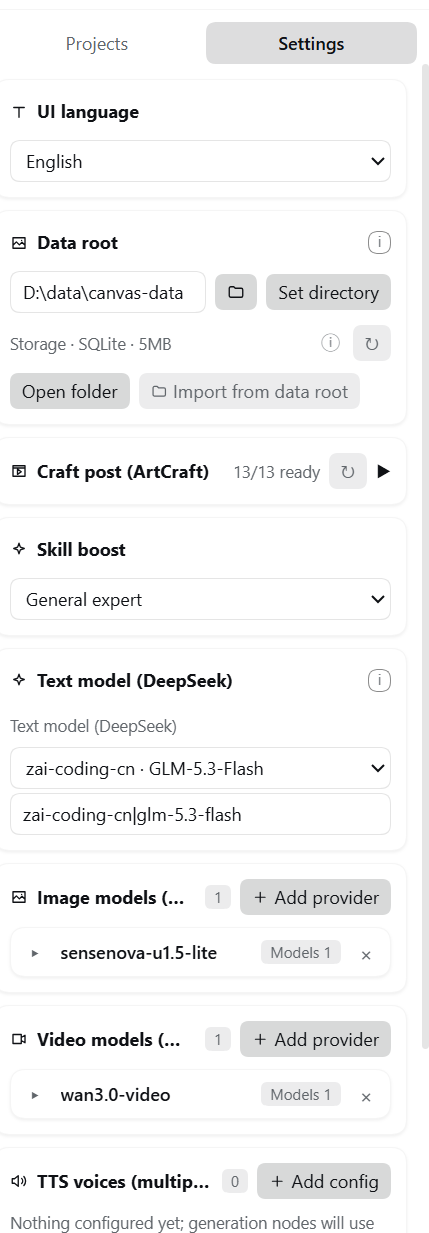
The Settings panel — data root, Craft status, Skill boost (General expert), text model and the image/video/TTS providers (EN UI):
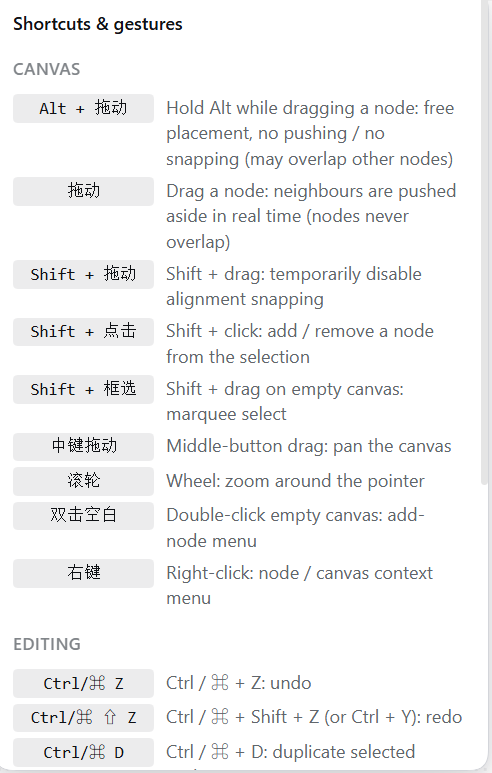
Shortcuts and gestures:
Help & feedback:

Work beside the chat
The canvas is not a separate window you have to switch to. It opens as a tab in the Harness right pane, so you can talk to the agent on the left and storyboard on the right at the same time — ask for a change in chat and watch the nodes update in place.
- Open the right pane (开始 / Start) and click the 无限画布 / Infinite Canvas card.
- The canvas opens as a tab beside the conversation; the same projects, nodes and assets as the full-page panel.
- Drag the pane wider, or use the pane's fullscreen button, when you need more room.
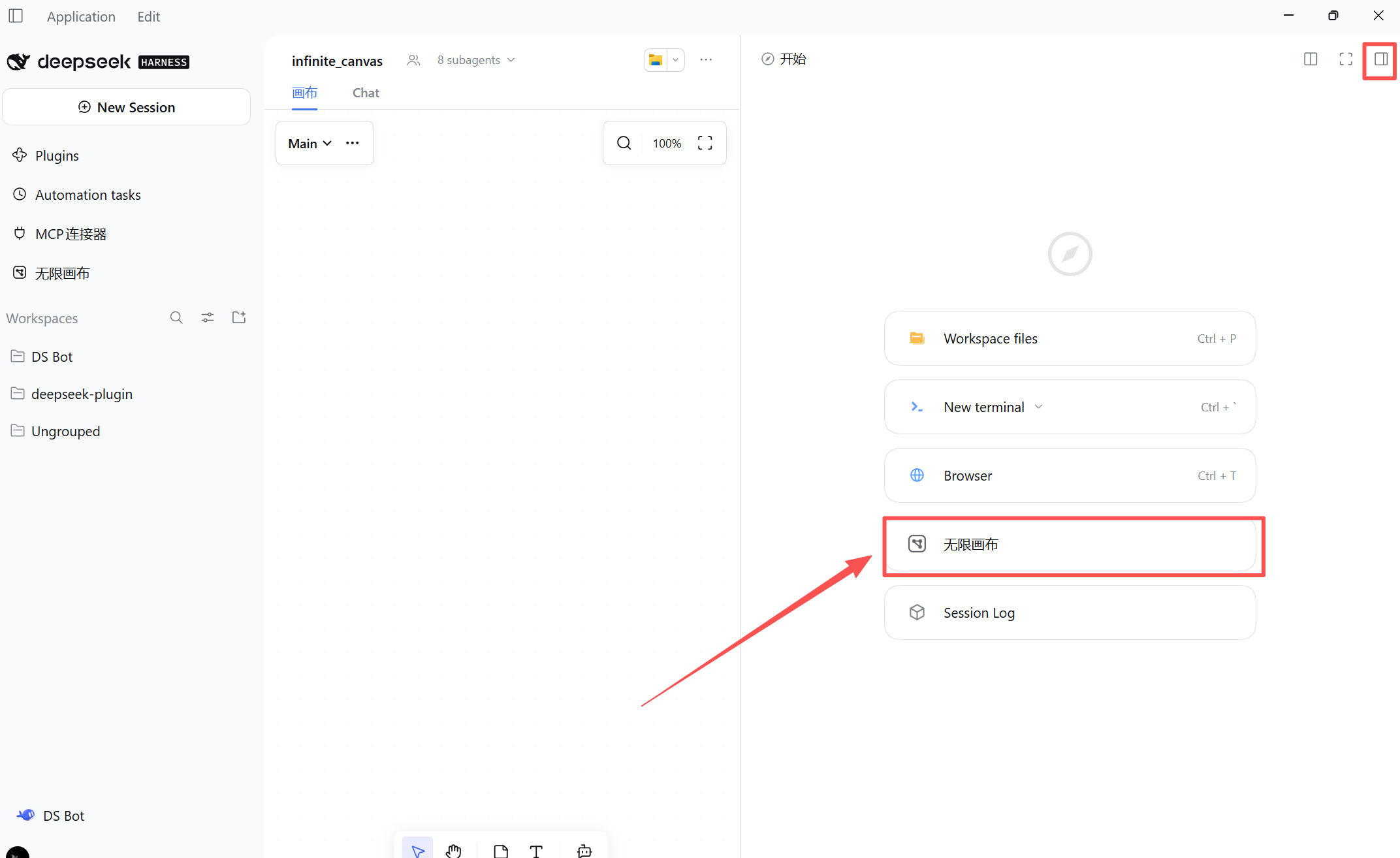
One live canvas at a time (shared node graph and generation state): opening it in the pane while the full-page panel is also open moves the canvas rather than duplicating it — the other side shows a "move the canvas here" button.
3D Director Stage (previz)
A blocking & previz workspace that lives inside the same project: place real glTF characters and set dressing, frame them with real cameras, and send the result back to the canvas as an image or video node.
- Built-in "Media Studio" preset mode — director-first guided creation (pick lens → genre/spec/look → one-sentence story → storyboard → generation → ArtCraft finishing), selectable from the mode picker; the bundled director-workshop skill walks a newcomer one question at a time.
- Three modes — Static previz (studio look, paused), Dynamic previz (studio look + timeline playback), Live render (final look: daylight, shadows, materials, no guides).
- Asset library — characters, trees, furniture, buildings, primitives, and ancient-street set pieces (pitched roofs, stalls, stone steps) in one searchable rail.
- Direct manipulation — local-axis move/rotate/scale gizmo, box select, Alt-drag a scale handle = uniform scale, W/A/S/D + Q/E fly navigation (hold Shift for 4x speed).
- Shots & timeline — shot rail with per-shot start/end, camera keyframes, ease curves, markers and loop playback.
- Camera & optics — FOV, focal length, sensor size and roll stay consistent; shot-size presets show the live framing percentage.
- Export — PNG still or MP4/WebM clip, dropped straight back onto the canvas as an image or video node.
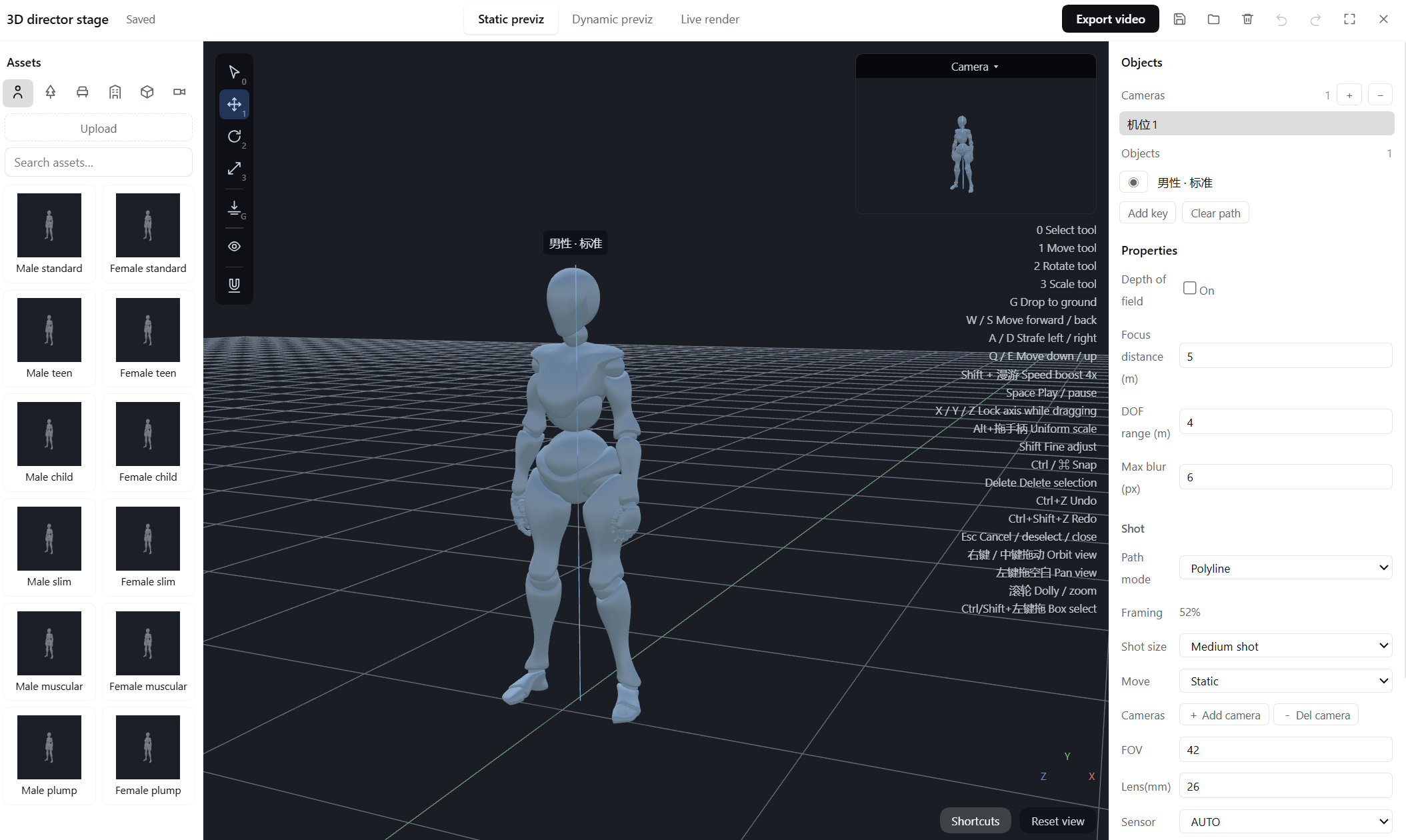
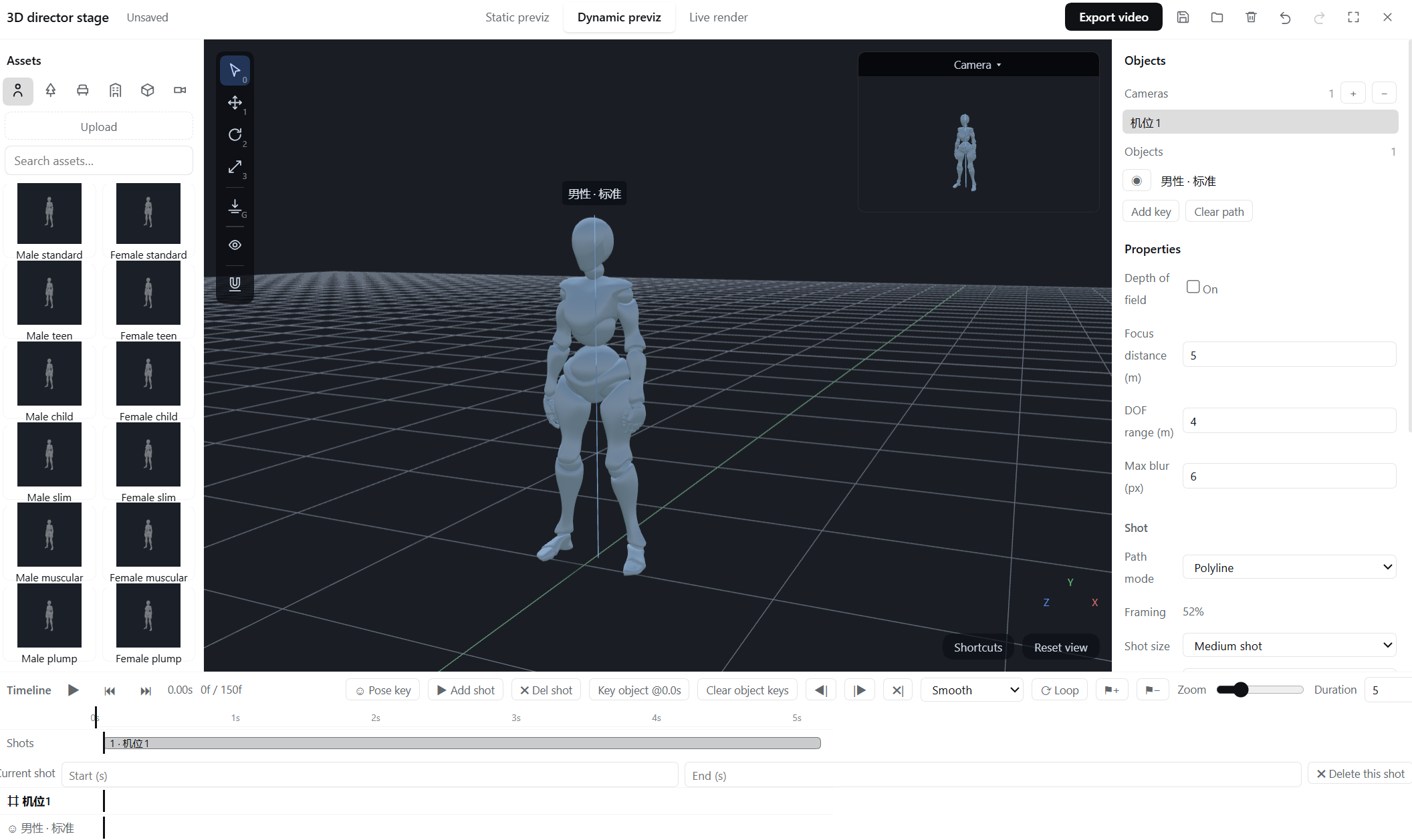
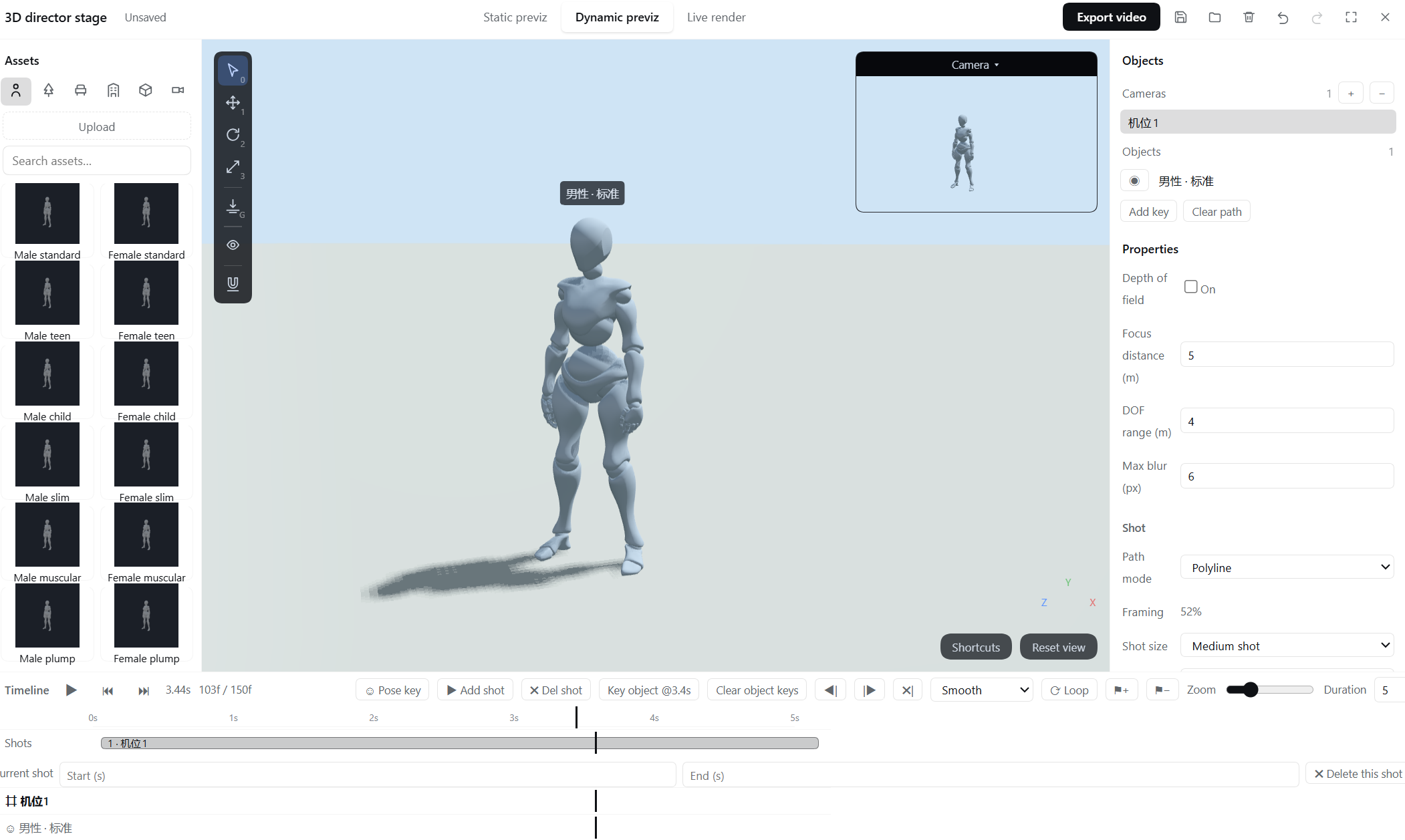
Assets are shared with the canvas: the characters, trees, furniture and buildings you already generated are directly usable as previz set dressing.
Full walkthrough — asset tabs, gizmo, keyboard map, shots and export: User guide → 3D Director Stage.
Craft page: director / genre / spec / look
The third tab of the right sidebar decides how the whole piece is shot. It is not a prompt template — it is a binding constraint that gets composed into every script, storyboard, image and video generation. There are no dropdowns on the page: every option is an icon tile; click to select, click again to clear.
What each layer owns
| Layer | Count | Decides | Why it needs its own layer |
|---|---|---|---|
| Director | 45 | Camera language, lighting, cutting rhythm, style parameters | It constrains the shot's camera fields, the keyframe, and the video's camera move at once — the least replaceable decision in the whole piece |
| Genre | 36 narrative / 10 sector | Pressure mechanics, audience payoff, scene granules, episode hooks | The same "revenge" premise is fragmented neon under Wong Kar-wai and hard-lit slow motion under Tsui Hark; folding them together poisons both |
| Spec | 8 | Structure blocks, ASL floor, rhythm, quality bar | It decides "short drama vs cinematic texture vs commercial", which is orthogonal to genre |
| Look | 9 | Imaging base, material, render texture | 2D thick paint / guoman 3D / game CG are imaging domains, not directors; mixing them into the director layer makes "how to cut" fight "what it looks like" |
Directors (45): Chinese 16 (Wong Kar-wai, Zhang Yimou, Hou Hsiao-hsien, Bi Gan, Tsui Hark, Lu Yang, Yuen Woo-ping, Wu Ershan, Ang Lee, Edward Yang, Jia Zhangke, Jiang Wen, Johnnie To, Ning Hao, Stephen Chow, Wong Jing) · Japan/Korea 7 (Kurosawa, Park Chan-wook, Bong Joon-ho, Kore-eda Hirokazu, Lee Chang-dong, Miyazaki Hayao, Shinkai Makoto) · Western 22 (Spielberg, Hitchcock, Kubrick, Scorsese, Fellini, Bergman, Tarkovsky, Nolan, Villeneuve, Fincher, Refn, Malick, Michael Mann, Coen Brothers, Ridley Scott, David Lynch, Alfonso Cuarón, Iñárritu, Wes Anderson, George Miller, Almodóvar, Guy Ritchie).
Specs (8): Short drama · Cinematic texture · Commercial · Documentary · Music video · Trailer · Explainer · Interview.
- A short drama is a self-contained 60–180 s unit and covers both single episodes and multi-episode series — a series is just episode after episode, so there is no separate "series" form.
- Cinematic texture is a texture spec, not a feature-length one: it constrains how each shot must be made to read as cinema (ASL floor 1.5 s, 24 fps, motivated light, real materials), and its duration tiers stop at 30–300 s. The reason is practical — a video model emits only 3–8 s per clip (5 s by default here), so "a 120-minute film" can only be hundreds of clips stitched together.
- Commercial merges 宣传片 / 广告片 / 产品片 — near-identical needs, split internally by block ratios instead of three separate cards.
Aspect ratio is not decided here
Vertical, horizontal, square or widescreen all work with any spec — aspect and resolution are chosen on the video node at generation time. Vertical delivery is common for short drama, but that is a distribution choice, not a craft spec; a short drama can equally be shot horizontal and to a cinematic standard.
Where it is injected
| Node / capability | What it receives |
|---|---|
| Script node | Genre cards + the lens's narrative/rhythm/performance sections + the form's structure blocks |
| Storyboard node | The lens's camera language, lighting, style parameters and shot checklist + the form + the camera-move dictionary |
| Image node | A style lock: style parameters + look imaging/material + genre granules + three negative lists |
| Video node | Same (also appended when an upstream storyboard feeds it, without breaking the structured format) |
| Character/scene/prop sheets | The lens's lighting and colour + the look card |
| Bible AI draft | Same as script |
With all four layers empty nothing is injected — existing projects behave exactly as before.
Three buttons
- Preview — shows the assembled slice and its byte size
- To bible — writes the style summary into the bible's style field, so the chat side reads it too
- Clear — resets all four layers
It works from the chat too
The configuration is stored on the project document (same sync mechanism as the series bible), so the chat side reads the same selection the panel shows. Say "shoot this in Wong Kar-wai's style" in chat and the agent calls canvas_list_skills to see what craft exists, then canvas_skill_pack to pull the matching slice — the same slice the canvas itself uses.
Full walkthrough — User guide → Craft page.
How it works
flowchart LR
    A[Script node<br>ONE episode · scene headers] --> B[Expand to scenes<br>text + storyboard per scene]
    B --> C[Multi-shot video per scene<br>shots + refs in ONE call]
    C --> D[Tail-frame chaining<br>scene N last frame → N+1 first frame]
    A --> E[Reference image gen<br>characters · scenes · props]
    E --> C
    D --> F[Final cut / FilmCraft<br>transitions · subtitles · voices]
Highlights
Consistent characters, scene after scene
A per-project series bible (style baseline + character/scene/prop cards) is injected into every AI call, so wardrobes, locations and props stay coherent across shots and episodes. Entities referenced with @name in a prompt automatically carry their bible description and reference assets. After each storyboard run, a consistency check flags any name that isn't registered yet, and the agent fills the gaps.
References that actually bind
Reference images connect as an ordered, visible list — [图1] 角色:Lin Ning, [图2] 场景:The Old House — and that exact order is what reaches the model. Multi-character frames stay unambiguous, and Volcano Engine Seedance's native [图N] convention is supported end to end (first frame, up to 4 reference images, official task API).
From shots to a watchable cut
One storyboard = one multi-shot video generation. Expanding a storyboard wires it to a single video node: every shot (order + per-shot duration) is composed into one multi-shot prompt and your video model renders the whole clip in one call — the model makes the hard cuts, no per-shot stitching seams. The Final Cut node then stitches segments in order — crossfade or black transitions, burned-in subtitles, original audio and TTS voices mixed in — and exports a preview cut instantly. For real post-production, one click writes a FCP7 XML timeline + SRT to disk and hands the render to ArtCraft (FilmCraft) for a true MP4.
An editor-grade canvas
Pan, zoom, marquee select, alignment guides, groups that fold, a minimap, 60-step undo/redo, per-node media history (last 8 results), mask-based inpainting, and middle-click everything — the canvas part should feel like an editor, not a chat sidebar.
Bring your own models
Text models come from Harness itself (no extra keys, no per-plugin parameters). Image and video backends use a provider + model structure: configure a provider once (URL, key, optional vendor-specific extra params as JSON) and list as many model IDs under it as you like; star one as the default route for nodes that don't pick one. Video endpoints are auto-adapted — OpenAI-style task APIs, Seedance-native content[] gateways and Sora-style /v1/videos are covered by an automatic fallback chain, resolutions/ratios/first-frames/references are mapped to each vendor's conventions, and oversized references are downscaled before sending. Every gateway call is relayed through the local Harness host process, so any vendor works (no CORS headaches). No backend configured? Demo mode synthesizes placeholder images and animated videos locally so the entire pipeline is testable offline.
A portable data root
Set a data root folder once and everything lands there, organized by project name: nodes and the series bible in project.json, the asset index in assets.json, media under image/ video/ audio/ text/, and Craft post-production under craft/. Moving to a new machine = copying the folder: point the new install's data root at it and every project (assets, bible, media) is recognized — plus a one-click Import from data root for anything not yet on disk. Put the folder inside a cloud-sync directory and multiple machines stay in sync automatically.
Quick start
- Install the plugin (bundle folder) and restart Harness once.
- Click the Infinite Canvas button in the left sidebar, and set a data root in Settings.
- In the chat: "Create a project called , write the world view and series bible first."
- "Write episode 1." → script node generates one episode with
【场N】scene headers → click Expand to scenes (or ask the agent) to get text + storyboard nodes per scene. - "Generate reference images for all characters, scenes and props." → named, bible-consistent asset images in one batch.
- "Generate scene 1's video." → storyboard shots + references compose one multi-shot video call; chain scenes via tail-frame → first-frame.
- Open a Final Cut node for the preview cut, or export to FilmCraft for a true MP4.
Without any generation API configured, every step runs in demo mode — the full pipeline works offline.
The full walkthrough (with screenshots, model configuration and data-root migration) lives in the Chinese user guide.
Generation backends
| Kind | Protocol | Notes |
|---|---|---|
| Text | Harness LLM service | Episode scripts & storyboard writers; pick any configured model, or override per node |
| Image | OpenAI-compatible /images/generations, multi-reference via /images/edits |
Provider + model list with starred default; size (1K/2K/4K) × ratio; extra params as JSON; mask inpainting via edits + PNG mask |
| Video | OpenAI-style task APIs, Seedance-native content[], Sora-style /v1/videos — automatic fallback chain |
Episodes per scene (≤15s), 480P/720P/1080P, ratio, first frame, multi-reference (auto-downscaled), voice references via audios[] |
| TTS | OpenAI-compatible /audio/speech |
Per-shot voices mixed into the final cut |
All gateway calls are relayed by the local Harness host process (no browser CORS limits) — any vendor endpoint with an OpenAI-style shape works.
ArtCraft bridge
When the companion dsh-artcraft plugin is installed, the canvas talks to the local Craft family (PhotoCraft, FilmCraft, EffectCraft, LightCraft, VectorCraft, DesignCraft, … — every bin the Craft suite reports, currently 12) over same-origin HTTP. Point ArtCraft's data root at the same folder as the canvas data root and all post-production lands in projects/<project>/craft/ next to your other data: assets sync per project, images get headless PhotoCraft grading (single or batch), and final cuts export as FCP7 XML + SRT for FilmCraft to render as MP4. A status card in Settings shows one light per craft with an n/n ready summary.
Publishing (maintainers)
The maintainer runbook (red lines, branch model, versioning) lives in RELEASING.md; the operations detail in docs/release.md; released changes in CHANGELOG.md — GitHub Release notes are written in English and copied from the changelog.
Publishing runs through npm Trusted Publishing (OIDC) — no npm token exists anywhere:
- Release flow: dev tested & approved → merge to
main→ create a GitHub Release (tagv0.17.9, …) → Actions publishes that version automatically. - The
publish.ymlworkflow guards on the release commit being onmainand the tag matchingpackage.json, then publishes with aprovenancebadge.
Data & privacy
- Canvas documents, projects and settings live in browser
localStorage(dsh-ic:*); asset metadata lives in IndexedDB (dsh-infinite-canvas) while media files persist on disk once a data root is set (per-project folders by project name, served by the plugin backend with HTTP Range support for video seeking). - AI text generation runs through the Harness host process (your configured models, no extra keys).
- Image/video/TTS gateway calls are relayed by the local Harness host process (avoids browser CORS limits); your endpoints and keys stay local.
- Nothing is uploaded anywhere by the plugin itself.
Requirements & limitations
- DeepSeek Harness 0.2.0-rc.2+; demo video export needs MediaRecorder (Chromium).
- The preview cut is real-time recorded WebM; for MP4 masters with multi-track editing, pair with ArtCraft FilmCraft or any NLE.
- Image
edits/mask inpainting requires a model that supports the endpoint (e.g. gpt-image-1). - Host-side plugin updates need one Harness restart; the web half hot-reloads.
License
Apache-2.0
Links
More in this category
DayuanJiang/next-ai-draw-io#dsh-plugin★ 36548
Draws draw.io diagrams in DeepSeek Harness through the next-ai-drawio MCP server: the link in the reply opens a live preview in the right sidebar, you can edit the diagram by hand, and each AI change is a version you can restore. Node.js 18+; npx downloads the MCP server on first use.
Tencent/WeKnora#dsh-weknora★ 36201
Four read-only tools over a WeKnora knowledge base: list knowledge bases, hybrid passage search, reassemble one document's chunks in order, and WeKnora's own cited RAG or ReAct-agent answer with a resumable session id.
superdesigndev/treg★ 6962
Tool catalog for agents: search ~2,600 external endpoints (SEO and SERP, backlinks, social, people and company enrichment, ad libraries, scraping) by the task you want done, read each one's parameters and per-call price, then call it with the credential injected server-side. Ships the skill plus an MCP row that stays disabled until TREG_TOKEN is set.
T-Auto/dsh-ops★ 5011
Provides bash, PowerShell 7, and high-performance Rust tools for DSH on Windows to reduce token usage.
sixtysevenlf/dsh-blender-plugin★ 1536
Lets a DSH agent drive a local Blender over a direct TCP channel with 15 tools: viewport frames, custom-angle renders, Python execution, headless and job offload, transaction rollback, and a planning layer of 228 ops across 34 families.
TencentCloudBase/CloudBase-AI-Toolkit#dsh-plugin★ 1153
Tencent CloudBase backend for DeepSeek Harness — scaffold and deploy full-stack apps from chat, render query results as table cards with paging, sorting and CSV export, preview a deployment on its domain, and call the CloudBase MCP toolset (`mcp__cloudbase__*`) with device-code login.
Community comments
Comments are public GitHub Discussions. Loading them connects to GitHub and Giscus; a GitHub account is required to post.