Fine-grained permission gateway: per-category tool-call review (outside-workspace directories, commands, file read/write, subagents, repeated actions) with global & per-project allow/deny exceptions, quick-tool defaults, custom rules, a bilingual approval modal with inline diff details, custom rejection reasons and a sandbox-upgrade flow.
Install
# from npm (prebuilt)
dsh plugin --profile web add @mrweicodes/dsh-permgate
# from GitHub (first run asks for allowBuilds approval — follow the hint, retry)
dsh plugin --profile web add github:MrWeiCodes/dsh-permgate
Any plugin you install runs third-party code with your own permissions — it can read your files, use your credentials, and reach the network, and tool approvals don’t sandbox it. GitHub-sourced plugins also run build scripts at install time — pnpm blocks those until you allow them, so an install can stop with ERR_PNPM_GIT_DEP_PREPARE_NOT_ALLOWED or ERR_PNPM_IGNORED_BUILDS; dsh prints the exact key to add under allowBuilds in your profile’s pnpm-workspace.yaml, and the install works on the next run. Allowing a build is a trust decision: only install sources you trust, and pin a commit (github:owner/repo#sha).
README
A fine-grained permission control plugin for DeepSeek Harness (DSH)
🌏 中文 | English
dsh · dsh-plugin · plugin · permission control · approval · sandbox · security · AI agent · 权限控制 · 审批 · 沙箱 · 权限网关
Introduction
DSH ships only three permission levels — [Read only], [Workspace Write], [Full access] — which are too coarse. This plugin adds a Custom Review permission gateway that reviews tool calls one by one.
Tool calls are reviewed per category (directory access / command execution / file read / image read / file write-edit / undo / subagent spawn / repeated actions), with global & per-project configuration, allow/deny exceptions, quick-tool defaults, custom rules, a fallback policy, and a bilingual (Chinese/English) approval modal with a sandbox-upgrade flow.
Features
- Eight permission categories: outside-workspace directories, command execution, file read, image read (
read_image), file write-edit, undo (revert the last edit), subagents and repeated actions are governed separately — each category has its ownask / allow / deny(projects can alsoinherit global), so you can be strict about sensitive actions and relaxed about routine ones, shaping the AI's boundaries to your habits. - Global / project levels: one set of global rules for every project, fine-tuned per project; anything unset in a project automatically follows global — no duplicate configuration.
- Exceptions (allow/deny lists): put paths or commands you "always allow" or "never allow" into exceptions — matched calls are allowed or denied outright, without prompting you every time.
- Quick tools: tools that don't map to files or commands (
web_search,skill,grep,glob,web_fetch, …) can also get their own default: ask, allow or deny. - Custom rules: combine tool name, file path and argument content into rules (e.g. "no tool may run
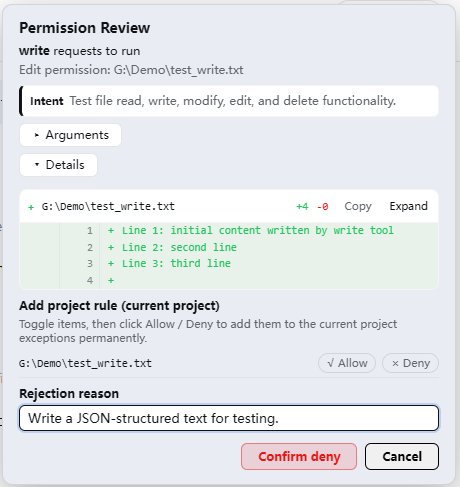
rm -rf") — more flexible than category exceptions. Priority: custom rules > exceptions > defaults, so a few rules cover most situations. - Approval modal: one popup shows everything — what the AI wants to do, why, and the concrete arguments; edit/write approvals display the diff inline (+N/-N lines) and undo approvals show exactly what will be restored, so you don't need to compare files yourself. If a type of operation no longer needs asking, add it to the project allow/deny list in one click.
- Custom rejection reason: when denying, you can tell the AI "why not, and what to do instead" — the AI gets a clear reason and adjusts its plan immediately, instead of retrying against a cold "User denied".
- Sandbox upgrade: even after you allow a call, if DSH's underlying sandbox still blocks it (e.g. writing outside the workspace), the native sandbox-upgrade approval pops up — a one-shot grant that is automatically reverted afterwards, an extra layer of safety.
- Bilingual UI: follows the DSH interface language automatically (missing/invalid language parameters default to Chinese).
- Persistence: all settings live in the user directory and survive restarts.
Usage
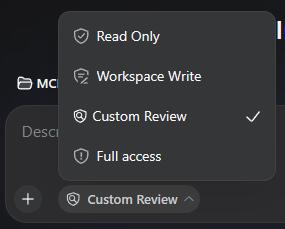
Session permission picker: pick "Custom Review" in the permission picker below the input, and every tool call is reviewed per category by the permission gateway.
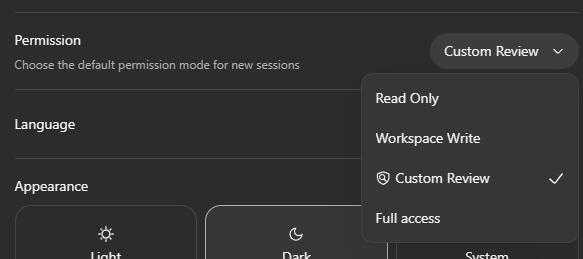
Default permission for new sessions: set "Custom Review" as the default for new conversations in Settings, and every new conversation enables it automatically — no need to pick it manually each time.
Approval modal: edit/write approvals show the diff detail so you can quickly judge whether the change is reasonable; run-command approvals show the command and its arguments — commands matching an exception pass through, others ask — with one-click rule candidates (e.g.
git status *) to add frequently allowed commands to the exceptions.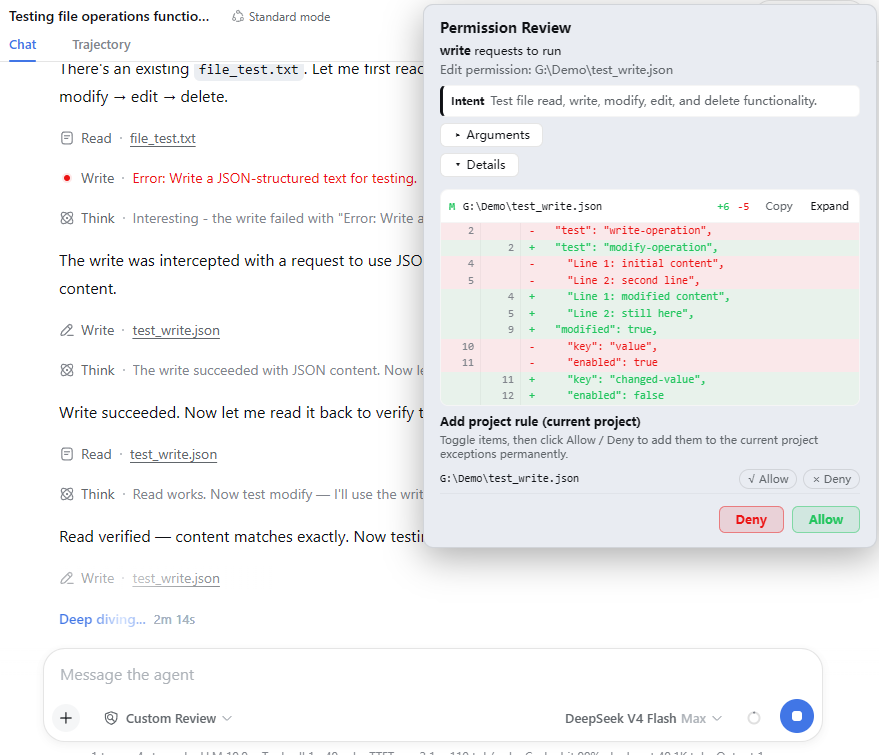
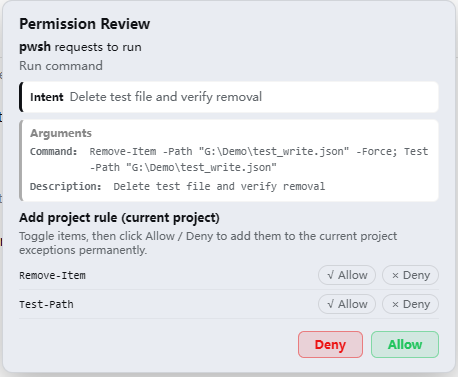
Custom rejection reason: type your feedback when denying, and the AI receives a clear "why not, and what to do instead" and adjusts its plan right away.
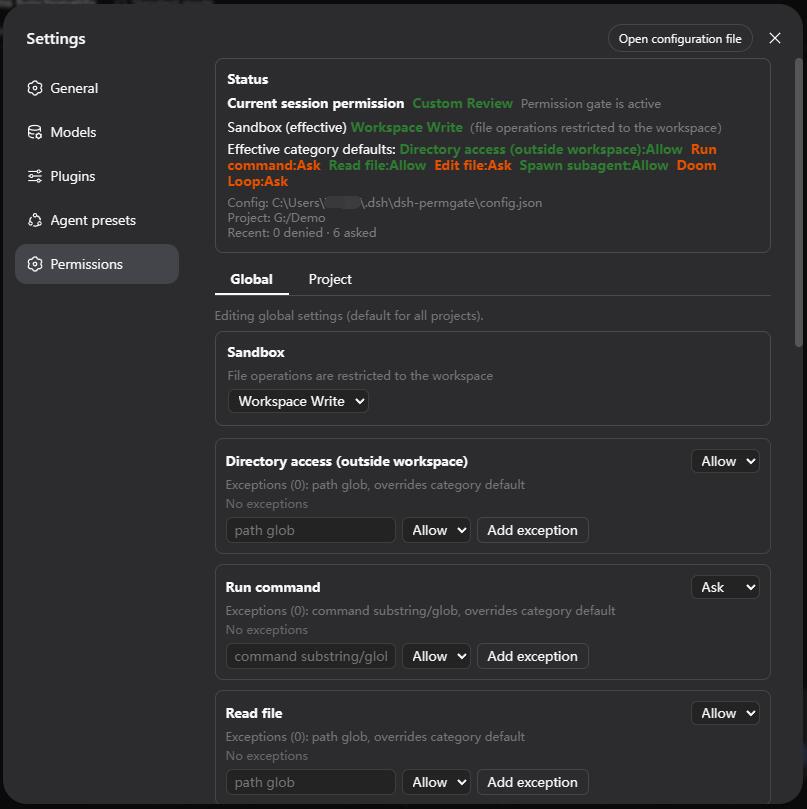
Settings → Permission Gateway: manage everything in one place — per-category defaults, allow/deny exceptions, quick tools, custom rules and the underlying sandbox, configured separately for global and project levels, plus a recent-decision log. No more editing configuration files by hand — adjust permissions quickly through the settings page.
Installation
Option 1: install from the plugin market (dsh-market, recommended)
If you have dsh-market (the DSH plugin market) installed: open Settings → Plugin Market, search for dsh-permgate, click Install on the card and confirm the source when prompted (npm: @mrweicodes/dsh-permgate; if the card shows a GitHub source, github:MrWeiCodes/dsh-permgate). After it finishes, restart dsh web. Then select "Custom Review" in the session permission picker (/permission).
Option 2: let the AI install (easiest)
Just tell your DSH AI assistant the repository URL, e.g. "install the plugin https://github.com/MrWeiCodes/dsh-permgate". The AI handles plugin loading, dependencies and the patch for you; afterwards restart dsh web and select "Custom Review" in the session permission picker (/permission, remembered per conversation; optionally set it as the default for new sessions in Settings → Permission).
Option 3: one-liner (self-service)
DeepSeek Harness requires a supported Node.js version. The host-side plugin is plain ESM JavaScript and the browser registration script ships as a runtime file committed directly in this repository. The package has no build, prepare or install scripts, so installing from Git does not require authorizing pnpm to run builds.
Install from npm (recommended):
dsh plugin --profile web add @mrweicodes/dsh-permgate
Install from GitHub:
dsh plugin --profile web add -w github:MrWeiCodes/dsh-permgate
Install from a local checkout (dependencies resolve only when the checkout lives inside the profile directory; otherwise use Option 4):
dsh plugin --profile web add -w ./dsh-permgate
Restart dsh web, then select "Custom Review" in the session permission picker (/permission, remembered per conversation); optionally set it as the default for new sessions in Settings → Permission.
If you previously installed manually (Option 4), follow Uninstallation first to remove the old manual rows and dependency, then use Option 3 to avoid duplicate registration.
Option 4: manual installation
Fallback for environments without pnpm or for offline use:
- Place this repository into your DSH profile's plugin directory:
# example: web profile $dst = "$HOME\.dsh\profiles\web\packages\dsh-permgate" git clone https://github.com/MrWeiCodes/dsh-permgate.git $dst - Add to the
dependenciesof the profile'spackage.json:"@mrweicodes/dsh-permgate": "file:./packages/dsh-permgate" - Append the contents of
cordis.patch.ymlto your profile'scordis.patch.yml. - Reinstall dependencies and restart:
pnpm install(ornpm install), thendsh web.
Updating
⚠️ Note: renamed to
@mrweicodes/dsh-permgateas of 1.3.9 (previouslydsh-permgate).
- Installed via the plugin market: click Update — the market performs the source migration automatically (removes the old name, installs the new one) and rolls back on failure.
- Manually installed (Option 3/4): remove and reinstall:
dsh plugin --profile web remove dsh-permgate dsh plugin --profile web add -w github:MrWeiCodes/dsh-permgate- Your configuration (
$DSH_HOME/dsh-permgate/config.json) is unaffected.
Pick the command matching how you installed — your configuration ($DSH_HOME/dsh-permgate/config.json) is preserved across updates, no need to reconfigure.
- Installed via Option 1 (dsh-market): open Settings → Plugin Market, click Update on the dsh-permgate card (or use the market's one-click/batch update).
- Installed via Option 2 (AI): just tell your AI assistant "update the dsh-permgate plugin".
- Installed via Option 3 (dsh plugin):
If the latest commit is not fetched (git dependencies are cached), remove and re-add:dsh plugin --profile web update @mrweicodes/dsh-permgate
Then restartdsh plugin --profile web remove @mrweicodes/dsh-permgate dsh plugin --profile web add -w github:MrWeiCodes/dsh-permgatedsh web. - Installed via Option 4 (manual):
Then restartcd "$HOME\.dsh\profiles\web\packages\dsh-permgate" git pull # or re-copy the new version over the old files pnpm install # run only if the dependency declarations changeddsh web.
Uninstallation
Installed via Option 1 (dsh-market): uninstall from the plugin market
Open Settings → Plugin Market, click Uninstall on the dsh-permgate card (two-step confirm); plugins installed in this session are removed live. The config directory $DSH_HOME/dsh-permgate/ is not deleted automatically — keep or clean it per the "Leftover locations" checklist below.
Installed via Option 2 (AI): let the AI uninstall
Just tell your AI assistant "uninstall the dsh-permgate plugin". The AI removes the plugin, cleans up the patch and dependencies, and deletes the config directory following the "Leftover locations" checklist below (say so in advance if you want to keep the config).
Installed via Option 3 (dsh plugin)
dsh plugin --profile web remove @mrweicodes/dsh-permgate
dsh plugin remove only removes the plugin itself and its patch layer — it does not delete the config directory; delete $DSH_HOME/dsh-permgate/ per the checklist below.
Installed via Option 4 (manual)
- Remove the
- insert: permgaterow from your profile'scordis.patch.yml; thepermissionpreset override block can be removed too (restores the platform's default preset table). - Remove
"@mrweicodes/dsh-permgate": ...from thedependenciesof the profile'spackage.json. - Reinstall dependencies and restart:
pnpm install(ornpm install), thendsh web. - Delete the plugin directory and the config directory (paths in the checklist below).
Leftover locations (cleanup checklist for the AI)
- Config directory:
$DSH_HOME/dsh-permgate/—$DSH_HOMEdefaults to~/.dsh(C:\Users\<username>\.dshon Windows); the plugin'sconfig.jsonlives here. Uninstallation does not delete it automatically; the AI deletes the whole directory when uninstalling. - Plugin directory (Option 4 installs):
$DSH_HOME/profiles/<profile>/packages/dsh-permgate/. - Dependency & patch (Option 4 installs): the
"@mrweicodes/dsh-permgate": ...dependency in the profile'spackage.json, plus the- insert: permgaterow and thepermissionpreset override incordis.patch.yml. - Session logs: the
permission/preset: custom-reviewevents in sessions are DSH's own records — not plugin residue, do not delete them.
Uninstall leftovers
- Config file:
$DSH_HOME/dsh-permgate/config.jsonis not deleted automatically (it is the plugin's only persistent file); remove it manually if desired. - Session history: sessions that selected "Custom Review" keep their
permission/presetevents — these are DSH's own session-log records, not data written by this plugin, so they are not plugin residue. After uninstall the preset no longer exists and the permission picker gracefully falls back to a built-in preset matching the current sandbox/approval settings (e.g. Workspace Write) — no errors. - Session-level knobs: sessions whose underlying sandbox was switched to Full access via the settings page keep their
sandbox/modesession event and it still applies after uninstall (that is DSH session state, not plugin residue). - Browser side: the badge and preset-name DOM injections live only in page memory and vanish on refresh; approval modals are in-memory and disappear with the process.
- No global registry, npm global packages, or system-level writes.
Configuration file location
$DSH_HOME/dsh-permgate/config.json
Language and preset-name display
- The plugin's own UI strings (modal, panel) are registered with DSH's locale service and follow the interface language; missing/invalid language parameters default to Chinese.
Compatibility & conflicts
- Zero-intrusion, trace-free plug & unplug: the plugin uses only DSH's public interfaces (plugin loading,
webServerroutes, thetoolspre-execute review chain,locale/slotsservices, …) and does not modify native DSH code or internals via hooks or patching. Uninstalling removes it completely from the process; after a page refresh nothing remains in the browser. - HTTP routes: all endpoints live under
/permgate/*(including the SSE endpoint/permgate/events); collision with other plugins is very unlikely. - Slot ids: the settings page and modal use distinct ids (
permgate,permgate-approval, …). A clash with another plugin's slot id fails loudly (it throws), never silently breaks. permissionpreset-table override: thepermissionblock in the patch uses whole-table override semantics (restates every preset). If another patch overrides the same config they will clobber each other — do not combine with other patches that modify thepermissionconfig.- Similar permission plugins: installing another pre-execute review plugin (e.g. dsh-auto-approve) alongside means both review chains run and may double-prompt — keep only one.
- Native approval service: permgate's pre-review uses its own modal (not DSH's approval service); the sandbox-upgrade approval uses the native
approval.request— no conflict. - Display layer: preset-name localization and the badge are a best-effort DOM layer, display-only; other plugins touching the same DOM may visually overlap, which never affects enforcement.
- Compatible with dsh-fs-encoding: DSH's filesystem contract is UTF-8-only, so an approval preview of a non-UTF-8 file (GBK / Big5 / Shift-JIS, …) cannot be read. When that plugin provides its
ctx.fsEncodingdecoding service, permgate's approval modal and comparison panel (including write-class diffs and undo previews) reuse it to decide the encoding and render the content, labelling the encoding it resolved; when the encoding was guessed rather than determined by a BOM, the preview marks it with a question mark so a guess is never presented as the file's real encoding. If the decoded text still contains NUL characters it is treated as binary and not previewed (the "cannot read" notice is kept instead of showing mojibake) — this test does not depend on how the encoding was decided: under guessing, binary content gets mapped by a single-byte encoding into text that merely looks decoded, and must be rejected too; legitimate UTF-16/32 (with BOM) text decodes without NULs and is unaffected. The dependency is optional: without the plugin the preview keeps its previous behaviour (reporting that a non-UTF-8 file cannot be read) and never guesses on its own, because two independent guesses over the same bytes would disagree about what a file says. The decision stays with that plugin. (Binary detection follows DSH's existing rule: only the first 8 KB are sampled, so a file whose NUL bytes appear after that window may still be shown as text — that is upstreamctx.fsbehaviour.)
Custom development
# The repository files are the plugin sources (index.js = host half, client.js = browser half)
node --check index.js
node --check client.js
To customize the plugin, use DSH's Creator mode for quick development.
License
Links
More in this category
toby-bridges/api-relay-audit★ 862
Runs local security audits of AI API relays and LLM proxies from DeepSeek Harness, producing Markdown reports for prompt injection, model substitution signals, tool-call rewriting, error leakage, stream integrity, and profile-gated Web3 risks.
SeaOf0/dsh-redteam-model★ 652
Authorized-security DSH collection: nine work modes (redteam coordinator, pentest, code audit, binary analysis, attack-defense, AV evasion, incident response, cloud security, CTF solving) and fifteen runtime plugins, managed from a settings page with one-click deploy, install, update and uninstall.
howmp/dsh-pentest★ 566
Authorized pentest mode for DeepSeek Harness — exploration chain, assets and findings with a Web view.
PerryLink/dsh-auto-review★ 218
Second-model auto-review on the approval answerer chain: a read-only reviewer subagent returns structured allow/deny verdicts with reasons, fail-closed by default.
NanmiCoder/dsh-auto-mode★ 164
Adds an Auto permission preset between Workspace Write and Full access: routine work stays in the official workspace-write sandbox while the current session model reviews escalation and destructive calls, granting one exact wider access once, asking when the intent is ambiguous, and denying critical paths.
PerryLink/dsh-permission-rules★ 117
Claude Code-style declarative permission rules: ordered allow/deny/ask YAML rules matching tool names, arguments, workspace paths, and agent identity on the tools/pre-execute waterfall, with full session-log audit, dry-run mode, and hot reload.
Community comments
Comments are public GitHub Discussions. Loading them connects to GitHub and Giscus; a GitHub account is required to post.