Claude Code-style shell integration: /! for single-command analysis and /terminal for interactive PTY sessions with on-demand history reference.
Install
# from GitHub (first run asks for allowBuilds approval — follow the hint, retry)
dsh plugin --profile web add github:CHplus0/dsh-shell-command
Any plugin you install runs third-party code with your own permissions — it can read your files, use your credentials, and reach the network, and tool approvals don’t sandbox it. GitHub-sourced plugins also run build scripts at install time — pnpm blocks those until you allow them, so an install can stop with ERR_PNPM_GIT_DEP_PREPARE_NOT_ALLOWED or ERR_PNPM_IGNORED_BUILDS; dsh prints the exact key to add under allowBuilds in your profile’s pnpm-workspace.yaml, and the install works on the next run. Allowing a build is a trust decision: only install sources you trust, and pin a commit (github:owner/repo#sha).
README
English | 中文
A DeepSeek Harness plugin that brings Claude Code's ! gesture to DSH, split into two modes:
| Command | Behavior |
|---|---|
/! <command> |
Run a shell command, analyze its output. Inspired by Claude Code's ! prefix — runs the command in the session workspace and delivers the output to the model for immediate analysis. |
/terminal |
Open an interactive terminal popup. Closing never sends anything to the model — if the session received input, the transcript persists and the panel jumps to a history tab (new entry pre-selected) where you can reference it into the model on demand. |
Note: DSH's input trigger system only supports / and @ as trigger characters, so we use /! instead of a bare ! prefix.
Install
Requires the dsh CLI and Node >= 22.
# from a registry / npm
dsh plugin --profile web add dsh-shell-command

# from a local checkout (live link for development)
dsh plugin --profile web add "link:/path/to/dsh-shell-command"
Restart the web surface once (dsh web) so the host-side command loads. It appears in the input / menu automatically.
Quick Start
Your first /! command
Type in the input box:
/! df -h
The command runs immediately, and the output is delivered to the model for analysis. You'll see a message like:
Shell Command Output
Command:df -h
[output here]
The model then analyzes the disk usage and may suggest actions if issues are found.
Your first /terminal session
- Type
/terminalin the input box - A floating terminal panel opens with two tabs: 会话 (Session) and 历史 (History)
- In the Session tab, try some commands:
pwd ls -la git status - Click 退出 (Exit) in the header to close the terminal
- The panel stays open and automatically jumps to the History tab
- Your just-closed session is pre-selected and expanded
- Choose what to do:
- Click 引用并分析 to send it to the model for analysis
- Click 直接退出,本次不分析 to skip and close the panel
Command Details
/! <command> — Single-command analysis
Runs the command in your session workspace and immediately delivers the output to the model for analysis. This is the DSH equivalent of Claude Code's ! prefix.
When to use:
- Quick status checks:
/! git status,/! npm test - System diagnostics:
/! df -h,/! free -h,/! top -bn1 | head -20 - File searches:
/! find . -name "*.log" -mtime -1 - One-off operations where you want immediate AI insight
Examples:
/! git log --oneline -10
# → Model summarizes recent commits and may spot patterns

/! npm run build
# → Model analyzes build output, flags warnings or errors

/! ps aux | grep node
# → Model explains running Node processes
Technical details:
- Output is bounded (
maxOutputBytes, tail retained) and formatted for analysis - The command text and lifecycle are logged to the trajectory (
command/run/command/done) - Requires an active model conversation (won't work on the first message before any model request)
/terminal — Interactive terminal
An interactive PTY popup (persistent shell, live WebSocket stream). Best for:
- Exploratory debugging: run multiple commands, observe behavior
- Iterative testing: modify → test → modify cycles
- Multi-step operations: setup → execute → verify workflows
How it works:
Closing the terminal never sends anything to the model automatically:
- If the session never received input → no trace left (no file, no history entry)
- If the session received input → transcript persists to
<workspace>/.dsh-shell-transcripts/, panel jumps to History tab with the new entry pre-selected
You decide later whether to reference it for analysis (see History Tab workflow below).
Session Tab Features
- Line-oriented terminal: monospace scrollback + input line
- Control keys: Ctrl+C/D/Z send raw control bytes to the shell
- Command history: ArrowUp/ArrowDown recall previously-submitted lines (client-side, max 500 entries)
- Limitations: Tab-completion not supported; full VT100/xterm (vim, htop) planned for future release
History Tab Workflow
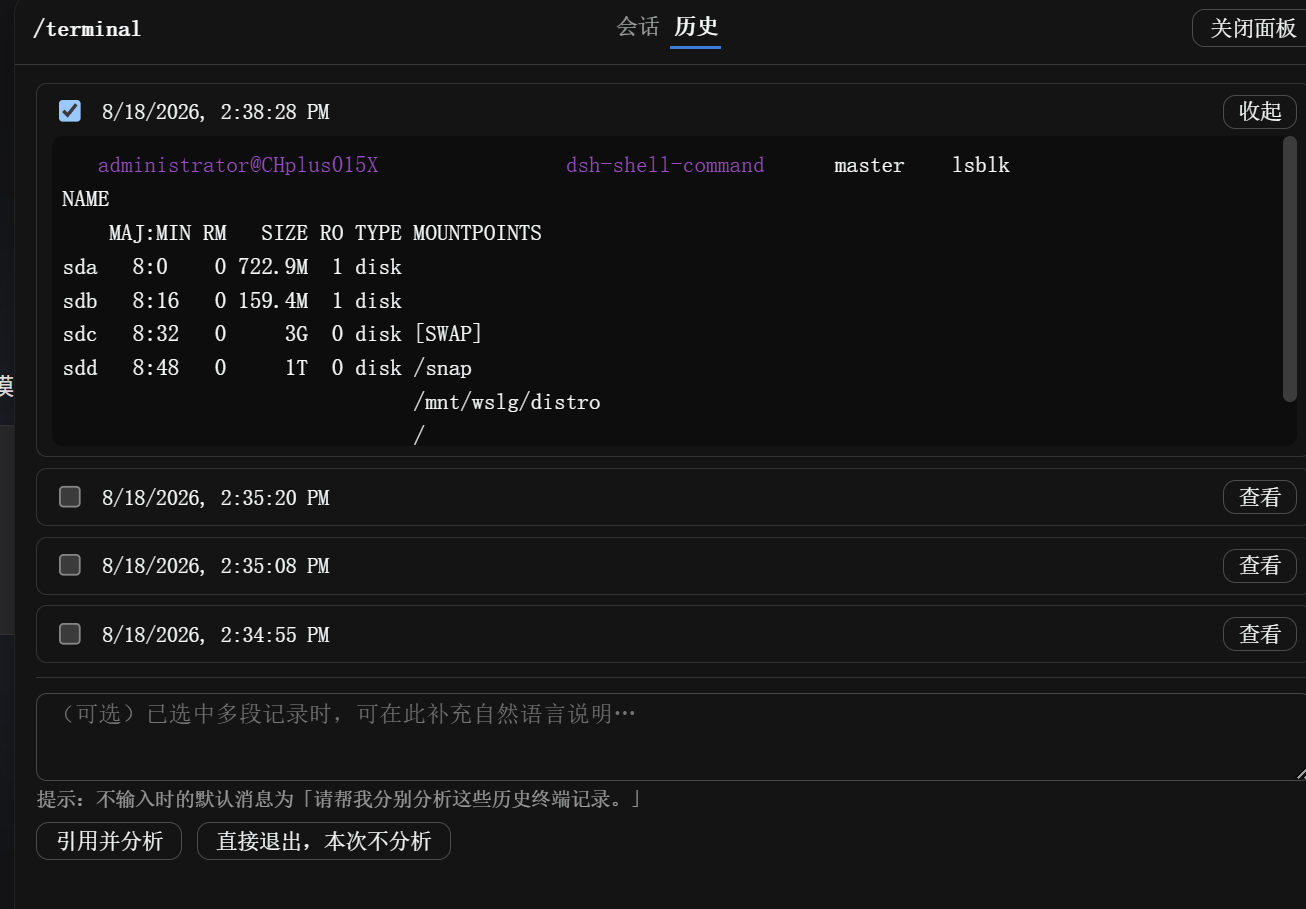
When you close a terminal session that received input, the panel automatically switches to the History tab:
UI Elements:
- Checkbox (left): Select one or more history entries for analysis
- Timestamp: When each session was closed
- View/Collapse button (right): Expand to preview the transcript
- Notes textarea (bottom): Optional natural-language context for the model
- Default message hint: Shows what the model receives if you leave notes empty: "请帮我分别分析这些历史终端记录。"
- Two action buttons:
- 引用并分析 ("Reference & Analyze"): Send selected entries to the model for immediate analysis
- 直接退出,本次不分析 ("Exit without analyzing"): Close the panel without sending anything
Typical workflow:
1. Close a terminal session (click "退出")
2. Panel stays open, jumps to History tab
3. Just-closed entry is pre-selected and auto-expanded
4. Review the transcript preview
5. (Optional) Select additional historical entries for comparison
6. (Optional) Add context in the notes field: "Why did the second run fail?"
7. Click "引用并分析" → Model analyzes selected transcripts
   OR click "直接退出,本次不分析" → Panel closes, nothing sent to model
Advanced usage:
- Compare across runs: Select 2-3 related sessions (e.g., before/after a fix) and ask: "What changed between these attempts?"
- Guided analysis: Use the notes field to direct the model's attention: "Focus on memory usage patterns"
- Selective sharing: Not every terminal session needs analysis — only reference what's relevant
Storage:
- Transcripts persist to
<workspace>/.dsh-shell-transcripts/ - Each session gets:
<sessionId>-<timestamp>-<counter>.log+.meta.jsonsidecar - Retention: keeps last 10 sessions per session ID (configurable via
terminalTranscriptKeep) - Add
.dsh-shell-transcripts/to your.gitignore
Usage Scenarios
Scenario 1: Quick diagnostic with /!
You: The build is failing. Let me check...
You: /! npm run build

[Output shows a TypeScript error]

Model: The error indicates a missing type import in auth.ts line 42...
Scenario 2: Interactive debugging with /terminal
You: /terminal
Terminal: $ npm test
[tests fail]
Terminal: $ cat test/integration.spec.js | grep -A5 "failing test"
Terminal: $ ls -la test/fixtures/
Terminal: $ echo $NODE_ENV
[Found the issue: missing fixture file]
Terminal: [Click "退出"]

[Panel jumps to History tab, entry auto-selected]

You: [Add note: "Why did this test fail?"]
You: [Click "引用并分析"]

Model: Based on the transcript, the test failed because test/fixtures/user-data.json is missing...
Scenario 3: Comparing multiple runs
[Run 1: /terminal → install dependencies → check build time → exit]
[Run 2: /terminal → same steps with cache enabled → exit]
[Run 3: /terminal → same steps with different Node version → exit]

[In History tab]
You: [Select all 3 entries]
You: [Add note: "Which configuration is fastest and why?"]
You: [Click "引用并分析"]

Model: Comparing the three build runs: Run 2 was 3x faster due to npm cache...
Tips & Best Practices
- Choose the right tool: Use
/!for single commands where you want immediate feedback; use/terminalfor exploratory workflows - Empty sessions don't persist: If you open
/terminalbut don't type anything, it won't create a history entry (by design) - Arrow keys are your friend: In the terminal input line, ↑/↓ recalls your last 500 commands (client-side, session-scoped)
- Notes add context: A good note ("Compare error messages" or "Focus on performance metrics") helps the model analyze more effectively
- Selective analysis: You don't have to analyze every terminal session — only reference what's relevant to your current question
- History is per-session: Each DSH conversation has its own terminal history; they don't mix
Configuration
Configure through the profile's cordis.patch.yml (the web settings UI does not expose third-party plugin settings):
- insert:
    - id: shell-command
      name: dsh-shell-command
      config:
        shell: ''            # '' → /bin/bash (POSIX) or cmd.exe (Windows)
        shellArgs: []        # [] → -lc (POSIX) or /d /s /c (Windows)
        timeoutMs: 60000     # hard deadline; process tree is terminated on expiry
        maxOutputBytes: 32768  # output tail retention for /! command
        graceMs: 3000
        analysisPrompt: ''   # '' → built-in prompt; supports {command} {cwd} {output}
        terminalEnabled: true
        terminalMaxTranscriptBytes: 1048576   # in-memory transcript cap (tail)
        terminalTranscriptDir: '.dsh-shell-transcripts'
        terminalTranscriptKeep: 10
Safety
- Runs in the session's workspace directory (
agent.session.header.cwd) - Uses the harness
ctx.subprocessseam when present: scrubbed environment (noDEEPSEEK_API_KEY/DSH_*leak), tree-scopedSIGTERM → grace → SIGKILLtermination. Falls back tonode:child_processwith a scrubbed environment otherwise - Output is bounded per stream (
maxOutputBytes, tail retained) for the/!command - Human-driven by design: command text is recorded in the trajectory (
command/run), and there is no sandbox approval step — it runs with the host's own privileges, exactly like typing in your own terminal
Tests
node test/unit.mjs           # pure parse/format tests, no dependencies
node test/smoke.mjs          # full apply() + handler against a mock context
node test/smoke-terminal.mjs # terminal registry + hasInput tracking + history-reference RPC (mock)
The smoke test imports the real @deepseek-ai/* peers; outside a profile, link them once:
mkdir -p node_modules/@deepseek-ai
ln -s "$HOME/.dsh/profiles/node_modules/@deepseek-ai/"* node_modules/@deepseek-ai/
FAQ
Q: When should I use /! vs /terminal?
A: Use /! for single commands where you want immediate AI analysis (status checks, quick diagnostics). Use /terminal for interactive workflows where you need to run multiple commands and decide later what (if anything) to analyze.
Q: Why didn't my terminal session appear in History?
A: Empty sessions (no input received) don't persist. If you opened /terminal but didn't type any commands, it won't create a history entry. This is by design to avoid clutter.
Q: Where are the history transcripts stored?
A: In <workspace>/.dsh-shell-transcripts/, one .log file per session plus a .meta.json sidecar. Add this directory to your .gitignore. Old entries are automatically pruned (default: keep last 10 per session).
Q: Can I delete history entries manually?
A: Yes, just delete the .log and .meta.json files from .dsh-shell-transcripts/. The History tab reads from disk on each open.
Q: Why doesn't vim/htop/ncurses work in /terminal?
A: The current terminal is line-oriented (scrollback + input line), not a full VT100/xterm emulator. Full terminal emulation (using xterm.js) is planned for a future release — it requires introducing a build pipeline.
Q: Do the arrow-key command recalls persist across sessions?
A: The ↑/↓ history is client-side and resets when you close the browser tab or the panel. It's scoped to the current terminal window, not saved to disk.
Q: What's the difference between "引用并分析" and just asking about the commands in chat?
A: "引用并分析" sends the actual command transcripts (output, timestamps, exit codes) to the model as structured data. Asking in chat relies on your description, which may miss details. Use reference-and-analyze when you want the model to see the raw output.
Q: Can I reference transcripts from a previous DSH conversation?
A: No. Terminal history is session-scoped. Each DSH conversation has its own .dsh-shell-transcripts/ namespace, and the History tab only shows entries from the current session ID.
Q: What happens if output is very long?
A: Both /! and /terminal bound output size (maxOutputBytes / terminalMaxTranscriptBytes). When exceeded, the tail is retained (not the head). This ensures recent output is always visible.
Q: Why does /! say "No model request exists yet"?
A: /! requires an active model conversation. Send at least one message to the model first (starting the conversation), then /! will work. This prevents a UI rendering timing issue.
Limitations
- The
/!output is delivered as a plugin-sourced message (visible in the conversation) - Terminal mode: line-oriented display only (vim/htop require full xterm emulation, planned for a future release)
- API surface targets
@deepseek-ai/dsh0.1.0-rc.x; pin peers and re-verify on DSH upgrades
Future Roadmap
We're planning several enhancements for future releases:
Full terminal emulation (xterm.js migration)
- Current: Line-oriented terminal (scrollback + input line)
- Goal: Full VT100/xterm emulation supporting vim, htop, ncurses apps, oh-my-posh, and other rich terminal UIs
- Requires: Introducing a build pipeline (webpack/vite) to bundle xterm.js and its addons
Internationalization (i18n)
- Multi-language UI support (English, Chinese, etc.)
- Language detection from user preferences
- Configurable UI labels
Additional improvements
- Syntax highlighting for command output
- Session export/import
- Search within terminal history
- Customizable keyboard shortcuts
Contributing
Contributions are welcome! Feel free to:
- 🐛 Report bugs or request features
- 🔧 Submit pull requests
- 📖 Improve documentation
- 💡 Share your use cases and feedback
License
MIT
Links
More in this category
Tencent/WeKnora#dsh-weknora★ 37587
Four read-only tools over a WeKnora knowledge base: list knowledge bases, hybrid passage search, reassemble one document's chunks in order, and WeKnora's own cited RAG or ReAct-agent answer with a resumable session id.
DayuanJiang/next-ai-draw-io#dsh-plugin★ 37004
Draws draw.io diagrams in DeepSeek Harness through the next-ai-drawio MCP server: the link in the reply opens a live preview in the right sidebar, you can edit the diagram by hand, and each AI change is a version you can restore. Node.js 18+; npx downloads the MCP server on first use.
superdesigndev/treg★ 8181
Tool catalog for agents: search ~2,600 external endpoints (SEO and SERP, backlinks, social, people and company enrichment, ad libraries, scraping) by the task you want done, read each one's parameters and per-call price, then call it with the credential injected server-side. Ships the skill plus an MCP row that stays disabled until TREG_TOKEN is set.
T-Auto/dsh-ops★ 5867
Provides bash, PowerShell 7, and high-performance Rust tools for DSH on Windows to reduce token usage.
sixtysevenlf/dsh-blender-plugin★ 2153
Lets a DSH agent drive a local Blender over a direct TCP channel with 15 tools: viewport frames, custom-angle renders, Python execution, headless and job offload, transaction rollback, and a planning layer of 228 ops across 34 families.
helloHub1212/dsh-windows-mcp★ 1490
Bridges the CursorTouch/Windows-MCP desktop automation server into DSH through the official MCP client bridge, registering its screenshot, UI tree snapshot, mouse and keyboard input, clipboard, process and registry tools as mcp__windows__* tools for the model, and adds a windows_mcp_doctor diagnostic tool. Computer Use is off by default and is switched on from the plugin panel.
Community comments
Comments are public GitHub Discussions. Loading them connects to GitHub and Giscus; a GitHub account is required to post.