把 DSH 对话区拆成任意数量的原生窗格:左右、上下、田字 2×2 与自动网格,每个窗格都是独立会话。
安装
# npm 包(预构建)
dsh plugin --profile web add dsh-split-workspace
# GitHub 源码(首次需按提示配置 allowBuilds 构建授权后重试)
dsh plugin --profile web add github:mhlywxl/dsh-split-workspace
装任何插件都等于在你的机器上跑第三方代码,权限和你本人一样大——能读你的文件、用你的凭据、访问网络,工具审批管不到它。GitHub 来源的插件还会在安装时执行构建脚本——pnpm 默认拦截,所以安装可能停在 ERR_PNPM_GIT_DEP_PREPARE_NOT_ALLOWED 或 ERR_PNPM_IGNORED_BUILDS;dsh 会打印出需要添加的确切键名,把它加进该 profile 的 pnpm-workspace.yaml 的 allowBuilds 下,重跑一次即可装上。放行构建本身就是一次信任判断:请只安装可信来源,并尽量锁定 commit(github:owner/repo#sha)。
README
中文(默认) · English
把 DeepSeek Harness 的对话区拆成原生多窗格工作区——左右分屏、上下分屏、田字 2×2 或自动网格,窗口放得下多少会话就开多少。每个窗格都是真实会话,拥有自己的输入框、流式输出、停止、队列、待办、附件、/ 命令、ask_user_question、审批与视图页,桌面端(dsh-app://)同样可用。
快速开始
先选运行方式
| 方式 | 适用场景 | 插件安装位置 |
|---|---|---|
Web(dsh web,浏览器打开) |
先在浏览器里试用、远程机器 | web profile |
桌面端 DSH Desktop(dsh-app://) |
日常使用,支持完整桌面能力,推荐 | desktop profile,由桌面端管理 |
- 支持 DSH 0.2.0 / 0.2.1,当前针对 0.2.1-rc.2 构建。
- 包内
lib/client.js已预构建,无原生依赖、无安装脚本;macOS / Windows / Linux 行为一致。 - 插件本身运行时不联网。
Web:在线安装
dsh plugin --profile web add dsh-split-workspace
dsh --profile web
dsh --profile web 会启动 Web 服务并打印带 token 的地址;如果服务已在运行,安装后重启它,再硬刷新页面。
Web:离线安装
在联网机器上打包,或从 GitHub Release 下载 .tgz,然后拷到目标机器:
# 联网机器
npm pack dsh-split-workspace

# 目标机器:.tgz 绝对路径
dsh plugin --profile web add /absolute/path/dsh-split-workspace-<version>.tgz

# 或者解压后安装目录
dsh plugin --profile web add /absolute/path/dsh-split-workspace
dsh --profile web
- 只有源码 ZIP 时,先解压;发布包已包含
lib/client.js,通常不需要再构建。仓库根目录必须能直接看到package.json。 - 目标机器不需要访问 npm,也不需要访问 GitHub。
Desktop:在线安装
- 打开 DSH Desktop,侧边栏 插件市场,搜索
dsh-split-workspace并安装;或进入 插件 → 添加插件 → 安装第三方插件,填入包名。 - 打开 设置 → 插件,启用
dsh-split-workspace。 - 完全退出并重开 DSH Desktop,让新的客户端 bundle 生效。
桌面端的
desktopprofile 由 Electron 应用独占管理。不要在终端执行dsh plugin --profile desktop add ...,该命令会拒绝执行;桌面端请用上面的插件市场 / 添加插件界面。
Desktop:离线安装
- 在联网机器执行
npm pack dsh-split-workspace,或从 Release 下载.tgz,拷到目标机器。 - DSH Desktop → 插件 → 添加插件 → 安装第三方插件:
- 优先填
.tgz的绝对路径(安装器会识别为「压缩包」); - 如果当前版本只接受目录,先把
.tgz解压,再填解压后的目录路径(目录根下要有package.json)。
- 优先填
- 在 设置 → 插件 启用,完全退出并重开 DSH Desktop。
- 离线机器不需要网络;插件运行时不联网。
启用与验证
- 打开 设置 → 插件,确认
dsh-split-workspace已启用;桌面端需完整重启,Web 端需重启dsh web并刷新。 - 分屏入口:点击侧边栏底部(设置旁)的分屏图标,或把侧边栏里的会话拖到对话区。
- 打开浏览器/桌面端控制台执行
window.__dshSplitWorkspace.health(),可看到版本、窗格数和几何状态。 - 如果看不到分屏入口:确认至少有 2 个会话、插件未处于安全模式,并检查 DSH 版本是否匹配。
开始分屏
- 点击侧边栏底部的分屏图标:用当前会话和列表中的下一个会话开始分屏。
- 或者把侧边栏里的会话拖到对话区:放下的会话成为第二个窗格。
- 分屏后,把另一个会话拖到某个窗格即可替换;也可以用窗格标题栏的分屏按钮为新窗格选择会话。
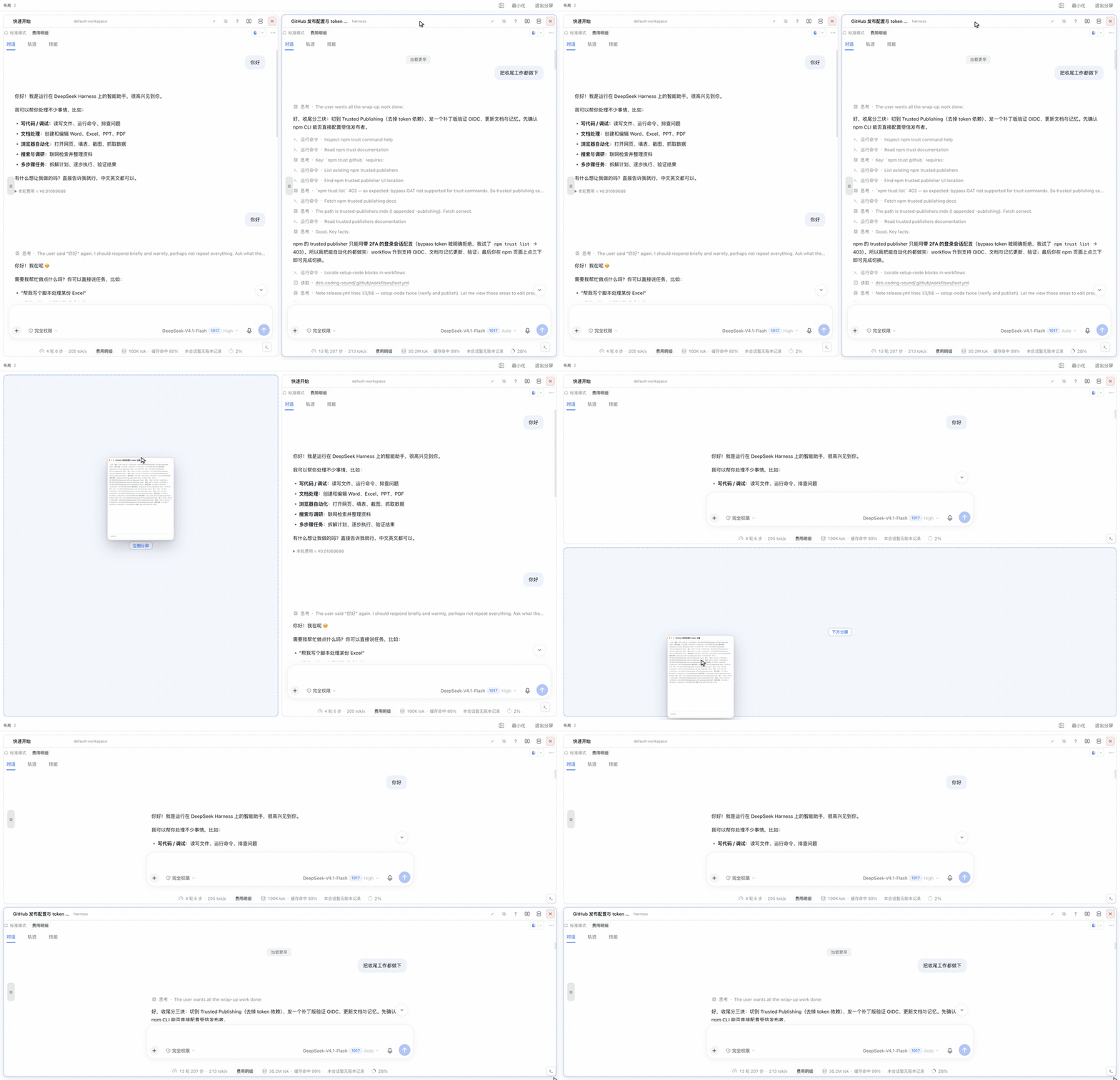
- 拖动侧边栏会话经过窗格边缘时,窗格会预览放下后的布局,并用虚线占位标出即将加入的会话;松开即应用该布局。
功能
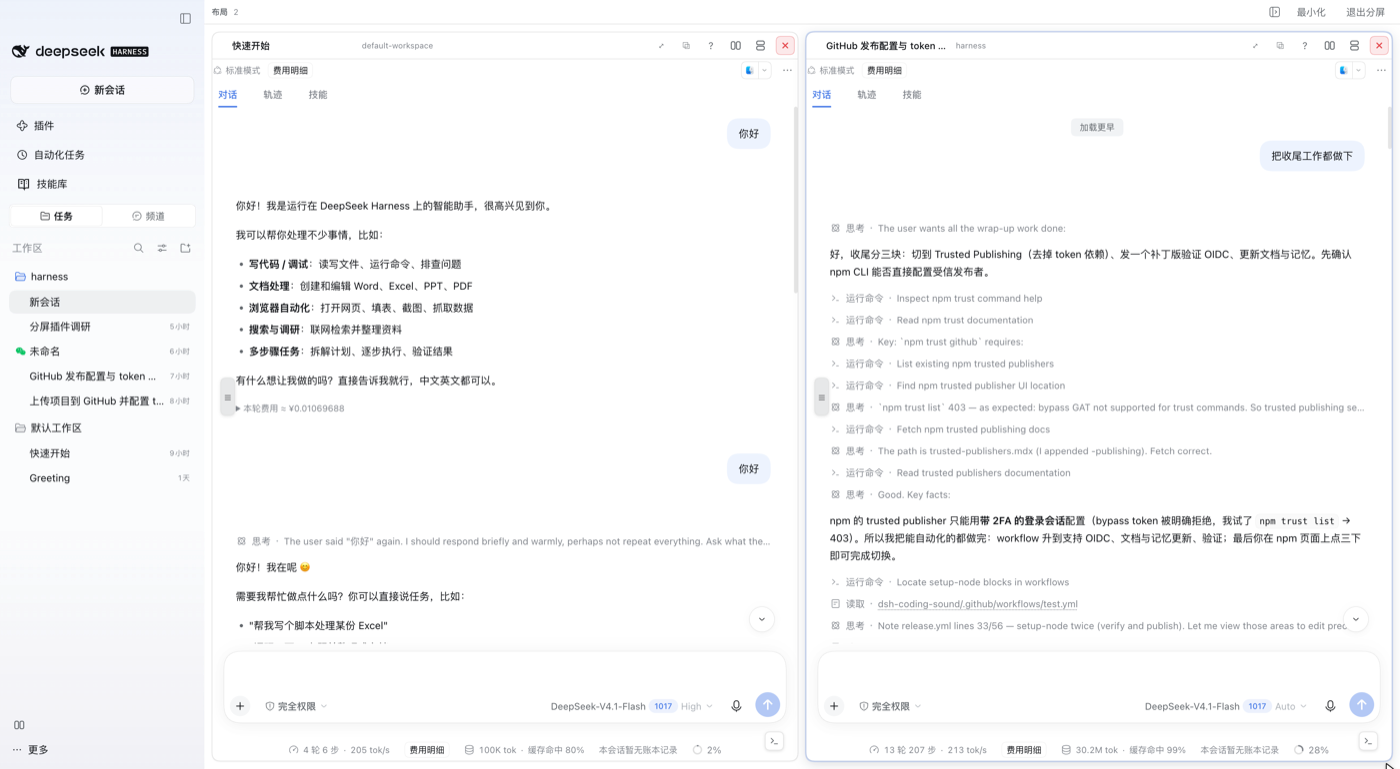
- 不限数量的原生窗格:没有四窗格上限,窗口放得下多少会话就能开多少。
- 自动布局:2 个窗格左右分栏,3 个呈 L 形,4 个田字 2×2,5 个以上按行优先的均衡网格排列。
- 拖拽自由排布:拖动窗格标题栏到另一个窗格的左/右/上/下,可手动堆叠或分栏。
- 原生会话,不是 iframe:每个窗格复用原生会话组件,输入框、流式输出、停止、队列、待办、审批和视图页都能正常工作。
- 桌面端就绪:为 DSH Desktop(
dsh-app://)构建,preload 只在顶层框架运行。 - 共享侧边栏:原生侧边栏跟随当前聚焦的窗格;把会话拖到分屏区域即可新增或替换窗格。
- 右侧栏控制:打开/关闭有不同图标状态,由分屏工具栏统一控制。
- 最小化 / 恢复:隐藏分屏但保留窗格树。
- 持久化布局:重启后恢复上次的布局。
布局
- 自动策略:2 个并排,3 个 L 形,4 个 2×2,5 个以上按约
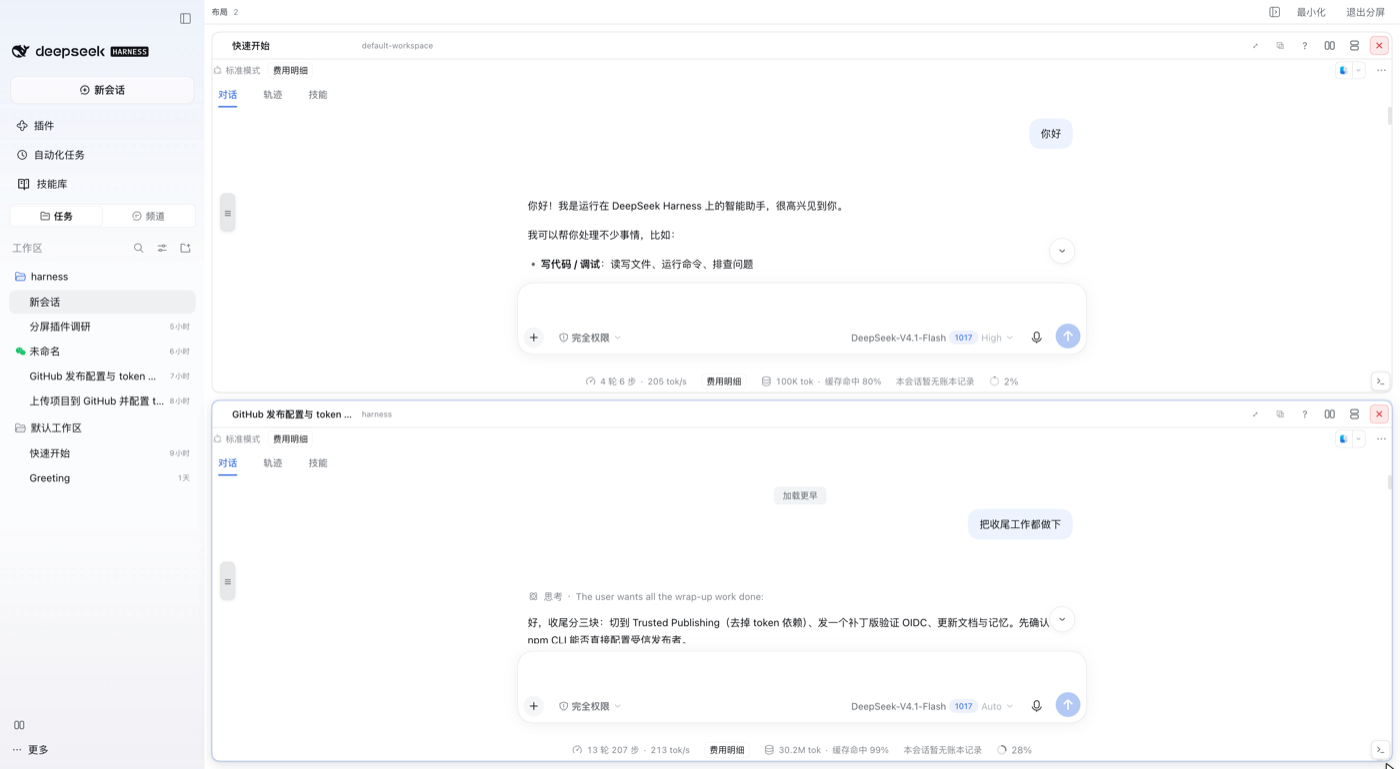
sqrt(n)列的均衡行优先网格。没有模式菜单——增删窗格都会重新适配网格。想要上下堆叠,把第二个窗格的标题拖到第一个上,再移到底部边缘;手动拖拽的结果会被保留,自动网格只是起点。 - 拖动分隔条调整大小。
- 拖动标题栏移动窗格:原位置立即闭合(其他窗格填充空间),并在将落下的位置出现虚线占位——左、右、上、下,跟随手势方向。松开即放下;松开在原来的位置或按
Esc取消。预览只计算几何,不重新挂载正在运行的会话。 - 双击标题栏(或
⤢按钮)最大化/还原。 - 没有固定窗格上限:窗口能显示多少会话就能加多少(窗格变窄时标题栏会自动紧凑)。
- 存在分屏时,共享的原生侧边栏跟随聚焦窗格;点击会话即载入该窗格,或把会话拖到分屏区域新增/替换窗格。
- 窗格树在刷新和重启后保留(包括手工拖出的堆叠或 L 形布局);增删窗格会重新适配自动网格,重启不会。
- 最小化(工具栏)会隐藏分屏、显示原生单会话视图,同时保留窗格树;「恢复分屏」按钮可以恢复。点击新建会话或插件/技能/设置面板会自动最小化分屏(新视图不会被遮挡);恢复后回到聚焦窗格的会话。
- 每个窗格只有一个标题:标题由窗格标题栏负责;原生标题栏保留视图页和操作,不重复面包屑。关闭按钮是红底描边的 ✕,不是低对比度圆点。
- 如果安装了
dsh-prompt-history,它的可拖动 会话目录 (☰) 握把会在每个活动窗格的左边缘垂直居中显示一次。每次分屏调整(新增、关闭、重排、拖动分隔条、最大化或右侧栏推挤)都会把受影响的握把重新放回窗格左边缘与垂直中心;没有变化的窗格保留手动拖动的位置。隐藏的原生会话和非窗格视图里的副本会被隐藏,握把不再堆叠。 - 分屏工具栏的右侧栏按钮有两种状态:面板关闭时是右箭头(点击打开),打开时是高亮的左箭头(点击收起)。修复监听器会在分屏拆除后接管原生的打开/收起按钮,避免过期的 sidebar-right store 吞掉点击或隐藏入口。
- 窗格标题栏刻意不挂载原生的每窗格 rightbar 座位(右侧栏由分屏工具栏统一控制)。该座位是会话级的,自带 store 句柄;在每个窗格里挂载会为同一会话创建第二个 sidebar-right store,导致共享面板的标签图标看起来失效。原生标题栏保留唯一的 store。
为什么不是每个窗格一个 iframe?
桌面端从 dsh-app://app/ 提供客户端,并通过 Electron preload 注入启动图(__DSH_BOOT__、__DSH_TRANSPORT__ 等)。preload 只在顶层框架运行,所以同源 iframe 会永远停在 “Loading plugins…”。因此窗格引擎在顶层客户端运行,按会话重新挂载原生对话组件——与上游插件相同的架构。
命令
window.__dshSplitWorkspace.health():版本、宿主、窗格、几何、持久化树、崩溃保护。window.__dshSplitWorkspace.split(sessionId):把会话加为窗格。window.__dshSplitWorkspace.arrange("auto"):重新适配自动布局(旧模式名会被接受并忽略)。window.__dshSplitWorkspace.focusChat()、closeFocused()。window.__dshSplitWorkspace.reflow():拖动预览状态(排查占位/闭合行为用)。window.__dshSplitWorkspace.setEnabled(false):总开关。window.__dshSplitWorkspace.reset():清除已保存布局。
快捷键
Alt+T:切换聚焦窗格里的紧凑 TUI 输入框。Alt+Shift+←/→/↑/↓:在窗格间移动焦点。
界面截图
| 左右两列 · Side by side | 上下两列 · Stacked | 田字 · 2×2 grid |
|---|---|---|
 |
 |
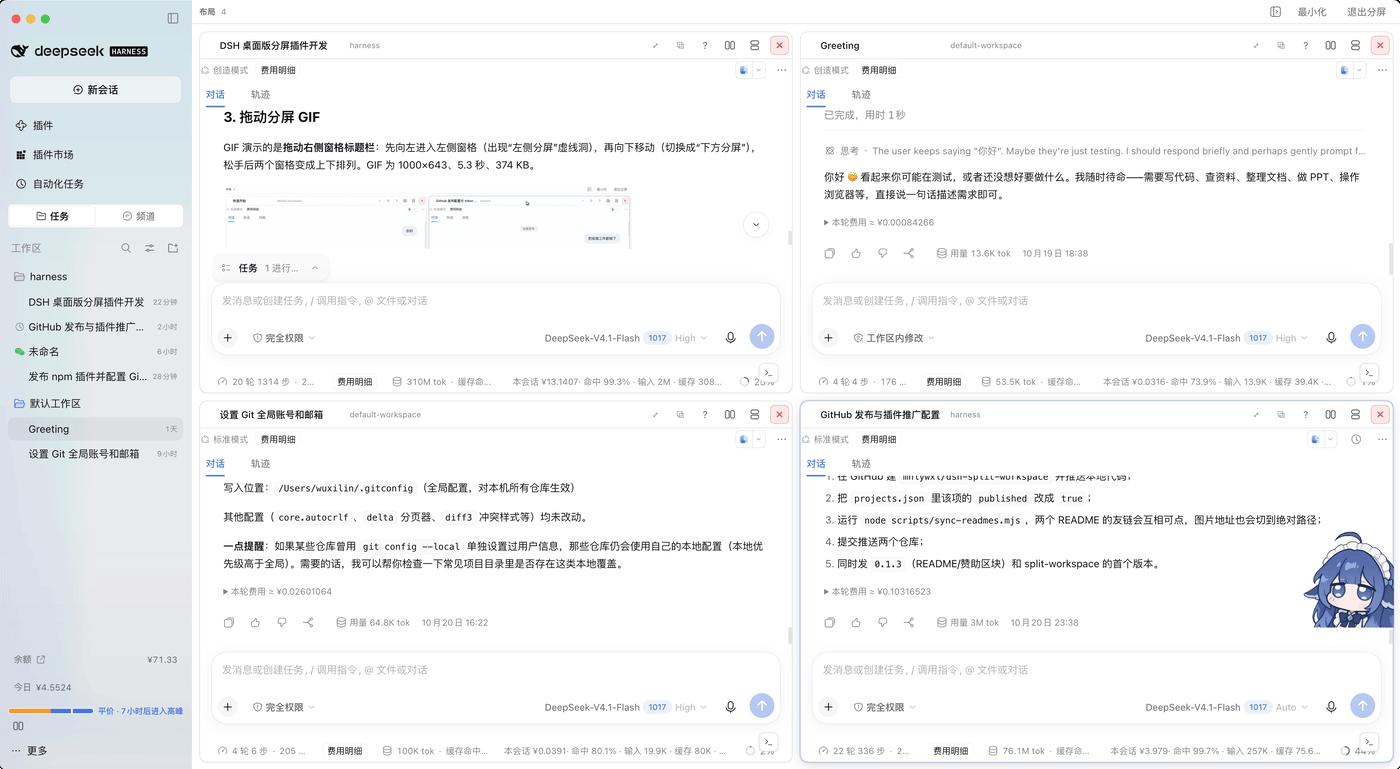 |
| 2 panes · automatic columns | 2 panes · dragged into rows | 4 panes · automatic 2×2 田字 |
Drag a pane by its header to re-arrange it — the dashed hole previews where it will land:
限制
- 没有窗格数量上限;持久化树会校验(会话唯一、深度),损坏的树会被丢弃,而不是恢复一个坏掉的工作区。
- 持久化递归深度上限为 32 层,是为了手改数据时的栈安全,不是窗格上限。
- 隐藏的原生会话仍在遮罩下流式运行;窗格重新挂载原生输入框,所以每个窗格自己的输入框拥有该会话的编辑器。
- 窗格重命名拒绝空会话(原生重命名对话框同样如此)。
- 输入框增强插件兼容:分屏只让当前聚焦的窗格保留
data-composer-card,隐藏的原始输入框和非聚焦窗格不会抢走全局选择器;每个窗格仍挂载自己的输入浮层,切换窗格时非聚焦窗格的浮层隐藏但状态保留。dsh-tweaks-prompt-history的历史角标、dsh-prompt-history的候选提示、斜杠/模型菜单因此都定位在当前窗格。 - 拖动窗格时预览直接吸附,不再对宽度/高度做 180ms 过渡;拖动期间冻结窗格的尺寸观察和输入框测量,避免每个预览帧重排整段对话。
- 页面单例型输入增强插件(如
dsh-prompt-history)按活跃窗格隔离:预测上下文只读活跃窗格的对话行,隐藏的原始页不再抢输入焦点;非活跃窗格的草稿被外部写入时会回滚,Tab/→ 只把预测写入当前窗格。
MIT。见 THIRD-PARTY-NOTICES.md。
English
Split screen for DeepSeek Harness (DSH) Desktop — open as many conversations as you need, side by side, stacked, or in a 2×2 / automatic grid.
dsh-split-workspace turns the DeepSeek Harness conversation area into a native
multi-pane workspace, including in the Desktop app (dsh-app:// shell). Each
pane is a real session with its own composer, streaming, Stop, queue, todos,
attachments, / commands, ask_user_question, approvals and view tabs.
中文简介:把 DeepSeek Harness 的对话区拆成任意数量的原生窗格,支持左右分屏、 上下分屏、田字 2×2 和自动网格;每个窗格都是真实会话,拥有自己的输入框、流式输出、 停止、队列、待办、附件、斜杠命令、审批和视图页。适用于 DSH 桌面端。
Search terms / 搜索关键词:split screen, split view, split pane, multi-pane, multi-session, multi-window, tiled workspace, unlimited panes, DSH Desktop, 分屏, 分屏插件, 多窗格, 多窗口, 多会话, 左右分屏, 上下分屏, 并排, 田字布局.
The pane engine is derived from dsh-split-screen 1.7.0 (MIT). This package adapts it for the Desktop shell and adds the automatic layout, the unlimited pane count, rename/copy/maximize and the compact toolbar.
Quick start
Pick where to run it
| Mode | Best for | Plugin profile |
|---|---|---|
Web (dsh web, browser) |
Trying it in a browser or on a remote machine | web |
DSH Desktop (dsh-app://) |
Daily use with full desktop features (recommended) | desktop, managed by the app |
- DSH 0.2.0 / 0.2.1 are supported; this build targets 0.2.1-rc.2.
- The package ships a prebuilt
lib/client.js, has no native modules and no install scripts, and is identical on macOS / Windows / Linux. - The plugin itself makes no network requests at runtime.
Web: online install
dsh plugin --profile web add dsh-split-workspace
dsh --profile web
dsh --profile web prints the tokenized URL. If the server is already running, restart it after installing and hard-refresh the page.
Web: offline install
Pack on a connected machine (or download the .tgz from a GitHub Release), copy it to the target, then:
npm pack dsh-split-workspace                      # connected machine

dsh plugin --profile web add /absolute/path/dsh-split-workspace-<version>.tgz
# or, after extracting:
dsh plugin --profile web add /absolute/path/dsh-split-workspace
dsh --profile web
- For a source ZIP, extract it first; the package root must contain
package.json(release tarballs already includelib/client.js). - The target machine needs neither npm nor GitHub access.
Desktop: online install
- Open DSH Desktop → Plugin market in the sidebar, search for
dsh-split-workspace, and install it. Or use Plugins → Add plugin → Install a third-party plugin and enter the package name. - Open Settings → Plugins and enable
dsh-split-workspace. - Quit and reopen DSH Desktop completely so the new client bundle is loaded.
The
desktopprofile is owned by the Electron app. Do not rundsh plugin --profile desktop add ...in a terminal; it is rejected. Use the in-app plugin market / Add plugin UI instead.
Desktop: offline install
- On a connected machine run
npm pack dsh-split-workspace, or download the.tgzfrom a Release, and copy it to the target. - DSH Desktop → Plugins → Add plugin → Install a third-party plugin:
- prefer the absolute path to the
.tgz(the installer recognises it as a tarball); - if that build only accepts directories, extract the
.tgzand enter the extracted directory (its root must containpackage.json).
- prefer the absolute path to the
- Enable it in Settings → Plugins, then quit and reopen DSH Desktop.
- The offline machine needs no network access; the plugin makes no runtime requests.
Enable and verify
- Settings → Plugins must show
dsh-split-workspaceenabled. Restart Desktop completely, or restartdsh weband refresh the page for Web. - Entry points: the split icon in the sidebar footer (beside Settings), or drag a conversation from the sidebar onto the conversation column.
- Run
window.__dshSplitWorkspace.health()in the browser/desktop console to see the version, pane count and geometry. - If the split entry is missing: make sure at least two sessions exist, the plugin is not in safe mode, and re-check the enable/restart steps.
Start splitting
- Click the split icon in the sidebar footer (beside Settings) — it starts a split with the current conversation and the next listed one.
- Or drag a conversation from the sidebar onto the conversation column: the dropped conversation becomes the second pane.
- Once split, drag another conversation onto a pane to replace it, or use a pane header's split buttons to choose the session for a new pane.
- While a sidebar conversation is dragged over a pane edge, the panes lay themselves out as they will after the drop and a dashed placeholder names the incoming conversation — release to commit exactly that layout.
Features
- Unlimited native panes — no four-pane cap; add as many conversations as the window can show.
- Automatic layout — 2 panes as columns, 3 as an L, 4 as a 2×2 田字, and 5+ as a balanced row-major grid.
- Any arrangement by drag — drag a pane header left, right, above or below another pane; stack a pair or build columns by hand.
- Native sessions, not iframes — each pane re-hosts the stock conversation primitives, so composer, streaming, Stop, queue, todos, approvals and view tabs all work.
- Desktop-ready — built for the DSH Desktop shell (
dsh-app://), where the preload only runs in the top frame. - Shared sidebar — the stock sidebar follows the focused pane; drag a conversation onto the split to add or replace a pane.
- Right sidebar control — open and close with distinct icon states; the split toolbar owns the toggle.
- Minimize / restore — hide the split without losing the pane tree.
- Persistent tree — the layout you left comes back after a restart.
Layout
- The automatic policy: 2 panes side by side, 3 as an L, 4 as a 2×2 grid, and
5+ as a balanced row-major grid that grows by about
sqrt(n)columns. There is no mode menu — adding or closing a pane simply re-fits the grid. For a stacked pair, drag the second pane's header over the first, then move down to the bottom edge; a deliberate drag is kept, and the automatic grid is only the starting point. - Drag the dividers to resize.
- Drag a pane by its header to move it: the pane's slot closes immediately (the other panes fill the space) and a dashed hole opens where it will land — left, right, above or below the pane under the cursor, following the direction of the gesture. Release to drop; release over the pane's own slot, or press Esc, to cancel. The preview is geometry-only, so the live conversations are not remounted while you drag.
- Double-click a pane header (or use the ⤢ button) to maximize / restore.
- No fixed pane cap: add as many conversations as the window can show (the per-pane header compacts itself as panes get narrower).
- While a split exists the shared stock sidebar follows the focused pane; click a conversation to load it into that pane, or drag a conversation onto the split area to add/replace a pane.
- The pane tree persists across reloads and reopens with the layout you left (including a hand-made stacked or L-shaped arrangement). Adding or closing a pane re-fits the automatic grid; restarting does not.
- Minimize (toolbar) hides the split and shows the stock single-session view while keeping the pane tree. A "restore split" chip brings it back. Clicking New Session or a plugin/skills/settings panel minimizes the split automatically (so the new view is never covered); restoring returns to the focused pane's conversation.
- One title per pane: the pane header owns the title; the stock header keeps its view tabs and actions without repeating the breadcrumb. The close control is a drawn ✕ in a red-tinted button, not a low-contrast dot.
- If
dsh-prompt-historyis installed, its draggable 会话目录 (☰) grip is shown once per live pane, on the pane's left edge and vertically centered. Every split adjustment (add, close, re-arrange, divider drag, maximize or a right-sidebar push) re-homes the affected grips to the left edge and the vertical center of their pane; a pane whose box did not change keeps a deliberate vertical drag. The copies mounted by the hidden stock conversation and by non-pane views are hidden, so the grips no longer stack on top of each other. - The split toolbar's right-sidebar control has two states: a right chevron while the panel is closed (opens it) and an accent, left-chevron state while it is open (collapses it). A repair watcher catches the stock open/collapse buttons after a split is torn down, so a stale sidebar-right store can no longer swallow the click or hide the way back into the panel.
- Pane headers deliberately do not mount the stock per-pane rightbar seat (the split toolbar owns the toggle). That seat is session-scoped and carries its own store handle; mounting it inside every pane created a second sidebar-right store for the same session, which made the shared panel's tab icons look dead. The stock header keeps the single store.
Why not one iframe per pane?
The Desktop app serves the client from dsh-app://app/ and injects the boot
graph (__DSH_BOOT__, __DSH_TRANSPORT__, …) through the Electron preload.
That preload runs only in the top frame, so a same-origin iframe stays at
“Loading plugins…” forever. The pane engine therefore runs in the top
client, re-hosting the stock conversation primitives per session — the same
architecture the upstream plugin uses.
Commands
window.__dshSplitWorkspace.health()— version, host, panes, geometry, persisted tree, crash guard.window.__dshSplitWorkspace.split(sessionId)— add a session as a pane.window.__dshSplitWorkspace.arrange("auto")— re-fit the automatic layout (legacy mode names are accepted and ignored).window.__dshSplitWorkspace.focusChat(),closeFocused().window.__dshSplitWorkspace.reflow()— live pane-drag preview state (diagnostics for the hole/collapse behaviour).window.__dshSplitWorkspace.setEnabled(false)— kill switch.window.__dshSplitWorkspace.reset()— clear the saved layout.
Keyboard
Alt+T— toggle the compact TUI composer in the focused pane.Alt+Shift+←/→/↑/↓— move focus between panes.
Limits
- No pane-count cap; the persisted tree is validated (unique sessions, depth) and a corrupt tree is discarded instead of reactivating a broken workspace.
- The persisted recursion depth is capped at 32 levels as a stack-safety guard for hand-edited payloads, not as a pane limit.
- The hidden stock conversation still streams under the overlay; panes re-host the native composer, so a pane's own composer owns its session's editor.
- Pane rename refuses blank sessions (the stock rename dialog does the same).
- Composer-plugin compatibility: only the focused pane keeps
data-composer-card; the hidden stock composer and inactive panes no longer win global selectors. Every pane still mounts its own composer overlays, and inactive panes hide (without unmounting) those overlays, sodsh-tweaks-prompt-historyhistory pills,dsh-prompt-historysuggestion ghosts, and slash/model menus stay anchored to the pane being typed in. - Pane drags snap their preview instead of animating width/height over 180ms, and pane resize observers plus composer measurements are frozen during the drag, so each preview frame no longer re-lays-out a full transcript.
- Page-singleton composer plugins (such as
dsh-prompt-history) are scoped to the active pane: prediction context reads only that pane's transcript, an external write into an inactive pane's draft is rolled back, and Tab/→ inserts the prediction into the pane being typed in.
MIT. See THIRD-PARTY-NOTICES.md.
同作者的其他插件 · More plugins by the same author
- DSH 声音与提醒(
dsh-coding-sound)— 用声音盯住 Agent:按输出文字演奏生成式背景音乐,完成、等待审批与工具执行各有可配置的提示音。 DSH coding sound (dsh-coding-sound) — Generative background music and notification chimes for DeepSeek Harness: hear whether the agent is thinking, still working, or waiting for you.
支持作者 · Support the author
如果这个项目帮你省下了盯屏幕的时间,欢迎请作者喝杯咖啡 ☕,或者给作者「充充电」⚡。金额随意,心意最重要。
If this project saved you some screen time, you can buy the author a coffee ☕ or top up the author's battery ⚡. Any amount is welcome — the thought counts.
链接
同类插件
zhu1090093659/dsh-web#packages/dsh-task-board★ 9262
侧边栏多列任务看板:卡片交给真实 DSH 智能体会话执行,支持 cron 定时(Host 侧到点执行,关浏览器也生效)。
zhu1090093659/dsh-web#packages/dsh-web-all★ 9262
DSH Web UI 插件与皮肤合集:任务看板、git 图、右侧面板、远程移动端 UI、桌宠、实时 token 统计与皮肤中心。
MeteorNOX/DeepSeek-Balance-Whale-Widget★ 5677
右下角常驻的小鲸鱼挂件:余额、今日已用与每轮对话消耗(含峰谷价),余额预警与今日预算的泡泡内容都可编辑;泡泡点击序列模块化自定义,支持并列加权 A/B、随机台词与随机图片;内置 30+ 厂商模板(OpenAI / OpenRouter / Kimi / 硅基流动 / 方舟 / 智谱 / MiniMax 等),按模型查余额与订阅额度;另有任务结束音效、导入音频、自定义角色与资源管理。数据全在本机,无遥测。
ccch1mneyyy/dsh-TUI★ 5125
Claude Code 风格全屏终端 UI:像素鲸鱼顶栏、实时工作状态行、思考流式展开。
omdsh-dev/DSH-better-sidebar★ 4413
侧边栏完整工作台:内置文件渲染编辑、终端、Git 与子代理,支持三方插件注册新 Tab。
Devin-AXIS/deepseek-design#deepseek-idesign★ 1491
可视化设计工作室,支持网站、App 原型、海报、信息卡、报告和杂志的模板创建、元素编辑、选区级 AI 草稿衔接与导出。
社区评论
评论公开保存在 GitHub Discussions。加载评论会连接 GitHub 和 Giscus;发表内容需要 GitHub 账号。