Prompt market beside the composer: browse and search three built-in online prompt sources, bookmark or write your own, and insert into the input box.
Install
# from npm (prebuilt)
dsh plugin --profile web add dsh-prompt-market
# from GitHub (first run asks for allowBuilds approval — follow the hint, retry)
dsh plugin --profile web add github:yi-yezhiqiu/dsh-prompt-market
Any plugin you install runs third-party code with your own permissions — it can read your files, use your credentials, and reach the network, and tool approvals don’t sandbox it. GitHub-sourced plugins also run build scripts at install time — pnpm blocks those until you allow them, so an install can stop with ERR_PNPM_GIT_DEP_PREPARE_NOT_ALLOWED or ERR_PNPM_IGNORED_BUILDS; dsh prints the exact key to add under allowBuilds in your profile’s pnpm-workspace.yaml, and the install works on the next run. Allowing a build is a trust decision: only install sources you trust, and pin a commit (github:owner/repo#sha).
README
dsh-prompt-market
Prompt market plugin for DeepSeek Harness
Browse, search, and bookmark prompts from the chat box — pick one and it goes straight into your input box
Table of Contents
- Preview
- What Problem It Solves
- Features
- UI & Architecture
- Installation
- Quick Start
- Configuration
- Data & Privacy
- Built-in Sources & Licenses
- Adding Custom Sources
- FAQ
- Directory Structure
- Development & Self-checks
- Status & Known Limitations
- Roadmap
- Contributing
- License
Preview
Market: browse, search, and bookmark all inside one overlay
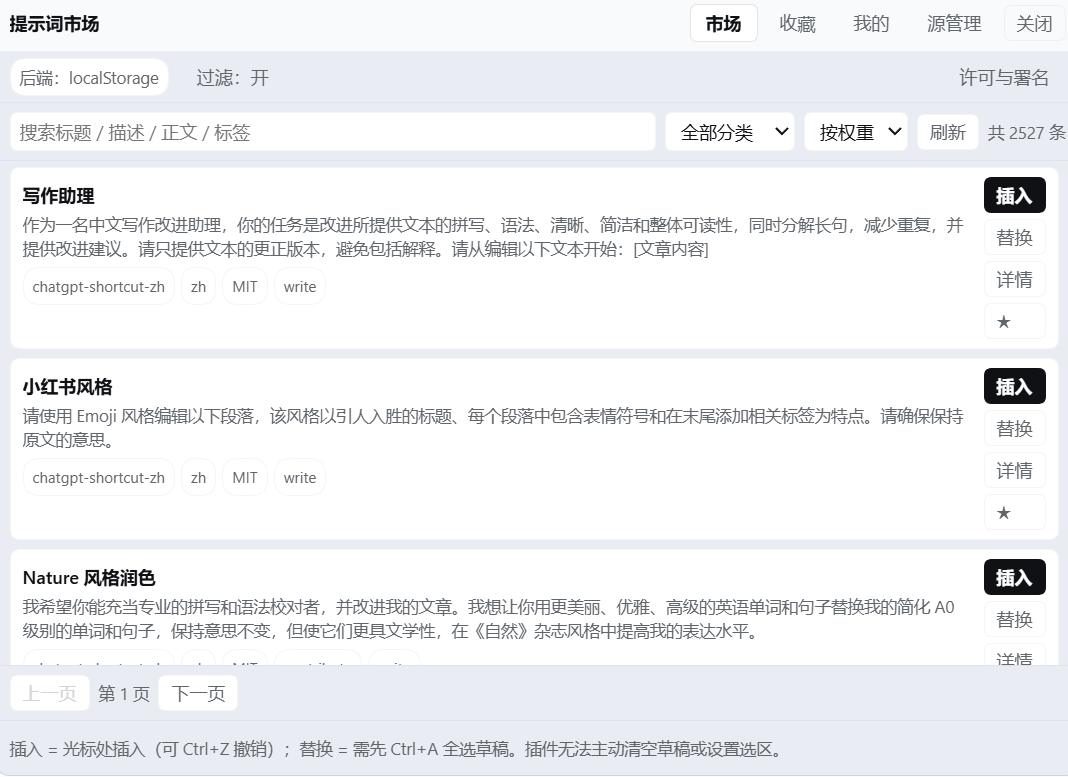
The three built-in sources hold 2527 entries in total (after content filtering).
Search across title / description / body / tags at the top, with category and sort options on the right; each entry carries Insert / Replace / Details / ★. The footer shows the source, language, license, and tags for whatever is currently listed.
Sources: connectivity, licenses, and attribution at a glance
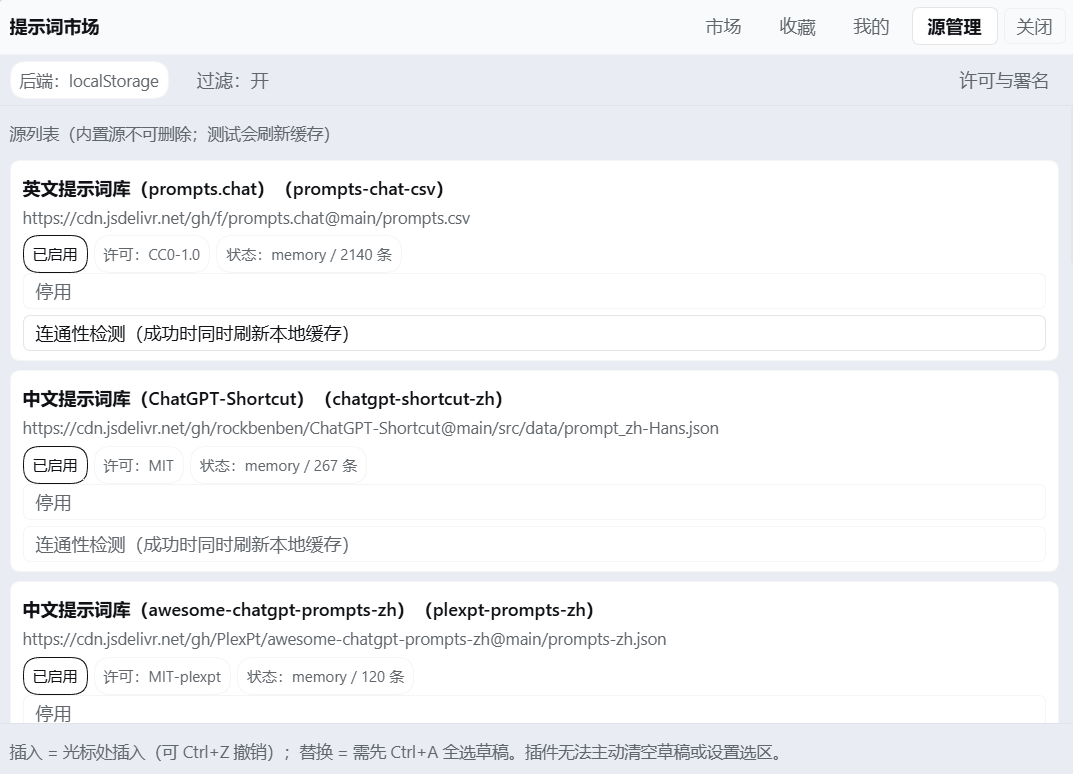
Two details worth noticing:
- The Status column shows how many entries each source actually loaded — a failed connection is reported honestly; it never quietly pretends to have succeeded
- The License column keeps the two MIT libraries distinct: one is
MIT, the other isMIT-plexpt(two libraries with different copyright holders, so attribution is never mixed together)
Mine: write your own, edit your own
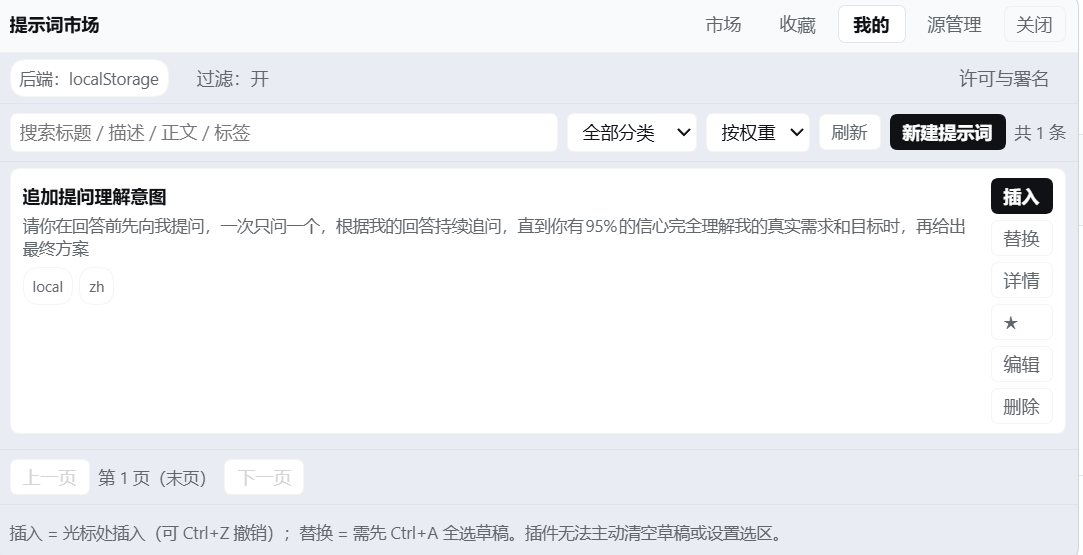
Your own prompts live on your machine — edit them, delete them, or export them to take with you.
Bookmarks: always within reach
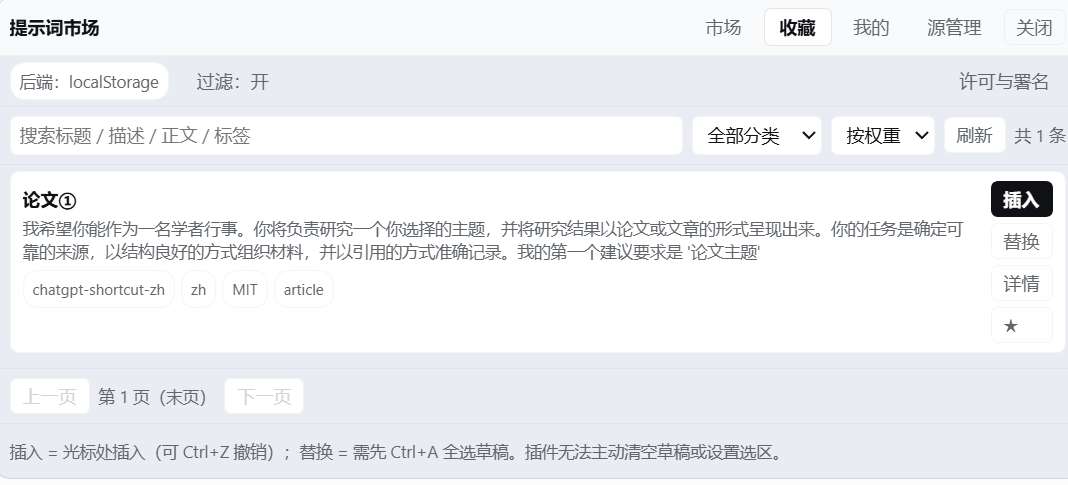
Adding a custom source (with a collapsible guide)
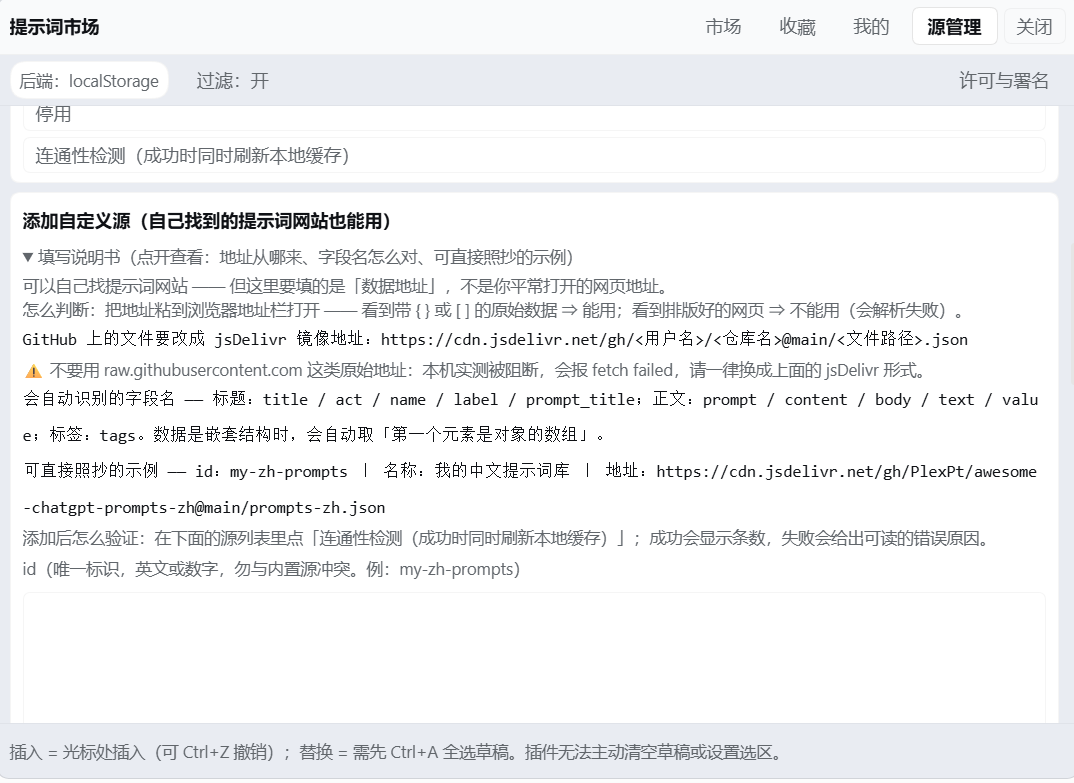
The guide explains how to tell whether a URL will work at all (what you see has to be raw data containing {} / [],
not a nicely rendered web page), and gives examples you can copy verbatim.
Content filter and write diagnostics
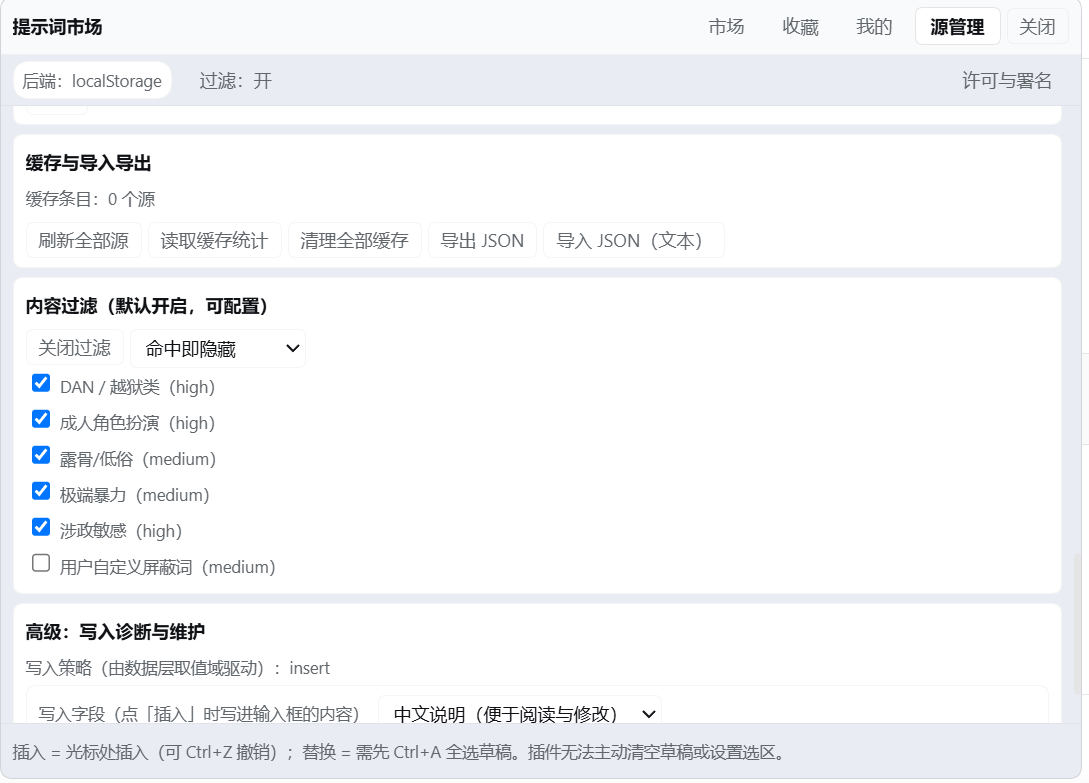
The content filter is on by default: all six rules can be toggled one by one, and you can add custom blocked words. The Insert field setting switches between the Chinese description and the English original.
What Problem It Solves
When you write with AI, the prompts that actually work end up scattered across browser bookmarks, notes, and other people's chat logs. When you need one, you either can't find it, or you paste it and spend the next ten minutes fixing it up.
This plugin compresses finding a prompt → using a prompt into two steps:
点输入框左边的「提示词导入」 → 点某一条的「插入」
Features
| Module | What it does |
|---|---|
| 🛒 Market | Three built-in sources, with search, category filters, pagination, and weighted ranking; shows source and license |
| ⭐ Bookmarks | One-click bookmark / unbookmark; bookmarks get their own tab, always within reach |
| ✍️ Mine | Create, edit, and delete your own prompts, with tags |
| 🔌 Sources | Per-source connectivity and cache entries; add any JSON source (with a collapsible guide); shows license and attribution |
| 🛡️ Content filter | On by default; blocks jailbreak-style and adult role-play entries; six rules you can toggle one by one, plus custom blocked words |
| 💾 Import / export | Exports bookmarks + custom prompts + tags + settings as a single JSON file, for moving to a new machine |
| 🈶 Chinese / English switch | Inserts the Chinese description by default; switch to the English original in Sources |
Insertion behavior
- Inserts the Chinese description by default (
description) — easier to read and to edit afterwards - Switch to the English original (
prompt) under Sources → Advanced → Insert field - Insertion goes through
inputActions.insertText(), soCtrl+Zundoes it - If the input box already has content, the text is inserted at the cursor by default; nothing you've written is overwritten
- To replace the whole draft:
Ctrl+Ato select it, then click Replace
⚠️ What the API can and cannot do (stated plainly)
The plugin's
InputActionsexposes onlycaptureInsertion/insertText/setDraft— it cannot clear the draft or set a selection. So "replace the whole draft" depends on you selecting it manually; the plugin cannot clear your draft on its own. That is the current boundary of the DSH interface, not a trade-off this plugin made.
UI & Architecture
UI composition
flowchart LR
    A["Input box<br/>conversation.input.left"] --> B["Prompt Import button"]
    B --> C["Overlay panel<br/>conversation.input.overlay"]
    C --> D["Market"]
    C --> E["Bookmarks"]
    C --> F["Mine"]
    C --> G["Sources"]
    D --> H["insertText writes into the input box"]
    E --> H
    F --> H
The UI hangs off two official DSH slots. It doesn't intrude on the conversation area, and it doesn't rewrite any other plugin's UI.
Data flow
flowchart TD
    S1["f/prompts.chat<br/>CSV · CC0"] --> N["normalize<br/>four adapters"]
    S2["ChatGPT-Shortcut<br/>JSON · MIT"] --> N
    S3["PlexPt<br/>JSON · MIT"] --> N
    S4["Custom JSON source"] --> N
    N --> FL["filter<br/>content filtering"]
    FL --> ST["storage<br/>localStorage cache + state"]
    ST --> API["api facade"]
    API --> UI["ui layer"]
    UI --> W["write channel<br/>insertText"]
Fallback chain: network failure → use the local cache → no cache either → return a displayable error state. No blank screen, no uncaught exception.
Installation
Prerequisites
- The DeepSeek Harness desktop app
- The plugin needs no Node at runtime (Node is only required for the development self-checks)
⚠️ First: are you typing into the dialog, or running a terminal command?
The two take different things:
| Where | What to enter |
|---|---|
| DSH's Settings → Plugins → Add plugin dialog | Only the identifier (package name / URL / directory path) |
| A Windows terminal (cmd / PowerShell) | The full command dsh plugin --profile desktop add <identifier> |
🔴 The most common mistake: pasting the whole
dsh plugin --profile desktop add https://...line into the dialog. You get "无法识别这个包名或地址: not a package name the registry accepts". The dialog must not include the leadingdsh plugin --profile desktop add.
Option 1: One-line command (recommended, published to npm)
① In the dialog, enter only this line:
dsh-prompt-market
② Or run this in a terminal:
dsh plugin --profile desktop add dsh-prompt-market
✅ No
gitneeded, and no URL to remember. Published on npm: https://www.npmjs.com/package/dsh-prompt-market🌏 On a restricted network: in the "Add plugin" dialog, set the install source (「安装源」) to the Chinese mainland mirror (npmmirror), and it will install from the domestic mirror.
💡 If npm cannot install it (offline, blocked, registry unreachable), switch to Option 2 below (direct release-asset link).
Option 2: Direct release-asset link (no git needed, fallback)
① In the dialog, paste:
https://github.com/yi-yezhiqiu/dsh-prompt-market/releases/latest/download/dsh-prompt-market.tgz
② Or run this in a terminal:
dsh plugin --profile desktop add https://github.com/yi-yezhiqiu/dsh-prompt-market/releases/latest/download/dsh-prompt-market.tgz
✅ This one does not depend on
giteither — it downloads the release asset directly (measured at a few seconds). Good for fully offline setups or when the registry is unreachable.📌 The
latestin that URL is resolved by GitHub at request time and always points at the newest release, so this link stays valid.
Option 3: Install from the GitHub repository (requires git)
① In the dialog, paste:
github:yi-yezhiqiu/dsh-prompt-market
(https://github.com/yi-yezhiqiu/dsh-prompt-market works too)
② Or run this in a terminal:
dsh plugin --profile desktop add github:yi-yezhiqiu/dsh-prompt-market
⚠️ This form requires
gitto be installed — pnpm shells out to it to fetch the repository. Without it you get:[ERROR] Command failed with exit code 1: git ls-remote "https://github.com/..." 'git' is not recognized as an internal or external commandIf you hit that, switch to Option 1 or Option 2, or install git first (
winget install Git.Git).
Option 4: Install from a local directory
Clone first (or download and unzip the repository), then install that directory:
git clone https://github.com/yi-yezhiqiu/dsh-prompt-market.git
dsh plugin --profile desktop add "<the directory you just cloned>"
If dsh isn't on your PATH, use the shim inside the DSH installation directory:
"<DSH install dir>\resources\runtime\cli\bin\dsh.cmd" plugin --profile desktop add "<directory>"
Option 5: Symlink (developers)
mklink /D "<DSH profile>\node_modules\dsh-prompt-market" "<repository path>"
After that, changing the code only needs a DSH restart — no reinstall.
🔄 After installing, quit DSH completely and open it again — profiles are loaded at startup.
ℹ️ DSH installs plugins through pnpm under the hood. This package ships no
preparebuild script, so you do not need anallowBuildsentry inpnpm-workspace.yaml.
Verify the installation
Once DSH is back up, a Prompt Import button (「提示词导入」) should appear on the left side of the input box. Click it and you should get four tabs.
Quick Start
- Click Prompt Import (「提示词导入」) on the left side of the input box
- On the Market tab, search for the scenario you want (e.g. "writing", "translation", "code review")
- Click Insert on the right of an entry — the text lands in the input box
- Add whatever detail you need, then send
- For prompts you use often, click ⭐ to bookmark them and grab them from the Bookmarks tab next time
- For prompts you write yourself, create and save them on the Mine tab
Configuration
Everything here lives on the Sources tab (「源管理」):
| Setting | Default | Notes |
|---|---|---|
| Insert field (「写入字段」) | Chinese description (description) |
Can be switched to the English original (prompt) |
| Content filter (「内容过滤」) | On | Blocks jailbreak-style and adult role-play entries |
| Filter rules (「过滤规则」) | All six on | Each one can be turned off individually |
| Custom blocked words (「自定义屏蔽词」) | Empty | Any entry that matches gets filtered out |
| Per-source enablement (「每个源的启用状态」) | All enabled | Temporarily disable a single source |
| Cache lifetime (「缓存有效期」) | See NET_DEFAULTS in the source |
Refetched once it expires |
Data & Privacy
| Item | Notes |
|---|---|
| Storage | Browser localStorage (key prefix dsh-prompt-market:) |
| Anything uploaded? | ❌ No data is uploaded — no account, no server |
| Anything written to disk? | ❌ No (apart from the plugin's own code) |
| On corrupted data | The original data is moved into quarantine and kept — it is never wiped outright |
When localStorage is unavailable |
Falls back to in-memory mode (everything still works, but is lost on restart); the UI tells you |
| Diagnostics log | Records only the length and hash of a draft, never its contents |
| Where requests go | Only to the URLs you can see in your source list (built-in sources use cdn.jsdelivr.net by default) |
Uninstalling does not clear your data. To wipe it clean, delete the keys with the dsh-prompt-market: prefix in your browser dev tools.
Built-in Sources & Licenses
| Source | License | Notes |
|---|---|---|
| f/prompts.chat | CC0 1.0 | The classic English prompt library, public domain |
| rockbenben/ChatGPT-Shortcut | MIT | Chinese library; prompt is mostly the English original, with the Chinese in description |
| PlexPt/awesome-chatgpt-prompts-zh | MIT | A purely Chinese library — titles and bodies are both in Chinese |
Full copyright lines and license texts are in THIRD-PARTY-NOTICES.md.
📌 Content is not shipped with the package. At runtime the plugin pulls these sources from a CDN and caches them on your machine; this repository contains no upstream prompt content.
Adding Custom Sources
Under Sources → Add custom source, paste the URL of anything that returns a JSON array, and the plugin will recognize the common field names on its own:
| Purpose | Auto-detected field names |
|---|---|
| Title | title / act / name / label / prompt_title |
| Body | prompt / content / body / text / value |
| Tags | tags |
| Nested structures | Automatically takes "the first array whose elements are objects"; you can also specify listPath |
For JSON hosted on GitHub, use the jsDelivr mirror (raw.githubusercontent.com is unreachable on some networks):
https://cdn.jsdelivr.net/gh/<用户名>/<仓库名>@main/<文件路径>.json
The add form includes a collapsible, detailed guide that covers the criteria, examples, and common pitfalls.
FAQ
What gets inserted by default is actually the Chinese description (「说明」). If some entries have an empty Chinese description, the plugin falls back to the English original.
Check the current setting under Sources → Advanced → Insert field, or rewrite the prompt in Chinese on the Mine tab and save it.
No. By default the text is inserted at the cursor, and what you've already written stays put.
To replace the whole draft: Ctrl+A to select it, then click Replace.
Yes — Ctrl+Z. Insertion goes through the channel DSH officially describes as "undoable plain-text editing".
It is. The panel is an overlay; it never touches your draft.
No. It only sends GET requests to the addresses in your source list, to fetch prompt data. Your bookmarks, custom prompts, drafts, and everything else never leave your machine. The diagnostics log records lengths and hashes only, never content.
Check these in order:
- Does the URL return a JSON array? (Not an object, not an HTML page.)
- Are you using
raw.githubusercontent.com? Switch to thecdn.jsdelivr.netmirror. - Is the field name on the auto-detection list? If not, set
listPathin the source config. - Are the entries being caught by the content filter? (The Sources tab shows the filter count.)
Go to Sources → Content filter and turn rules off one at a time, or remove that entry's keyword from your custom blocked words.
Use Import / export to export your data as JSON and take it along, then import it on the new machine. The data lives in the browser's localStorage, so it isn't tied to any account.
Not automatically (localStorage is independent of the plugin). To wipe them clean, delete the keys with the dsh-prompt-market: prefix in dev tools.
Directory Structure
(The repository root IS the package root — this is where pnpm looks for package.json)

package.json                 package metadata: dsh.bundle.patch + dsh.client
cordis.patch.yml             profile-layer patch (a single insert mounts this plugin)
index.js                     Host half (ESM)
client.js                    ★ browser half (assembled artifact — the only client entry DSH loads)
core/                        data layer
├── *.js                     9 independently readable units
├── browser.js                browser-half source (no build step; inlined verbatim)
├── selftest-node.js          data-layer self-test (runs under Node)
└── check-data-layer.ps1      static self-test (no JS runtime needed)
ui/                          interface layer
├── 00-core.js … 80-client-shell.js
├── check-ui.ps1              static UI self-test
└── DESIGN.md                 UI design contract
lib/write-draft.js           low-level write wrapper (probes / diagnostics only)

README.md / README-en.md / README-ja.md     documentation (3 languages)
docs/DEVELOPMENT.md          development & assembly notes
docs/images/                 screenshots
CHANGELOG.md                 changelog
CONTRIBUTING.md              contributing guide
THIRD-PARTY-NOTICES.md       upstream licences & attribution
LICENSE                      MIT
.github/ISSUE_TEMPLATE/      issue templates
Why there is no build step
client.js is assembled from the 9 data units in core/browser.js plus the 8 UI units in ui/, following the template in ui/80-client-shell.js.
The UI code is hand-written in the window.__ModuleLoader__.load({ id, factory }) form — no bundler, no JSX, no TypeScript. The source is the artifact, which is why the assembled output is under version control too.
Development & Self-checks
:: syntax check (every .js in the repo; assembly fragments are skipped automatically)
node check-syntax.js

:: authoritative criterion: assembled region vs. browser.js unit regions, line by line
node core/build-client-bundle.js --check

:: data-layer self-test (runs the real algorithms)
node core/selftest-node.js

:: data-layer static self-test (structural assertions, no JS runtime needed)
powershell -NoProfile -ExecutionPolicy Bypass -File core/check-data-layer.ps1

:: UI static self-test
powershell -NoProfile -ExecutionPolicy Bypass -File ui/check-ui.ps1
⚠️ The consistency check only ever compares section against section: the
PM-CORE-INLINEsection ofclient.js↔ the unit sections ofbrowser.js, line by line (ignoring leading indentation and blank lines). Do not diff the wholeclient.jsagainst the wholebrowser.js(the former is an assembled artifact that also contains the shell and UI sections, so their lengths are unrelated from the start), and do not diffbrowser.jsagainstcore/*.js(the unit bodies are a trimmed rewrite, so a line-by-line diff is guaranteed to produce false positives).
Status & Known Limitations
This project has been through an independent review (three rounds, all blockers closed) and hands-on testing on a real machine. The following is stated plainly:
✅ Verified on a real machine
Button visible · Four panel tabs · Inserts Chinese · Text can be sent after insertion · Draft survives closing the panel ·
Ctrl+Z undoes the insert · Insert-field switch · Detail close · Custom-source guide · License and attribution shown per source ·
Package installability (pack.ps1 / verify-package.ps1 exit code 0) · All static self-checks exit code 0 ·
Per-entry parsing of all three built-in sources — raw counts prompts-chat-csv 2165 / chatgpt-shortcut-zh 279 /
plexpt-prompts-zh 124, which after content filtering come to 2140 / 267 / 120, for a total of 2527
That last item was cross-checked along two independent paths: the data layer run on the Node side (
verify-sources.js), and the counts the real UI displayed — the two match exactly.
📦 Installation path: verified on a third party's machine (not the maintainer's self-test)
| Verified by | Another user (not the maintainer) |
| Machine | A different machine and a different DSH data directory |
| Method | Option 1: the release asset (that machine had no git installed) |
| Result | ✅ Installed successfully |
This item sat in "not runtime-verified" for a long time, and it exposed two real defects — both found only because someone else tried it:
- In
v0.1.0the package root lived underplugin/, so installing from the repository URL failed.- The docs said "requires
git" but never offered a way around it, shutting out anyone without git.The maintainer's own machine passing ≠ other people being able to install it. This note stays here to remind whoever comes next.
🧪 Official end-to-end verification (dsh-plugin-dev verify): run, and the failure was traced
On DSH 0.2.0-rc.2 we ran the official CLI's end-to-end verification
(pack → install into a throwaway profile → a real headless turn → uninstall):
| Step | Result |
|---|---|
pack |
✅ |
install |
✅ dsh-base + dsh-headless + this plugin, all into a clean profile |
dump-config |
✅ the plugin's package name appears in the config dump |
headless-smoke |
❌ TRANSPORT: DeepSeek Messages transport failed |
This failure is not the plugin's fault: running the exact same flow against a
control plugin whose apply does nothing fails at the same step with
word-for-word identical output and suggestions.
We also identified two tool-side issues: --base / --headless are hardcoded to
0.1.7-rc.2 (rejected on 0.2.x), and the smoke's acceptance test does not cover
TRANSPORT — so that step really measures model API reachability.
Full record (with reproduction steps): docs/OFFICIAL-VERIFY.md
🟨 Not runtime-verified (design is sound, but there is no runtime evidence)
Offline fallback · Bookmarks and custom prompts persisting across restarts · Content filtering actually firing on real Chinese entries at runtime · The conditional Replace action
These are not "broken" — they are "never verified". We don't write them up as verified.
🔴 A real defect found after delivery, and fixed
| Defect | Consequence | Status |
|---|---|---|
| The remote response-body limit of 4 MB was too small, while the built-in English source's CSV is actually 5.5 MB, so the entire payload was discarded | The English source could not load a single entry (0 entries) — one of the three built-in sources was broken | ✅ Fixed (limit raised to 12 MB); confirmed on a real machine back up to 2140 entries |
This defect landed squarely inside the "not runtime-verified" list above (the item formerly called "complete per-entry parsing of all three sources"), and it was found by the user's screenshot of the real UI, not by any self-check script.
The original code comment read "to keep an 8 MB-class file from dragging the editor down; decided to avoid it" — in other words, the design assumed every built-in source was a small file. Runtime evidence disproved that assumption.
That is what the words "not runtime-verified" really mean: not "probably fine", but "might genuinely be broken".
Known limitations
| # | Detail |
|---|---|
| L1 | selftest-node.js includes one ~78-second case (the production default timeout budget isn't injectable, and the core was left untouched) |
| L2 | A few self-check assertions need a re-run to settle in environments without localStorage |
| L3 | client.js keeps 2 placeholder comment lines from the assembly template, so the UI self-check A14 reports a WARN (not a FAIL, no functional impact) |
| L4 | "Replace the whole draft" depends on you selecting it with Ctrl+A — a boundary of the DSH InputActions interface |
Roadmap
- Prompt variable filling (
{{variable}}placeholders and a fill-in panel) - Bookmark groups / folders
- Support Gitee and any CORS-friendly JSON source
- Built-in sources that can be added, removed, and reordered
- Clear the UI self-check
A14WARN (handled together with the next assembly)
The roadmap is a plan, not a promise. If something matters to you, open an issue.
Contributing
Issues and PRs are welcome — please read CONTRIBUTING.md first.
Especially welcome:
- 🐛 Real-world results for the scenarios on the not-runtime-verified list (pass or fail, both are useful)
- 🌐 More built-in prompt sources (please include the upstream license and copyright holder)
- 🌍 README translations (currently Chinese, English, and Japanese)
License
The plugin code is released under the MIT license; see LICENSE.
Licenses and attribution for the built-in data sources are in THIRD-PARTY-NOTICES.md — please keep them with the plugin if you distribute or modify it.
If this plugin helped you, a ⭐ is the best way to say thanks
Links
More in this category
zhu1090093659/dsh-web#packages/dsh-task-board★ 8835
Task board for the dsh web GUI: a sidebar multi-column kanban whose cards run in real DSH agent sessions and can also be scheduled with cron expressions, executed host-side even with the browser closed.
zhu1090093659/dsh-web#packages/dsh-web-all★ 8835
Plugin and skin collection for the DSH Web UI: task board, Git graph, right-side panel, remote mobile UI, pet, live token stats, and a skin center.
MeteorNOX/DeepSeek-Balance-Whale-Widget★ 5002
A fixed-corner whale widget for the DSH web GUI — balance, today's usage and per-turn cost with peak/off-peak pricing, editable balance-alert and daily-budget bubbles, a module-based custom bubble queue with A/B weighted choices and random lines or images, 30+ vendor templates (OpenAI, OpenRouter, Kimi, SiliconFlow, Ark, Zhipu, MiniMax and more) with per-model balance and subscription quota, plus task-end sound, imported audio, custom roles and a resource manager. Local-only, no telemetry.
ccch1mneyyy/dsh-TUI★ 4685
Claude Code-style full-screen terminal UI: pixel-whale header, live status line, and streaming thought expansion.
omdsh-dev/DSH-better-sidebar★ 4214
Full sidebar workbench with file rendering and editing, terminal, Git, and subagents; third-party plugins can register new tabs.
Devin-AXIS/deepseek-design#deepseek-idesign★ 1469
Visual design studio for websites, app prototypes, posters, cards, reports, and magazines, with templates, direct element editing, selection-aware AI draft handoff, and export.
Community comments
Comments are public GitHub Discussions. Loading them connects to GitHub and Giscus; a GitHub account is required to post.