Local and remote SSH terminals for DeepSeek Harness Web with three permission levels, human approval for risky AI commands, and encrypted credential storage.
Install
# from npm (prebuilt)
dsh plugin --profile web add @xgone/dsh-netshell
# from GitHub (first run asks for allowBuilds approval — follow the hint, retry)
dsh plugin --profile web add github:xgone/dsh-netshell
Any plugin you install runs third-party code with your own permissions — it can read your files, use your credentials, and reach the network, and tool approvals don’t sandbox it. GitHub-sourced plugins also run build scripts at install time — pnpm blocks those until you allow them, so an install can stop with ERR_PNPM_GIT_DEP_PREPARE_NOT_ALLOWED or ERR_PNPM_IGNORED_BUILDS; dsh prints the exact key to add under allowBuilds in your profile’s pnpm-workspace.yaml, and the install works on the next run. Allowing a build is a trust decision: only install sources you trust, and pin a commit (github:owner/repo#sha).
README
DSH-NetShell lets you manage servers, use a live terminal, and keep a clear human checkpoint before risky commands run in DSH. Human input and AI actions share the same command guard.
Highlights
| Capability | What you get |
|---|---|
| Local terminal | Start bash, sh, PowerShell, or cmd on the current device without SSH setup |
| Remote SSH | Manage hosts, ports, users, and authentication with multiple sessions |
| Command guard | allow runs immediately, ask waits for approval, deny blocks |
| Visible execution | Human input and AI commands appear in the same live terminal panel |
| Credential isolation | SSH passwords stay in DSH's encrypted store and never enter AI messages, tool results, or logs |
| Command history | Review run, blocked, and allowed counts plus every decision record |
Install
Published package:
dsh plugin --profile web add @xgone/dsh-netshell
From a local checkout:
dsh plugin --profile web add link:/path/to/dsh-netshell
Restart DSH Web after installation, then open Settings → Terminal.
Quickstart
Local terminal
- Open the Terminal tab in the main area.
- Click New on the Local terminal row.
- Type commands and watch the live output.
The local terminal does not read remote profiles or SSH passwords.
Remote server
- Open Settings → Terminal → New.
- Enter a name, host, port, and username.
- Choose password, private key, or
ssh-agentauthentication. - Choose a permission level; keep
guardedfor a first connection. - Return to the Terminal tab and click Connect on the server row.
A saved password is shown only as configured status and is never displayed again.
Risky commands
Commands are checked when you press Enter:
| Level | Behavior |
|---|---|
open |
Everyday use; hard-deny rules still apply |
guarded (default) |
High-risk commands pause for approval |
locked |
Only explicitly allowed commands run directly |
For an ask command, choose Run once, Always allow this command, or Deny. A permanent allow applies only to the current server and exact command text.
UI Preview
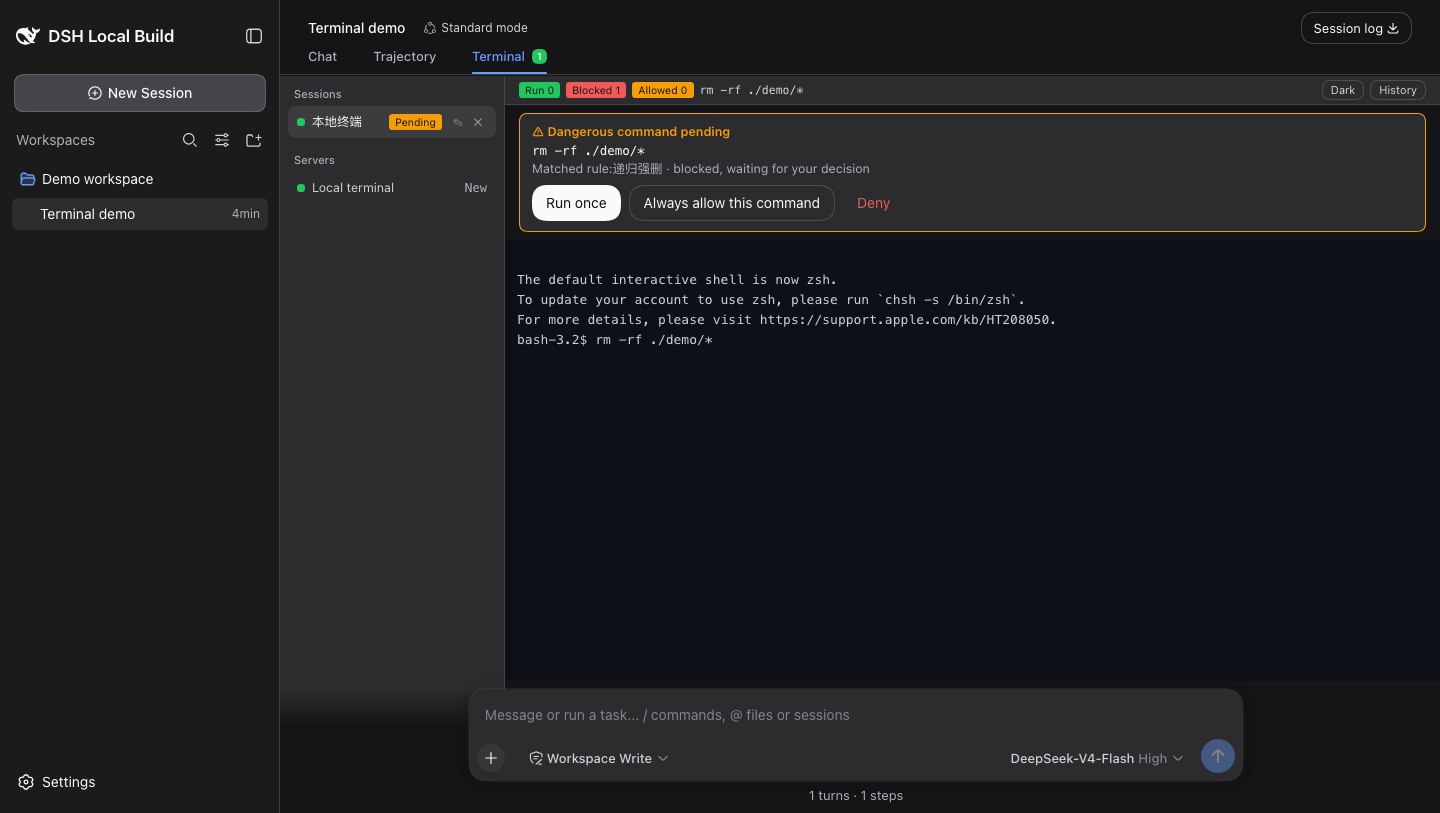
The terminal footer shows run, blocked, and allowed counts. Open History to review command records. Switching to another DSH tab does not disconnect a background session.
AI Tools
The plugin exposes two model tools:
| Tool | Purpose |
|---|---|
netshell_servers |
List server profiles without passwords |
netshell_run |
Run one command on a selected server |
AI commands and human input use the same Guard. deny commands never run, and ask commands require a decision from you in the DSH confirmation UI or terminal panel. The AI cannot see passwords or forge approval results.
On the first use of a server by a model session, or after the user manually disconnects that server, netshell_run asks for remote-connection approval before starting SSH. Approval is retained per model session and server for the current plugin lifetime; different model sessions must approve independently even when they reuse the same SSH session. A network failure, SSH exit, or connection timeout only triggers reconnection for the already-approved model session. A manually opened GUI session does not replace model approval. If the confirmation service is unavailable, the plugin fails closed and does not connect automatically.
Security Boundary
This is an operation guard, not a complete security sandbox. It protects commands entering through this plugin's terminal and netshell_run; SSH connections created by other plugins or generic shell tools are outside its scope. Use locked for sensitive environments and review actions inside interactive programs carefully.
SSH host keys are stored in the plugin-private ~/.dsh/netshell/known_hosts, separate from the user's ~/.ssh/known_hosts.
Documentation
- 中文 README
- Updates
- Technical notes
- Dynamic loading guide
- Design and host-contract notes
- Full historical changelog
FAQ
What should I check when a connection fails? Verify the host, port, username, and authentication method. If the host key changed, confirm the server was intentionally rebuilt before removing the stale entry from the plugin-private known_hosts file.
Can the AI see my password? No. The Host reads it from DSH's encrypted credential store only while establishing SSH; profile listings, tool results, logs, and terminal output never contain the password value.
Links
More in this category
zhu1090093659/dsh-web#packages/dsh-remote-web-ui★ 8835
Remote control of a dsh web workspace from phone or PC: QR-code pairing through a token-gated channel, SSE real-time sync, and separate mobile and full desktop GUI modes.
zhu1090093659/dsh-web#packages/dsh-ssh★ 8835
SSH ops panel for DSH: web terminal, SFTP transfer with progress, local port forwarding, and one-command cluster execution across hosts; agents share the same host config.
saya-ch/dsh-mobile★ 479
Access DeepSeek Harness from the Android app or a mobile browser with secure LAN and remote connections, persistent device pairing, and a customizable mobile interface.
liguobao/ds-harness-remote★ 345
Multi-device remote access for DeepSeek Harness: continue an active session from your phone, tablet, browser, or another computer over an end-to-end encrypted channel (Noise IK + adaptive relay/WebRTC transport), with device authorization, ApiProxy-only remote capabilities, and read-only file preview via dsh-file-viewer — no shell, remote desktop, or write access.
ZSeven-W/dsh-ios★ 326
A live iOS Simulator or USB-connected iPhone inside the conversation: 22 agent tools for booting, building, driving the UI by accessibility identity or OCR text, list-row actions and SwiftUI preview hot reload, plus a streaming sidebar panel you can tap and drag on.
wenbin-wb/dsh-bridge★ 199
Remote and mobile access for DeepSeek Harness: provides LAN QR code connection, Cloudflare/custom tunnels, WeChat, QQ, Feishu, Telegram bot integration, and security authentication.
Community comments
Comments are public GitHub Discussions. Loading them connects to GitHub and Giscus; a GitHub account is required to post.