Track the origin of local development ports on Windows and safely manage verified DSH services.
Install
# from npm (prebuilt)
dsh plugin --profile web add dsh-port-inspector
# from GitHub (first run asks for allowBuilds approval — follow the hint, retry)
dsh plugin --profile web add github:ianho7/dsh-port-inspector
Any plugin you install runs third-party code with your own permissions — it can read your files, use your credentials, and reach the network, and tool approvals don’t sandbox it. GitHub-sourced plugins also run build scripts at install time — pnpm blocks those until you allow them, so an install can stop with ERR_PNPM_GIT_DEP_PREPARE_NOT_ALLOWED or ERR_PNPM_IGNORED_BUILDS; dsh prints the exact key to add under allowBuilds in your profile’s pnpm-workspace.yaml, and the install works on the next run. Allowing a build is a trust decision: only install sources you trust, and pin a commit (github:owner/repo#sha).
README
Why this exists
After a Coding Agent starts several local services, it is still difficult to tell which service owns a port, why it is still running, and whether it can be stopped safely.
This problem appears in nearly every Session involving multi-service integration, long-running background tasks, or parallel development across multiple projects. It is not limited to any particular language or framework:
- When several Sessions debug the same project, Vite may move to another port and the browser may reach an instance that does not belong to the current task.
- A development service from an earlier task may keep occupying a port long after the user has forgotten why it was started.
- When several projects and Sessions run in parallel, multiple
node.exe, Go, or Python processes may have identical names, making it difficult to tell which project owns a port.
Users eventually run into four questions:
Which service am I actually reaching?
The page has not updated, the API returns stale data, or Vite has automatically moved to another port. Tests and the browser may be talking to different instances. I need to know which development services are listening and which one belongs to the active project.
Why is this service still running?
The task is complete, but the service is still running in the background. The Session has changed, and I no longer remember which services the Agent started. Keeping a background service alive can be intentional so that validation can continue; the problem is that once the conversation context fades, it becomes hard to tell whether the service is still useful.
Is it safe to stop it?
Task Manager may show several
node.exe, Go, or other runtime processes at the same time. I do not want to stop the wrong project, and I cannot tell whether a listener PID belongs to a larger process tree or is still owned by a DeepSeek Harness Job or Terminal.Am I really done after stopping it?
Even after a stop action, I still need to confirm that the target port was released and that services from other projects remain available. For example, stopping a frontend on port 5173 must not affect a backend listening on 5174.
The underlying problem is that DeepSeek Harness does not know which service an Agent ultimately started, while Windows does not know which DeepSeek Harness Session owns a listening port. Port Inspector connects these views. It shows the application, project, starter, and Session/Tool Call for each listener, then rescans after every action to confirm the result.
Background services are not automatically treated as leaks. Port Inspector recommends stopping a service only when the evidence is sufficient, and it distinguishes resources managed by DeepSeek Harness from processes that are not.
When the attribution observer, Windows process identities, and parent-process chain are all available, Port Inspector connects the following relationship:
TCP listening port → listener PID → Windows parent-process chain → DeepSeek Harness root process
→ Session / Tool Call → Lifecycle owner → safe handling and port-release confirmation
Core features
- 🔎 Port overview: See listening ports, applications, PIDs, and listening addresses across the project and system.
- 🌈 Source identification: Distinguish the current Session, other DSH Sessions, and ordinary external processes.
- 🛡️ Safe shutdown: Stop DSH-managed processes through an identity-verified operation.
- 🔥 Process termination: Directly end external processes when their identity information is complete.
- 📁 Open directory: Jump from port details to the associated project directory.
- 🐳 Compose detection: Show the Compose file, service, image, container, and port mapping.
- 🧬 Launch chain: View the complete relationship from the root process to the listening process.
- 🎛️ Quick filtering: Search, filter, and sort by port, application, PID, project, or Session.
- 📋 Copy details: Copy port, process, source, and Session information for sharing or record-keeping.
- 🎨 Interface sync: Follow DSH's language, light/dark appearance, and design system automatically.
Plugin screenshots
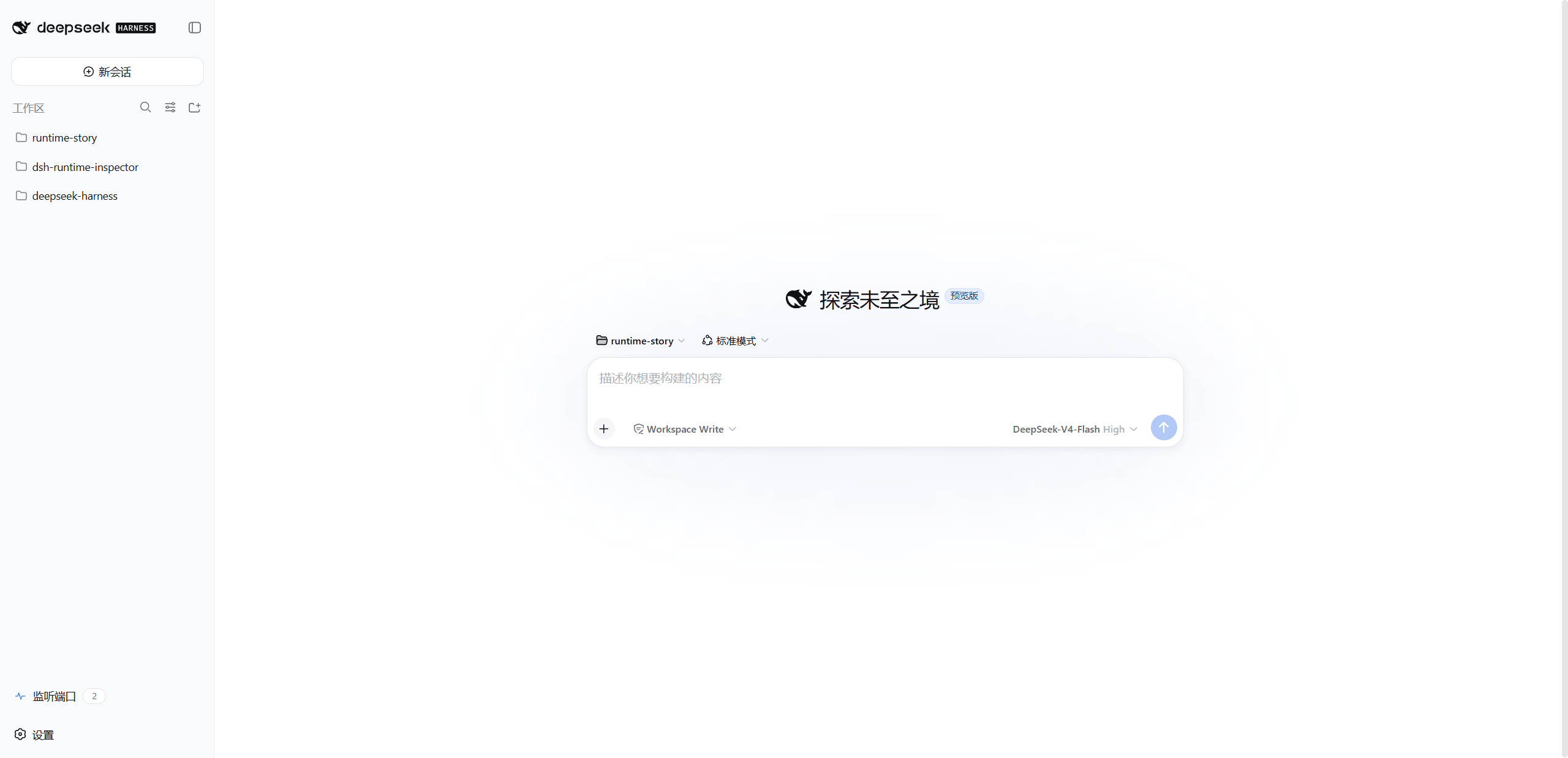
DeepSeek Harness task context
The following screenshot shows the runtime-story workspace selected in DeepSeek Harness with the Port Inspector entry open. The badge shows the number of listeners that existed when the screenshot was taken.
Port Inspector results
The current-project group contains four records: Vite, PostgreSQL, Redis, and Go. The sidebar badge shows 4. The Docker services have a confirmed Compose project association while their starter remains unconfirmed. These states answer two separate questions: which project the service belongs to, and who started it.
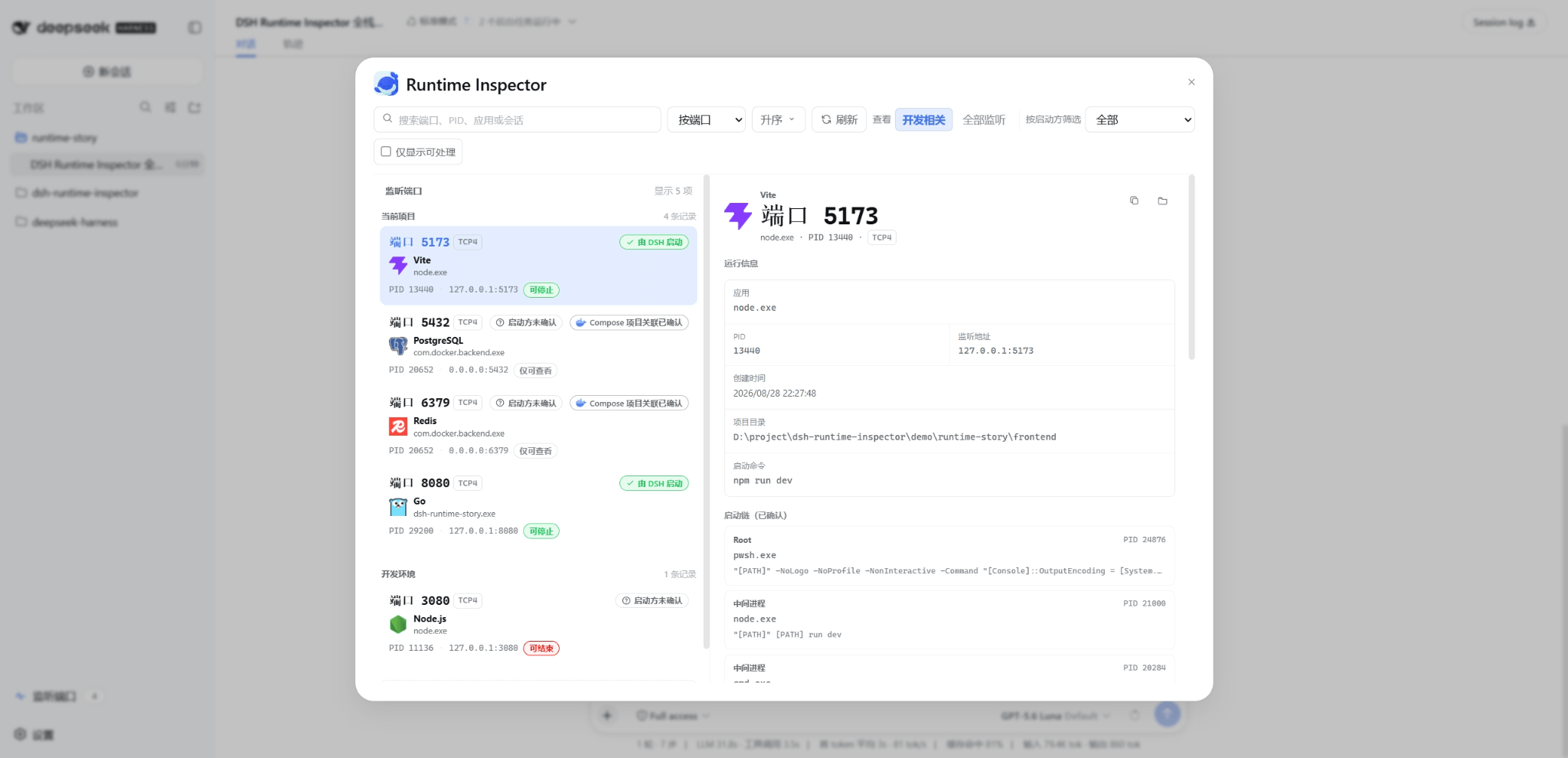
| Service | Started with | Port | Meaning in Port Inspector |
|---|---|---|---|
| Vite | DeepSeek Harness background Job running npm run dev |
5173 | Current project, current Session, verified attribution, DSH task can be stopped |
| Go API | DeepSeek Harness background Job running go run . |
8080 | Current project, current Session, verified attribution, DSH task can be stopped |
| PostgreSQL | Docker Compose | 5432 | Current-project Compose association and image/container evidence; starter unconfirmed; view only |
| Redis | Docker Compose | 6379 | Current-project Compose association and image/container evidence; starter unconfirmed; view only |
At the end of the demo, Port Inspector first stops Vite and rescans to confirm that 5173 has been released while 8080, 5432, and 6379 are still listening. It then stops Go, followed by docker compose down. This demonstrates that each action affects only the explicitly selected DeepSeek Harness service without disrupting another project or Docker Desktop.
Related terms
| Term | Plain-language meaning |
|---|---|
| Started by DSH | The service has been confirmed as started by a DSH task. |
| Starter unconfirmed | There is not yet enough evidence to confirm who started the service. |
| Compose project association confirmed | The port has been confirmed as belonging to a Docker Compose service in the current project. |
| Can stop | The service can be stopped through its DSH Job or Terminal. |
| Can end | The external process can be ended after the safety checks pass. |
| View only | The process can currently be inspected, but not stopped or ended. |
How it differs from existing tools
| Tool | What it shows or does | What is missing |
|---|---|---|
netstat / Get-NetTCPConnection |
Ports, addresses, and PIDs | Does not identify the DeepSeek Harness Session or Tool Call that started a process |
| Task Manager / Process Explorer | Process information, parent-child relationships, and process termination | Does not understand DeepSeek Harness Job / Terminal lifecycles |
| DeepSeek Harness Jobs / Terminals | Manages known resources owned by DSH | Does not provide a unified view of Windows listening ports or cover external processes |
| Port Inspector | Ports, projects, attribution, Sessions, Calls, Lifecycle owners, and safe handling modes | Deliberately avoids general-purpose system monitoring and bulk cleanup |
Who it is for
Port Inspector is intended for:
- Coding Agent developers who use DeepSeek Harness Web locally on Windows.
- People who frequently ask Agents to start local development servers, APIs, databases, or other development tools.
- People who run several projects or DeepSeek Harness Sessions at the same time and need to distinguish identically named processes.
- People who need to resolve port conflicts without accidentally stopping another service.
The Windows MVP does not target macOS/Linux, UDP, remote hosts, cross-restart history, bulk termination, or automatic governance of orphaned processes.
Minimum usage path
Prerequisites
- Windows.
- Node.js
>=22.19.0. - A working DeepSeek Harness (DSH) installation.
pnpmavailable onPATHso thatdsh plugincan manage Profile dependencies.- The target DSH Profile is
web.
Install and start
Completely exit any running DSH Web process before installing or updating the Bundle. Choose one of the following methods.
- Install from npm
dsh plugin --profile web add dsh-port-inspector@latest
- Download and install from GitHub Releases
Use GitHub CLI to download the archive from the latest GitHub Release, then install it:
gh release download `
  --repo ianho7/dsh-port-inspector `
  --pattern 'dsh-port-inspector-*.tgz' `
  --output 'dsh-port-inspector-latest.tgz'
dsh plugin --profile web add '.\dsh-port-inspector-latest.tgz'
- Build and install from source
git clone https://github.com/ianho7/dsh-port-inspector.git
cd dsh-port-inspector
npm install
npm run build
$PackageFile = npm pack --ignore-scripts
dsh plugin --profile web add ".\$PackageFile"
On the first installation, pnpm may report ERR_PNPM_IGNORED_BUILDS because koffi uses a native install script. Open the Profile's pnpm-workspace.yaml at the path printed by DSH and confirm:
allowBuilds:
  koffi: true
Save the file, then rerun the original install command. This approval is required only once for that Profile.
After installation, start DSH Web:
dsh web
When the browser opens, create a new task and open Port Inspector from the sidebar.
Investigate ports
- Create a new DeepSeek Harness Session and ask the Agent to start a local service.
- Open Port Inspector from the DeepSeek Harness Web sidebar. Select Refresh if necessary.
- Review the port, PID, application, project, creation time, attribution, and handling mode.
- For a managed resource, select Stop DSH task. For an external process that passes the safety requirements, select End process.
- Confirm the action, wait for a fresh scan, and check the reported
portReleasedresult.
After installing or updating the Bundle, you must restart the target Profile and create a new task to obtain process attribution. Process-origin records exist only for the current DeepSeek Harness runtime and cannot retroactively attribute processes that existed before the restart.
Capabilities
- Opens the Port Inspector panel from the DeepSeek Harness Web sidebar.
- Displays TCP listening addresses, ports, PIDs, applications, projects, and localized creation times.
- Shows the Session, Turn, Step, Call ID, tool, and user request for verified attribution that maps successfully to the current Session. Other Sessions expose only the available coarse-grained summary.
- Prioritizes the current project and recognized development environments by default, while keeping other listeners searchable and expandable.
- Presents attribution and handling as separate dimensions:
- Attribution:
Started by DSH/Starter unconfirmed. - Handling:
Stop DSH task/End process/View only.
- Attribution:
- Supports search, sorting, copying redacted details, opening available project directories, and pinning records.
- Stops managed Jobs and Terminals only through the DeepSeek Harness lifecycle.
- Allows external handling only after explicit confirmation, identity revalidation, and selection of one same-user PID.
- Rescans after every action and reports whether the port was actually released.
Attribution and handling permissions are evaluated independently. An inferred origin does not gain DeepSeek Harness lifecycle permissions. Conversely, an external process with an unconfirmed starter may still permit single-PID handling when its identity is complete and all safety checks pass.
How it works
From Agent tool-call attribution to listening ports
Port Inspector caches call evidence during tool/call. The tools/execute AsyncLocalStorage execution frame carries that evidence into spawn or spawnTerminal. The root PID and creation time then form the process identity, Job/Terminal supplies lifecycle ownership, and the Windows ancestry chain connects the actual listener process back to the Agent operation.

Attribution is verified only when the complete process identity and ancestry chain match. Non-unique evidence produces only inferred attribution, while insufficient evidence remains unattributed. The observer does not replace the subprocess provider or take ownership of process teardown.
How user actions cross the Host security boundary
The Browser panel requests actions only through same-origin, serializable RPC. It never receives the Windows scanner, process handles, or termination primitives. After the user confirms an action, Host rescans and validates the current listener record before choosing either managed shutdown or external single-PID handling based on ownership.

Managed resources call only their Job/Terminal Lifecycle owner. External targets are revalidated against the PID, creation time, port, and other evidence. Whether an action succeeds, fails, or is rejected, Host performs another scan and returns the latest facts through freshScan, preventing the Browser from continuing to display stale state.
How delayed Terminal PIDs are attributed
Some Stock DeepSeek Harness and Windows ConPTY combinations initially return a LocalTerminalHandle with PID = 0. Only when both the exact version and exact handle shape match does the compatibility layer wait for the PTY to publish a positive PID, call processTree(PID) to obtain the creation identity, and fill in pid and rootIdentity.

When the native handle already contains a positive PID, the repair path is not used. If the handle is unsupported, the Terminal exits early, or the wait times out, the capability safely degrades to unavailable. Port Inspector does not store an unverified PID or use it to establish verified attribution.
Read-only capability for Agents
The project provides a read-only port_list Tool for diagnosing port conflicts. The model cannot use this Tool to perform process actions directly.
- The current Session receives bounded, redacted attribution information.
- Other DeepSeek Harness Sessions expose only a coarse-grained occupancy relationship, without commands, Calls, or project details.
- Output has a row limit and includes listener-scan completeness state.
- The Tool does not read environment secrets or return termination callbacks or process handles.
Safety and operating boundaries
- Supports only the Windows local execution world and TCP listeners.
Verified attributionrequires a PID, creation time, and a verifiable Windows parent-process chain. Commands, directories, timestamps, or port numbers alone are not sufficient.- DeepSeek Harness-managed targets prefer the Job/Terminal lifecycle. A failed
Managed shutdownnever escalates automatically to forced PID termination. - External handling targets only one same-user PID explicitly selected by the user. Before acting, Port Inspector revalidates the PID, creation time, executable, user, protection level, and listener identity.
- Does not terminate external process trees, elevate privileges automatically, or read environment secrets.
- System processes, other-user processes, protected processes, incomplete identities, and targets with insufficient permissions remain read-only.
- The DeepSeek Harness version is diagnostic and regression metadata only. Public features are enabled independently through actual runtime-capability probes.
- Uninstalling the plugin cleans up only its own resources and does not automatically terminate user processes.
Development and validation
npm install
npm run typecheck
npm test
npm test builds both the Host and Browser artifacts and runs the deterministic Node test suite. Acceptance gates that require Stock DeepSeek Harness or a real browser are skipped by default.
The core Windows MVP is implemented. Gates that require a real Stock DeepSeek Harness or browser are opt-in; see the testing and manual acceptance guide for the exact commands and environment requirements.
For complete packaging, Profile installation, DeepSeek Harness port, external PowerShell port, and opt-in smoke procedures, see the testing and manual acceptance guide.
Maintenance and releases
For the maintainer workflows that publish npm/GitHub releases and manage the local toolchain-logo pipeline, see the release guide and toolchain logo asset pipeline.
Documentation
- Windows MVP
- Implementation Spec
- Product and technical decisions
- Glossary
- Testing and manual acceptance guide
- Minimal full-stack demo
- Full-stack demo guide and requirements prompt
- Release guide
- Toolchain logo asset pipeline
- ADR-0001: Stock DSH root PID observation
- ADR-0002: Process termination policy
- ADR-0004: Same-repository dual-face Web Bundle
- ADR-0005: Runtime capabilities instead of a version-wide gate
- ADR-0006: Compose project association
- ADR-0007: Verified launch chain
Links
More in this category
yjh051108/dsh-routing-suite★ 7026
One repository, three parts: a runtime injector for DSH plugin packages (inject, hot-reload, unload, promote a dev staging tool to the front, route self-heal, plus a settings-page plugin manager that lists, unloads and drags folders in to internalize), a task-aware reasoning-mode router agent preset (router-standard / router-spec / router-react), and a graded two-level task protocol whose six tools (commit_star, lock_stage, revise_do, edit_plan, mark_task, redteam_verdict) pin task state to disk. The injector implementation ships in-tree, so the install carries its own behaviour rather than a dependency list.
strukto-ai/mirage#dsh★ 3686
Swaps the filesystem and bash providers for a mirage virtual workspace: file tools and shell commands run over mounted resources (RAM, S3, Redis, Slack, Gmail, Notion, Postgres) instead of the host disk, with per-mount read/write/exec modes, per-command sandbox routing (monty, pyodide, quickjs in process; docker, e2b, daytona remote), and installed CLIs (git, gh, slack, linear, ntn, gws, or one you register) as head words in the virtual terminal.
hust-open-atom-club/oh-dsh★ 322
Community distribution: TUI, desktop, and Web UI as one bundle with layered installation.
weijiafu14/pi2dsh★ 213
Pi Host ABI compatibility engine: after one install, unmodified Pi extensions from npm mount as native DSH plugins with `dsh plugin add <pi-package>`. Verified end to end on stock DSH with pi-mcp-adapter (full MCP manager: OAuth, resources, prompts, MCP Apps, elicitation, sampling), @tintinweb/pi-subagents, pi-code, pi-hermes-memory and pi-background-tasks; `pi2dsh inspect` reports a package's compatibility before installing.
Fishquito7/dsh-skill-mcp-panel★ 197
Manages DSH skills and MCP servers from the web settings: skill cards with hot enable/disable, workspace scopes, groups, batch migration and drag-and-drop import, plus stdio/HTTP MCP CRUD with connection tests, secret redaction and the unified dsh-panel CLI.
lire1131/dsh-undo-savepoint★ 181
Undo/redo & rollback system for DSH: every config change is auto-snapshotted; undo/redo/restore to any version from the WebUI or the offline CLI/GUI tools (works even when DSH fails to boot).
Community comments
Comments are public GitHub Discussions. Loading them connects to GitHub and Giscus; a GitHub account is required to post.