Multi-machine remote workspace: manage many SSH hosts, pick a local or remote workspace in the native Add-workspace flow (system folder chooser / local path / remote dir browse), mirror a remote workspace to a real local folder, and operate it with rw_* tools. The picker is a centered modal that opens on the local tab and auto-fills `/` for remote paths, live-completing each directory level.
Install
# from npm (prebuilt)
dsh plugin --profile web add dsh-remote
# from GitHub (first run asks for allowBuilds approval — follow the hint, retry)
dsh plugin --profile web add github:flymysql/dsh-remote
Any plugin you install runs third-party code with your own permissions — it can read your files, use your credentials, and reach the network, and tool approvals don’t sandbox it. GitHub-sourced plugins also run build scripts at install time — pnpm blocks those until you allow them, so an install can stop with ERR_PNPM_GIT_DEP_PREPARE_NOT_ALLOWED or ERR_PNPM_IGNORED_BUILDS; dsh prints the exact key to add under allowBuilds in your profile’s pnpm-workspace.yaml, and the install works on the next run. Allowing a build is a trust decision: only install sources you trust, and pin a commit (github:owner/repo#sha).
README
English · 中文
dsh-remote
Maintained by @flymysql · Blog · Discussions · Issues · 中文说明
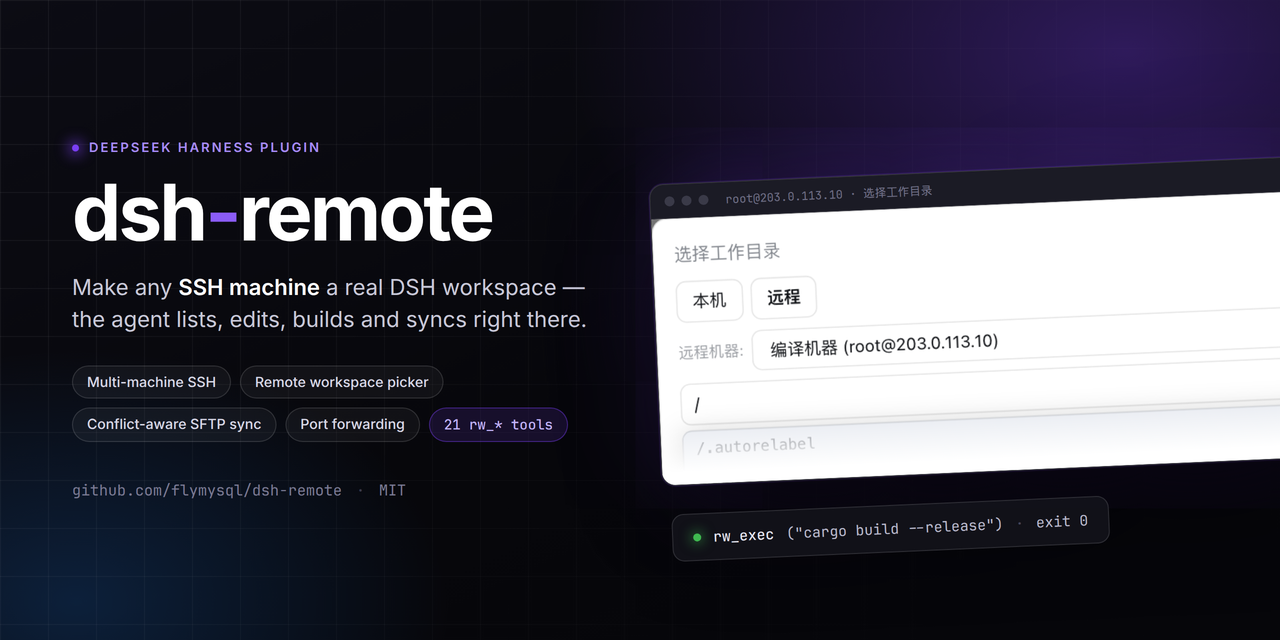
Remote-work assistant for DeepSeek Harness (DSH).
Manage several SSH machines, then pick a remote workspace (or a local one) and let the agent operate right there without leaving the harness — listing files, reading code, running builds & commands over the remote host, and keeping that remote directory mirrored into a real local workspace object.
The harness Web UI intentionally binds 127.0.0.1 (the CLI rejects --host 0.0.0.0 for safety). This plugin goes the other way: you connect out to the machines you maintain, pick a workspace, and work in it through the normal DSH workspace + agent fs flows — no changes to dsh-workspace or the harness core.
Screen previews
Settings → 远程工作区 — a multi-machine SSH registry (add / edit / delete / set-current, password stored locally):
The native "Add workspace" / "Select workspace" flow — a centered modal, two tabs, opens on 本机 (local); switch to 远程 (remote):
- 远程 — a machine
<select>, a path field that auto-prefills/and live-completes directories (picking one immediately reveals its next level, OS/VSCode-style), plus a 浏览… floating browser that fills the field without committing — you review, edit, then 设为远程工作区.
Real capture (host scrubbed to a placeholder):
Features
- Multi-machine SSH — save any number of hosts (
host/port/user+ private key or password). Passwords are stored locally and never shown back in the UI. Switch with one click in Settings. Per-machine passphrase / host-key mode / SSH agent / keyboard-interactive (OTP) / proxy jump (bastion) and an optional OS-keychain password (加密保存密码— macOS Keychain / Windows DPAPI / Linux secret-tool). ~/.ssh/configaliases (resolved live, never copied) — a machine can be saved as just a Host alias (useSshConfig): hostname/user/port/key/jump host are read from~/.ssh/configat every connect, so editing that file takes effect immediately and there is nothing to re-import; the registry stores no copy of those values (the key stays a path reference, its content is never read). Full OpenSSH semantics: multi-aliasHost a b,*/?wildcards,!negation,Include(globbed, relative to~/.ssh), trailing-\continuations and ssh_config(5)'s *first-obtained-value-wins*. In Settings, **Import from ~/.ssh/config** saves an alias in one click (or **Copy fields** materialises a normal machine), the alias list and machine rows show **alias → what it actually resolves to**, and anything the plugin cannot honour (ProxyJumpwith several hops,ProxyCommand) is surfaced as a warning instead of silently degrading.- Two-tab workspace picker (fills the native "Add workspace" flow):
- 本机 / Local — opens the native OS folder chooser over the host (macOS
osascript/ Linuxzenity→kdialog/ WindowsFolderBrowserDialog), or lets you type a local path → adopted directly as a normal DSH local workspace. - 远程 / Remote — the picker is a centered modal. Pick a machine → on Windows hosts the root shows a "This PC" drive view (
C:\,D:\,E:\… instead of the Git Bash MSYS root) and the path field live **autocompletes** directories (acceptsC:\Users\…or/c/Users/…— Windows paths are rewritten to the Git Bash form underneath); selecting a directory immediately lists its next level. A **浏览…** floating browser (Windows-aware breadcrumb此电脑 / C:\ / Users / dev, drive rows, size + mtime, dirs first, follows symlinks) fills the field without committing; the **回上一级** button works at any depth (even when the browser was opened at the path bar's value). **最近 workspaces** quick-pick, **~主目录** shortcut and **新建目录** are one click away. On confirm it creates a **real local mirror** under$DSH_HOME/remote-workspaces/<host>-<user>-<port>/<base>that passesfs.realpath→ the harness adopts it as a real workspace while dsh-remote keeps it synced over SFTP.
- 本机 / Local — opens the native OS folder chooser over the host (macOS
- Git Bash default terminal (Windows remotes) — the remote platform is auto-detected (
cmd /c ver, plus anuname -sMINGW/MSYS probe as fallback); on Windows the plugin locates Git Bash (config.shellcan pin a path ornativedisables wrapping) and pipes every command tobash -sover the exec channel, so quoting/backslash escaping is never an issue regardless of the SSH default shell.rw_execruns with a Git Bash cwd (/c/Users/…form)./dsh-remote/status,rw_infoand the 测试连接 button report the detected platform + shell. - Windows path auto-conversion — typing
C:\Users\dev\project(orC:/…,/c/…,/C:/…) is normalized underneath to the Git Bash form/c/Users/dev/projectfor shell commands, while workspaces are stored and shown Windows-style (C:\Users\dev\project). All model tools accept and report both forms; SFTP access uses the Win32-OpenSSH/D:/…form (seetoSftpPath). - Remote
@completion (issue #39) — in a remote session@lists the remote tree (read live over SFTP, not the local mirror): directories drill down, a slash-free query fuzzy-matches the whole tree, and candidates are workspace-relative paths (@src/main.c) exactly like a local session. Therw_*tools accept those relative paths and resolve them against the remote workspace root. The index is bounded (entries/directories/deadline + cache + failure breaker) and falls back to the local mirror when the host is unreachable — never a silent empty list. Local sessions are untouched. - Bidirectional SFTP sync, conflict-aware —
rw_sync(remote → mirror) andrw_push(mirror → remote) are three-way (remote vs local vs last-synced snapshot): files changed on both sides are reported as conflicts and never silently overwritten (force=trueoverrides). Defaults are depth 8 / 2000 files; hitting a cap is reported asTRUNCATED. Both support dry-run, background tasks, and honor gitignore-style ignore rules. - Model tools — 20 tools, all Windows/POSIX portable via SFTP:
rw_info,rw_connect(withsave),rw_pick_workspace,rw_list_dir(size+mtime),rw_stat,rw_read_file(encoding-aware: utf-8/gbk),rw_write_file,rw_edit(literal replace + mtime optimistic lock),rw_append,rw_mkdir,rw_remove(recursive, bounded),rw_move,rw_exec(pty/env),rw_search(SFTP tree walk — works on Windows too, honors ignore rules, context lines),rw_download/rw_upload(streaming fastGet/fastPut + size caps),rw_forward(SSH tunnels),rw_sync,rw_push,rw_disconnect. - Port forwarding panel — create/start/stop/remove local (
127.0.0.1:port → remote) and reverse (remote → local) tunnels in the Settings page or viarw_forward; definitions persist, auto-restart on reconnect when enabled, all tunnels stop on disconnect. - Sidebar remote editing — the remote file tab is editable: click 编辑 → edit → 保存到远程 with an mtime optimistic lock (409 + "重新读取" on concurrent change). File ops are session-bound (v0.8.19): the explorer sends
sessionIdso two conversations on different hosts do not share the active-machine pool. The explorer rows show file sizes and have a right-click menu (下载到本地镜像 / 重命名 / 删除 / 新建目录). - Command audit log — every
rw_exec/write/remove/move/forward is appended to$DSH_HOME/remote-workspaces/audit.log(time · user@host · op · exit code · command); the Settings page shows the last 30. - Async long tasks —
rw_sync/rw_pushwithasync: truereturn ataskId; progress/result/cancel via/dsh-remote/task(single-flight queue). - Connection health — a 「测试连接」 button validates host/user/key/password (with per-category error hints: auth / network / host key / timeout) before you save a machine; latency is cached on the machine record.
- The active
user@host:/pathis injected into every system prompt (plus active forwards). - No official
dsh-workspacecore is modified — everything is delivered as a normal plugin (directory-flow holes filled by the client half atpriority -100). - Cross-platform remotes — all file access is SFTP-protocol-level (no shell dependency), so Linux/macOS/Windows remotes all work for listing, reading, writing, searching and syncing.
- Host-key verification (TOFU) — every SSH connect verifies the host key
(
hostKeyMode: accept-new): first connect records it, a later CHANGE is rejected as a possible man-in-the-middle.verifyalso refuses hosts never seen before;offdisables it. Stored at$DSH_HOME/remote-workspaces/known_hosts.json; reset with/remote forget-key. - Data lives under the harness home — machines + mirrors follow
$DSH_HOME; pre-0.6 data under~/.dsh/remote-workspacesis migrated automatically on first run.
Install
Official Desktop compatibility (experimental, unreleased)
This branch adds a compatibility path for the official
DeepSeek Harness Desktop,
tested against the 0.1.5-rc.2 Host transport. It does not replace the Harness
core or require a listening Web server:
- The SSH settings and directory picker use
/api/dsh-remote/*over the Desktop'sdsh-app:carrier. Exact Fetch routes are registered onctx.connection.fetch; the carrier retains ownership of authentication. - A native Remote Files entry uses
sidebarRightTabsand the keyedsidebar.right.pane.tabseat. It reuses the existing explorer/editor and gives remote files their own session-scoped resource addresses, rather than sending remote paths to the local Files viewer. dsh-better-sidebaris not bundled. Web hosts may install it separately; official Desktop uses the native right-sidebar integration instead.
Since v0.8.19, sidebar /ls /read /write /fs resolve the session's
mirror binding (same path as rw_*) when the client sends sessionId. Two
sessions on different hosts no longer share the active-machine pool for file
ops. Host-side tests cover that routing plus the editor 409/re-read/save path.
Official Desktop's native file-tab GUI, failed/cancelled dialogs, non-macOS
hosts, and a full legacy Web UI pass are still experimental. Desktop's package
installer may also require an explicit policy for the optional ssh2 /
cpu-features build scripts. The isolated transport test disabled those
optional scripts; this change does not loosen an application's build allowlist
or automatically approve dependency scripts.
Published Web bundle
dsh plugin add dsh-remote # add the bundle
Since v0.8.18, dsh-remote installs and mounts only itself. The Web sidebar
(dsh-better-sidebar) is
optional and is no longer a dependency or an automatically mounted row. This
keeps the SSH tools and settings UI independent from a particular sidebar
implementation.
To add the optional Web remote-file explorer/editor, install both bundles:
dsh plugin add dsh-remote
dsh plugin add dsh-better-sidebar
When the standalone sidebar service is present, dsh-remote discovers it
dynamically and registers its remote explorer/editor tabs. Without it, all
rw_* tools, the settings UI, sync, audit log, and port forwarding continue to
work. Official Desktop uses its native right-sidebar seats and does not need
dsh-better-sidebar.
Upgrading from 0.7.2–0.8.17: upgrading to 0.8.18 removes the embedded sidebar dependency and mount. Install
dsh-better-sidebarseparately only if you still want that Web UI. Any old profile override forid: dsh-remote-sidebarcan be removed because that row no longer exists.
(or npm install dsh-remote + add - id: dsh-remote / name: dsh-remote in cordis.patch.yml).
Quick start
- Add a machine — Settings → 远程工作区 → add host/port/user + key or password → (optional) set it current.
- Open a workspace — click Add workspace in the sidebar / conversation:
- 本机 → system folder chooser (or type a local path) → local workspace. On hosts without a usable OS dialog (DSH Desktop's browse backend, headless SSH hosts without zenity/kdialog) the in-app directory browser pops up instead — breadcrumbs, Windows drive switch, new-folder, pick-and-fill.
- 远程 → choose the machine → browse to a remote directory (or type
/path) → "设为远程工作区" ⇒ a local mirror workspace is created and adopted.
- Work with the agent — treat it like any workspace:
rw_list_dir(path?)/rw_read_file— inspect remote filesrw_write_file(path, content)/rw_edit(path, old, new)— create / patch a remote file directlyrw_stat(path)/rw_mkdir(path)/rw_remove(path, recursive?)/rw_move(path, dest)— manage remote pathsrw_search(pattern, path?)— grep remote files (SFTP walk, Windows OK)rw_exec(command, cwd?, pty?)— run remote shell commands (defaults to the workspace dir)rw_forward(listenPort, targetHost?, targetPort?)— open an SSH tunnelrw_sync(dryRun?/force?/async?)/rw_push(dryRun?/force?/async?)— conflict-aware mirror pull/push
CLI defaults (optional)
Provide a default machine in cordis.patch.yml:
# Example only — use values for your own machine.
- id: dsh-remote
  name: dsh-remote
  config:
    host: 203.0.113.10   # or your real host / hostname
    port: 22
    username: dev
    privateKeyPath: ~/.ssh/id_rsa
    # or password: '…'
    workspace: ~/project
If host is empty the plugin starts disconnected and you configure machines in the UI.
CLI quick reference
Installing and driving DSH may live in different shells, so both the dsh binary and the npx form are shown. Always tell DSH which profile to use with --profile <name> (usually web).
# install the bundle into a profile (npm is pulled by pnpm; recommended)
dsh plugin --profile web add dsh-remote
# same but when `dsh` is not on PATH (e.g. Windows PowerShell inside a repo)
npx --yes @deepseek-ai/dsh plugin --profile web add dsh-remote

# confirm it is installed wire
dsh plugin --profile web list
npx --yes @deepseek-ai/dsh plugin --profile web list

# start the web surface (reload profile; the plugin activates on boot)
dsh --profile web
npx --yes @deepseek-ai/dsh --profile web   # http://127.0.0.1:3080

# use a local checkout instead of the npm version (dev iteration)
npx --yes @deepseek-ai/dsh plugin --profile web add /path/to/dsh-remote
npx --yes @deepseek-ai/dsh plugin --profile web remove dsh-remote   # back to release
After a successful start, Settings → 远程工作区 appears and the "Add workspace" flow gains the 本机 / 远程 tabs (screenshots above).
Development (sandbox, not product)
Iterate in the sandbox, never by hand-editing a product profile — the product profile is re-managed by the plugin manager and reverts hand-deployed files on reinstall. Use the helper script:
scripts/dev-run.sh --restart   # start / restart the isolated sandbox
scripts/dev-run.sh --stop      # stop it
scripts/dev-run.sh --status    # is it running?
- Runs its own DSH instance (
dev-harness/harnessinside this repo) with the plugin copied in fromlib/— it boots through the samebin.js web --patchpath as the desktop app, so the sandbox reproduces the product boot behavior. - The sandbox web UI serves on
http://127.0.0.1:50599and the plugin routes are live immediately (e.g.GET /dsh-remote/machines). - Host-half changes (
lib/index.js) need a sandbox restart (--restart); client-half changes (lib/client.js) need a page refresh. - Node ESM resolves dependencies from the importing file's real path, so the
script copies
lib/(hardlink copy,cp -al) into the sandbox profile instead of symlinking — a symlink breaks@deepseek-ai/*resolution. - Run
scripts/check.mjs(static framework-constraint gate: command-name regex, …) before every commit;scripts/boot-smoke.shboots an isolated instance to prove the plugin still starts. - Full rules live in
scripts/dev-standards.md(command names, cordis service access viactx.get()only, optional framework services may never register, verify third-party callback contracts against the real runtime, …).
Deploying to a product profile is a separate, explicit action (./sync.sh)
and should be done only when you intend to release.
Configuration
| Key | Type | Default | Meaning |
|---|---|---|---|
host |
string | '' |
default SSH host (else start disconnected) |
port |
int | 22 |
default SSH port |
username |
string | '' |
default SSH user |
password |
string | '' |
default SSH password (non-empty overrides key) |
privateKeyPath |
string | '' |
private key path (used only when explicitly provided) |
passphrase |
string | '' |
passphrase for an encrypted private key |
workspace |
string | '' |
default remote workspace path |
shell |
string | '' |
remote command terminal strategy: ''=auto-detect (Git Bash on Windows remotes), 'git-bash'=prefer Git Bash, 'native'=never wrap, anything else=explicit bash.exe path (e.g. C:\Program Files\Git\bin\bash.exe) |
commandTimeoutMs |
int | 20000 | per remote command timeout |
connectTimeoutMs |
int | 15000 | SSH connect timeout |
maxFileBytes |
int | 52428800 | skip mirroring/reading files larger than this (0 = no cap) |
hostKeyMode |
string | accept-new |
host-key policy: accept-new (TOFU), verify (reject unknown hosts), off (skip) |
useAgent |
bool | false |
authenticate via the OpenSSH agent (SSH_AUTH_SOCK) |
keyboardInteractive |
bool | false |
allow keyboard-interactive auth (OTP/MFA) with the configured password |
proxy |
object | — | jump host: { host, port?, username?, password?, privateKeyPath? } |
autoPush |
bool | false |
auto-push edited mirror files back to the remote (watcher, debounced) |
auditLog |
bool | true |
append executed commands to $DSH_HOME/remote-workspaces/audit.log |
encoding |
string | utf-8 |
text encoding for remote file reads/writes (e.g. gbk) |
fileReference |
bool | true |
remote @ completion: in a remote session @ lists the remote tree over SFTP (issue #39); off → only the local mirror |
fileReferenceMaxResults |
int | 20 |
max @ candidates rendered for one query |
fileReferenceMaxEntries |
int | 3000 |
max entries retained in one remote workspace's @ index |
fileReferenceExcludedDirectories |
string[] | [.git, node_modules, dist, build, out, coverage, target, .next, .nuxt, .turbo, .venv, __pycache__, .pytest_cache, .mypy_cache, .gradle] |
directory basenames the remote @ traversal skips |
fileReferenceTimeoutMs |
int | 4000 |
wall-clock budget for one remote @ index pass (on expiry the partial index answers rather than making the caret wait) |
FAQ / troubleshooting
@ lists remote files but the built-in read tool cannot open them — the harness's own file tools see the session's local mirror ($DSH_HOME/remote-workspaces/…), which stays empty until rw_sync downloads it. Read remote files with rw_read_file / the sidebar remote tab: @src/main.c in a remote session means <remote workspace>/src/main.c, and every rw_* tool resolves such a relative path against the remote workspace root. Seeing nothing at all? The remote @ index falls back to the mirror when the host is unreachable, and the settings page's 测试连接 shows why.
Host key 变了 / 提示可能中间人 — 主机重装过或密钥更换过:/remote-forget-key(或设置页 → 机器 → 重新信任),下次连接重新记录。
连接报"认证失败" — 检查用户名/密码/私钥路径;私钥加密了要填 Passphrase;公司机器要求 OTP/动态码时勾选 keyboard-interactive。
连不上内网机器 — 走跳板机:机器表单里填「跳板机」主机(也可以先把它本身配成一台机器)。主机不可达类错误会给出分类提示。
rw_sync/rw_push 报冲突 — 远端和本地都改过同一个文件时会跳过并列出冲突(绝不静默覆盖)。处理:手动合并后重新同步,或用 force=true 以一边为准。
Windows 远程 — 列表/读写/搜索/同步全部走 SFTP 协议,不依赖 POSIX shell;中文文件用 encoding=gbk 读。
镜像里没有某个目录 — 默认 ignore 规则(.git、node_modules、target 等)会跳过;在 $DSH_HOME/remote-workspaces/.dsh-remote-ignore 加 ! 之外的条目即可调整(gitignore 语法)。
侧边栏远程文件保存失败(409) — 远端文件在你打开后已被改动,重新读取后再编辑(mtime 乐观锁保护)。
密码怎么加密保存 — 机器表单勾选「加密保存密码」:macOS 用系统钥匙串(security),Windows 用 DPAPI,Linux 需要 secret-tool(libsecret);后端不可用时自动回退明文。
Safety
Giving the plugin a machine's credentials lets the agent run shell commands as your user on that host. Only add machines you trust. Passwords are saved on the local machine file (or the OS keychain when enabled); treat it as sensitive (you may lock file ACLs). Every executed command is recorded in the audit log when auditLog is on — review it from the Settings page.
License
MIT
Contributing
Contributions are welcome — see CONTRIBUTING.md. Questions, setups and "is this supported?" go to Discussions; reproducible bugs go to Issues.
Thanks to everyone who has landed a change here (merged PRs in parentheses):
@dahaipeng (#31) · @YiHui-Liu (#28) · @nekomona (#24) · FoolishWiser (#17) · @jace1cch (#16) · @Minggle (#10) · 4FMTWRV (#6) · glzhangzhi (per-session SSH pool fix)
Changelog
See CHANGELOG.md.
Links
More in this category
Tencent/WeKnora#dsh-weknora★ 30675
Four read-only tools over a WeKnora knowledge base: list knowledge bases, hybrid passage search, reassemble one document's chunks in order, and WeKnora's own cited RAG or ReAct-agent answer with a resumable session id.
superdesigndev/treg★ 3596
Tool catalog for agents: search ~2,600 external endpoints (SEO and SERP, backlinks, social, people and company enrichment, ad libraries, scraping) by the task you want done, read each one's parameters and per-call price, then call it with the credential injected server-side. Ships the skill plus an MCP row that stays disabled until TREG_TOKEN is set.
TencentCloudBase/CloudBase-AI-Toolkit#dsh-plugin★ 1126
Tencent CloudBase backend for DeepSeek Harness — scaffold and deploy full-stack apps from chat, render query results as table cards with paging, sorting and CSV export, preview a deployment on its domain, and call the CloudBase MCP toolset (`mcp__cloudbase__*`) with device-code login.
gitroomhq/postiz-agent#dsh-postiz★ 496
Connects DeepSeek Harness to Postiz over MCP: list connected social media channels, fetch per-platform posting rules, and schedule, draft, or publish posts to X, LinkedIn, Instagram, Facebook, Threads, TikTok, YouTube, Reddit, Bluesky, Mastodon, Discord, Slack, Telegram and more; adds a postiz workflow skill.
EthanYoQ/Invoice-Downloader#dsh-invoice-downloader★ 446
Local IMAP invoice download, OCR, archive, and Excel reimbursement summaries for DeepSeek Harness.
anysearch-team/anysearch-dsh★ 430
AnySearch-powered real-time web and vertical search provider for DeepSeek Harness.
Community comments
Comments are public GitHub Discussions. Loading them connects to GitHub and Giscus; a GitHub account is required to post.