Tauri 2 desktop application for Windows that detects (or installs) the global @deepseek-ai/dsh package, launches the DSH Web server and embeds it in its own window, with system tray management, login autostart, a global hotkey and desktop shortcuts.
Install
# from npm (prebuilt)
dsh plugin --profile web add @lenorin/dsh-tauri-launcher
# from GitHub (first run asks for allowBuilds approval — follow the hint, retry)
dsh plugin --profile web add github:cilis/dsh-tauri-launcher
Any plugin you install runs third-party code with your own permissions — it can read your files, use your credentials, and reach the network, and tool approvals don’t sandbox it. GitHub-sourced plugins also run build scripts at install time — pnpm blocks those until you allow them, so an install can stop with ERR_PNPM_GIT_DEP_PREPARE_NOT_ALLOWED or ERR_PNPM_IGNORED_BUILDS; dsh prints the exact key to add under allowBuilds in your profile’s pnpm-workspace.yaml, and the install works on the next run. Allowing a build is a trust decision: only install sources you trust, and pin a commit (github:owner/repo#sha).
README
Following DeepSeek Harness's "everything-is-a-plugin" architecture, this project abstracts desktop launch, exit confirmation, and desktop-shortcut management into a standard Web plugin. From Settings → Desktop Launcher you can bring up the Tauri desktop app in one click — enjoying both the deep integration of the plugin ecosystem and a native desktop experience. The repository also ships the full Tauri desktop-app source plus a GitHub Release automation pipeline.
Platform Support
| Platform | Status |
|---|---|
| Windows | ✅ Supported (incl. .lnk shortcut) |
| Linux | 🚧 Planned |
| macOS | 🚧 Planned |
The Web plugin core (host/client JS) is cross-platform; the Windows-specific pieces are the desktop-shortcut creation and the loopback process-control implementation. Linux and macOS support are on the roadmap — feel free to open an issue with your use case.
Features
- Desktop launch toggle: one-click start/stop of the desktop app, with instant status feedback;
- Shortcut integration: auto-create a desktop shortcut on enable, auto-remove on disable; manual re-create is available while running;
- Shutdown confirmation dialog: confirmation popup before exit (with a notice that the shortcut will be removed);
- Live status indicator: running 🟢 / stopped ⚪ / unknown 🟡, plus diagnostic info on errors;
- Dark-mode aware: all colors flow through DSH theme tokens and adapt to light/dark automatically;
- Custom settings icon: replaces the default gear with a vector monitor icon (sharp at any size).
Screenshots
Web settings panel (plugin section)
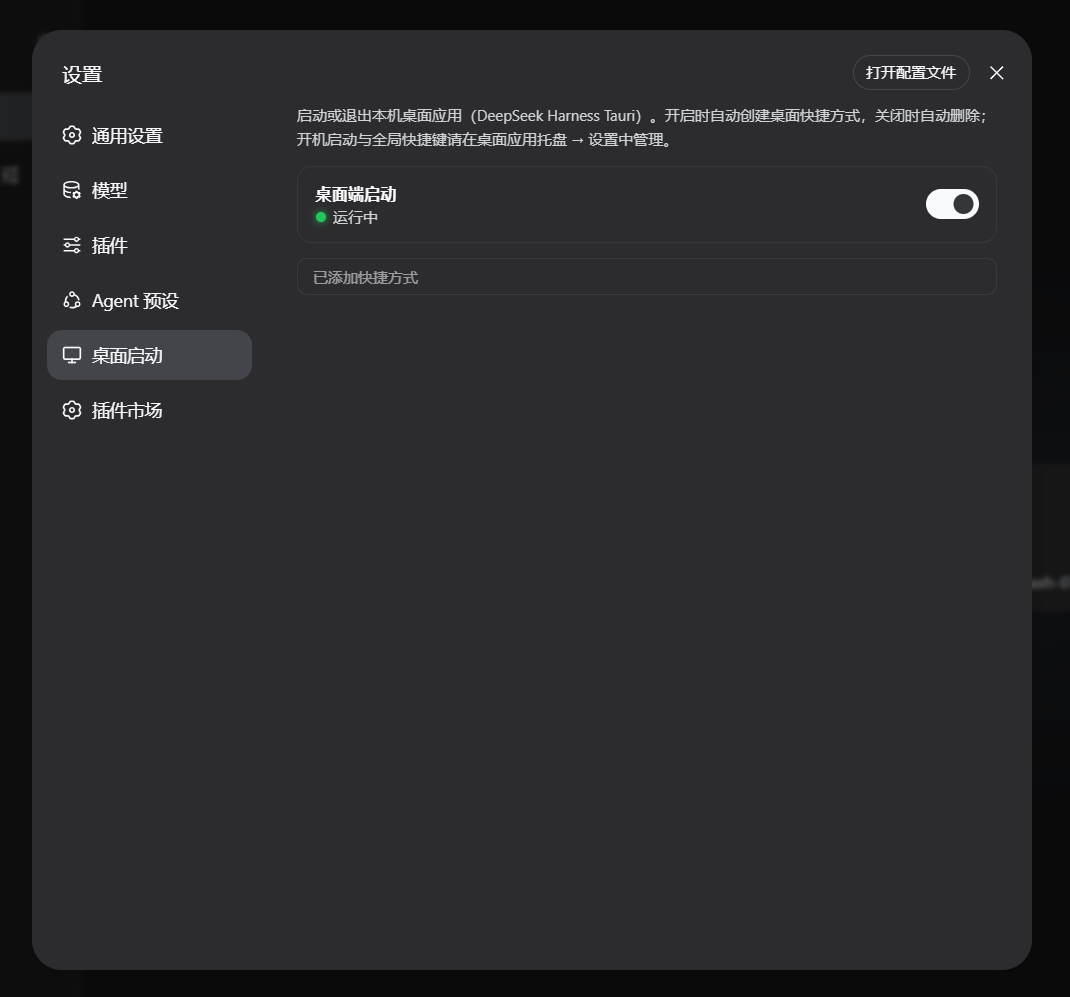
After install, DSH Settings → Desktop Launcher shows the launch toggle, runtime status, and shortcut-link indicator.
Desktop-app settings panel
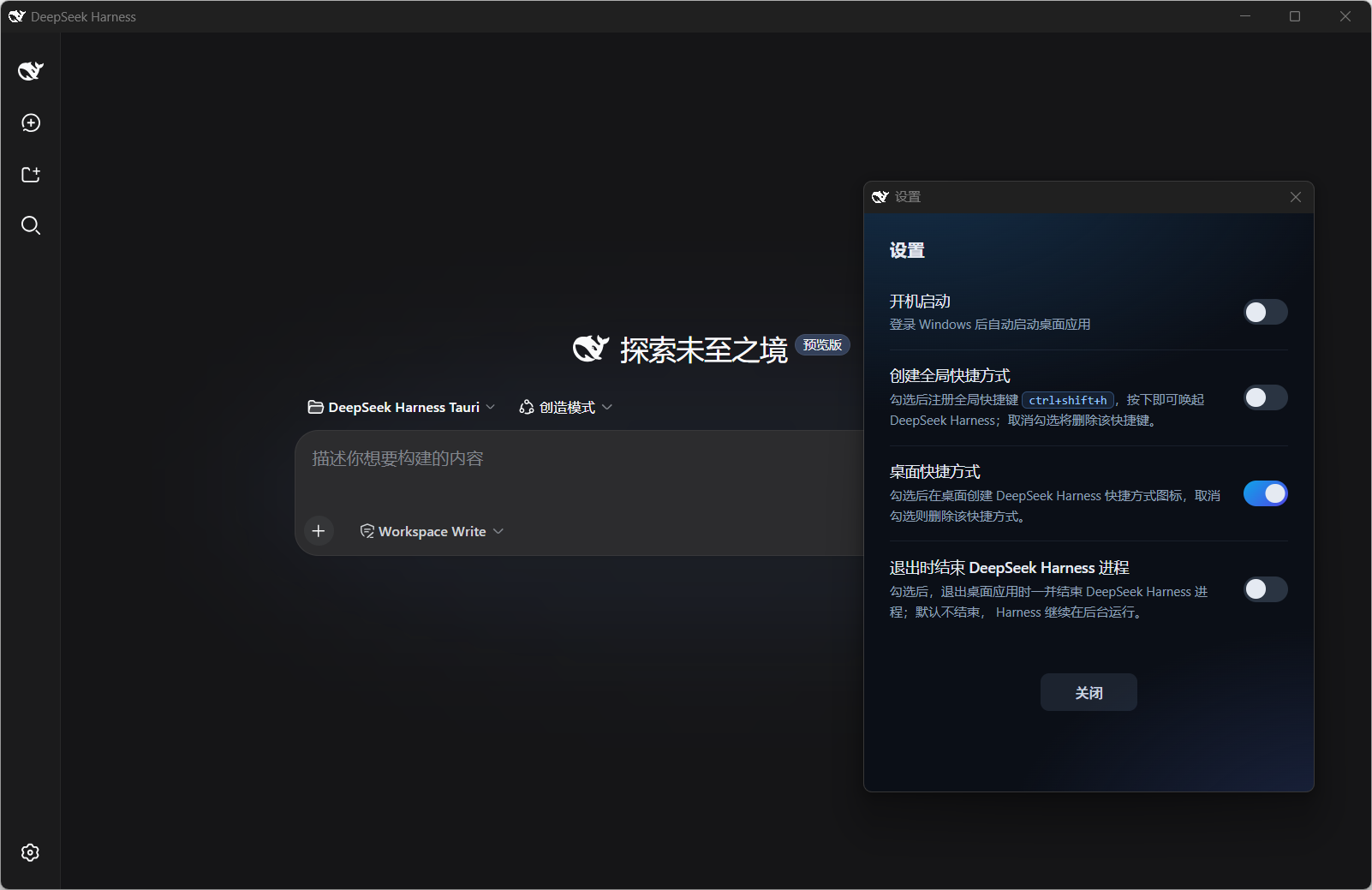
The Tauri desktop app's own settings: login autostart, global hotkey, desktop shortcut, and exit policy.
How It Works (Summary)
The Web plugin's host half talks to the browser half over /api/dsh-tauri-launcher/*
loopback routes, and controls the desktop app via a sentinel-file protocol (see
docs/architecture.md):
.dsh-heartbeat: the desktop app writes a timestamp every second; the plugin uses it to detect liveness;.dsh-quit: writing1makes the desktop app exit only itself (the Harness host process keeps running); the sentinel is self-deleting on consumption.
Directory Layout
dsh-tauri-launcher/
├── README.md             # Chinese README
├── README.en.md          # English README
├── CHANGELOG.md          # changelog — the single source of release notes (bilingual)
├── package.json          # dsh.bundle + dsh.client dual manifest
├── cordis.patch.yml      # composition patch (inserts the plugin row)
├── lib/
│   ├── index.js          # host half: loopback routes + control logic (configurable)
│   └── client.js         # browser half: settings section UI
├── launcher/             # Tauri desktop-app project (source + one-shot build; Windows only for now)
├── .github/workflows/    # CI: tag-driven Windows exe build + Release publish
└── docs/                 # architecture & release docs (Chinese)
    └── screenshots/      # screenshots referenced by the READMEs
Install (Web Plugin)
About
<profile>: it refers to a DSH profile — a launchable plugin composition, located at$DSH_HOME/profiles/<name>/.<profile>is a placeholder; replace it with the actual profile name you want to install into. On most local setups the relevant profile isweb(the profile that starts the DSH Web GUI). List existing profiles:dir %USERPROFILE%\.dsh\profiles(orls ~/.dsh/profiles). In the commands below, swap<profile>forweb— e.g.dsh plugin --profile web add ....
Pick one of the three installation methods:
# 1) npm (after publish)
dsh plugin --profile web add @lenorin/dsh-tauri-launcher

# 2) GitHub (git install; pure JS, zero build, no allowBuilds grant required)
dsh plugin --profile web add github:cilis/dsh-tauri-launcher

# 3) Local checkout / tarball
dsh plugin --profile web add ./dsh-tauri-launcher
dsh plugin --profile web add ./dsh-tauri-launcher-1.0.3.tgz
If you have multiple profiles, replace
webin the commands with the target profile name.
Verify the plugin layer is active (you should see the dsh-tauri-launcher row):
dsh --profile web --dump-config
Restart the DSH Web process and the "Desktop Launcher" section appears under Settings.
Uninstall (replace web with your profile name):
dsh plugin --profile web remove @lenorin/dsh-tauri-launcher
Configuration
The plugin row supports the following configuration keys (no hard-coded tunables; defaults fit common deployments):
- id: desktop-launcher
  name: '@lenorin/dsh-tauri-launcher'
  config:
    launcherExe: ''            # absolute path to the desktop-app exe; empty = auto-detect
    launcherDirs: []           # candidate exe directories; empty = built-in defaults
    freshSecs: 4               # heartbeat "freshness window" in seconds (must be > write interval)
Note: the former
shortcutNamekey was removed (2026-09) — the shortcut file name is a single constant shared by the plugin and the desktop app (DeepSeek Harness.lnk); maintaining it on both sides produced two differently-named.lnkfiles.
Desktop App Build & Release
- The npm package ships a pre-built exe (
launcher/bin/dsh-launcher.exe); the plugin auto-detects it on install — ready to use out of the box; - Local build:
pwsh -File launcher/build.ps1(optional-Offline -CargoHome <dir>); - ⚠️ Maintenance rule: after editing Rust sources under
launcher/src-tauri, you must rebuild and re-synclauncher/bin/dsh-launcher.exe(see docs/release.md), or the shipped exe will drift from the sources; keep the version inpackage.json/Cargo.toml/tauri.conf.jsonin sync. - GitHub Release: push a
v*tag; CI auto-builds the Windows exe and publishes it (Linux/macOS builds are not enabled yet — see docs/release.md).
Documentation
- docs/architecture.md — architecture & sentinel-file protocol (Chinese)
- docs/release.md — install, build, release, uninstall & configuration reference (Chinese)
- CHANGELOG.md — release notes per version (Chinese + English)
License
Links
More in this category
yjh051108/dsh-routing-suite★ 7018
One repository, three parts: a runtime injector for DSH plugin packages (inject, hot-reload, unload, promote a dev staging tool to the front, route self-heal, plus a settings-page plugin manager that lists, unloads and drags folders in to internalize), a task-aware reasoning-mode router agent preset (router-standard / router-spec / router-react), and a graded two-level task protocol whose six tools (commit_star, lock_stage, revise_do, edit_plan, mark_task, redteam_verdict) pin task state to disk. The injector implementation ships in-tree, so the install carries its own behaviour rather than a dependency list.
strukto-ai/mirage#dsh★ 3681
Swaps the filesystem and bash providers for a mirage virtual workspace: file tools and shell commands run over mounted resources (RAM, S3, Redis, Slack, Gmail, Notion, Postgres) instead of the host disk, with per-mount read/write/exec modes, per-command sandbox routing (monty, pyodide, quickjs in process; docker, e2b, daytona remote), and installed CLIs (git, gh, slack, linear, ntn, gws, or one you register) as head words in the virtual terminal.
hust-open-atom-club/oh-dsh★ 322
Community distribution: TUI, desktop, and Web UI as one bundle with layered installation.
weijiafu14/pi2dsh★ 212
Pi Host ABI compatibility engine: after one install, unmodified Pi extensions from npm mount as native DSH plugins with `dsh plugin add <pi-package>`. Verified end to end on stock DSH with pi-mcp-adapter (full MCP manager: OAuth, resources, prompts, MCP Apps, elicitation, sampling), @tintinweb/pi-subagents, pi-code, pi-hermes-memory and pi-background-tasks; `pi2dsh inspect` reports a package's compatibility before installing.
Fishquito7/dsh-skill-mcp-panel★ 194
Manages DSH skills and MCP servers from the web settings: skill cards with hot enable/disable, workspace scopes, groups, batch migration and drag-and-drop import, plus stdio/HTTP MCP CRUD with connection tests, secret redaction and the unified dsh-panel CLI.
lire1131/dsh-undo-savepoint★ 179
Undo/redo & rollback system for DSH: every config change is auto-snapshotted; undo/redo/restore to any version from the WebUI or the offline CLI/GUI tools (works even when DSH fails to boot).
Community comments
Comments are public GitHub Discussions. Loading them connects to GitHub and Giscus; a GitHub account is required to post.