SSH ops terminal for DSH Web UI: drive a connected server from the main conversation (ssh_connect/ssh_exec/ssh_read/ssh_write/ssh_disconnect) while keeping an interactive xterm.js terminal on the right.
Install
# from npm (prebuilt)
dsh plugin --profile web add dsh-ssh-ops
# from GitHub (first run asks for allowBuilds approval — follow the hint, retry)
dsh plugin --profile web add github:caoyiwei850/dsh-ssh-ops
Any plugin you install runs third-party code with your own permissions — it can read your files, use your credentials, and reach the network, and tool approvals don’t sandbox it. GitHub-sourced plugins also run build scripts at install time — pnpm blocks those until you allow them, so an install can stop with ERR_PNPM_GIT_DEP_PREPARE_NOT_ALLOWED or ERR_PNPM_IGNORED_BUILDS; dsh prints the exact key to add under allowBuilds in your profile’s pnpm-workspace.yaml, and the install works on the next run. Allowing a build is a trust decision: only install sources you trust, and pin a commit (github:owner/repo#sha).
README
中文 · English
DSH SSH Ops
An SSH operations plugin for DeepSeek Harness: drive the current server from the main conversation while keeping a real interactive terminal on the right, with built-in file management, port forwarding, and database management.
v0.3.14: adds an operator-controlled, off-by-default AI auto-connect switch. When enabled, the agent can connect saved SSH resources by name and reveal the target terminal on the right. When disabled, saved resources remain hidden from the agent. Also fixes reading empty session logs.
v0.3.12: fixes
db_list_connectionsbeing rejected whenever a database connection exists because its strict output schema omittedusername(#23). Connection listings now identify the database, non-secret username, TLS mode and SSH route; SQLite shows its file path instead of:0. A regression test exercises the real DSH output validator.
v0.3.11: fixes shell-family detection for shell integration (cwd markers previously polluted the probe, making it always inject the zsh variant and fail on bash), and adds the
shellstate to the terminal-context result contract.
v0.3.10: database coverage grows with SQLite (the host's built-in
node:sqlite, no new dependency), ClickHouse (HTTP interface) and openGauss (PostgreSQL protocol), and query results export to CSV/JSON (a database reached through SSH writes the file onto that server for the SFTP panel to pull); a dynamic SOCKS5 tunnel (ssh -D); session recording with a searchable, downloadable log panel (agent reads are approval-gated and redacted); OSC 133 shell integration so terminal context carries the cwd, exit code and prompt state; and the SFTP panel gains a text editor, name filter, per-server favorites and drag-and-drop upload.
v0.3.9: compatible with DSH
0.1.6-alpha.2— adapts to the host's new typert validation (schemas and strict codecs must carrycreate()factories, enforced on the browser side too) and the new slot rule that rejects a duplicate entry id, which previously made the SSH tab vanish from the official sidebar; fixes stored records with anulldefault project directory failing to load (#20); database drivers are now lazily imported on first connect.
v0.3.8: follows the DSH plugin-market convention by declaring host compatibility only through the four official-package
peerDependencies, covering the0.1.2-rc.1,0.1.3-alpha.2,0.1.5-alpha.1, and validated0.1.6-alpha.1prerelease lines; removes the market-unusedengines.dshdeclaration so there is one compatibility contract.
v0.3.5: removes the no-longer-maintained Operations preset installer so npm no longer creates an invalid command entry; saved SSH resources can now open a default remote project directory in both the terminal and SFTP.
New in v0.3.4: each split pane now gets its own connection — opening the same server in two panes creates two independent transports, terminals and working directories instead of mirroring one terminal; tick "reuse the open connection" in the connect dialog to share one on purpose. The pane the agent is acting on is now visible and switchable, marked with a blue robot badge — click another pane to re-target it. Peers whose SSH identification string does not follow RFC 4253 can now connect: when a device writes it malformed (a stray space in
SSH-2.0- OpenSSH, orSSH-2.1-), ssh2 previously failed with a bareInvalid identification stringthat named neither the device nor the reason; the plugin now retries once and normalizes that single line (the peer's software version is preserved and no crypto is weakened), while a genuinely unusable banner reports the peer's own bytes. Also fixes connecting from the settings page not opening or loading the SSH pane. Shared credentials, jump hosts, connection reuse and the terminal theme from 0.3.3 remain. See INSTALL.md for desktop install instructions.
Compatibility
- Target host: the DSH Desktop / Web Profile, declared via the four official-package
peerDependenciesas the unbounded range>=0.1.5-alpha.1— the gate evaluates it against the DSH runtime version withincludePrereleasesemantics, covering every host version from0.1.5on (all prereleases included), so host upgrades require no release follow-up. Validated on the0.2.0-rc.1desktop build. The plugin uses DSH's bundled Node.js runtime and does not require a systemssh,sftp, or standalone Node.js installation. - Current right Sidebar: when the host supplies both
sidebarRightTabsandsidebarRight, SSH runs as an official right-Sidebar tab and uses the host's split, resize, and fullscreen behavior. - Older-host fallback: if those Sidebar APIs are absent, the plugin automatically keeps the earlier floating SSH panel. Terminal, SFTP, tunnels, databases, and agent tools remain available, but there is no official Sidebar-tab or split-pane experience.
- File byte streaming: browser upload/download routes register only when the Web Profile exposes both
webServerand the request-origin guard; hosts without them retain the existing SFTP operations. Directory archive download returns501 archive-unavailableon every host, preventing traversal across differing SFTP-chroot and SSH-shell filesystem namespaces. - Upgrades: fully quit and restart the affected DSH Profile after installing or upgrading. SSH resources, known hosts, and credentials live in DSH-owned local storage outside the plugin package, so a normal upgrade does not remove them.
Screenshots
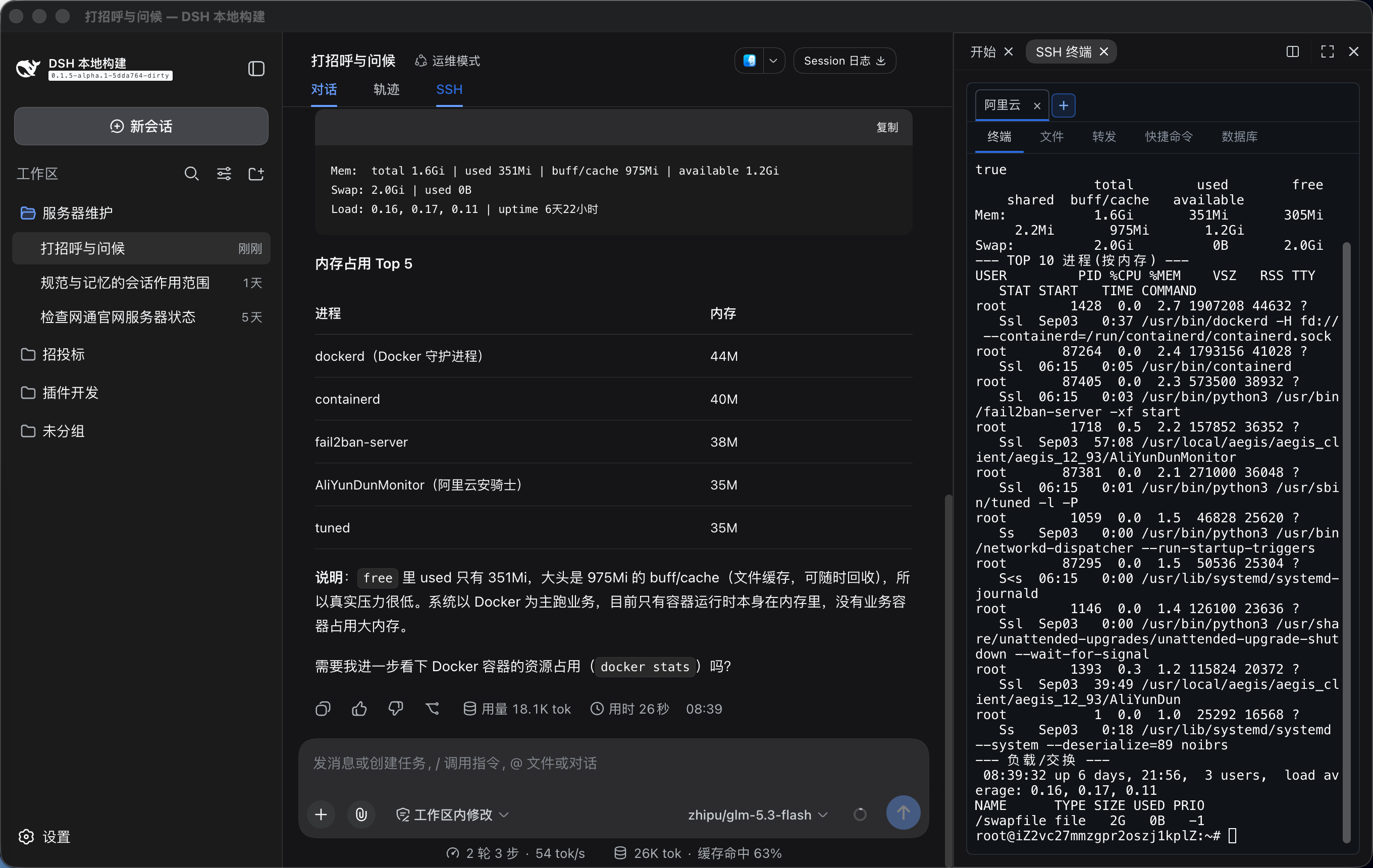
Drive the connected server from the main conversation while the interactive SSH terminal sits beside it as an official right-Sidebar tab:
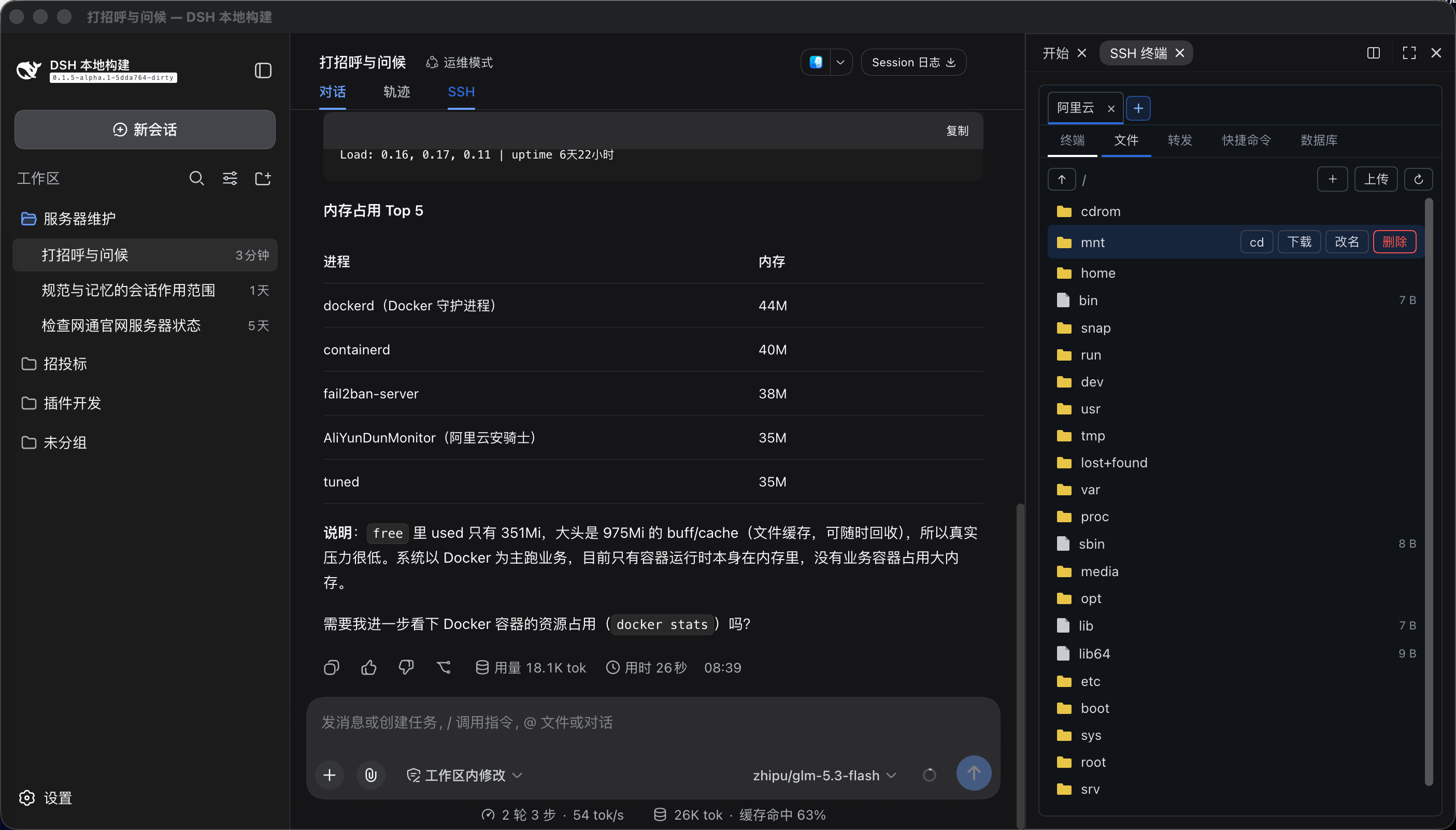
The Files tab provides SFTP management and can cd the interactive terminal into the selected remote directory:
What it does
- Official right-Sidebar integration (current DSH): the SSH terminal is a tab of the official right Sidebar, beside the built-in Files tab. The SSH button in the conversation header opens or focuses that tab (repeated clicks focus instead of duplicating). Use the official split view to see files and the terminal together; drag-resize, fullscreen, and collapse are the sidebar's, and the terminal re-fits automatically. Each split pane is independent: it keeps its own visible servers and selection, a new pane starts empty and never inherits another pane's servers, opening the same server in both panes gives each its own connection (reuse is opt-in), closing it in one pane leaves the other alone, and the host session is disconnected only once no pane shows it any more. The connection the agent is using carries an Agent badge — click the other pane to move the agent there. Connection lifetime is independent of the tab: switching tabs, collapsing the sidebar, closing the tab, or switching chats never disconnects SSH; terminal instances live in a client-side pool, so reopening restores the full scrollback while host-buffered output from the hidden period replays on return. Older DSH builds (no
sidebarRightTabs) fall back to the floating panel unchanged. - Terminal follows DSH's theme: xterm draws to its own canvas and cannot inherit the CSS text color, so the plugin ships complete light and dark palettes (cursor and selection included) and repaints open terminals as soon as the host theme changes.
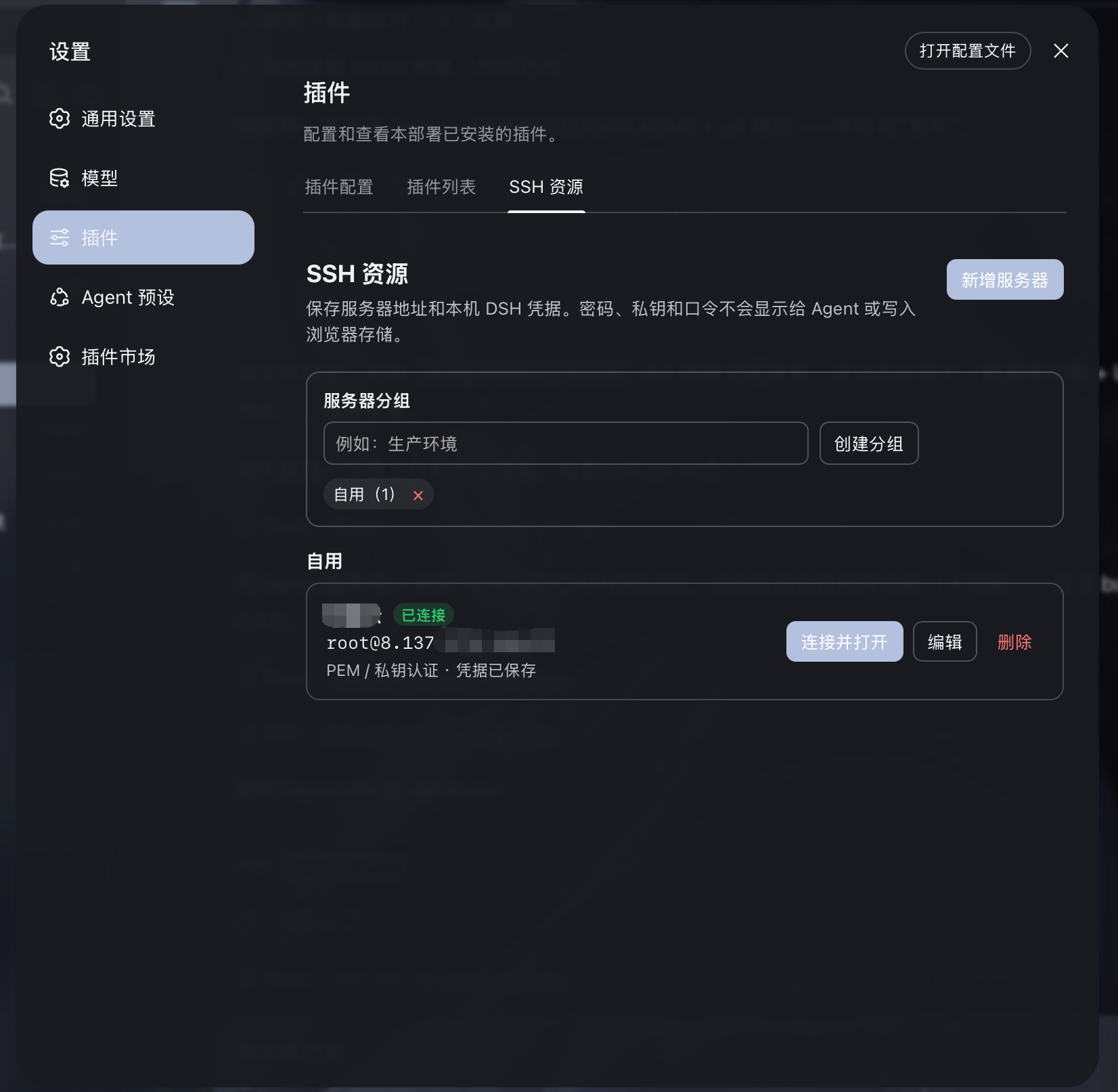
- Manage any number of servers and groups under Settings → SSH Resources. It is a first-class left-menu item beside General and Models, not a Plugins sub-tab. The top SSH button only opens or focuses the right-side terminal tab (on older DSH it shows/hides the floating panel — neither disconnects).
- Saved remote project directory: a server resource can hold one optional absolute default project path. Enter project connects, opens the terminal, changes directory only after the existing idle-shell/single-PTY guard succeeds, and starts SFTP at the same path. Relative paths and control characters are rejected; resources without a project path retain the normal login-directory and SFTP-root behavior.
- Command library: the SSH panel has a dedicated Command Library tab with system inspection, service, Docker, logs, networking, storage, scheduler, and Ubuntu/RHEL/CentOS install/update templates. Search matches command names and contents. Custom commands are managed inside this tab; they are stored only in browser local storage and must never contain passwords, tokens, or other secrets.
- Server name, address, port, username, auth type, and group are stored in DSH local storage; there is no count limit.
- Passwords, PEM private keys, and passphrases are stored only in DSH's official local credentials store
~/.dsh/.credentials.yaml(owner-only permissions). Browser storage, agent context, tool results, and resource lists never read or display secrets. - Shared credentials: one password or private key can be saved as a shared credential and referenced by many servers and jump hosts (for example one operations key for a whole group, so a change lands everywhere at once). Deletion is refused while any server or jump chain still references it, and the secret is resolved host-side and handed straight to the SSH client — never into browser storage or agent context. Manage them under Settings → SSH Resources, where you can pick a PEM file or drop one into the dialog. Each server may bind a shared credential or keep its own dedicated one.
- ProxyJump: jump hosts are chosen from your saved servers instead of typed by hand, and passwords/keys/passphrases all come from the credential store; a jump host can reference a shared credential too. Saving and connecting reject a server that jumps through itself, a duplicate hop, or a missing resource. A chain holds up to 8 hops.
- One channel per pane by default: opening the same saved server in both split panes creates two independent connections — two channels, two terminals, no interference, each keeping its own working directory. Tick reuse the open connection in the connect dialog to share instead: this pane joins the live connection and shares its single terminal (useful when you want to watch the agent work in that same shell).
- The agent's target is visible and switchable: the connection the agent is using carries an Agent badge. Click the other pane's server tab or terminal area to move the agent there — agent tools that omit
connection_id(ssh_exec,sftp_*,tunnel_*, safety confirmation cards) resolve to it. Switching to a connection that is gone is refused and leaves the previous binding intact, so the agent is never silently left with no target. - The main conversation auto-detects the currently-connected server on the right; the agent never has to ask the user for an internal connection id.
- Commands run through
ssh_execare echoed in the terminal and return exit code, output,cwd, duration, timeout, and truncation state. On Linux, the command inherits the verified directory of one idle POSIX interactive shell. Busy or ambiguous terminals and inaccessible directories are rejected; when no interactive shell is detectable, the login directory is used and clearly reported. - Manual terminal output is read on demand via
ssh_read; it is never silently injected into the conversation context. - Output sent to the model is redacted for private keys, Bearer tokens, common passwords/API keys (including bare
sk--prefixed keys), and database passwords. - Connection stability: SSH connections enable keepalive (20s interval, 3 checks), so NAT/firewalls no longer silently drop idle connections. Transport drops trigger exponential-backoff auto-reconnect (capped at 30s); a command that drops mid-run is retried once transparently. Transient connection failures auto-retry 3 times (auth failures excluded). Explicit disconnect or plugin unload never triggers reconnect; remote tunnels re-register automatically after a reconnect.
- Host-key verification (TOFU): SSH connections verify the server's host public-key fingerprint — first connect records and trusts it, later changes are rejected (guards against MITM / re-provisioned servers). Per-server
hostKeyModeselectsaccept-new(default) /verify(reject unseen) /off; on a changed fingerprint the connection is not retried and not auto-reconnected. Settings → SSH Resources lets you set the mode per server and manage trusted fingerprints with one-click forget. Verification runs before user authentication, so it is independent of who logs in or which password they use — the same server with an unchanged key never blocks another admin or vendor. - File management: a Files tab in the SSH panel browses the server's filesystem over SFTP with upload, download, mkdir, delete, and rename. The
sftp_*tools can also be used directly in the conversation. - Port forwarding: a Tunnels tab starts local forwards (this machine → server-reachable target) and remote forwards (server → this machine), with a live tunnel list and stop control. The
tunnel_*tools can also be used directly. - Multi-server batch: say "batch exec " in the conversation and the agent creates a batch task; the SSH panel pops a selection dialog listing all saved servers (including not-yet-connected ones) from SSH Resources for you to tick, then runs it concurrently after confirmation (each via its saved credentials: connect → run → disconnect), presenting results grouped per server (green success / red failure). The batch target is completely independent of the currently-open connection. When the command hits the safety policy, it is confirmed once as "command + N targets" rather than per-server. The legacy
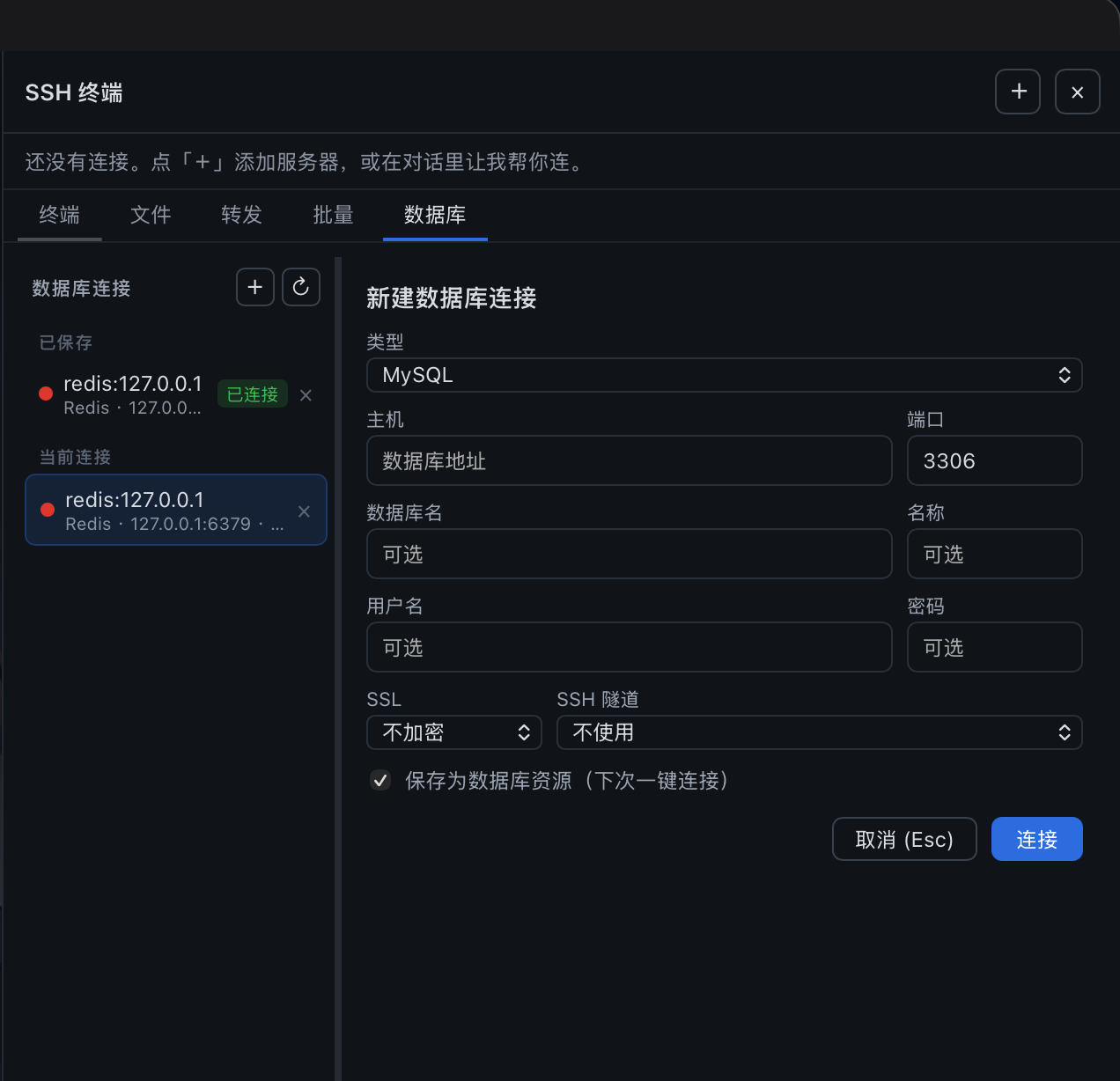
ssh_cluster(which fanned out over open connections with no confirmation) has been removed entirely: multi-server work goes only throughssh_batch's operator-ticked confirmation, so a one-server request can never silently hit every connection. - Databases: a Database tab connects to MySQL / PostgreSQL / Redis / MongoDB, runs SQL queries or commands manually, and shows results in a table. The
db_*tools can also be used directly.db_connectauto-tunnels over SSH: once a server is connected, loopback hosts (127.0.0.1 / localhost / ::1) are automatically tunneled through the current server to reach intranet databases.via_sshselectsauto(default) /yes/no; an explicitssh_connection_idtakes precedence.- Three SSL modes (
disabledplain /preferredencrypt-without-verify /verifyencrypt+verify-CA) for cloud-managed databases. - Database connections can be saved as profiles for one-click reconnect after restart; passwords are encrypted in the DSH credentials store; saved resources support renaming and collapsible grouping.
- Engineering loop:
db_queryis a lexical read-only gate (only SELECT/SHOW/DESCRIBE/EXPLAIN/read-only WITH pass; write-verb subqueries, PG data-modifying CTEs,SELECT INTO, andFOR UPDATElocking reads are rejected); queries stream with a default 200-row cap and 30s timeout (DSH_SSH_OPS_MAX_DB_ROWScan raise the cap to 5000; use the smallest production value needed; MySQL destroys the pool connection, PG paginates via a cursor); an interactive transaction workflowdb_tx_begin/execute/commit/rollback(dedicated connection, verify-then-commit, auto-rollback after 5 min idle);db_describe_tablereports indexes/foreign keys/DDL/row-count and size estimates;db_previewpaginates samples,db_explainshows the plan. The database panel adds a table tree, preview view, one-click CSV export (with BOM for Excel), and query history (last 50 per connection in localStorage). DB transport loss no longer crashes the process (handled uniformly across all four clients, never throwing). - High-risk SQL (
DROP DATABASE/SCHEMA/TABLE,TRUNCATE,SHUTDOWN) is auto-blocked, detected by statement verb (skipping strings/comments, supporting multi-statement), so keywords inside string literals are never false-positives.
Security boundary
DSH's own permission mechanism remains in effect. This plugin additionally stops agent tools from executing clearly irreversible or destructive operations, such as deleting files, dropping databases, formatting disks, terraform destroy, kubectl delete, docker prune, forced Git cleanup, and reboot/shutdown.
When the agent hits the blocklist it is not silently refused: the plugin creates a one-shot pending-confirmation record and immediately pops a viewport-wide confirmation modal (full command, risk reason, and Execute / Undo buttons; Esc, clicking the backdrop, or "handle later in the panel" dismisses it temporarily — it closes automatically once every queued command is handled, and still-unhandled items pop up again when the panel reopens). Unhandled items also stay as cards above the SSH panel's terminal, collapsed to a one-line summary (command + host + always-visible Execute/Undo); the newest starts expanded, clicking expands the risk reason and full command. Only the operator's red Execute button submits the command (sending it to the server with Enter); Undo clears the record. The command is never pre-filled into the terminal — the input line stays empty, so the operator cannot accidentally run a blocked command by pressing Enter. Multiple dangerous commands queue independently as separate cards. If no live terminal session exists, or the command contains control characters like Tab that cannot be safely sent to a PTY, it degrades to a copyable command card returned in the conversation for the operator to paste into the terminal. Ordinary ops (configure SSL, install packages, edit configs, reload services) flow through DSH's normal permission process.
The same model covers sftp_delete (the agent no longer deletes directly; instead the equivalent rm -rf <path> is queued for confirmation) and db_execute high-risk SQL (DROP/TRUNCATE/SHUTDOWN): high-risk SQL keeps the same pattern, returning a card with a ```sql code block for the operator to paste into the database panel's SQL editor and run manually. SQL detection works by statement verb (skipping strings/comments, splitting on ; for multi-statement), so keywords inside string literals are never false-positives, and high-frequency CRUD passes through normally.
Installation
From GitHub (recommended)
dsh plugin --profile web add github:caoyiwei850/dsh-ssh-ops#v0.3.14
Then restart DSH Web:
dsh web
Open any session, click the top SSH tab, and use the right-side panel to connect to a server.
From a release archive
Download dsh-ssh-ops-0.3.14.tgz from GitHub Releases, then:
dsh plugin --profile web add /path/to/dsh-ssh-ops-0.3.14.tgz
dsh web
dsh-ssh-ops-0.3.14.zip is for offline review or further development; extract it and run npm install && npm run build in the directory.
Usage
- Open Settings → SSH Resources and create a group or server resource; PEM /
.keyfiles can be imported directly. - A saved resource can be "connect & open" to auto-create a right-side PTY terminal. When editing, leaving a secret field blank keeps the existing value; clearing credentials requires explicit confirmation.
- The top SSH only toggles the right-side terminal; the
+in the top-right picks a saved resource or creates a non-persistent temporary connection. - In the main conversation, just say "check server memory usage" or "configure the Nginx SSL certificate". The agent can only operate the active connection and cannot read credentials; by default it also cannot enumerate saved resources or auto-connect with saved credentials — after enabling the switch in Settings → SSH resources → AI auto-connect, the agent may connect saved servers by name and switch the active connection (every connect opens a terminal in the right-side panel, so the operator always sees which machine the agent is on).
- For databases, have the agent call
db_connect(or create a connection yourself in the Database tab), then query/execute from the conversation.
Agent tools
There are 34 agent tools. Omitting connection_id / db_connection_id targets the active connection — no need to call ssh_list / db_list_connections first.
SSH (7)
| Tool | Purpose |
|---|---|
ssh_list |
List open SSH connections and identify the active server; with AI auto-connect enabled, also lists saved servers (no credentials) |
ssh_connect |
Connect over SSH (password or private key) and make it the current server |
ssh_connect_profile |
Connect a saved SSH resource by name and make it the current server (opens its terminal in the right-side panel); only available after the operator enables AI auto-connect, otherwise it fails with a clear "ask the operator" error |
ssh_exec |
Run a command on the current server (inherits the interactive shell's cwd); returns exit code/output/cwd/duration/timeout/truncation/redacted state |
ssh_read |
Read buffered output from the right-side terminal on demand (never silently injected) |
ssh_write |
Send interactive input to a terminal; press_enter (default true) appends Enter so prompts are submitted like a real keypress (use connection_id to target a specific server's terminal) |
ssh_disconnect |
Close the current connection and its shell sessions |
Manual terminal context (2)
| Tool | Purpose |
|---|---|
ssh_terminal_sessions |
List low-sensitivity metadata and cursors for open terminals; never returns terminal content or credentials |
ssh_terminal_context |
After per-read user approval, read a bounded, redacted history range from a selected manually operated terminal without affecting the visible terminal scrollback |
SFTP (6)
| Tool | Purpose |
|---|---|
sftp_list |
List remote directory entries (with size/mtime/mode) |
sftp_read |
Read a remote file's contents (default cap 4 MiB) |
sftp_write |
Write text to a remote file (create or overwrite) |
sftp_mkdir |
Create a remote directory |
sftp_delete |
Delete a remote file or empty dir (not executed directly; queues rm -rf <path> for confirmation or returns a copyable card) |
sftp_rename |
Rename or move a remote path |
Port forwarding (3)
| Tool | Purpose |
|---|---|
tunnel_start |
Start a local forward (local, this machine → server-reachable target) or a remote forward (remote, server → this machine) |
tunnel_list |
List active tunnels |
tunnel_stop |
Stop a tunnel by tunnel_id |
Batch execution (1)
| Tool | Purpose |
|---|---|
ssh_batch |
Create a batch task over saved servers (including not-yet-connected ones) from SSH Resources; the operator ticks targets in the panel before it is dispatched concurrently, results grouped per server — only when the user explicitly asks for multi-server batch (the legacy ssh_cluster is removed entirely; there is no confirmation-free multi-server path) |
Database (14)
| Tool | Purpose |
|---|---|
db_connect |
Connect to MySQL / PostgreSQL / Redis / MongoDB; loopback hosts auto-tunnel through the current SSH server; three SSL modes |
db_list_connections |
List open database connections (only when the user asks) |
db_query |
Run a lexically enforced read-only query on MySQL/PostgreSQL (only SELECT/SHOW/DESCRIBE/EXPLAIN/read-only WITH pass; write verbs, SELECT INTO, FOR UPDATE locking reads and data-modifying CTEs are rejected); results stream with a default 200-row cap and 30s timeout; DSH_SSH_OPS_MAX_DB_ROWS can raise it to at most 5000 rows; supports ? / $1 placeholders |
db_execute |
Run a write statement (INSERT/UPDATE/DELETE/CREATE/ALTER); high-risk SQL (DROP/TRUNCATE/SHUTDOWN) is not executed, returns a copyable card |
db_list_tables |
List tables in the current schema of MySQL/PostgreSQL |
db_describe_table |
Full structure: columns, indexes, foreign keys, row-count/size estimates, plus MySQL SHOW CREATE TABLE DDL |
db_preview |
Paginated table sampling (bound LIMIT/OFFSET, injection-safe identifier whitelist) with a full-table row estimate — no SQL needed |
db_explain |
Execution plan (EXPLAIN FORMAT=JSON) to check index usage |
db_tx_begin / db_tx_execute / db_tx_commit / db_tx_rollback |
Interactive transaction workflow: begin → write → SELECT-verify → commit/rollback (dedicated connection, auto-rollback after 5 min idle) |
db_run |
Run a command on Redis (command+args), or find/findOne/insertOne/updateOne/deleteOne/countDocuments on MongoDB |
db_disconnect |
Close a database connection |
Use
db_queryfor read-only SQL,db_executefor SQL writes, anddb_runfor Redis/MongoDB. MySQL uses?placeholders; PostgreSQL uses$1placeholders.
Development
npm install
npm test
npm run build
npm run pack:release
Pushing a vX.Y.Z tag that matches package.json.version runs tests, builds the release assets, and publishes the same tarball to npm and GitHub Releases. Configure the repository NPM_TOKEN secret before the first release.
Artifacts are written to release/:
dsh-ssh-ops-0.3.14.tgz: installable directly by DSH.dsh-ssh-ops-0.3.14.zip: full offline source archive.
License
Links
More in this category
Tencent/WeKnora#dsh-weknora★ 31002
Four read-only tools over a WeKnora knowledge base: list knowledge bases, hybrid passage search, reassemble one document's chunks in order, and WeKnora's own cited RAG or ReAct-agent answer with a resumable session id.
superdesigndev/treg★ 3752
Tool catalog for agents: search ~2,600 external endpoints (SEO and SERP, backlinks, social, people and company enrichment, ad libraries, scraping) by the task you want done, read each one's parameters and per-call price, then call it with the credential injected server-side. Ships the skill plus an MCP row that stays disabled until TREG_TOKEN is set.
TencentCloudBase/CloudBase-AI-Toolkit#dsh-plugin★ 1127
Tencent CloudBase backend for DeepSeek Harness — scaffold and deploy full-stack apps from chat, render query results as table cards with paging, sorting and CSV export, preview a deployment on its domain, and call the CloudBase MCP toolset (`mcp__cloudbase__*`) with device-code login.
gitroomhq/postiz-agent#dsh-postiz★ 498
Connects DeepSeek Harness to Postiz over MCP: list connected social media channels, fetch per-platform posting rules, and schedule, draft, or publish posts to X, LinkedIn, Instagram, Facebook, Threads, TikTok, YouTube, Reddit, Bluesky, Mastodon, Discord, Slack, Telegram and more; adds a postiz workflow skill.
EthanYoQ/Invoice-Downloader#dsh-invoice-downloader★ 465
Local IMAP invoice download, OCR, archive, and Excel reimbursement summaries for DeepSeek Harness.
anysearch-team/anysearch-dsh★ 432
AnySearch-powered real-time web and vertical search provider for DeepSeek Harness.
Community comments
Comments are public GitHub Discussions. Loading them connects to GitHub and Giscus; a GitHub account is required to post.