A sticky-note wall in the DSH sidebar: nine paper colors, categories, search, archive, to-do checklists with stable item ids, and agent read/write tools.
Install
# from a prebuilt release tarball
dsh plugin --profile web add "https://github.com/bingomu/dsh-sticky-wall/releases/latest/download/dsh-sticky-wall.tgz"
# from GitHub (first run asks for allowBuilds approval — follow the hint, retry)
dsh plugin --profile web add github:bingomu/dsh-sticky-wall
Any plugin you install runs third-party code with your own permissions — it can read your files, use your credentials, and reach the network, and tool approvals don’t sandbox it. GitHub-sourced plugins also run build scripts at install time — pnpm blocks those until you allow them, so an install can stop with ERR_PNPM_GIT_DEP_PREPARE_NOT_ALLOWED or ERR_PNPM_IGNORED_BUILDS; dsh prints the exact key to add under allowBuilds in your profile’s pnpm-workspace.yaml, and the install works on the next run. Allowing a build is a trust decision: only install sources you trust, and pin a commit (github:owner/repo#sha).
README
A DeepSeek Harness (DSH) UI plugin: a sticky-note wall pinned to the left sidebar. Capture an idea in one line, color and categorize it, archive it, or turn it into a to-do — and let the agent read and write the wall through tools.
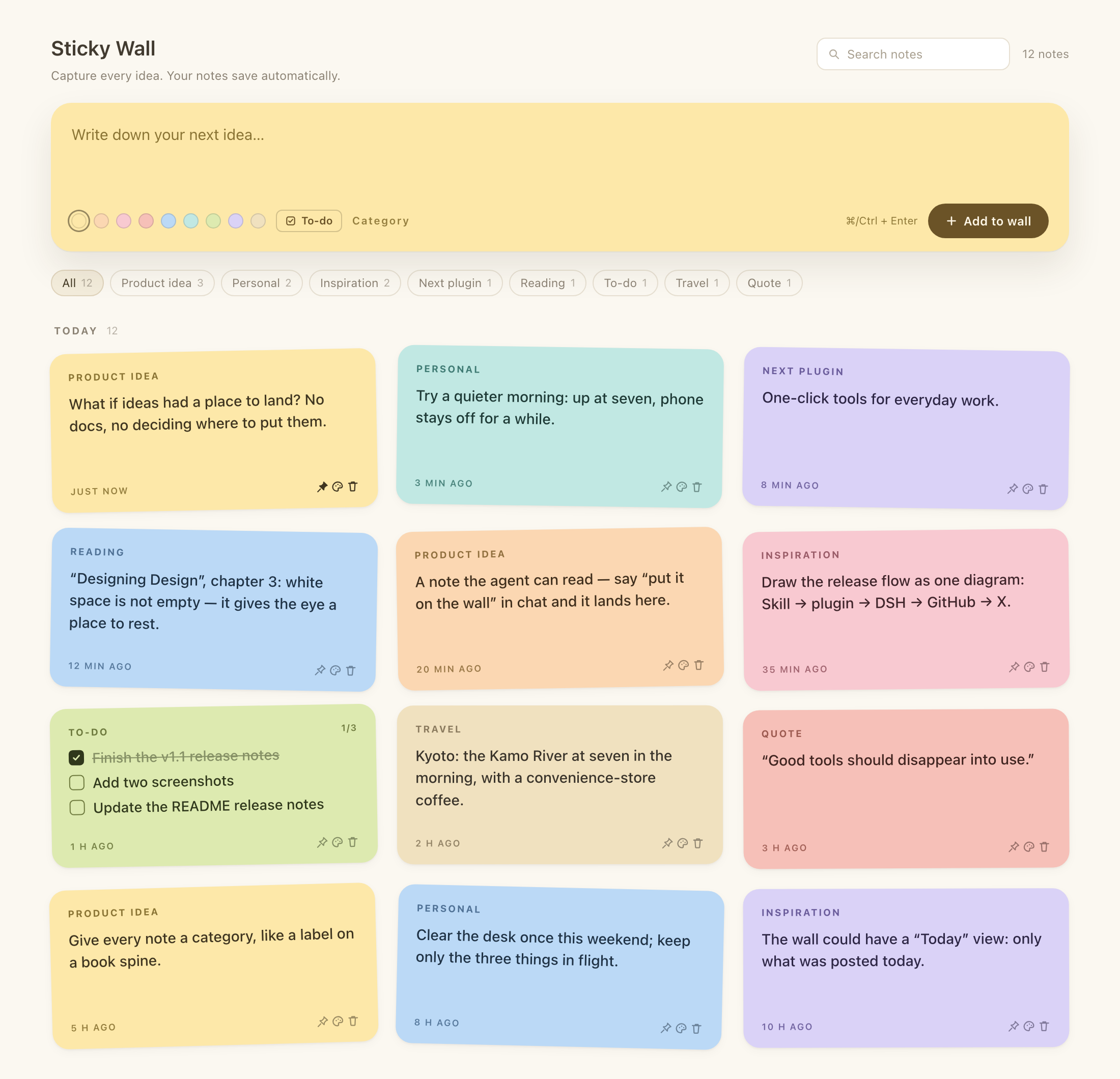
Interface preview; the dark version is
design/demo-en-dark.png.

Features
- Sidebar entry: a sticky-note icon in the left rail opens the wall in the main panel.
- Composer: one warm-yellow paper card; write a line and press
⌘/Ctrl + Enter(or “Add to wall”). Nine paper colors, optional category. Each new note picks a fresh random color; a manually picked color applies to the current note only. - To-dos: the “To-do” toggle at the bottom of the composer turns a new note into a checklist — one item per line, with checkboxes and progress. Switch between note and to-do in edit mode. Checked state uses stable item ids, so inserting, reordering or rewording keeps it.
- Category chips: filter the wall by category (including uncategorized) with counts.
- Time sections: Today / This week / Earlier; “Earlier” is collapsed by default. Search or a category filter switches to a flat result list.
- Archive: put notes away manually and restore or delete them from the Archive view.
- Undo delete: 6 seconds to undo; the note comes back with its id, checkmarks and archive state.
- Agent tools: ask “put this on my sticky wall” or “what’s on the wall?” and the model can do it.
- Local-first: no network requests, no account; one JSON file on this machine.
- UI language follows the host (English / Chinese); light and dark follow the host theme.
Install
Requires DSH 0.2.1-rc.2 or newer (tested on 0.2.1-rc.5). The plugin is distributed via GitHub:
dsh plugin --profile <your-profile> add https://github.com/bingomu/dsh-sticky-wall/archive/refs/tags/v1.0.0.tar.gz
You can also open DSH Settings → Plugins and install from that tarball URL. After installing, restart DSH and refresh the page; the sticky-note icon in the left rail means it worked.
To upgrade, reinstall with the tarball URL of the new tag. To uninstall, see below.
Usage
- Click the sticky-note icon in the left rail.
- Write a line in the warm-yellow card, pick a color (optionally a category), and press
⌘/Ctrl + Enteror “Add to wall”. - Click a note’s text to edit it in place; the bottom row pins, recolors, archives or tears it off.
- To turn a note into a to-do: open edit mode and click “To-do” next to the category. One item per line; checkboxes remember completion.
- The search box filters text and categories; category chips narrow the wall; “Archive N” shows notes you put away.
Data and privacy
- Data lives in
~/.dsh/sticky-wall/notes.json(DSH_HOMEwins when set). - Everything is local; the plugin makes no network requests and never uploads note content.
- The old
~/.dsh/notesdirectory is copied once on first start; the old file is kept as a backup. - A corrupt file is backed up as
notes.json.corrupt-<timestamp>before starting empty. - To back up or migrate, copy that JSON file.
Agent tools
| Tool | Purpose |
|---|---|
sticky_wall_add |
Add a note (text, optional color, category, kind: 'todo') |
sticky_wall_list |
Read the wall; filter by query / category, includeArchived, limit |
sticky_wall_remove |
Tear off a note by id |
Uninstall
dsh plugin --profile <your-profile> remove dsh-sticky-wall
Uninstalling does not delete ~/.dsh/sticky-wall/notes.json; delete that file to start over.
Development
See DEVELOPMENT.md. Tests and syntax checks:
npm test
npm run check
License
MIT © 2026 Genzo
Links
More in this category
zhu1090093659/dsh-web#packages/dsh-task-board★ 10172
Task board for the dsh web GUI: a sidebar multi-column kanban whose cards run in real DSH agent sessions and can also be scheduled with cron expressions, executed host-side even with the browser closed.
zhu1090093659/dsh-web#packages/dsh-web-all★ 10172
Plugin and skin collection for the DSH Web UI: task board, Git graph, right-side panel, remote mobile UI, pet, live token stats, and a skin center.
ccch1mneyyy/dsh-TUI★ 7101
Claude Code-style full-screen terminal UI: pixel-whale header, live status line, and streaming thought expansion.
MeteorNOX/DeepSeek-Balance-Whale-Widget★ 6959
A fixed-corner whale widget for the DSH web GUI — balance, today's usage and per-turn cost with peak/off-peak pricing, editable balance-alert and daily-budget bubbles, a module-based custom bubble queue with A/B weighted choices and random lines or images, 30+ vendor templates (OpenAI, OpenRouter, Kimi, SiliconFlow, Ark, Zhipu, MiniMax and more) with per-model balance and subscription quota, plus task-end sound, imported audio, custom roles and a resource manager. Local-only, no telemetry.
omdsh-dev/DSH-better-sidebar★ 4959
Full sidebar workbench with file rendering and editing, terminal, Git, and subagents; third-party plugins can register new tabs.
Devin-AXIS/deepseek-design#deepseek-idesign★ 1744
Visual design studio for websites, app prototypes, posters, cards, reports, and magazines, with templates, direct element editing, selection-aware AI draft handoff, and export.
Community comments
Comments are public GitHub Discussions. Loading them connects to GitHub and Giscus; a GitHub account is required to post.