Floating HUD panel on the chat page: session state, context usage with one-click compaction, git branch, changes, commit, revert and graph, subagent tasks, to-do and plan lists, MCP global toggles, per-workspace notes, and a settings dialog with per-profile module visibility.
Install
# from npm (prebuilt)
dsh plugin --profile web add dsh-awesome-hud
# from GitHub (first run asks for allowBuilds approval — follow the hint, retry)
dsh plugin --profile web add github:Ycet/dsh-awesome-hud
Any plugin you install runs third-party code with your own permissions — it can read your files, use your credentials, and reach the network, and tool approvals don’t sandbox it. GitHub-sourced plugins also run build scripts at install time — pnpm blocks those until you allow them, so an install can stop with ERR_PNPM_GIT_DEP_PREPARE_NOT_ALLOWED or ERR_PNPM_IGNORED_BUILDS; dsh prints the exact key to add under allowBuilds in your profile’s pnpm-workspace.yaml, and the install works on the next run. Allowing a build is a trust decision: only install sources you trust, and pin a commit (github:owner/repo#sha).
README
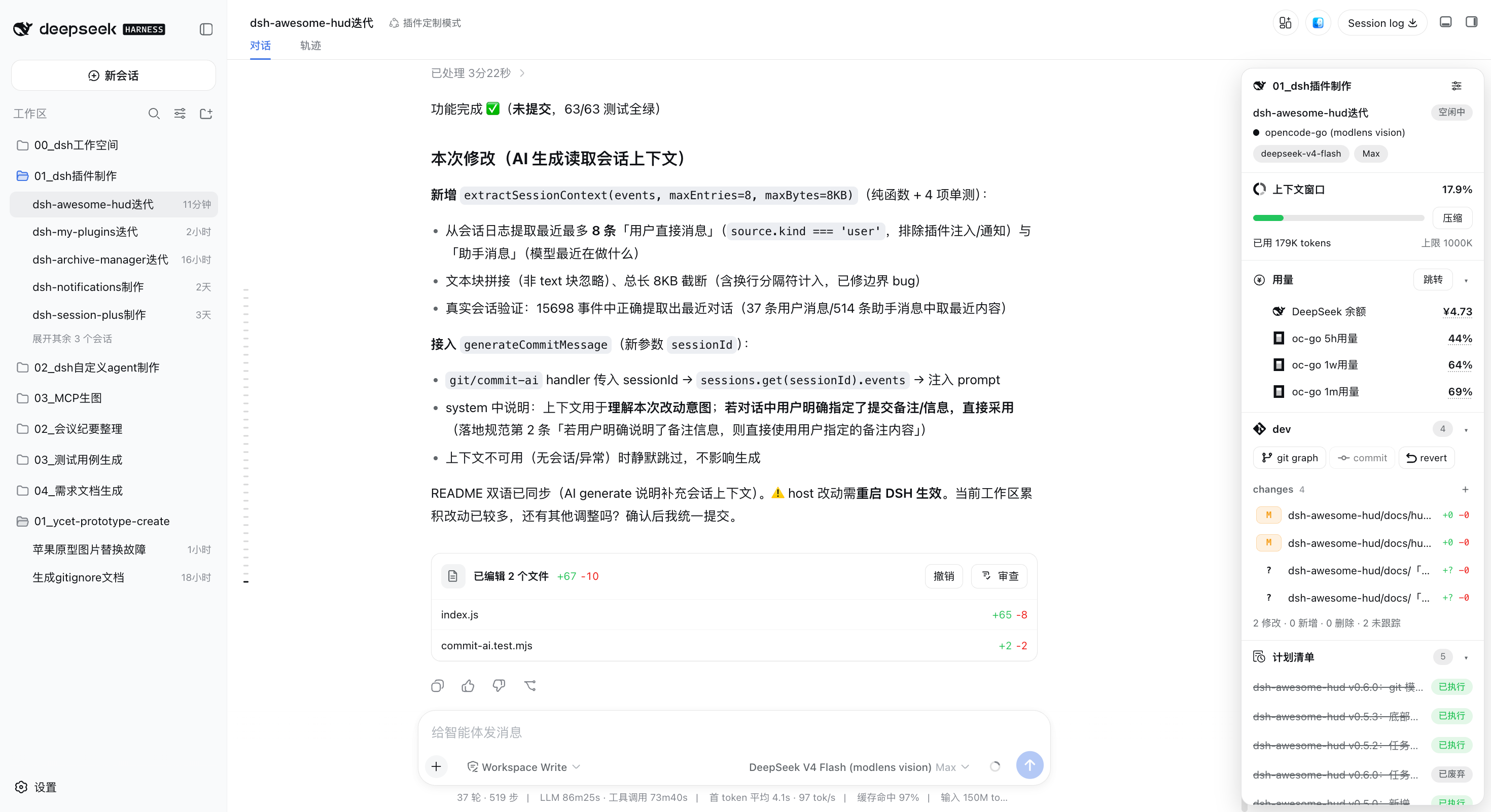
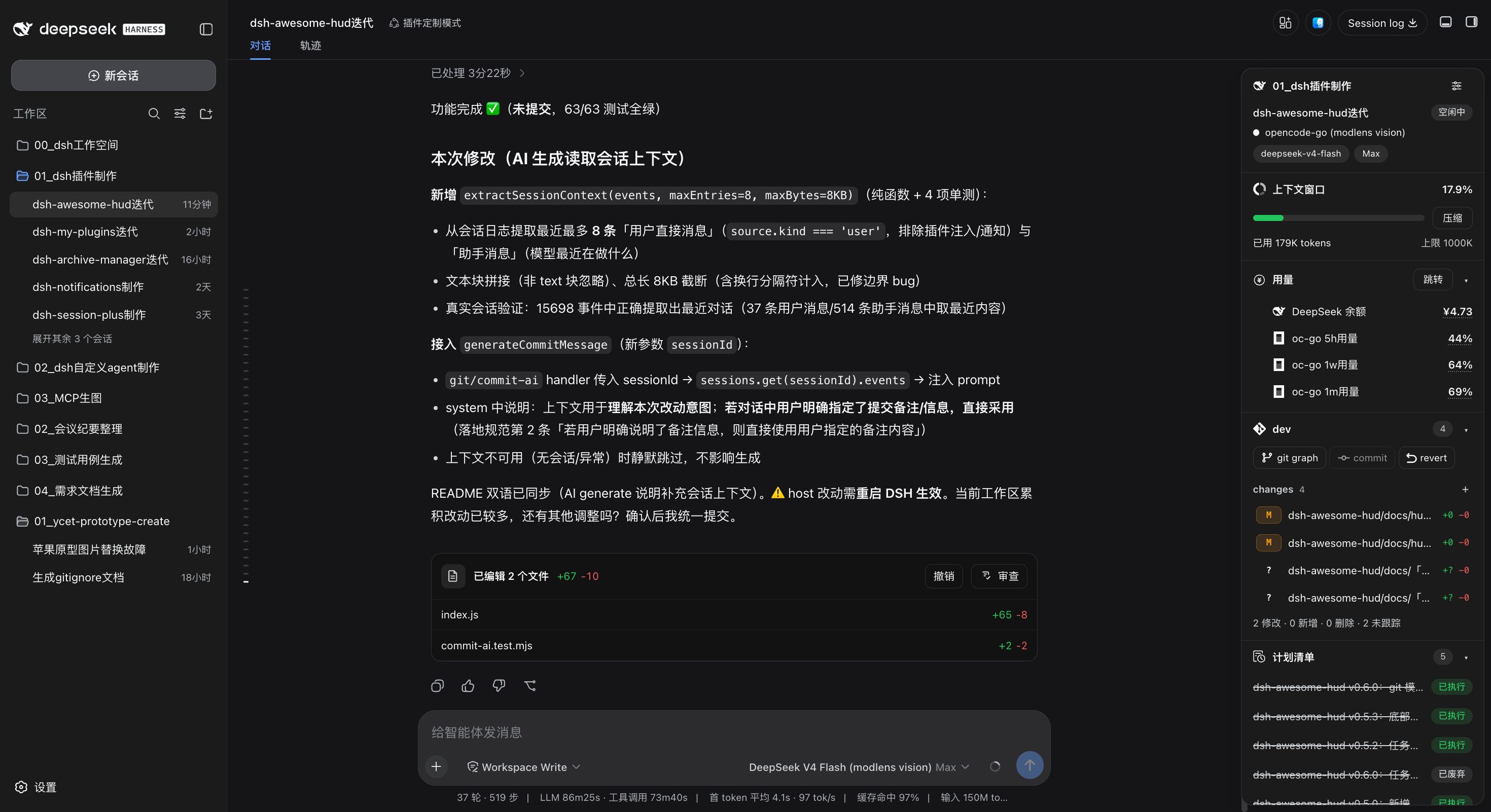
A floating HUD for DeepSeek Harness Web and desktop: session state, context, git, subagents, tasks, and MCP controls.
HUD in DSH (light theme)
HUD in DSH (dark theme)
[!NOTE] A DSH Web plugin installed through the
dsh.bundle.patchchannel. A new "HUD panel" button appears at the top-right of the chat page; the floating panel cooperates with the official right sidebar and the dsh-better-sidebar right sidebar so they never overlap and the body is never padded with extra blank space.
📑 Table of Contents
- ✨ Features
- 🚀 Quick Start
- 🧭 Usage
- 🖼️ Screenshots
- ⚙️ Compatibility
- 🔧 Tech Stack
- ⬆️ Upgrade Notes (v0.11.x → v0.21.1)
- 📄 License
✨ Features
| Module | Description |
|---|---|
| Session | Current workspace name, session name, session state (Running / Awaiting approval / Idle / Awaiting answer / Waiting for subagents), model provider, model, reasoning effort; both the workspace name and the session name are hover-highlighted buttons that open a menu at the pointer (workspace: rename / show in Finder·File Explorer / copy path; session: pin or unpin / rename / fork session / copy session ID / copy session name / archive session, with one divider before the copy actions and one before “Archive session”). Choosing Rename turns the name into an inline input that commits on blur (Enter commits, Esc cancels, no cancel/confirm buttons), and a pinned session shows a small pin to the right of its name; the blank session page no longer shows the session title or state; the gear at the top-right opens a two-pane HUD settings dialog (left: module toggles and drag order; right: "HUD panel general settings" (HUD panel style: Card/Sidebar, default Card; HUD panel side; the two default open states), "Context module settings", "Usage module settings" and "Notes module settings" (note count limit, 5–20, default 5) cards), plus top "Usage guide" and "Changelog" tabs with an in-app getting-started guide and a version-grouped change log |
| Context | Context occupancy bar (single color by default: 0–40% green / 40–90% yellow / >90% red; on hover it switches to the segmented style and shows a breakdown tooltip for System prompt / Tool definitions / Messages in slate/purple/blue). The header shows "current / maximum (percentage)" such as 199K / 1M (19.9%); two lines below show session stats (turns/steps · tok/s) and token usage (total · cache hit), each opening a detailed tooltip on hover. One-click "Compact" for the current session; whether the segmented bar is always shown and whether the two lines are visible can be changed in the HUD settings; clicking the header or its arrow folds the module (only the title and the occupancy stay visible, the folded state is persisted, and it also works while the module is pinned) |
| Usage | DeepSeek balance, OpenCode Go percentage usage for the 5h/1w/1m windows, and Codex remaining-quota percentages (subscribed accounts get the 5-hour/weekly rows; accounts without a subscription get a single Codex free quota row, mutually exclusive with those two; plus a Codex gpt-reserve quota row in the same style whenever dsh-codex-subscription reports a gpt-reserve quota), led by matching icons and indented; the Usage module is always rendered (it can be hidden in the HUD settings); when folded it can show one selected figure next to the title (DeepSeek balance / OpenCode Go 5h·1w·1m / Codex 5h·weekly, with Codex falling back to the free quota; options are disabled while their data source is unavailable and the parenthesized value is bolded; the dropdown uses the official DSH menu look — a 36px trigger, the official material surface, 34px items and a check on the selected item, rendered by the plugin itself so it always stacks above the settings dialog), the DeepSeek balance row is always shown (— and still clickable when no data is available), and the OpenCode Go / Codex rows render independently according to installation/sign-in state (the whole group is hidden with no data, and figures open the matching settings page when clickable) |
| git | Always shown (on both the blank session page and session pages; when the workspace is not a git repository the title bar offers "init repo" at the right, which runs git init in that workspace and then swaps itself for the branch button); current branch (branch button at the right of the git title bar: a dropdown to switch existing branches — current branch highlighted with a check — or type a new name and click "Add" to create and auto-switch), changed-file counts; changed files grouped into staged / changes (group names with gray counts, empty groups hidden) and shown as a list or a folder tree (the tree groups files by folder and supports collapse, and the choice is saved in the profile and kept across panel remounts and restarts); hovering a file row replaces the +/− counts with buttons (staged files show “remove from stage”, changed files show “revert” and “add to stage”, with a gradient mask so the name and folder stay readable), and hovering a folder row applies the same actions to every file inside; a left-click on a file row opens its diff in the right sidebar (the official turn-changes review first, the better-sidebar diff tab as fallback), while right-click opens a stage / unstage / revert / add-to-.gitignore menu on files and on folder rows in the tree (a folder applies the batch actions to its changed files and writes a /folder/ rule to ignore the folder; hovering for 0.5s shows the full path); an untracked file carries a "U" pill badge like the other statuses, the three action buttons (git graph / commit / revert) share the full module width in equal thirds, and the branch button is a fixed 88px that truncates long branch names; the "commit" button opens the commit dialog even with nothing staged (AI generate and commit are then greyed out, and the default prompt stays editable) and commits the staged area (manual input or an AI-generated message that follows the built-in local git convention [YYMMDD] project vX.Y.Z: summary) and "revert" discards all unstaged changes (tracked files are restored; untracked new files and intent-to-add files are deleted; staged files are NOT discarded and the UI says so; directory entries that cannot be deleted, such as nested repositories/submodules, are reported explicitly; destructive actions all require a confirmation dialog listing affected files); the "git graph" popup (commits across all refs shown in pages of up to 80 each, with a "Load more" button at the bottom of the list appending the next page until the full history is loaded; the current branch uses a blue-filled white label and other branches use gray-filled black labels; hovering a commit row for 0.5s shows the full commit info with that commit's branch/tag labels below the subject); right-clicking a commit row opens a menu — copy short hash (7 chars) / full hash (40 chars) / commit subject, create a branch here, merge into the current branch, or soft / mixed / hard reset, with an inline input plus icon buttons for branch creation and an inline second confirmation for merge and reset |
| Outputs | Lists the files this session changed across all its turns in the given formats (html / md / pdf / docx / csv / xlsx / pptx / cd / clark / jpg / jpeg / png / gif / webp / svg — 16 extensions, case-insensitive): workspace files that still exist, ordered by last change and capped at 10 (a footer hint appears once the cap applies). Three files show first; with more than three, a “Show n more files” link appears under the third row and a “Collapse” link after the last row (no link at three files or fewer). File rows are indented to align with the module title; each row shows a blue extension tag on the left (fixed size, smaller font for longer extensions), the file name and the directory; right-click a row to add it to chat, show it in the file manager, or copy the file name / relative path / absolute path (a divider separates the copy group), hovering a row for 0.5 seconds shows the file's full relative path at the pointer in the same tooltip style as git changed-file rows, and a click opens the file content in the official right sidebar (the same file never opens twice). The data merges DSH's per-turn workspaceChanges summaries with a workspace scan filtered by last-modified time, so terminal-command changes are included; the filter is based on the session's creation time and needs no in-process cache, so the list survives a DSH restart. The module sits above git by default, can be turned off or reordered in HUD settings, and stays hidden while there are no matching files (like Subagents, Tasks and Plan list); it appears once files exist and is not shown on the new-session page (its settings card is read-only there); existing profiles automatically place the new module before git |
| Subagents | All descendant subagents of the session (indented by depth) with running (yellow) / done (green) states; clicking an entry opens the subagent conversation in the official right sidebar while keeping the main conversation; shown only when subagents exist; with more than three, three show first, a “Show n more subagents” link appears under the third row, and a “Collapse” link closes the list again |
| Tasks | To-do list of the current session with done/pending states and a counter (e.g.1/3), refreshing live; in-progress tasks show a spinning animated icon and the bottom row shows the completed / in progress / pending counts (all three shown even at zero); shown only when tasks exist; completed tasks move to the bottom of the list and stay collapsed (earliest completion first), with a “Show completed tasks” link and a “Collapse” link at the end once expanded |
| Plan list | Every plan produced by plan mode (exit_plan_mode) in the current session, with three-state badges — pending review (yellow) / approved (green) / discarded (gray, struck-through dimmed text) — the header shows the total count, clicking a row opens the full plan, and the bottom row shows the approved / pending review / discarded counts (all three shown even at zero); shown only when plans exist; with more than three, three show first, a “Show n more plans” link appears under the third row, and a “Collapse” link closes the list again |
| MCP | All connected MCP servers with their DSH-global enabled state; the switch toggles DSH-global MCP servers through the DSH plugin manager (row-level edits in the profile cordis.patch.yml plus a hot reload: effective immediately, no page refresh, and no effect on other servers) |
| Notes | Multiple notes per workspace (all sessions under the same workspace directory share one set of notes, persisted locally and kept across DSH restarts; an old single note migrates to “Note 1”). Note list: each note is a rounded row with a drag handle on the left (hold to reorder), and only the delete button appears on hover (also on keyboard focus; always visible on touch); click a note bar to edit it (the editor opens inside the module by default; with “Edit note content in a dialog” on, it opens in a dialog and the module stays a list), with an empty-state line when there are no notes. Action buttons: two rows — “Create from chat” and “Add note” share the first row at half width each, “Delete all notes” fills the second row; the note limit can be changed in HUD settings → Notes (5–20, default 5) and creating at the limit only shows a toast. “Create from chat” builds a note from the chat input text and images (copies only, never clears the composer, and opens the editor right away; disabled while the input is empty); “Add note” opens a blank note in the editor; a single delete turns the delete button into cancel and confirm buttons inline (red check icon) and removes the note after you confirm; delete-all still asks in a dialog. Editor view: by default it opens inside the module and a back button returns to the list; with “Edit note content in a dialog” on it opens in a dialog instead — close it with the top-right button or an outside click on the backdrop (the press and the release must both land on the backdrop, so dragging a text selection out of the dialog never closes it), changes save as you type, the layout matches the inline editor (title, image strip, fixed-height text area, Clear / Import from chat / Add to chat), and “Add note” and “Create from chat” open the dialog as well. the title is editable (an empty title becomes “Note n”, numbered from the largest “Note n” number in the current list plus one, so deleting the largest reuses its number), the image strip holds up to 20 images (paste, click for the full size, hover to remove, drag a thumbnail left or right to reorder, and the strip settles in place on release without left-right jitter), the text area has no length limit and keeps the bottom drag handle with one height shared by all notes, “Clear” asks for confirmation and removes text and images together, “Import from chat” clears the current note first and then writes the composer content (asking first when the note is not empty, skipping non-image attachments), and “Add to chat” clears the composer first and then writes the note with its images in order (asking first when the composer is not empty); the folded state persists. A lower limit than the note count of some workspaces is saved normally; those workspaces keep their notes but cannot create more | | Todo | Workspace-shared to-do list (all sessions under the same workspace directory share one list and its order, persisted locally); check/uncheck complete, add/delete items, drag-to-reorder whole rows (drag handle at the far left before the checkbox; while dragging, the other items slide out of the way to preview the final order), one-click clear completed (confirmation dialog, button disabled when no completed items); bottom shows completion count; completed items move to the bottom and stay collapsed (their relative order is kept), with a “Show completed items” link and a “Collapse” link, and dragging only reorders the open items; collapsible/expandable (state persisted) |
Mutual exclusion: the HUD panel cooperates with the official right sidebar and the dsh-better-sidebar right sidebar. While a right sidebar is expanded the HUD is derived hidden — it is only temporarily invisible, its per-session open memory is not rewritten, and the body is never padded with extra blank space; closing the sidebar restores the panel automatically (unless the user had explicitly collapsed the HUD). Clicking the "HUD panel" button while the sidebar is open collapses the sidebar first, then shows the HUD (if auto-close fails due to version compatibility the panel stays hidden until the sidebar is closed, then appears); the blank session page does not show its floating entry while a right sidebar is expanded. When the panel is configured to the left side (see "HUD panel general settings"), it is also hidden temporarily while the left session-list drawer is open in narrow windows and comes back when the drawer closes (the remembered open state is still untouched). The panel look is selected in "HUD panel general settings → HUD panel style": Card (the default) keeps the floating rounded card; Sidebar makes the panel full height and flush with the window edges, transparent and square, with one divider between it and the content area, 14px-inset dividers between modules, and the page scrollbar sitting at the content edge.
🚀 Quick Start
Option 1: install from npm (recommended — updates from the Plugins page)
# 1. Install (no git required; pnpm must be on PATH for `dsh plugin`)
dsh plugin --profile web add dsh-awesome-hud@0.21.1

# 2. Restart the DSH Web service and refresh the page
[!NOTE] A copy installed from npm can be upgraded in place: open Plugins → Installed, a card with a newer release shows Update available, and the detail page offers Update to. Copies installed from a GitHub tag or a Release tarball have no in-page update; uninstall and reinstall them instead.
Option 2: install from GitHub remotely (tag-pinned; works without an npm account, no in-page update)
# 1. Install (pinned to a release tag; requires git access to GitHub)
dsh plugin --profile web add "github:Ycet/dsh-awesome-hud#v0.21.1"

# 2. Restart the DSH Web service and refresh the page
Option 3: install from local source (development)
# 1. Install (replace <absolute-path-to-plugin> with your local source directory)
dsh plugin --profile web add "dsh-awesome-hud@link:<absolute-path-to-plugin>"

# 2. Restart the DSH Web service and refresh the page
Option 4: install from a Release asset (tarball; no git, no npm account)
# 1. Install (use the Release asset URL directly, or pass a downloaded .tgz path)
dsh plugin --profile web add "https://github.com/Ycet/dsh-awesome-hud/releases/download/v0.21.1/dsh-awesome-hud-0.21.1.tgz"

# 2. Restart the DSH Web service and refresh the page
After installation, a "HUD panel" button appears at the top-right of the chat page (left of the "Open workspace" button); click it to toggle the panel.
[!NOTE] The HUD panel is expanded by default, and each session remembers its own open/closed state (stored per session id in localStorage): collapsing it in session A never affects session B. The blank/new-session page is the exception: it always starts collapsed (in-memory only — nothing is written to localStorage, so no session's memory is touched) and offers its own floating "HUD panel" button in the top-right for opening it on that page (that button is hidden while an image is opened in the full-screen preview, so it never floats above the image or the preview's close button; it also keeps the chat page's order and spacing — always to the left of the top-right utility cluster, so with better-sidebar installed its bottom-panel toggle follows the HUD entry). The panel style, its side and module visibility are stored in the DSH profile settings and sync across browsers/devices with the profile.
Desktop installation (macOS)
Current version: 0.21.1. Fully quit DeepSeek Harness, then install with the CLI bundled with the desktop app. Use that CLI when managing the desktop profile. Prefer the npm install (in-page updates); use the source directory only for development:
# From npm (recommended)
"/Applications/DeepSeek Harness.app/Contents/Resources/runtime/cli/bin/dsh" plugin --profile desktop add dsh-awesome-hud@0.21.1

# From local source (development)
"/Applications/DeepSeek Harness.app/Contents/Resources/runtime/cli/bin/dsh" plugin --profile desktop add "dsh-awesome-hud@link:<absolute-path-to-plugin>"
Reopen the app and click the HUD button in the conversation header. Codex quotas require an installed, signed-in dsh-codex-subscription version compatible with your DSH runtime. The DeepSeek balance prefers dsh-account-usage and falls back to the DSH official account service (requires a DeepSeek sign-in) when that plugin is missing or disabled; OpenCode Go usage and the settings tabs come from dsh-account-usage.
[!NOTE] Note text, todos, folds, panel settings and panel visibility live in the current browser or desktop app's
localStorage; note images are stored as originals in the same origin's IndexedDB (also kept across restarts and shared per workspace). Installing the plugin does not copy these records from your Web browser. DSH manages model settings and credentials.
🧭 Usage
- HUD panel: 300px wide, it scrolls internally when content overflows (no scrollbar is shown), and it is always the resident fixed panel (the body and composer make room for it). Its look comes from "HUD panel general settings → HUD panel style": Card (the default) is the floating rounded card — its height is capped at the composer's bottom edge (with an 8px bottom margin) and it keeps an 8px gap to the window edge; Sidebar is full height and flush (top at the conversation header's bottom edge — on the new-session page, which has no header, it starts at the bottom of the top-right button row with no gap above; bottom at the window bottom, no outer margin), transparent and square, with a single 1px divider against the content area and 14px-inset dividers between modules (module content and interactions are unchanged). Its side comes from "HUD panel general settings → HUD panel side": right (the default) anchors to the window's right edge and shifts the chat content and composer left; left anchors to the conversation area's left edge (right of the session list, with an 8px gap in Card style) and shifts the body and composer right. In Card style the page scrollbar stays at the window's right edge; in Sidebar style it sits at the content edge, right next to the divider. The turn-navigation indicator stays at the body's right edge either way, and nothing overlaps; while a right sidebar is expanded the panel is hidden and the body is not padded, and it returns once the sidebar closes.
- Settings dialog: the gear at the top-right of the Session module opens a settings dialog. Its header now holds three tabs, "HUD settings", "Usage guide" and "Changelog" (the active one gets the brand underline; switch at any time). The settings page is split into two panes with a 1px divider: the left pane holds module toggles and ordering, the right pane holds each module's own settings.
- Left pane: checkboxes turn "Context / Usage / git / Subagents / Tasks / Plan list / MCP / Notes / To-do" on or off (the Session module is always shown). Every card starts with a drag handle: drag it to reorder how that module appears in the HUD panel (applies globally; the other cards slide out of the way to preview the result and the order is only committed on drop). The left pane never scrolls with the right one; the dialog height follows the window and compacts card spacing so all nine module cards stay visible. Modules the new-session page does not render (Context / Subagents / Tasks / Plan list) are shown with their real state but greyed out and non-clickable there (the tooltip explains why); change those switches from a chat session.
- Right pane: five card sections (only this pane scrolls when its content is long). ① HUD panel general settings: HUD panel style (Card / Sidebar, Card by default; Sidebar separates the panel from the content area with one divider), HUD panel side (left / right), show by default on the new-session page, and show by default in chat sessions (the latter two only affect pages/sessions that have no remembered open state yet). ② Context module settings: always show the segmented progress bar (off by default; when off, segments appear only while hovering the bar), show "Session stats", show "Token usage", and pin the context module in place (off by default; when on, the module stays put while the HUD panel scrolls, just like the Session module — available only while Context is first in the module order, otherwise greyed out with a reason). ③ Usage module settings: the DeepSeek balance, OpenCode Go usage and Codex quota rows are always listed; a row whose source is not installed, configured or signed in is disabled with an inline reason (the DeepSeek row uses the built-in official balance source and stays switchable), plus a folded usage display dropdown (None / DeepSeek balance / OpenCode Go 5-hour·weekly·monthly / Codex 5-hour·weekly; options are disabled while their source is unavailable and Codex falls back to the free quota). ④ Git changes module settings: changed-file view (List / Tree, List by default, using the same segmented control as HUD panel style). ⑤ Notes module settings: the note count limit (5–20, default 5, number stepper) and “Edit note content in a dialog” (off by default; when on, clicking a note bar edits it in a dialog while the module stays a list). Any unavailable setting is greyed out and cannot be clicked, and the hint under its name turns red and states the reason (for example "Install and enable dsh-account-usage" or "Context is not first in the module order").
- Controls and footer: the right-pane toggles use the official DSH
Switchstyle (from@deepseek-ai/dsh-client-ui-primitives, with an equivalent local fallback) while the style and side controls both use the official segmented control. “Reset to defaults” at the bottom left becomes enabled when the current settings differ from the defaults; clicking it opens a three-item menu at the pointer: reset all settings, reset module switches and order (the left pane only), and reset module feature settings (the right pane only: HUD panel general settings plus the context, usage, Git changes and notes module settings). An item whose scope is already at its defaults is greyed out; a reset only changes the draft and still needs “Save settings”. The dialog closes via the backdrop, the top-right "Close" button, orEsc(all equivalent to discarding changes); "Save settings" writes and closes. Focus moves into the dialog when it opens, Tab cycles inside it, and focus returns to the gear when it closes. - Usage guide page: the second tab is an in-app guide (the "HUD settings" tab shows the outline gear from
assets/icons/settings-outline.svg, the "Usage guide" tab the hint icon fromassets/icons/hint.svg, and the "Changelog" tab the record icon fromassets/icons/changelog.svg). Its left column is a 240px table of contents (same width as the settings pane, so the divider never jumps between tabs; click an entry to jump to that section and the entry highlights as the right side scrolls), and the right side holds 12 section cards (the contents entries and section titles are text-only, without icons): HUD panel, Session, Context, Usage, Git, Outputs, Subagents, Tasks, Plan list, MCP, Notes and To-do. Each section is grouped into "Shows / Features" with short bullets — what the module displays and which actions it offers (one bullet per feature); the HUD panel section adds panel style bullets (Card / Sidebar, Card by default) and a "Settings" group for the settings dialog, while the notes section covers the note list, editor view, images, drag reordering, import from chat and a "Settings" group for the note count limit and “Edit note content in a dialog” (off by default). The "Reset to defaults" / "Save settings" footer stays available on the guide page too (Save is greyed out until something changes in this dialog and its disabled style differs from the enabled one; Reset is greyed out when nothing changed), and switching tabs never discards unconfirmed settings edits or changes the dialog height — the settings page stays mounted underneath as the height reference and the guide overlays the same area. - Changelog page: the third tab is a version log laid out like the guide — a 240px version list on the left (newest first, click an entry to jump, the entry highlights as the right side scrolls) and one card per version on the right, each grouped by topic (for example "Usage: folding and plugin dependencies" or "Notes and To-do: drag and delete"), with a "Current" badge on the newest version. It currently covers v0.21.1, v0.21.0, v0.20.1 and v0.20.0; the page shows the newest 20 versions at most and older records are removed, and every release adds one entry at the top and deletes the 21st and older entries (the entry must match
package.jsonversion; tests fail on a missing entry or a count above the cap). The "Reset to defaults" / "Save settings" footer stays, switching tabs never changes the dialog height, and the page is display-only: it sends no requests and writes no settings.
- Session module: the workspace name and the session name are both hover-highlighted buttons (both hot areas span the whole row, giving up only the state chip and the gear on the right); clicking one opens a menu at the pointer (200px wide, clamped to stay inside the viewport; it keeps its position while the panel scrolls or the window resizes and closes on an outside click,
Esc, or a second click on the title).- Workspace menu (top-left workspace name): rename workspace (inline input written to the DSH workspace registry, so the official sidebar and picker update too; a duplicate name reports a clear conflict and restores the previous title), show in Finder (macOS "Show in Finder", Windows "Show in File Explorer", other platforms "Show in folder"; the native open runs on the Host, and the item is disabled with a reason when the Host cannot do it), and copy workspace path.
- Session menu (session name): pin/unpin session (label and icon follow the current state; a pinned session shows a small pin to the right of its name, matching the official sidebar), rename, fork session (matching the official behavior: the current page is not switched, success is reported with a toast, and a source session that needs migration is reported as "open it first"), copy session ID and copy session name.
- Inline renaming: choosing Rename turns the name into a focused, fully selected input that commits when you click anywhere else (Enter commits, Esc cancels); blank or unchanged input sends no request, and a failure restores the previous name with an error toast. The blank session page hides the session title and state chip, while the workspace menu still works there (against the resolved target workspace).
- Context: the header shows "current / maximum (percentage)" such as
199K / 1M (19.9%). The bar is single-colored by default (0–40% green / 40–90% yellow / >90% red); on hover it switches to three segments and shows a breakdown tooltip (System prompt in slate, Tool definitions in purple, Messages in blue; estimated token values). The two lines below show session stats (turns/steps · tok/s) and token usage (total · cache hit); hovering them shows the complete stats (model time, tool time, TTFT average, output speed) and complete usage (cache hit, uncached input, cache read, cache write, output) respectively. "Compact" is available while the session is idle and disabled with a reason while it runs; always-on segments and the visibility of both information lines are controlled by the "Context" card in the HUD settings. - Usage module: sits below the Context module and is always rendered (it can still be hidden in the HUD settings). The DeepSeek balance prefers the dsh-account-usage routes and falls back to the DSH official account service when that plugin is missing or disabled; Codex uses the dsh-codex-subscription browser RPC; loads immediately when the panel opens and polls every 60 seconds; rows are indented and led by their matching icons; the module is collapsible and expanded by default (fold state persists in localStorage).
- DeepSeek balance: shows the total (top-up + granted); clicking the balance figure opens the settings dialog on the official Account & balance page (it falls back to the plugin's Account section when the official page is unavailable, e.g. signed out or an older DSH) with the deepseek tab selected when dsh-account-usage has injected it, and silently stays on the official account page otherwise. This row is always shown: it prefers dsh-account-usage (requires
DEEPSEEK_PLATFORM_TOKEN) and falls back to the DSH official account service (requires a DeepSeek sign-in) when that plugin is missing or disabled; without data the figure reads—and the click behavior is unchanged. - OpenCode Go usage: three rows showing the percentage of the oc-go 5h / 1w / 1m windows; clicking a percentage opens the settings dialog on the official Account & balance page with the opencode go tab selected; shown only with a configured OpenCode Go Key and an active subscription (the
/api/account-usage/opencoderoute returnsok + keySource) — the whole group is hidden (and not clickable) when there is no data. - Codex quota: subscribed accounts get two rows,
Codex 5h quotaandCodex weekly quota, showing integer remaining percentages; an account without a subscription receives only a single ~30-day monthly window, so aCodex free quotarow (that window's remaining percentage) is shown instead and the 5h/weekly rows are not rendered — the two forms are mutually exclusive. The subscription state is inferred from the shape of the quota windows (a 5h or weekly window means subscribed), because the subscription plugin's RPC exposes no plan field; if the monthly window's duration differs from the expected one, the limit's first usable window is used as a fallback so that—only appears when there is no data at all. All rows use the ChatGPT icon and clicking a percentage opens the "Codex subscription" settings page. Rows appear only whendsh-codex-subscriptionis installed and signed in; after a confirmed sign-in, temporary quota failures keep the rows visible as—in the mode shown before the failure (a subscribed account never flips to the free-quota row), while an unavailable sign-in state hides them. - gpt-reserve quota: when
dsh-codex-subscriptionreports a gpt-reserve quota (theadditional_rate_limitsentry of/wham/usagewhoseidisbase_model_inferenceand whoselimit_name/nameisgpt-reserve; the plugin matches either id or name, normalized across case, underscores, hyphens and spaces), aCodex gpt-reserve quotarow is appended below the 5h/weekly rows (below the free-quota row when not subscribed) with the exact same style, icon and interaction as the existing quota rows (its primary window's remaining percentage; a named quota renders asCodex gpt-reserve quota (name)). When the quota is absent the row is not rendered; when it exists but its window data is malformed the row stays with—. - Module visibility & configurability: the module is always rendered. The DeepSeek balance row is always shown (data comes from dsh-account-usage or the official-account fallback,
—when unavailable); OpenCode Go and Codex rows render only when their data source is available — withoutdsh-account-usagethere is no OpenCode Go quota row, and withoutdsh-codex-subscriptionthere is no Codex quota row; the matching switches in the settings dialog are greyed out and cannot be clicked, with the reason in red under the name (it distinguishes "install and enable the plugin" from "enabled but not configured or not signed in"). A one-line setup hint appears inside the module when no data source is available. The displayed content and the folded display can be configured in the "Usage module settings" card (persisted in host settings, synced with the profile).
- DeepSeek balance: shows the total (top-up + granted); clicking the balance figure opens the settings dialog on the official Account & balance page (it falls back to the plugin's Account section when the official page is unavailable, e.g. signed out or an older DSH) with the deepseek tab selected when dsh-account-usage has injected it, and silently stays on the official account page otherwise. This row is always shown: it prefers dsh-account-usage (requires
- git module: always shown — on both the blank session page and session pages, including workspaces that are not a git repository (the title bar then offers an "init repo" button in the same spot as the branch button; clicking it runs
git initin that workspace and the module switches to repository mode — the button becomes the branch button and the body gains the action row and change summary, kept fresh by the regular polling; the button never appears once a repository exists). Refreshes every 5 seconds while the panel is open (immediately after write operations); the branch button at the right of the title bar opens a dropdown — switch existing branches (current branch highlighted with a check; clicking the current branch reports "Already on branch" instead of closing silently) or type a new name and click "Add" to create and auto-switch; the "git graph" popup shows commits across all refs in pages of up to 80 per page — scrolling to the bottom reveals a "Load more" button that appends the next page, until the full history is loaded (an "All commits loaded" hint then appears at the end of the list); the current-branch label is blue with white text and other branch labels are gray with black text; the HEAD commit is marked with an enlarged white-filled, blue-stroked dot. Right-clicking a commit row opens a menu to copy the short hash (7 chars) / full hash (40 chars) / commit subject, plus these protected operations:- Create branch here: the menu item is replaced in place with a text input plus "Cancel" / "Confirm" icon buttons (the confirm button is disabled while the input is empty). Confirming runs
git checkout -b <name> <commit>, creating the branch at that commit and switching to it; on success the menu closes, the git snapshot and the commit graph refresh, and the new branch label immediately shows as the blue current branch. A duplicate branch name, or local changes that block the switch (affected files are listed), shows a toast and keeps the typed name so it can be corrected and retried — nothing is stashed and no forced checkout is performed. Pressing Enter never submits, Escape cancels the input and restores the plain menu item (a second Escape closes the menu), and the item stays disabled while another Git operation (merge / rebase / cherry-pick / revert) is in progress. - Merge into current branch: the menu item is first replaced in place with inline “Confirm? / Cancel” controls; confirmation runs
git merge --no-edit. Already-up-to-date, local-changes block, and conflict auto-abort with a file list are all handled with friendly toasts. - reset (soft) — keep staged: available only for a commit before HEAD in the currently checked-out local branch history. After secondary confirmation,
git reset --softrolls back to it and keeps the contents of later commits staged. - reset (mixed) — unstage changes: under the same branch-history restriction, secondary confirmation runs
git reset --mixed, keeping the contents of later commits in the working tree but unstaged. - reset (hard) — discard changes: after secondary confirmation,
git reset --hardrolls back to the selected commit and discards the contents of later commits plus uncommitted changes to tracked files; untracked files are retained. - Reset is unavailable with no checked-out local branch, while another Git operation is in progress, when the selected commit is outside the current branch history, or when it is already HEAD. Changed files are grouped and shown with status letters colored by type — modified
Myellow, addedAblue, deletedDred, untrackedUgray (renamedR/ copiedCblue). An untracked file uses U and the same outlined pill badge as the other statuses. Each changed-file row matches the Outputs module: the status letter stays at the far left, the file name comes first with the gray relative folder right after it, and the+added / -deletedcounts stay at the far right (an empty folder still keeps a flexible spacer so the counts remain right-aligned): - Groups:
stagedandchanges(includes untracked) with a gray per-file count next to each group name plus one-click buttons: "+" on changes stages every unstaged file, "-" on staged unstages every staged file; a group hides when it has no files - File row actions: a left-click on any file row opens that file's diff in the right sidebar (the official "turn N changes" review first; when the file is absent from the latest turn, the official review is unavailable or the right sidebar is missing, it falls back to better-sidebar's worktree diff tab). Right-click (or Shift+F10 / the context-menu key) opens the action menu — staged files offer "remove from stage"; changes files offer "add to stage", "revert" (reverting an untracked new file or an intent-to-add file deletes it; every destructive action requires a confirmation dialog listing affected files) and "add to .gitignore" (adds the file to the repository-root
.gitignore). Hovering a file row for 0.5s shows a tooltip with the full path at the pointer; hovering also replaces the +/− counts with icon buttons — staged files show “remove from stage” (minus), changed files show “revert” and “add to stage” (plus), with a gradient mask behind; in the folder tree, right-clicking a folder row (or Shift+F10) opens the same menu and applies add-to-stage / revert / remove-from-stage to every changed file under that folder in the current group, plus "add to .gitignore" (writes a/folder/rule that ignores the whole folder) them; the tree view groups files by folder, and a folder row applies the same actions to all files inside - commit: always clickable — with nothing staged it still opens the dialog so you can read or edit the AI prompt, while the staged-file count line becomes "Nothing is staged for commit" and both AI generate and commit are greyed out; opens a dialog with the number of staged files to commit, a multi-line input, AI generate and commit buttons; commit is disabled while the input is empty; Enter inserts a newline, and only the commit button submits; only the staged area is committed
- AI generate: always uses DeepSeek's official DeepSeek Flash model (
deepseek-flashon thedeepseek-accountroute,reasoningEffort: low), not the model selected in the current session; the first click only enters the "Confirm?" state and shows an explanation to the left of the button, and the second click generates (it resets after 3 seconds, cancels on a click outside the button or Escape, and the button is disabled while generating). It combines the full staged diff (truncated over 16 KB) with the recent conversation context of the current session (direct user messages and assistant replies — a commit note explicitly specified by the user in the conversation is used verbatim), generating the message per the built-in local git commit convention —[YYMMDD] project-name vX.Y.Z: summary(date = current system time; the version is the project's CURRENT version from the version file and is never bumped; project name and current version come from the nearest package.json above the workspace); afterwards the host pins the date prefix to today and corrects the version to the project's current version, so a self-invented bump is pulled back - AI prompt: the commit dialog has a collapsible AI prompt section above the staged-file count (collapsed by default). Expand it to see the default prompt, whose text now contains the date and version rules themselves, so you can rewrite them: leaving it untouched keeps the built-in behaviour (the
[YYMMDD]prefix is enforced and the version is validated), while a saved edit fully replaces the instructions (no date prefix, no version check) until you restore the default; edits are saved with Save and the next generate uses the saved prompt, while Restore default removes the custom prompt. Pl
- Create branch here: the menu item is replaced in place with a text input plus "Cancel" / "Confirm" icon buttons (the confirm button is disabled while the input is empty). Confirming runs
…
Links
More in this category
zhu1090093659/dsh-web#packages/dsh-task-board★ 10458
Task board for the dsh web GUI: a sidebar multi-column kanban whose cards run in real DSH agent sessions and can also be scheduled with cron expressions, executed host-side even with the browser closed.
zhu1090093659/dsh-web#packages/dsh-web-all★ 10458
Plugin and skin collection for the DSH Web UI: task board, Git graph, right-side panel, remote mobile UI, pet, live token stats, and a skin center.
ccch1mneyyy/dsh-TUI★ 7797
Claude Code-style full-screen terminal UI: pixel-whale header, live status line, and streaming thought expansion.
MeteorNOX/DeepSeek-Balance-Whale-Widget★ 7271
A fixed-corner whale widget for the DSH web GUI — balance, today's usage and per-turn cost with peak/off-peak pricing, editable balance-alert and daily-budget bubbles, a module-based custom bubble queue with A/B weighted choices and random lines or images, 30+ vendor templates (OpenAI, OpenRouter, Kimi, SiliconFlow, Ark, Zhipu, MiniMax and more) with per-model balance and subscription quota, plus task-end sound, imported audio, custom roles and a resource manager. Local-only, no telemetry.
omdsh-dev/DSH-better-sidebar★ 5191
Full sidebar workbench with file rendering and editing, terminal, Git, and subagents; third-party plugins can register new tabs.
omdsh-dev/dsh-genui★ 1007
Interactive UI components rendered inline in replies: layout, charts, forms, quizzes, mermaid, 3D scenes, and an action event loop back to the model.
Community comments
Comments are public GitHub Discussions. Loading them connects to GitHub and Giscus; a GitHub account is required to post.