Codex Appshots for DSH: capture the frontmost active window via global shortcut and seamlessly mount it into the composer for agent queries.
Install
# from npm (prebuilt)
dsh plugin --profile web add dsh-plugin-appshot
# from GitHub (first run asks for allowBuilds approval — follow the hint, retry)
dsh plugin --profile web add github:TaurusWood/dsh-plugin-appshot
Any plugin you install runs third-party code with your own permissions — it can read your files, use your credentials, and reach the network, and tool approvals don’t sandbox it. GitHub-sourced plugins also run build scripts at install time — pnpm blocks those until you allow them, so an install can stop with ERR_PNPM_GIT_DEP_PREPARE_NOT_ALLOWED or ERR_PNPM_IGNORED_BUILDS; dsh prints the exact key to add under allowBuilds in your profile’s pnpm-workspace.yaml, and the install works on the next run. Allowing a build is a trust decision: only install sources you trust, and pin a commit (github:owner/repo#sha).
README
A macOS / Windows global-hotkey "one-shot screenshot of the current window" that drops the image into the DeepSeek Harness (DSH) composer as context — hand your current working window to the agent with zero friction.
Project site (GitHub Pages): https://appshot.twoodbyte.top/
English · 中文 · Changelog · 更新日志
Install
In the DeepSeek Harness 0.1.7 desktop preview:
- Open Plugins → Add plugin
- Enter
dsh-plugin-appshot - Install, then restart
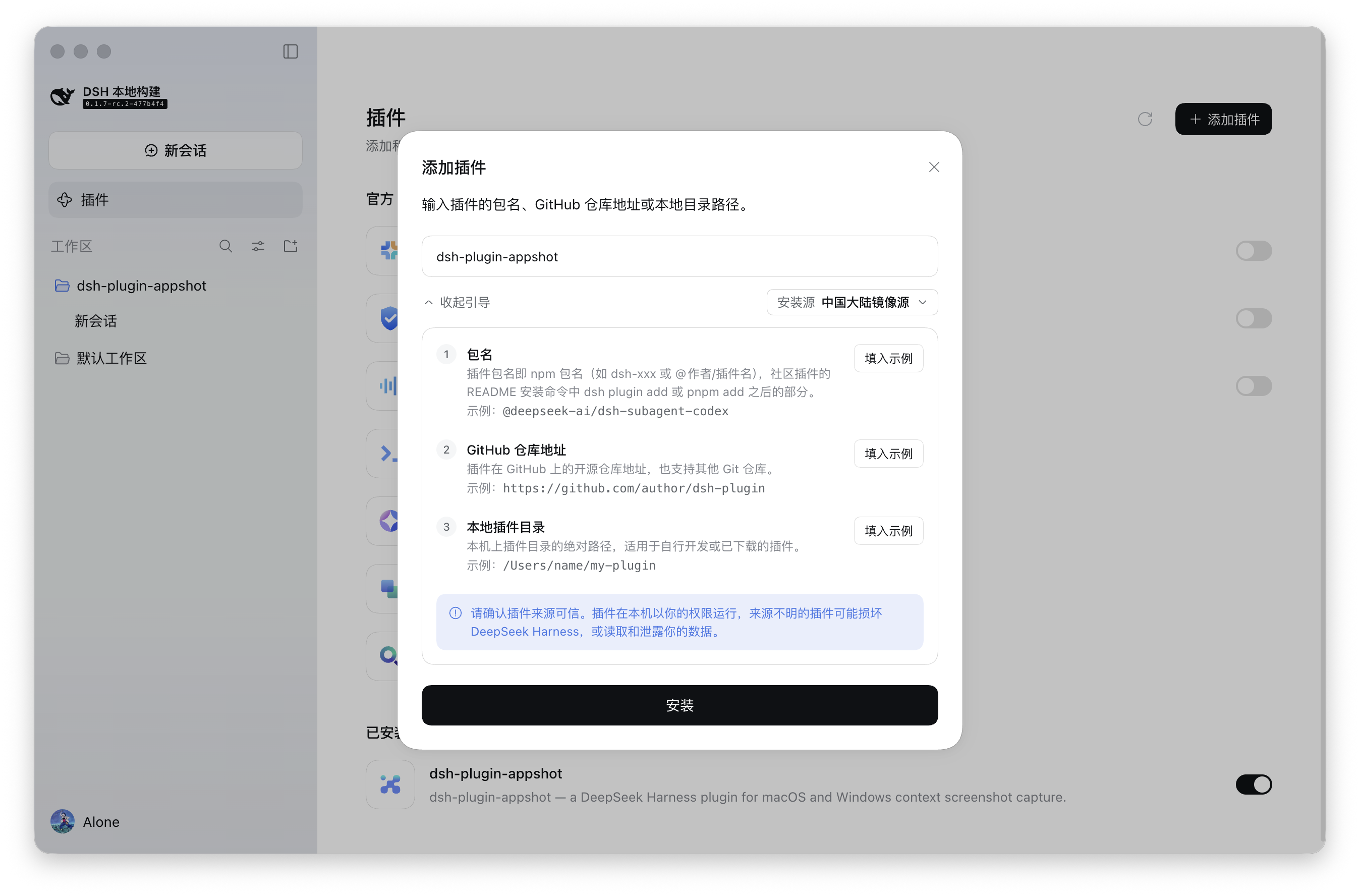
The npm package is prebuilt — no local compilation. You are ready when the log shows plugin applied successfully and native agent ready. On first capture, macOS asks for Screen Recording and Accessibility (see Permissions); Windows needs no extra grants.
Command line: dsh plugin add dsh-plugin-appshot
Installing from source (developers/contributors): run
pnpm install && pnpm build && pnpm build:nativeinside the plugin directory, then rundsh plugin --profile <name> add ./dsh-plugin-appshotfrom its parent directory (dsh plugin addresolves relative paths against the invoking directory).
What it is
A DSH take on "Codex Appshots": brings global-shortcut context capture to DeepSeek Harness.
Typical scenario: whenever you run into an issue or question in any app or window — whether inspecting a design, browsing docs, debugging code in your IDE, or troubleshooting terminal output — simply press Left ⌘ + Right ⌘. The screenshot of your current window is instantly transferred to the DSH client and attached to the composer draft; just type your question to ask the agent directly, eliminating the friction of manual capturing, app switching, and pasting.
It captures the "current window", not the "whole screen" — matching Codex's own Appshots wording ("An appshot captures the frontmost window only."):
| ✅ Captures | ❌ Does not capture |
|---|---|
| The one frontmost window at the moment you trigger (Chrome / VS Code / Finder / Terminal…) | The whole screen, desktop wallpaper, menu bar/Dock, other windows, background apps |
Press Left ⌘ + Right ⌘ → capture frontmost window → image lands in composer → describe and Send
Currently supports macOS 14+ (Apple Silicon / arm64) (Left ⌘ + Right ⌘ by default, remappable in settings) and Windows 10 19041+ (x64) (double Ctrl by default, remappable in the settings panel).
Usage
In any app (Chrome, VS Code, Finder / Notepad, Terminal…), press the global hotkey — Left ⌘ + Right ⌘ together on macOS, Left Ctrl + Right Ctrl together on Windows (remappable in the settings panel) — you capture exactly the one window in front of you, not the whole screen.
What happens next differs per platform:
- macOS: after the screenshot lands on disk, the DSH window is activated and focused (capture-then-activate — DSH can never appear in its own screenshot; if DSH is already focused, screenshot is automatically ignored; window activation applies to the DSH desktop app only — under
dsh webthe image still lands in the composer, just without the window activation). - Windows: DSH is never activated — the screenshot silently lands in the current session's input box without interrupting your work; success is signaled by a shutter sound and a fly-in animation (both disableable), and failures surface in a no-focus-stealing lightweight toast.
- macOS: after the screenshot lands on disk, the DSH window is activated and focused (capture-then-activate — DSH can never appear in its own screenshot; if DSH is already focused, screenshot is automatically ignored; window activation applies to the DSH desktop app only — under
| Before trigger (frontmost app window; screenshots show macOS) | After trigger (captured & mounted into Composer) |
|---|---|
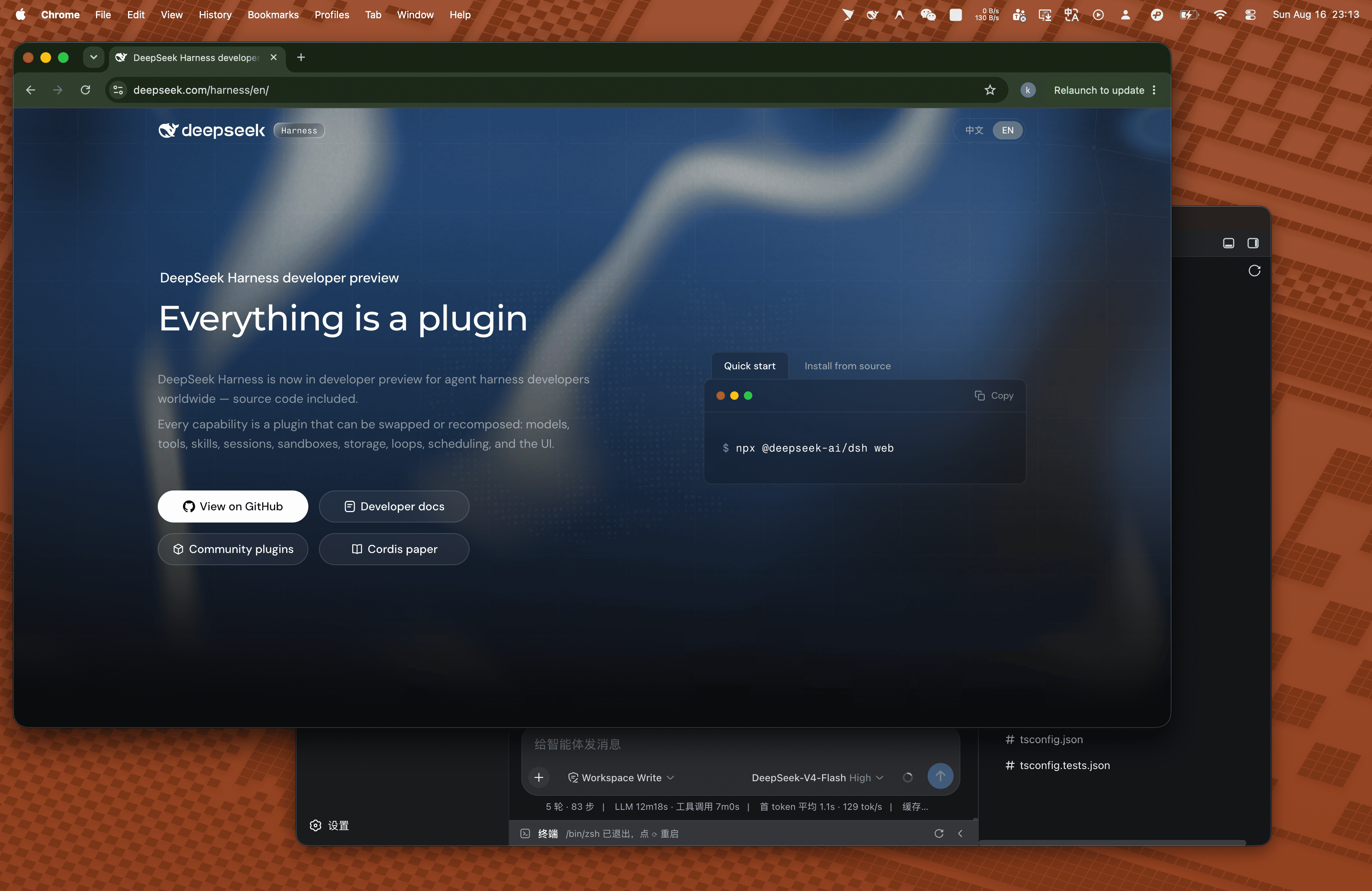 |
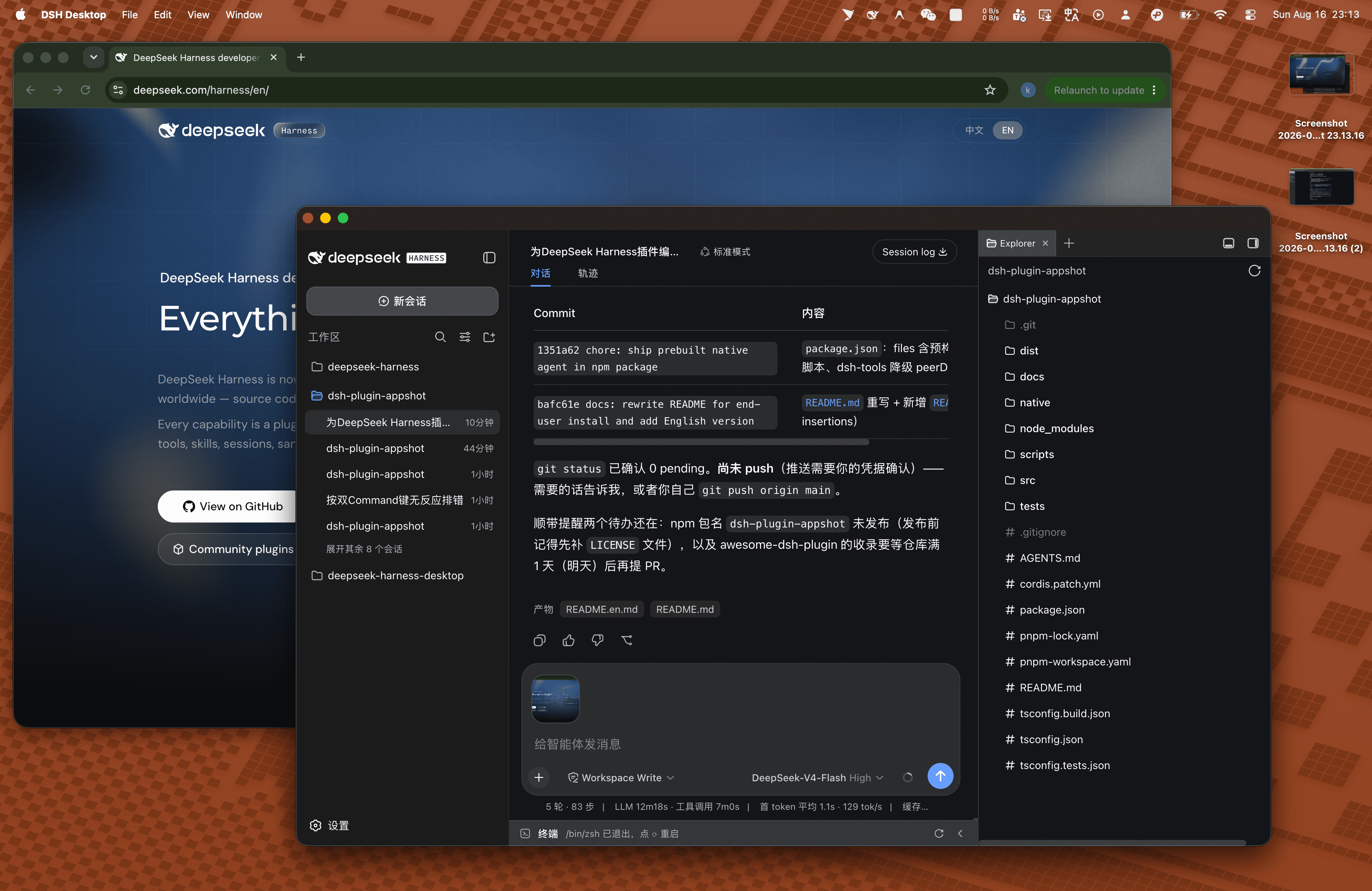 |
- The screenshot is attached to the current session's composer draft (click to inspect in full view, or trigger again to append more).
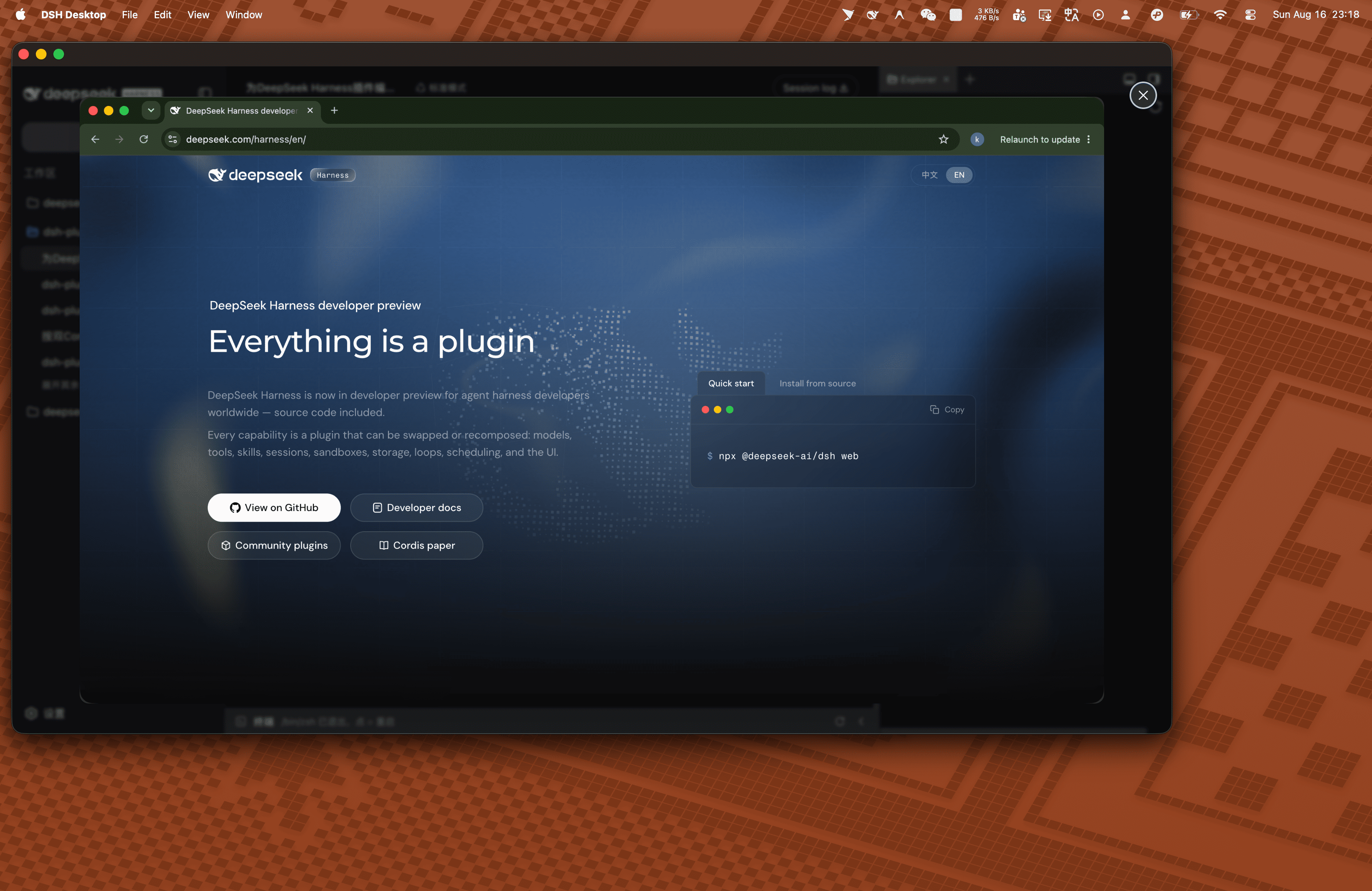
- Type a description (e.g. "analyze this error on screen") and hit Send — the screenshot is submitted together with your text.
The screenshot enters the composer rather than firing the agent directly — you stay in control: add context, append more shots, or remove attachments you don't need.
Features
Shared across platforms
- Precise single-window capture: only the one window you're looking at — never the whole screen, other windows, or the desktop.
- Composer draft mounting: screenshots land in the current session's input draft automatically and are sent with your message; trigger repeatedly to append more.
- No leftovers: staging temp files are cleaned in every success/failure branch under a single-owner contract; orphans from crashed runs are swept on plugin startup.
macOS
- Global Dual-Command hotkey: Left ⌘ + Right ⌘ state machine (the same trigger Codex Appshots uses), with debounce/cooldown; responds even while DSH is in the background or minimized; remappable in settings (e.g. double-tap ⌘).
- ScreenCaptureKit single-window capture: transparent layers, shadows and tooltips filtered out, Retina resolution preserved; on multi-display setups only the target window's screen is captured.
- Capture-then-activate (no self-capture): the DSH window is activated and brought to front only after the screenshot has been taken and written to disk — no race condition that could "screenshot DSH itself"; if DSH itself is focused, capture is cleanly ignored.
- SSE push mounting: the host persists the screenshot via
saveImageas a DSH Attachment, pushes it over a self-hosted SSE channel, and the client module mounts it into the active session and focuses the input. - Permission feedback: missing Screen Recording / Accessibility permissions trigger the system authorization prompt, plus a system notification (
UNUserNotificationCenter) with the failure reason.
Windows
- Double-Ctrl hotkey (remappable): Left + Right Ctrl by default; switch to other Ctrl/Alt/Shift combinations in the DSH settings panel, persisted across restarts.
- Topmost-window-on-cursor's-monitor targeting: captures the topmost window on the monitor under the cursor; explicitly refuses (with a toast) when the frontmost window is DSH itself, the desktop, the taskbar, or an invisible/spanning window — no accidental captures.
- Bring-to-front + fallback two-stage capture: a visible-content backup is taken first, then re-captured after a regular bring-to-front; if activation fails, the backup is used so "what you saw is what you get".
- Silent delivery (inverse anti-self-capture design): DSH is never activated or focused; the screenshot travels through an in-memory Node pending buffer and a directed HTTP long poll to the locked client, mounts into the composer, and reports back a
MOUNTEDconfirmation. - Non-intrusive feedback: shutter sound, border flash and thumbnail fly-in animation (each disableable); all failure hints are no-activate toasts that never steal focus.
How it works
Three components, one-way data flow:
┌──────────────────────────┐     NDJSON IPC (stdio)     ┌───────────────────────────┐
│  macOS Native Agent       │ ────────────────────────▶  │  Node / Cordis host plugin │
│  (Appshot Agent.app)      │    type: "appshot"         │  (src/)                    │
│  · Dual-Command FSM       │                            │  · fs.readFile bytes        │
│  · Frontmost-window pick  │                            │  · attachments.saveImage    │
│  · ScreenCaptureKit shot  │                            │  · ownership transfer+unlink│
│  · activate DSH after     │                            │  · webServer SSE broadcast  │
└──────────────────────────┘                            └─────────────┬─────────────┘
                                                                      │ SSE (appshot/ready)
                                                                      ▼
┌──────────────────────────┐
│  DSH Client module (Renderer) │
│  · resolve active sessionId   │
│  · mount ImageAttachmentRef   │
│  · focus composer input       │
└──────────────────────────┘
Key design points:
- No-self-capture hard constraint: no module may activate/show/focus the DSH window before the screenshot is on disk; window activation is a native capability (
NSRunningApplication), not a DSH API. - Deterministic ownership transfer (Single Owner): the staging file belongs to the plugin until
saveImagesucceeds; ownership then moves to the DSH AttachmentStore and the pluginunlinks immediately; failure paths clean up infinally; orphan files are garbage-collected on startup.
Permissions
On first trigger, macOS prompts for authorization:
| Permission | Purpose |
|---|---|
| Screen Recording | ScreenCaptureKit captures the frontmost window |
| Accessibility | Global hotkey state machine + window activation/bring-to-front |
If you deny, the capture is aborted with a system notification; re-grant in System Settings → Privacy & Security and retry.
Limitations
- Supports macOS 14+ (Apple Silicon / arm64) and Windows 10 19041+ (x64) (self-contained single-file agent — no .NET runtime install needed); WebUI is not supported (a browser sandbox can't access global hotkeys or cross-app activation).
- Window activation applies to the DSH desktop app (macOS) only; under
dsh webscreenshots still land in the composer, but the window is not activated/brought to front; Windows follows the anti-self-capture design and never activates DSH — screenshots silently land in the composer input. - No region selection, full-screen capture, image annotation, OCR, or screenshot history (all on the roadmap).
- Hotkeys: Left ⌘ + Right ⌘ (Dual Command) by default on macOS; double-Ctrl by default on Windows, remappable in DSH Settings → Screenshot Capture, which also toggles the shutter sound and capture animation (settings persist across restarts).
Development
src/                 Host plugin (Cordis apply(ctx) entry + windows/macos delivery + client modules)
native/macos/        Swift Native Agent (ScreenCaptureKit + double-Command state machine)
native/windows/      C# Native Agent (Win32 low-level keyboard hook + two-stage GDI capture)
docs/                requirements / technical (per-platform) / tasks / api-grounded-review
tests/               Phase contract tests (node --test)
Common commands:
pnpm build                  # esbuild bundle host plugin + client module → dist/
pnpm typecheck              # tsc --noEmit
pnpm test                   # contract tests (DSH_DISABLE_AGENT_SPAWN=1 to avoid spawning the real agent)
pnpm build:native           # build Appshot Agent.app (macOS)
pnpm build:native:windows   # dotnet publish self-contained single-file exe → native/windows/bin/win-x64/ (Windows)
pnpm test:native            # Windows native unit tests (dotnet test)

# Native diagnostics (inside native/macos)
swift build && .build/debug/appshot-macos --list-windows          # list capturable windows
.build/debug/appshot-macos --cli-capture --output /tmp/test.png    # frontmost-window capture PoC
Dependency notes: @deepseek-ai/cordis (^4.0.1) and @deepseek-ai/dsh-tools (exact 0.1.0-rc.6; npm latest is a stale 0.0.1-rc.1 — don't npm i over it) are devDependencies used for types only during development; the package metadata deliberately declares no peerDependencies — on Windows, pnpm creates relative symlinks for peer dependencies, which fails with EPERM for regular users (without Developer Mode). The code uses import type only; ctx is injected by the host at runtime, so the plugin has zero runtime dependencies.
Publishing (technical-windows.md §7.4): a tag triggers the two-runner GitHub Actions workflow — macOS builds Appshot Agent.app, Windows builds appshot-win-x64.exe; the assemble job restores both artifacts and runs npm publish (prepack is platform-aware: it builds the native agent for the current platform, and in CI it enforces a both-artifacts gate that blocks the release if either is missing). A local pnpm pack yields a single-platform package and is not a release source.
License
This project is licensed under the MIT License.
Links
More in this category
liustack/modlens★ 4076
Vision bridge for text-only models: paste an image, get structured JSON evidence (OCR, layout, semantics).
ysr666/dsh-vision-router★ 1129
Free vision for text-only agents: built-in keyless vision chain plus pixel tools (Q&A, grounding, crop, pixel diff, colors, OCR, SVG trace, cutout, screenshots); paste an image to use it.
Anionex/dsh-vision-toolkit★ 885
Vision for text-only models: paste an image and the model switches to a Vision Toolkit variant for image Q&A, multi-image comparison, long-screenshot OCR, screenshot-to-UI reproduction, element grounding, and pixel diff. No API key by default — images are processed by the author-hosted free service, 100 per machine per day; configurable to your own provider.
dickpy/dsh-imagegen★ 96
AI image generation for the DSH Web GUI: text-to-image and image-to-image through a configurable OpenAI-compatible endpoint (gpt-image-2 / gpt-image-1 / dall-e-3), with an api_url/api_key settings card and a sidebar split-pane generation studio.
fandc520/dsh-comfyui★ 89
Drive a local or remote ComfyUI server from DeepSeek Harness: comfyui_run / comfyui_object_info / comfyui_workflow tools generate and edit images and videos, with a workflow library (graph extraction: per component / main flow / all), a load area with resolution auto-match, a live queue, SDXL and Wan 2.1 templates, a companion skill, and a same-origin media proxy.
sunxin-ai/dsh-design-qa★ 44
Design-fidelity QA for text-only models: a `deepseek_vision` tool borrows an eye from any OpenAI-compatible vision route, so the model can judge whether an implementation matches its mock — shipped with the benchmark behind that judgement (four fixtures, 23 injected defects, raw transcripts) and the questioning discipline it depends on.
Community comments
Comments are public GitHub Discussions. Loading them connects to GitHub and Giscus; a GitHub account is required to post.