A floating sticky-note pad for the DeepSeek Harness Web GUI with a note directory, text editing, pasted images and local persistence.
Install
# from npm (prebuilt)
dsh plugin --profile web add dsh-quick-notes
# from GitHub (first run asks for allowBuilds approval — follow the hint, retry)
dsh plugin --profile web add github:LittleLemonJam/dsh-quick-notes
Any plugin you install runs third-party code with your own permissions — it can read your files, use your credentials, and reach the network, and tool approvals don’t sandbox it. GitHub-sourced plugins also run build scripts at install time — pnpm blocks those until you allow them, so an install can stop with ERR_PNPM_GIT_DEP_PREPARE_NOT_ALLOWED or ERR_PNPM_IGNORED_BUILDS; dsh prints the exact key to add under allowBuilds in your profile’s pnpm-workspace.yaml, and the install works on the next run. Allowing a build is a trust decision: only install sources you trust, and pin a commit (github:owner/repo#sha).
README
A floating sticky-note pad for the DeepSeek Harness (DSH) Web GUI. Keep a few short notes in a small window above your session — ideas, to-dos, a phone number, something you need to remember — and the plugin saves them for you automatically.
English · 简体中文
What it is for
While you work in DSH, you often need a scratchpad that stays visible without taking over the screen. Quick Notes puts a movable note window over the interface. You can keep several notes in a list, switch between them, and close or minimize the window whenever you want. The notes are saved on your computer, so they are still there after a page refresh or a DSH restart.
Typical uses:
- write down an idea or a question before it slips away;
- keep a short to-do list next to the conversation;
- park a snippet of text or a screenshot that you will need in a minute;
- keep temporary information (a command, an address, a draft reply).
Features
- Several notes in one place — a directory on the left, the current note on the right; create, rename, pin, delete and drag to reorder.
- Recycle bin — deleted notes are kept for a while and can be restored, so a mis-click is not the end of the world.
- Simple text editing — bold, italic and underline, plus copy, cut, paste and clear formatting from the right-click menu.
- Pictures — paste or drag a screenshot into a note; it is scaled down automatically so it fits the window.
- A window that stays out of the way — move it by the title bar, resize it, switch to notes-only mode, or shrink it to a small floating ball.
- Size and position are remembered — including a “reset to default size” and “reset to default position” action.
- Settings — font size, line height, light / dark / follow-system theme, ruled paper, and JSON export / import for backups.
- English and Chinese interface — the UI follows the DSH language.
Screenshots
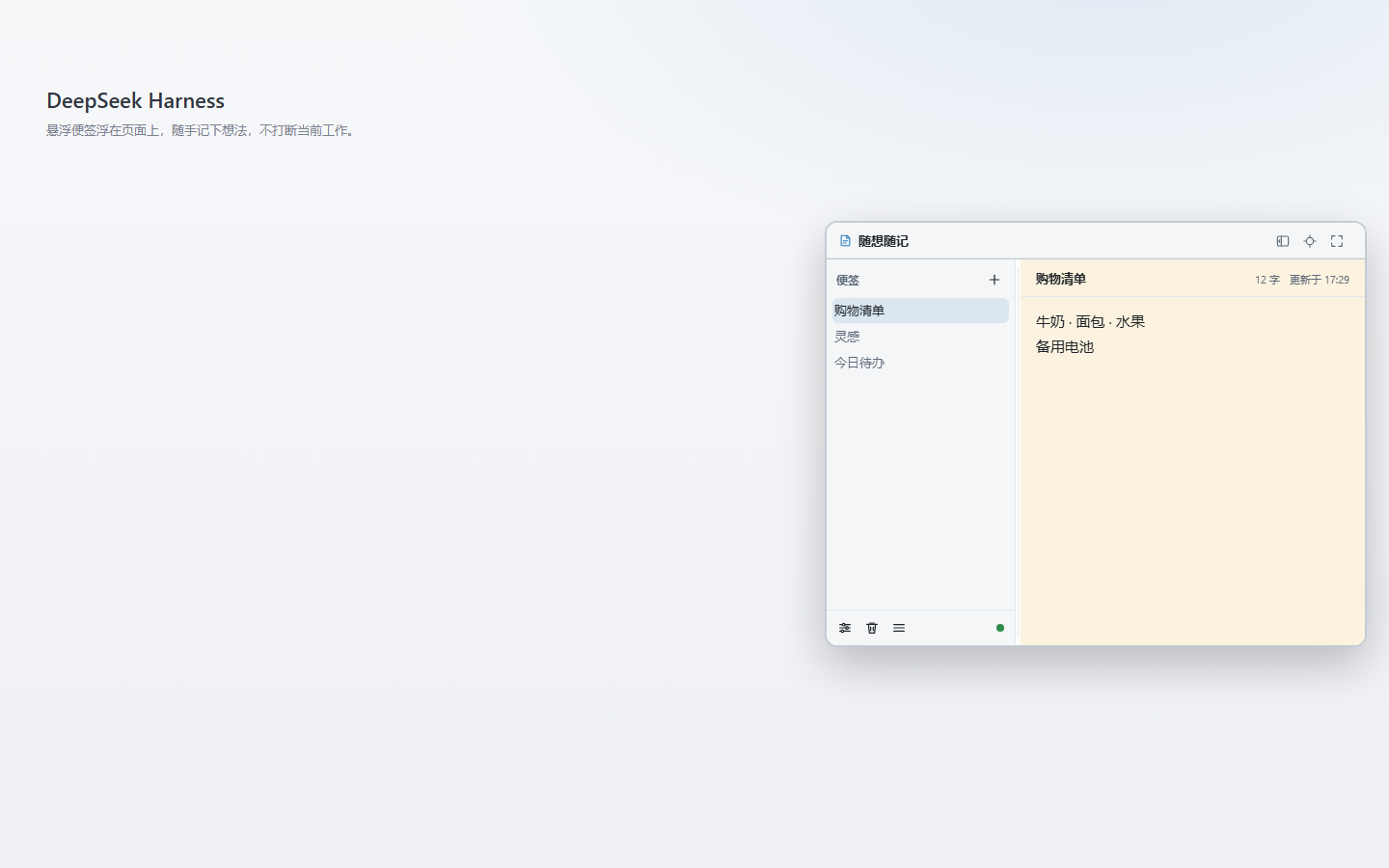
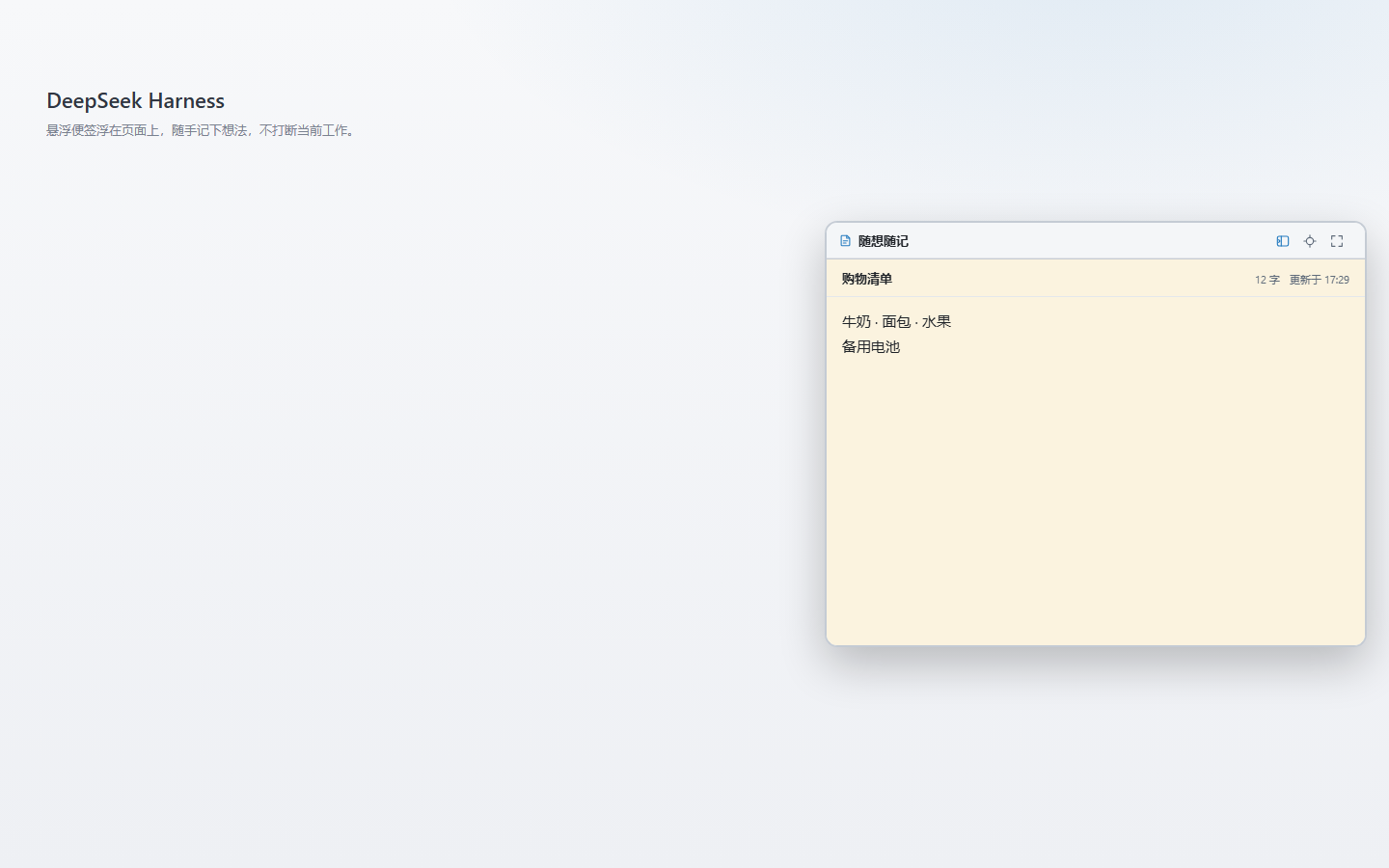
Screenshots are taken from the released 1.0.0 build. See
assets/README.md
for how they are produced and updated.
Installation
Quick Notes needs DeepSeek Harness 0.2.0 or newer. Node.js 22.13 or newer is what the plugin's local data service expects; DSH ships its own Node runtime, so you only need Node on your machine when building from source.
From the DSH UI
- Open the Plugins page in the DSH sidebar.
- Click Add plugin → Install a third-party plugin, enter
dsh-quick-notesand confirm. - Restart DSH once if the plugin does not appear immediately, then open the notes window from the notes icon at the bottom of the left sidebar.
If you use a plugin market — the built-in Plugins → Discover tab with an index source configured, or the community dshmarket plugin under Settings → Plugin market — you can also search for Quick Notes (or 随想随记) there and install it.
With the command line
dsh plugin --profile web add dsh-quick-notes
web is the profile name the DSH Web UI uses; replace it with your own profile
name when you use a different one. If the written window does not appear, restart
DSH so the local data service can start.
From a local checkout (development)
git clone https://github.com/LittleLemonJam/dsh-quick-notes.git
cd dsh-quick-notes
npm install
npm run build
dsh plugin add link:/absolute/path/to/dsh-quick-notes
You can also point DSH at the folder from the Plugins page →
Add plugin → Install a third-party plugin and select the directory that
contains package.json.
Getting started
- Click the notes icon at the bottom of the left sidebar. The note window opens.
- Press
+in the directory to create a note, type a name, and pressEnter. - Type in the note body. There is no save button; changes are written automatically after you pause for a moment.
- Add more notes whenever you need them, and click a note in the directory to switch to it.
Working with notes
- Double-click a note name in the directory to rename it.
- Double-click the title above the editor to rename the current note in place.
- Use the pin button on a row to keep an important note at the top.
- Drag rows up or down to change the order, or press
Alt+↑/↓while a row is focused. - Deleting a note sends it to the recycle bin; the bin can restore it or delete it permanently.
Formatting
Select some text and right-click inside the editor. The menu contains:
| Action | What it does |
|---|---|
| Copy | Copy the selection to the system clipboard |
| Cut | Copy the selection and remove it |
| Paste | Insert the clipboard content at the caret |
| Clear formatting | Remove bold / italic / underline and pasted formatting |
On the keyboard, Ctrl/Cmd + B, I and U toggle bold, italic and
underline. Ctrl/Cmd + V pastes plain text or cleaned HTML.
Paste or drag a PNG, JPEG, WebP or GIF picture into a note to attach it. Large pictures are scaled down to fit the window; SVG and remote image links are not kept.
Window controls
The title bar has three buttons:
- Notes only — hide the directory and make the window narrow.
- Minimize to ball — shrink the window to a small floating ball; click the ball to bring the window back.
- Reset window size — return to the default 560 × 440 size while keeping the current position.
Drag the title bar to move the window, and use the eight edge / corner handles to resize it. The window cannot be smaller than 320 × 240, and it never covers the native DSH title bar at the top of the screen.
Settings and backup
Open the gear at the bottom of the directory:
- Font size (13–20) and line height (1.4–2.0);
- Theme: follow the DSH theme, or pin the notes to light or dark;
- Reset window position: move the window back to the right side of the DSH frame;
- Export JSON / Import JSON: save a backup file or restore one;
- Sync status: see whether the current change has been stored.
Ruled paper is toggled by the three-line button next to the recycle bin.
Data and privacy
- Notes are stored locally at
~/.dsh/quick-notes/notes.json(%USERPROFILE%\.dsh\quick-notes\notes.jsonon Windows). IfDSH_HOMEis set, the file lives under that directory instead. - You can move the data directory with the
DSH_QUICK_NOTES_DIRenvironment variable. - The browser keeps a local copy so the window keeps working if the local data service is briefly unavailable. The file is the shared copy; the browser copy is a fallback.
- The plugin does not upload anything. Note content is not sent to any server; there is no account and no telemetry. The data file is plain JSON, so use disk encryption if the notes are sensitive.
- You can back up your notes with Settings → Export JSON or by copying
notes.jsonwhile DSH is closed.
Compatibility
| Component | Requirement |
|---|---|
| DeepSeek Harness | 0.2.0 or newer |
| Node.js | 22.13 or newer (DSH runtime / builds) |
| DSH surface | DSH Desktop / DSH Web GUI |
| Data format | schemaVersion: 1 |
Documentation
- User guide (Chinese) — every action in detail.
- FAQ (Chinese) — where the data lives, backups, uninstall and common questions.
- Data and storage (Chinese) — file format, local fallback and recovery.
- Development guide (Chinese) — build, test and local installation.
- Contributing — environment, code style and pull requests.
- Security policy — how to report a security problem.
- Changelog and 1.0.0 release notes.
- Architecture contract (Chinese) — for maintainers.
Development
npm install
npm run build      # regenerate client.js; the built file is committed
npm run verify     # formatting + static checks + unit tests
The repository is a DSH bundle: index.js and src/host/ register the local
data routes, src/client/ is the browser-side window, and client.js is the
generated Client bundle. See the development guide for the
full layout.
License
MIT © 2026 LittleLemonJam
Links
More in this category
zhu1090093659/dsh-web#packages/dsh-task-board★ 10247
Task board for the dsh web GUI: a sidebar multi-column kanban whose cards run in real DSH agent sessions and can also be scheduled with cron expressions, executed host-side even with the browser closed.
zhu1090093659/dsh-web#packages/dsh-web-all★ 10247
Plugin and skin collection for the DSH Web UI: task board, Git graph, right-side panel, remote mobile UI, pet, live token stats, and a skin center.
ccch1mneyyy/dsh-TUI★ 7252
Claude Code-style full-screen terminal UI: pixel-whale header, live status line, and streaming thought expansion.
MeteorNOX/DeepSeek-Balance-Whale-Widget★ 7046
A fixed-corner whale widget for the DSH web GUI — balance, today's usage and per-turn cost with peak/off-peak pricing, editable balance-alert and daily-budget bubbles, a module-based custom bubble queue with A/B weighted choices and random lines or images, 30+ vendor templates (OpenAI, OpenRouter, Kimi, SiliconFlow, Ark, Zhipu, MiniMax and more) with per-model balance and subscription quota, plus task-end sound, imported audio, custom roles and a resource manager. Local-only, no telemetry.
omdsh-dev/DSH-better-sidebar★ 5011
Full sidebar workbench with file rendering and editing, terminal, Git, and subagents; third-party plugins can register new tabs.
Devin-AXIS/deepseek-design#deepseek-idesign★ 1778
Visual design studio for websites, app prototypes, posters, cards, reports, and magazines, with templates, direct element editing, selection-aware AI draft handoff, and export.
Community comments
Comments are public GitHub Discussions. Loading them connects to GitHub and Giscus; a GitHub account is required to post.