Remote & mobile security gateway: zero-modification Tailscale/LAN access with QR pairing, RSA encryption, brute-force defense and mobile style snippets; auto-yields the shared pairing service to other remote plugins so coexistence never crashes startup.
Install
# from npm (prebuilt)
dsh plugin --profile web add dsh-remote-mobile
# from GitHub (first run asks for allowBuilds approval — follow the hint, retry)
dsh plugin --profile web add github:IceApriler/dsh-remote-mobile
Any plugin you install runs third-party code with your own permissions — it can read your files, use your credentials, and reach the network, and tool approvals don’t sandbox it. GitHub-sourced plugins also run build scripts at install time — pnpm blocks those until you allow them, so an install can stop with ERR_PNPM_GIT_DEP_PREPARE_NOT_ALLOWED or ERR_PNPM_IGNORED_BUILDS; dsh prints the exact key to add under allowBuilds in your profile’s pnpm-workspace.yaml, and the install works on the next run. Allowing a build is a trust decision: only install sources you trust, and pin a commit (github:owner/repo#sha).
README
dsh-remote-mobile
DeepSeek Harness (DSH) Remote & Mobile Secure Access Proxy Plugin
English Documentation · 简体中文
📖 About
dsh-remote-mobile is a dedicated remote and mobile security governance plugin designed specifically for DeepSeek Harness (DSH).
By default, DSH strictly listens only to the local loopback address (127.0.0.1), preventing mobile devices, tablets, or external computers from accessing the Web console. This plugin uses access control middleware and request isolation to securely open up Tailscale Private Network and Local Area Network (LAN / Wi-Fi) access, complete with RSA-encrypted login credentials, QR code pairing, persistent password auth, and automated brute-force defense. The plugin does not provide full TLS; use Tailscale or an outer HTTPS proxy for complete transport encryption.
When accessed from a phone, the plugin also adapts the DSH interface for mobile styles: a collapsible sidebar drawer with a draggable floating toggle, compatibility with the official 3-column Grid layout & right sidebar, a centered/scaled settings dialog, and dense conversation typography — so the mobile experience feels closer to the desktop.
⚡ Key Advantages
- 🚀 Break Network Barriers with Desktop-Grade Workspace: For accessing DSH Web over LAN / Tailscale. On mobile devices, common desktop operations such as creating / switching workspaces and running terminal commands are supported.
- 📱 Dedicated Mobile Adaptations & Same-Origin Reuse: Directly reuses the official DSH Web frontend (the very same UI as desktop) and the wider plugin ecosystem (sidebars, task boards, terminal panels, etc.) without maintaining a separate mobile backend. Includes out-of-the-box mobile adaptations (sidebar drawer toggle, centered settings modal, and compact chat font scaling for higher information density), alongside a built-in Style Snippet Override system to toggle presets or inject custom CSS snippets on demand.
- 🛡️ Secure Access Proxy & Credential Encryption: Login credentials use client-side RSA asymmetric encryption,
scryptsalted slow-hashing password persistence, and automated IP lockout upon consecutive brute-force failures, blocking unauthorized access over public/LAN networks. - 📲 Quick QR Pairing: Auto-detects Tailscale CGNAT and LAN IP addresses to generate dedicated pairing QR codes. Scan to open a pre-filled login page; confirm to complete authorization.
- 🔄 SSE Real-Time Push: Device connection, reconnection, revocation, and IP-lock events are pushed via SSE; the settings page retains low-frequency polling as a fallback.
- 🤝 Generic Plugin Coexistence Protection: Starts safely alongside other remote/Web access plugins by automatically yielding the shared service; the settings panel shows a conflict banner with a one-click copyable diagnosis & fix report.
🚀 Quick Start
1. One-Command Installation
Run the DSH official plugin management command in your terminal (Recommended):
dsh plugin --profile web add dsh-remote-mobile
[!IMPORTANT] Ecosystem Plugin Advice: Installing
@linxin666/dsh-web-all(all-in-one package) is not recommended. We suggest installing individual standalone plugins on demand. The all-in-one package bundles multiple frontend modules together, which may result in duplicated mobile floating buttons and conflicting gesture handlers. If you need task boards, pet widgets, or other tools, install their standalone packages directly (see FAQ Q6 for the rationale, recommended commands, and coexistence notes).
2. Configuration (Plugin 1.10.0+ Requires No webserver Config)
Plugin 1.10.0+ does not require changes to webserver or cordis.patch.yml:
- DSH 0.2.1+ keeps the default
127.0.0.1:3080; - this plugin starts the
3081secure access proxy automatically; - phones connect via QR pairing or the persistent password.
This section applies to plugin 1.10.0+.
Security Considerations: The secure access proxy binds to
0.0.0.0:3081by default without built-in TLS. In public or untrusted networks, use Tailscale (WireGuard encryption) or an outer HTTPS proxy.
Configurations created before plugin 1.9.0, or configurations that manually set webserver.host: 0.0.0.0, require the migration below. Plugin 1.10.0+ can skip this section.
DSH 0.2.1+ rejects 0.0.0.0 and fails before plugins load. Remove or comment out the entire webserver block:
# ❌ This fails to start on DSH 0.2.1+
# - id: webserver
#   host: '0.0.0.0'

# ✅ Keep the default loopback listener:
# no webserver config is needed; DSH uses 127.0.0.1:3080
# and dsh-remote-mobile uses the 3081 secure access proxy.
If unsure about the current config:
grep -n -A5 'id: webserver' ~/.dsh/profiles/web/cordis.patch.yml
If host: '0.0.0.0' is present, remove that block; otherwise no action is needed.
DSH 0.1.7 ~ 0.2.0 may keep 0.0.0.0 and the plugin falls back to direct mode; for custom domains or public IPs, configure trustedHosts.
If you have installed other plugins that might conflict, we recommend disabling them in ~/.dsh/profiles/web/cordis.patch.yml (on Windows: %USERPROFILE%\.dsh\profiles\web\cordis.patch.yml):
# (Recommended) Keep only ONE remote/Web access plugin to avoid duplicated entries.
# This plugin starts normally alongside other remote-access plugins: when it
# detects the shared pairing service is already taken by another plugin, it
# yields automatically and shows a warning banner at the top of its settings panel.
# Example: disable the legacy remote plugin bundled in @linxin666/dsh-web-ui-all
- id: web-ui-remote-web-ui
  disabled: true
💡 Note: Plugin self-registration is automatically handled by the DSH Bundle system. You do not need to add
id: remote-mobilemanually. Windows users can pressWin + Rand enter%USERPROFILE%\.dsh\profiles\webto quickly jump to the configuration folder.
[!WARNING] Installing the all-in-one bundle (
@linxin666/dsh-web-all) is not recommended: it compiles the frontend logic of multiple sub-plugins into a singleclient.jsthat self-executes on load, which may duplicate mobile entry points and cause gesture conflicts with this plugin. Install only the standalone plugins you need (task board, pet, etc.). See FAQ Q6 for the full rationale, recommended commands, and coexistence notes.
3. Launch & Pair
dsh web --no-open
Open the DSH Web Console in your browser, navigate to Settings ⚙️ -> Remote & Mobile Access, and scan the QR code with your mobile camera or WeChat to open the pairing/login page. After authorization, DSH is ready on mobile.
🧭 Version & Access Modes
Plugin 1.10.0+ uses proxy by default and does not require webserver configuration:
| Scenario | DSH core listener | Effective mode | Phone access |
|---|---|---|---|
| DSH 0.2.1+ + plugin 1.10.0+ | 127.0.0.1:3080 |
proxy |
3081 |
DSH 0.1.7 ~ 0.2.0 + 0.0.0.0 config |
0.0.0.0:3080 |
direct (automatic fallback) |
3080 |
| DSH 0.2.1+ + concrete NIC IP | 192.x.x.x:3080 |
direct |
3080 |
| Same-host reverse proxy | 127.0.0.1:3080 + explicit direct |
direct |
Proxy entry |
proxy: recommended; the core stays on loopback and the plugin provides auth/forwarding on3081.direct: no proxy; the core itself must be externally reachable. Intended for DSH 0.1.7 ~ 0.2.00.0.0.0configurations or advanced deployments.direct+ loopback core: DSH only listens on127.0.0.1, so phones cannot reach it directly. It only makes sense when a same-host Nginx / Caddy / Tailscale Serve reverse proxy forwards to3080; otherwise it is local-only.
Access Path & Authentication
The decision cannot rely on the TCP source IP (socket address) alone: Host and X-Forwarded-* also affect the result. socket IP is the TCP peer address seen by the server; it is neither Host nor X-Forwarded-For.
| Access path | Path | Decision | Plugin login |
|---|---|---|---|
| A Local direct | PC → 127.0.0.1:3081 |
Local loopback (loopback) | Not required |
| B Phone direct | Phone → 192.x.x.x:3081 / 100.x.x.x:3081 |
External direct (external) | Required (can enable allowLan/allowTailscale bypass) |
| C Same-host reverse proxy | Phone → Nginx → 127.0.0.1:3081 |
Reverse proxy (reverse-proxy) | Required (no bypass) |
“Reverse proxy” here means user-side Nginx / Caddy / Tailscale Serve, not the plugin's 3081 secure access proxy.
127.0.0.1 skips plugin login only for a local direct request with no external Host/Forwarded headers; there is no switch for this. Only plugin login is skipped; Host/Origin/CSRF checks still apply. LAN/Tailscale require auth by default, unless allowLan / allowTailscale is enabled; reverse-proxy traffic does not receive these bypasses.
Header examples (A/B/C as in the table):
- A:
Host: 127.0.0.1:3081 - B:
Host: 192.x.x.x:3081orHost: 100.x.x.x:3081 - C:
Host: dsh.example.comwithX-Forwarded-For: 100.x.x.x/X-Forwarded-Host/X-Forwarded-Proto: https
Even though Nginx connects from 127.0.0.1, case C is treated as reverse-proxy traffic and requires authentication.
location / {
    proxy_pass http://127.0.0.1:3081;
    proxy_set_header Host $host;
    proxy_set_header X-Forwarded-For $proxy_add_x_forwarded_for;
    proxy_set_header X-Forwarded-Host $host;
    proxy_set_header X-Forwarded-Proto $scheme;
}
Add custom domains to trustedHosts:
{
  "trustedHosts": ["dsh.example.com"]
}
Common mistake: rewriting Host to 127.0.0.1 and stripping all X-Forwarded-* makes the plugin treat the request as case A and skip login. Tailscale Serve is also a same-host proxy and must preserve these headers.
🖼️ UI Preview
Desktop DSH Plugin Control Panel
| Network Access & QR Pairing | Devices & Security |
|---|---|
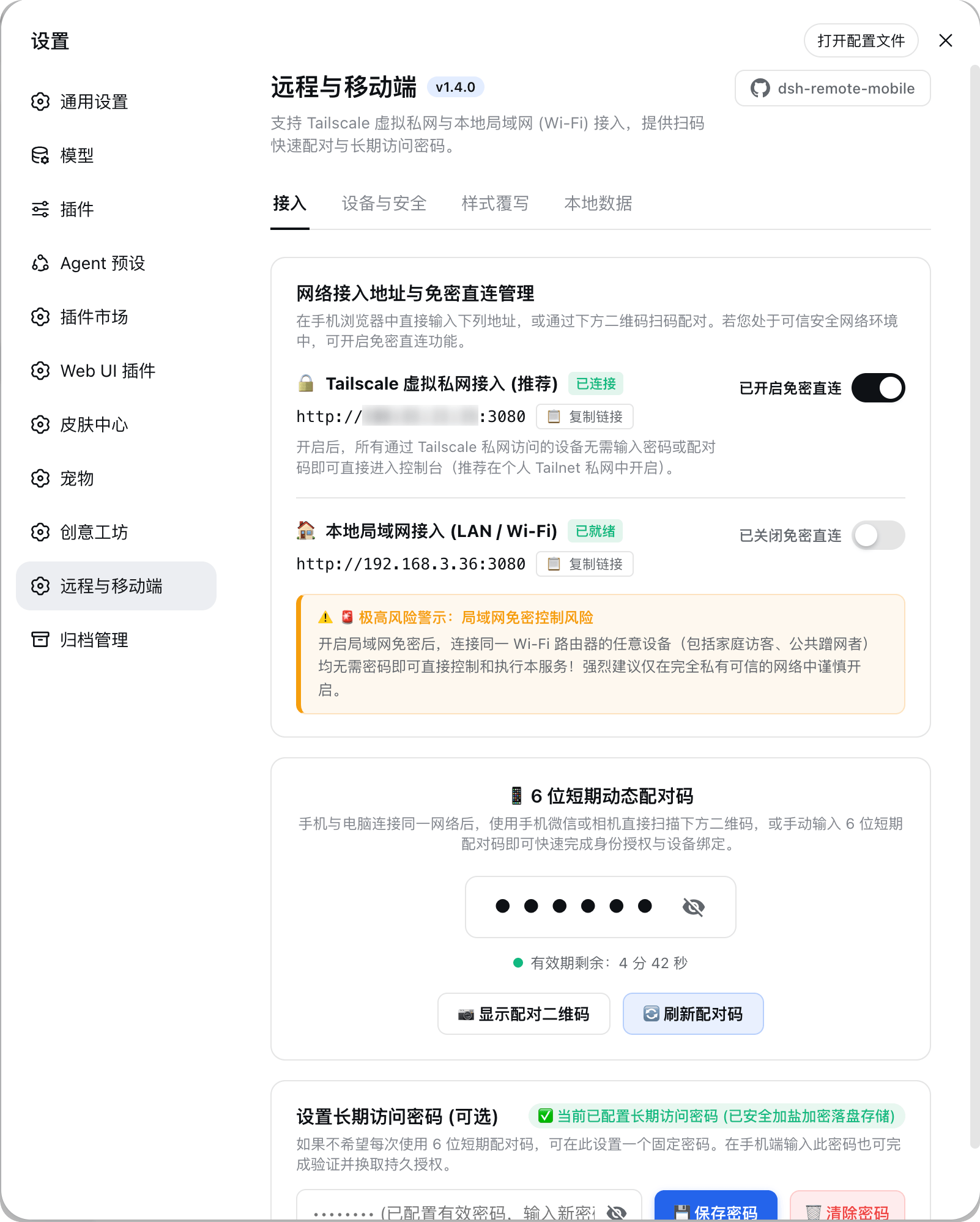 |
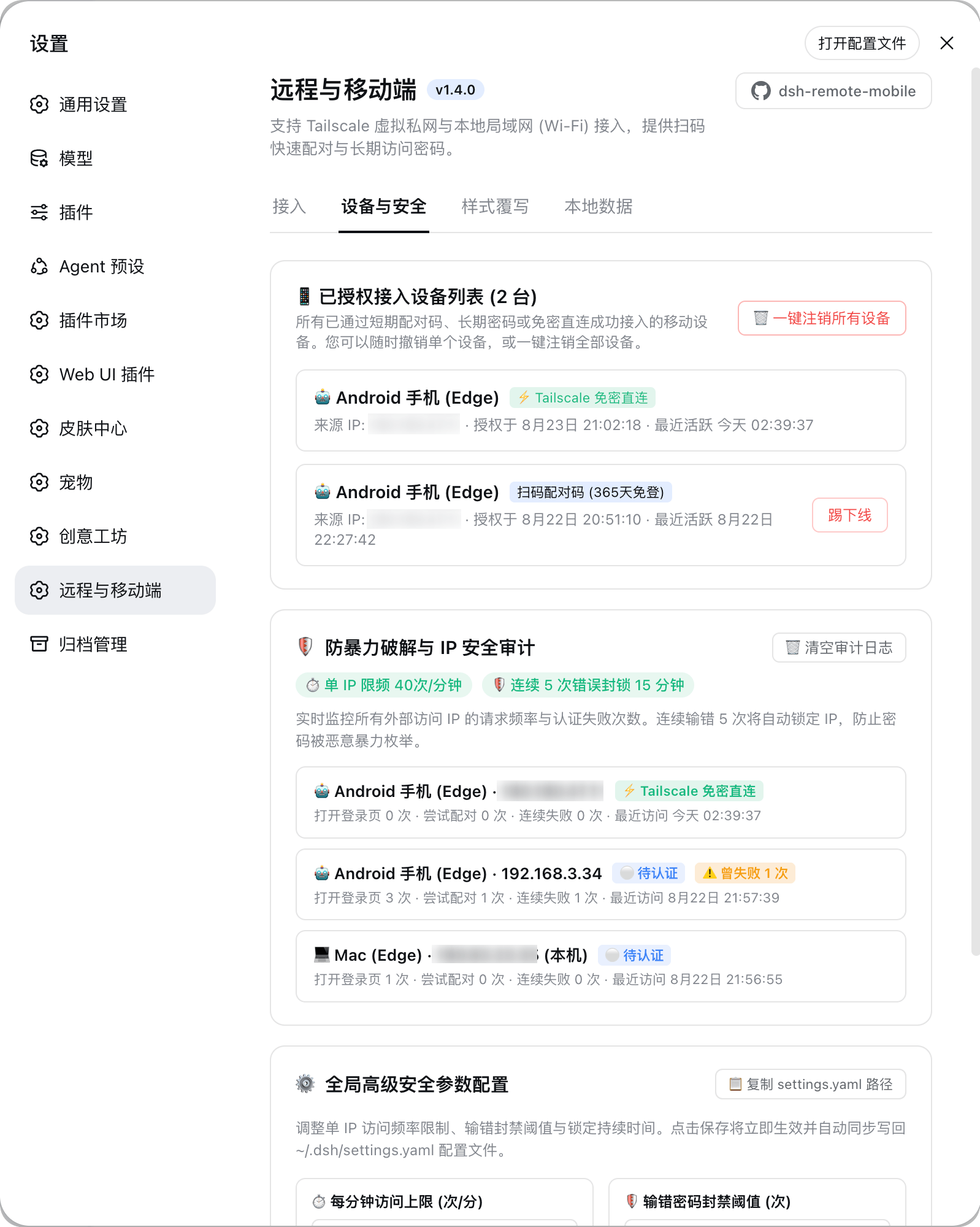 |
| Style Snippets Override | Local Data Storage |
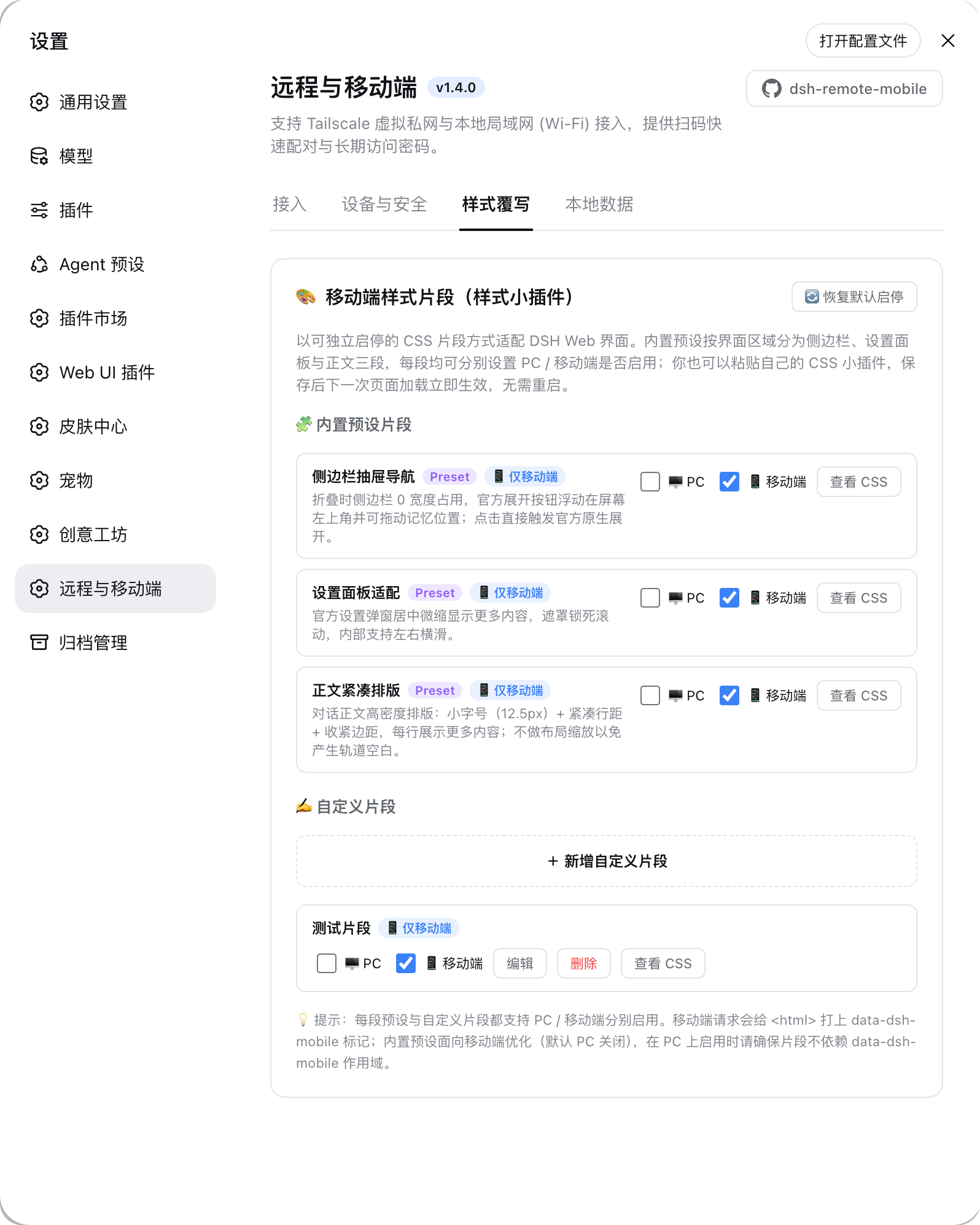 |
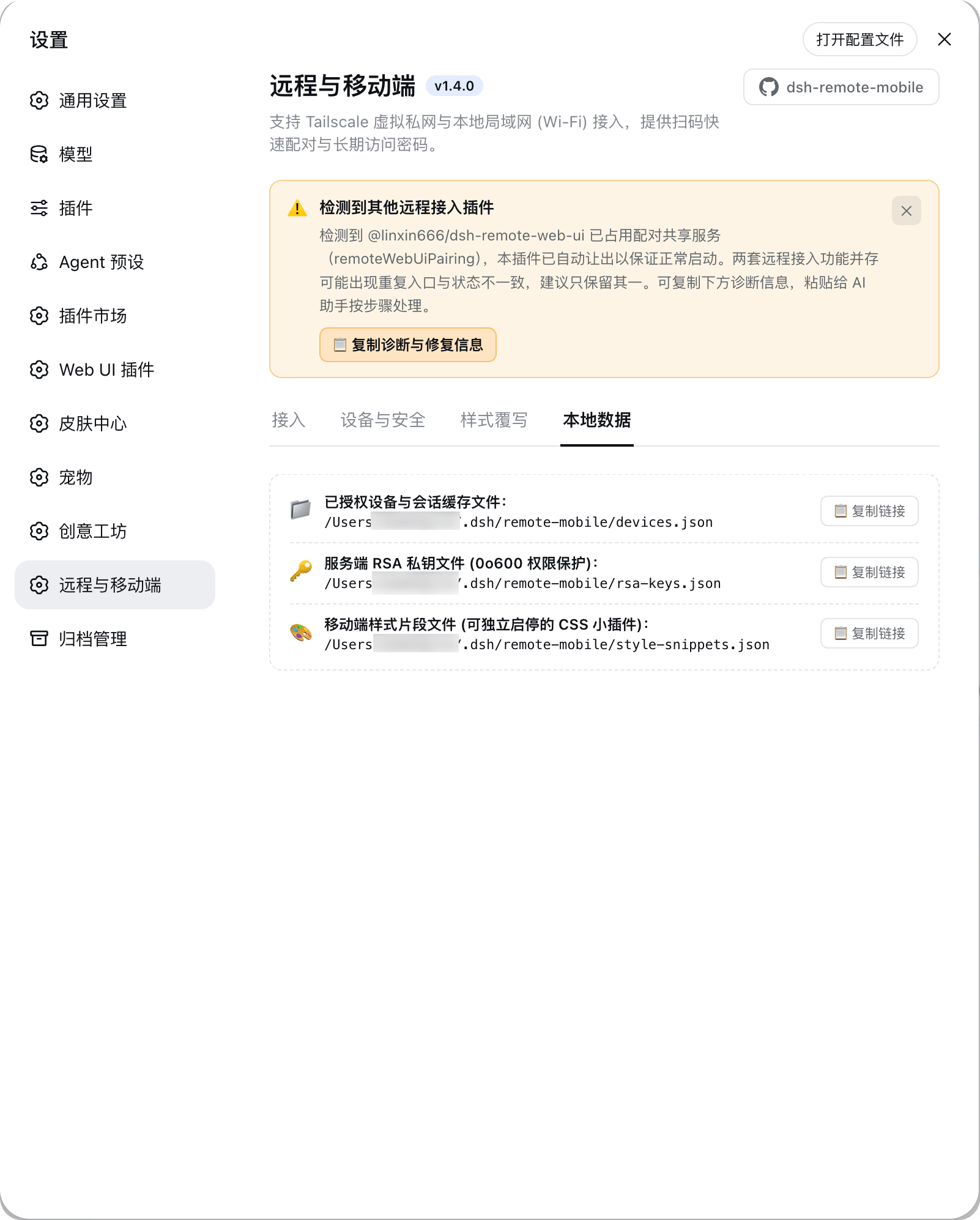 |
Mobile Live Demonstration (Same-Origin Auth & Workspace Control)
| Login & Auth | Chat Font Scaling | Mobile Sidebar Styling | Official Trajectory / Trace |
|---|---|---|---|
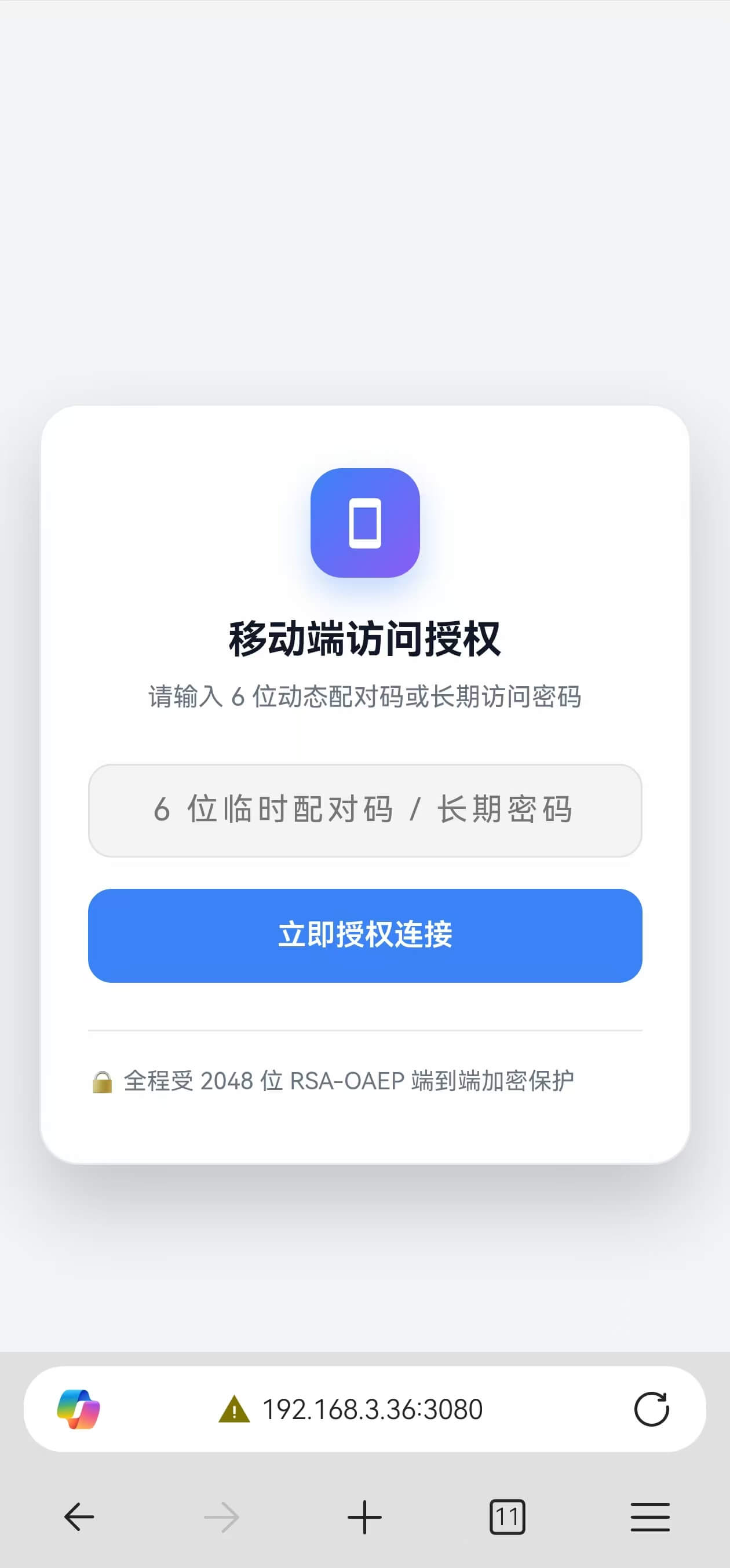 |
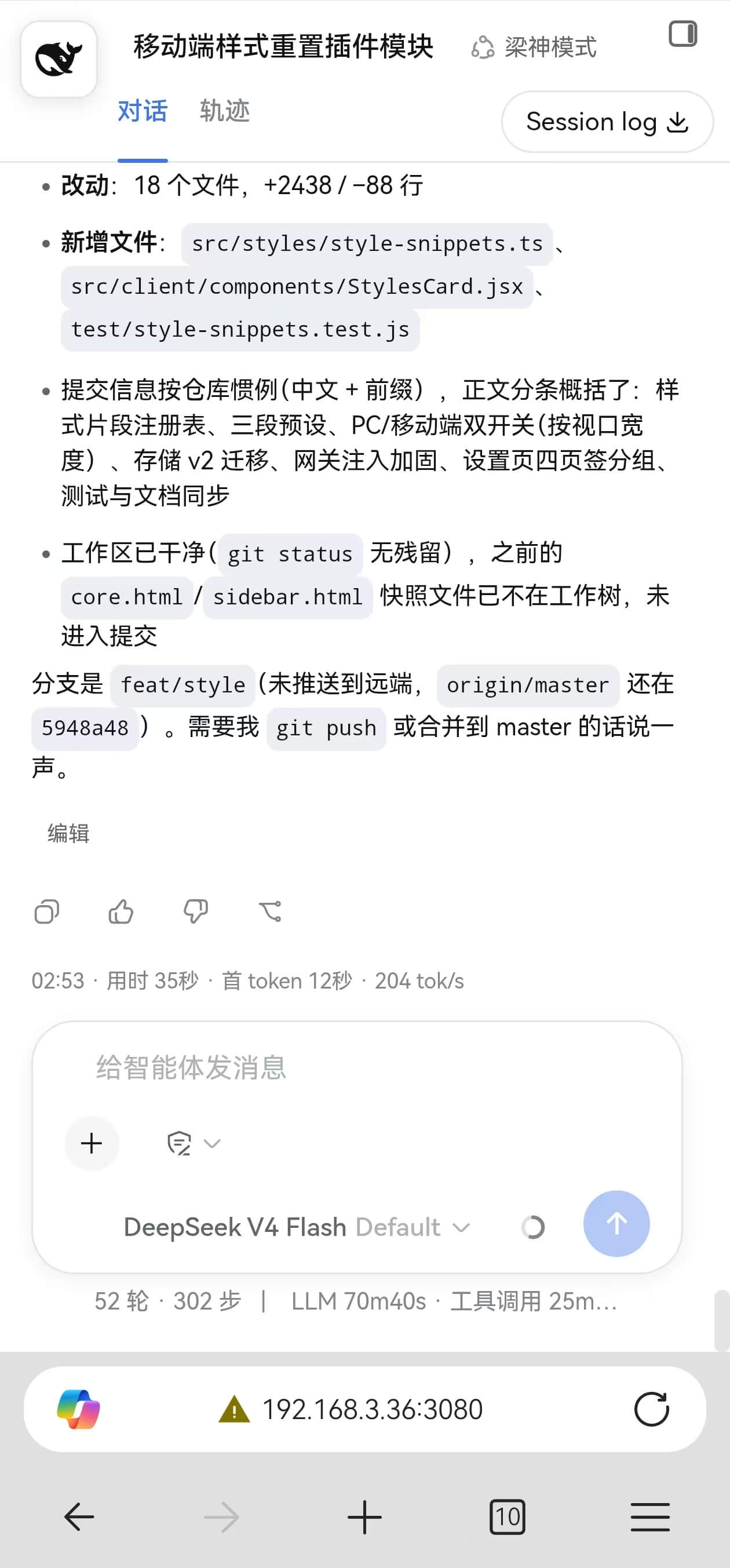 |
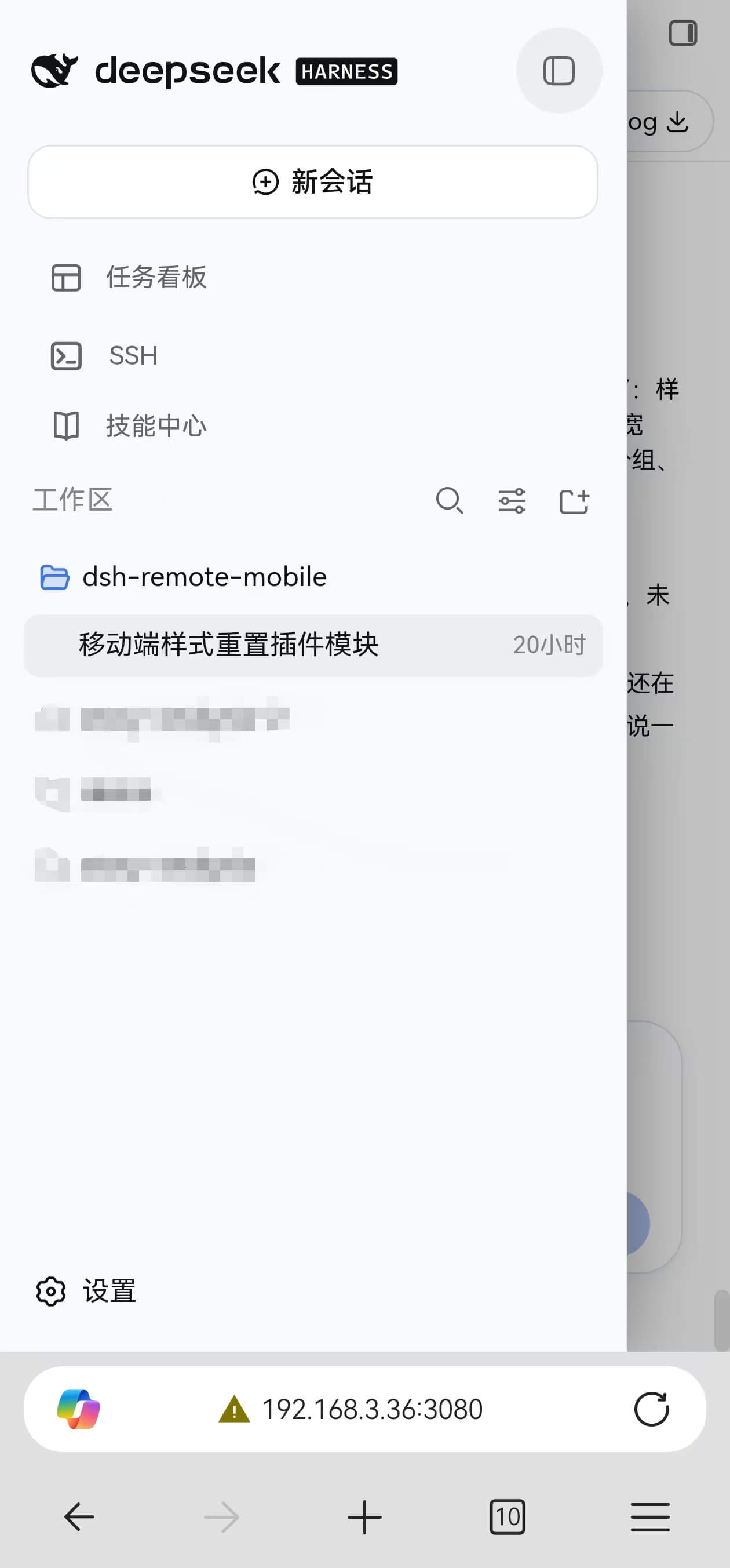 |
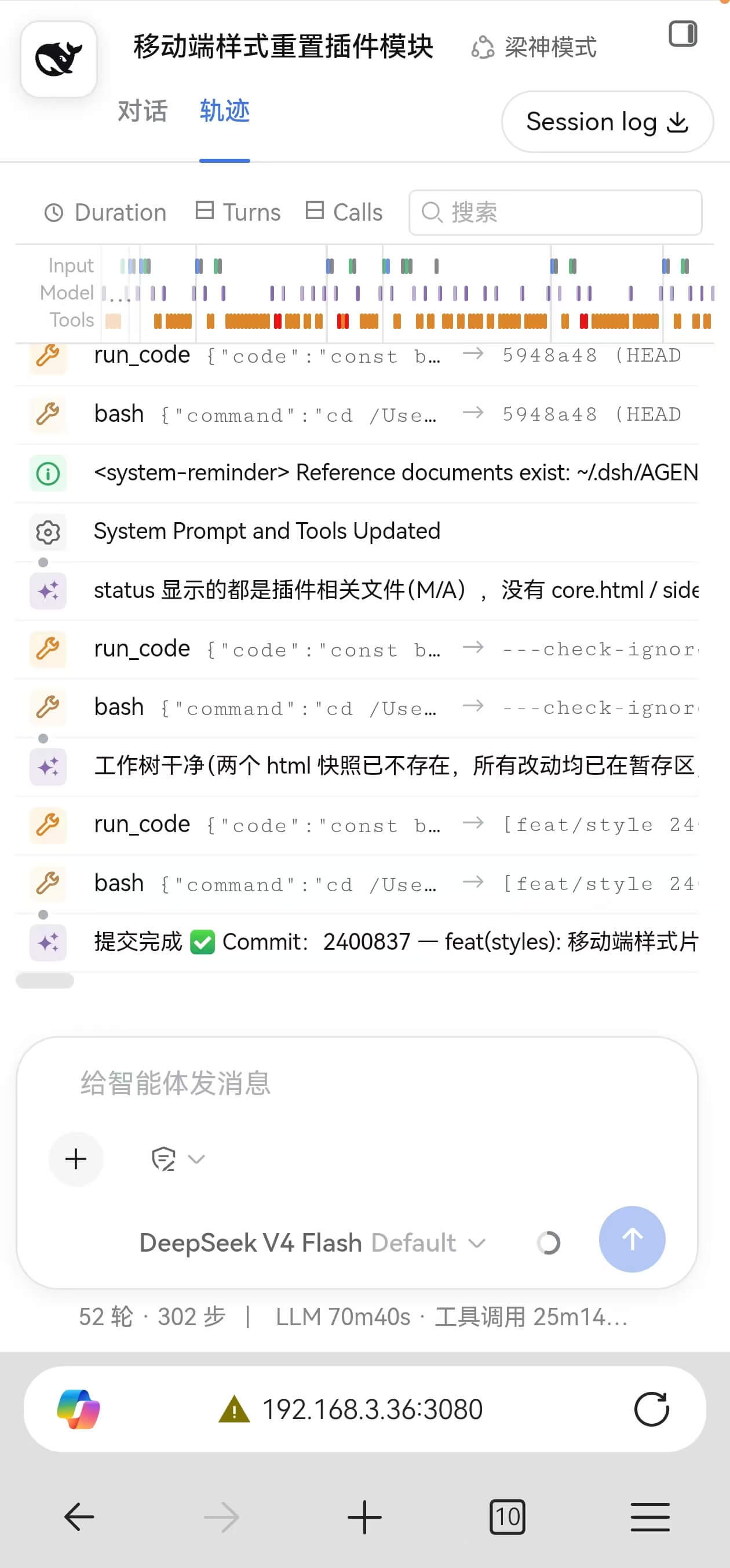 |
🌟 Features
1. Network Access
- Tailscale Private Network: Automatically detects local Tailscale IP (
100.64.0.0/10CGNAT subnet), creates pairing QR codes, and supports direct passwordless bypass (transport encryption provided by Tailscale's WireGuard tunnel). - Local Area Network (LAN / Wi-Fi): Automatically detects RFC 1918 private IPs (
192.168.x.x,10.x.x.x,172.16-31.x.x), generates LAN pairing QR codes with direct link previews and prominent high-risk security warnings. - Instant QR Pairing: Scan QR codes directly with any mobile camera or scanner app to authenticate.
2. Multi-Tier Authentication
- Dynamic 6-Digit Pairing Codes: Generates 6-digit short codes (5-minute validity, single-use) that exchange for 365-day persistent authentication cookies on mobile.
- Persistent Access Passwords: Set customizable persistent passwords (minimum 6 characters with letters and numbers) for convenient long-term logins across multiple devices.
- Direct Bypass Mode: Enable passwordless direct bypass independently for Tailscale or LAN. Disabling bypass immediately cleans up temporary credentials and resets device state.
- Device Session Management: Real-time inspection of connected device types, OS, browser, source IP, and last active timestamp, with single-device revocation and one-click bulk revocation.
3. Security & Cryptography
Application-Layer Login Credential Encryption: The Web login page encrypts credentials on the client before submitting them, so sensitive passwords and pairing codes are sent as ciphertext. If encryption fails, submission stops with an error instead of falling back to plaintext.
- Secure contexts (HTTPS): prioritizes native Web Crypto
RSA-OAEP-SHA256; - DSH default HTTP LAN/Tailscale access (browser non-secure context; Tailscale's WireGuard tunnel is still encrypted): falls back to a pure JS shim using
crypto.getRandomValues()for cryptographically secure random padding.
The plugin does not provide TLS itself; page/API/WebSocket traffic needs Tailscale or an outer HTTPS proxy for full transport encryption.
- Secure contexts (HTTPS): prioritizes native Web Crypto
scrypt Slow Hash Storage: Server persists passwords with
scryptsalted slow-hashing (scrypt:${salt}:${hash}). Verification usescrypto.timingSafeEqualconstant-time comparison to prevent timing side-channel attacks.Brute-Force Defense & Rate Limiting:
- Automatically locks out IPs for 15 minutes after reaching consecutive failed attempt thresholds (default: 5), returning HTTP 429;
- Sliding-window rate limiting (default: 60 visits/min) to prevent high-frequency brute-force scraping;
- Audit logs and lockout states persist to disk and restore across restarts;
- Administrators can manually unlock blocked IPs with one click in the panel.
Intelligent Static Asset Whitelisting: The authentication gate allows known frontend asset extensions (
.js,.css,.png,.svg,.woff2, etc., 20 types) while blocking extensionless or dynamic API routes (e.g./plugins/xxx/admin), reducing the exposed dynamic-API surface while remaining compatible with third-party frontend assets, without manual whitelist configuration. (The DSH core static directory/assets/is an official resource and is allowed unconditionally.)Resilient Atomic Persistence & Debounce: Millisecond-level debounce write-throttling to safeguard disk I/O (500ms for session data, 300ms for style snippets), coupled with
beforeExitprocess flush hooks and atomic temporary file replacement (renameSync) forsettings.jsonandstyle-snippets.json.Source IP Extraction: By default only the underlying Socket address is trusted; when a request is recognized as a trusted reverse proxy (via Host /
X-Forwarded-*), the first validX-Forwarded-ForIP is used instead, balancing real-source attribution with anti-spoofing.Cross-Site Write Defense: All write requests carrying browser same-origin signals validate (
Origin/Sec-Fetch-Site). Cross-site writes driven by malicious webpages against127.0.0.1are rejected outright; non-browser clients (curl / local scripts) are not subject to this check. Note: this policy also blocks cross-origin webhooks / OAuth callbacks from third-party plugins and legacy WebViews that sendOrigin: null; validate compatibility before using such integrations.Context & Proxy Boundary: Same-origin/local-variant Host and Origin are normalized as a pair, while malicious cross-site Origins are preserved for downstream CSRF checks. A same-host
127.0.0.1proxy is recognized via an external Host, and a LAN/Tailscale proxy viaX-Forwarded-*, so neither is mistaken for a passwordless local client; they must authenticate with the plugin token. The plugin's own trusted proxy is exempted via an internal secret. Loopback requests carrying the plugin's own 127-valued Forwarded headers are recognized as internal and do not break the local 3080 root connection auth. The SSE event stream accepts same-origin connections only, with no cross-origin reads.
4. Real-Time Sync & Internationalization
- SSE Real-Time Push: Push notifications for new device pairing, reconnections, revocations, and security alerts via Server-Sent Events, with bidirectional close listeners and idempotent cleanup.
- Adaptive Bilingual UI: Automatically switches between English and Simplified Chinese based on DSH settings and browser language preferences.
- Non-HTTPS Compatibility Patch: Injects
crypto.randomUUIDandnavigator.clipboardPolyfills into HTML templates to address missing native Web Crypto / Clipboard APIs in HTTP non-secure mobile browser contexts (the clipboard polyfill provides copy and snippet-copy support in non-secure contexts).
5. Mobile Style Snippets (style mini-plugins)
The DSH web UI still carries many desktop-oriented styles on phones. This plugin ships a built-in Mobile Style Snippets module that splits mobile adaptation into toggleable CSS snippets:
- Three area-based built-in presets (mobile on / PC off by default):
preset-sidebarSidebar Drawer: the collapsed sidebar occupies 0 width, with a draggable floating toggle, adaptive drawer width, and touch-friendly 44px tap targets;preset-settingsSettings Panel: vertically stacked layout with horizontally scrollable nav tabs and natural vertical scrolling;preset-mainDense Conversation Typography: compact 12.5px text, tight line-height and margins for more content per line; built on stable HTML elements and localName suffixes, with no layout scaling and no right-side gaps;
- Separate PC / Mobile toggles (viewport-width based, device-independent): every preset and custom snippet has independent PC and Mobile switches; "Mobile" = applies at narrow viewports (≤900px) — a PC browser with a narrow window gets it too; "PC" = applies at wide viewports (>900px); both on = applies at all widths;
- About the
html[data-dsh-mobile]selector: that marker is only written for mobile-UA requests. If your custom CSS starts withhtml[data-dsh-mobile], it only matches phone/mobile-UA clients; to also target a narrow desktop window, write the selector directly (without thehtml[data-dsh-mobile]prefix) and the injection layer wraps it in the media query automatically.
- About the
- Custom snippets (your own mini-plugins): paste your CSS in Settings ⚙️ → Remote & Mobile → 🎨 Mobile Style Snippets to add a snippet, with edit/toggle/delete/one-click copy support (every snippet has a "📋 Copy CSS" button next to "View CSS"). Persisted to
~/.dsh/remote-mobile/style-snippets.json; changes apply on the next page load without restart; - UA-based marker + width-based styling: styles apply by viewport-width band (see above), independent of device UA; mobile UA requests additionally add
data-dsh-mobile="1"to<html>as a scope hook (using it as a selector only matches mobile UA — see the note above), and the draggable toggle script is injected for all clients (it only activates while the sidebar is collapsed).
6. Generic Plugin Coexistence Protection
- Automatic coexistence yield: when the shared pairing service
remoteWebUiPairingis already registered by another remote/Web access plugin, this plugin yields automatically (deferred arbitration: it waits until the activation window settles, then checks who owns the service name), avoiding the whole-tree rollback caused by service-name collisions — installing from the plugin market usually works without manually disabling the other plugin; - Visible coexistence status: when a conflict is detected, a dismissible warning banner (Chinese/English) appears at the top of the settings panel, explaining the yield behavior and the "keep only one" recommendation; refresh after resolving and it disappears;
- One-click diagnosis report: the "📋 Copy diagnosis & fix" button in the banner copies a full report — the conflicting plugin's package name and loader entry id are auto-detected at runtime, and the report includes line-exact fix configuration and commands (disable the other / remove this one), ready to paste to an AI assistant.
📦 Installation & Update
Method 1: DSH CLI One-Command Install (Recommended)
dsh plugin --profile web add dsh-remote-mobile
Method 2: Web GUI Plugin Marketplace Install
- Open DSH Web console in your browser;
- Navigate to Settings ⚙️ -> Plugins;
- Switch to the Plugin Management tab at the top;
- Enter the npm package name
dsh-remote-mobileand click Install; - Restart DSH after installation completes.
Method 3: Install via Package Manager in Profile Directory
# 1. Navigate to DSH Web Profile directory
cd ~/.dsh/profiles/web

# 2. Install using pnpm
pnpm add dsh-remote-mobile
Method 4: Local Source Development (Instant Symlink Sync)
# 1. Clone source code
git clone https://github.com/IceApriler/dsh-remote-mobile.git
cd dsh-remote-mobile

# 2. Install dependencies & build
npm install
npm run build
Create symlink to DSH runtime (changes take effect instantly on npm run build):
macOS / Linux:
rm -rf ~/.dsh/profiles/web/node_modules/dsh-remote-mobile
ln -s $(pwd) ~/.dsh/profiles/web/node_modules/dsh-remote-mobile
Windows (PowerShell):
Remove-Item -Recurse -Force "$HOME\.dsh\profiles\web\node_modules\dsh-remote-mobile"
New-Item -ItemType Junction -Path "$HOME\.dsh\profiles\web\node_modules\dsh-remote-mobile" -Target (Get-Location)
Windows (CMD):
rmdir /s /q %USERPROFILE%\.dsh\profiles\web\node_modules\dsh-remote-mobile
mklink /J %USERPROFILE%\.dsh\profiles\web\node_modules\dsh-remote-mobile %CD%
🔄 Updating Plugin
Run the update command in your terminal and restart DSH:
# Method 1: DSH CLI One-Command Update (Recommended)
dsh plugin --profile web update dsh-remote-mobile

# Method 2: Update via Package Manager in Profile Directory
cd ~/.dsh/profiles/web && pnpm update dsh-remote-mobile
💡 Tip: You can also click the update button in the Web console under Settings ⚙️ -> Plugins -> Plugin Management, or run
dsh plugin --profile web add dsh-remote-mobile@latest.
🗑️ Uninstalling
dsh plugin --profile web remove dsh-remote-mobile
⚙️ Advanced Configuration
Configurations persist in the plugin-owned file ~/.dsh/remote-mobile/settings.json. In the Web settings page:
| Configuration | Location | Apply |
|---|---|---|
mode / proxyPort / proxyHost / trustedHosts |
Access → Access Proxy Configuration | Restart DSH |
| Tailscale / LAN bypass switches | Access → Network Access & Bypass Management | Immediate |
| Persistent access password | Access → Configure Persistent Password (Optional) | Immediate |
| Rate limit / failure threshold / lockout | Devices & Security → Global Security Policy Configuration | Immediate |
| Style snippets | Style Overrides | Next page load |
You can also edit settings.json directly. Restart DSH after changing the access mode or listener settings:
{
  "allowTailscale": false,     // boolean, default false: allow passwordless access via Tailscale
  "allowLan": false,           // boolean, default false: allow passwordless access via LAN (High Risk)
  "secretHash": "",            // string, default empty: scrypt salted hash of the persistent password
  "maxVisitsPerMinute": 60,    // number, default 60: max login page visits per minute per IP
  "maxFailedAttempts": 5,      // number, default 5: max consecutive failed attempts before IP lockout
  "lockDurationMs": 900000,    // number, default 900000 (15 mins): IP lockout duration in ms
  "proxyPort": 3081,           // number, default 3081: secure proxy port
  "proxyHost": "0.0.0.0",      // string, default 0.0.0.0: secure proxy listen address
  "mode": "proxy",             // proxy | direct: proxy is the default (recommended)
  "trustedHosts": [            // string[], default []: trusted domain whitelist (e.g. Tailscale MagicDNS or reverse proxy domain)
    "my-device.tailnet.ts.net"
  ]
}
Terminology: In this document, “Secure Access Proxy” refers to the reverse-proxy entry point provided by this plugin on port
3081; it handles authentication, Host/Origin validation, and request forwarding. It is not a network default gateway.About
trustedHosts: If accessing DSH via Tailscale MagicDNS (e.g.xxx.tailnet.ts.net) or an external reverse proxy domain, add bare hostnames to this array. Both the secure proxy and core will accept them in the host whitelist and plugin trust fences, preventing 400 or 403 errors. The same whitelist applies to direct mode: when accessing via a custom domain, public IP, or a non-local hostname, the actual Host must be listed here; local NIC IPs and loopback are recognized automatically.About
proxyPort/proxyHost/mode: defaults are usually sufficient.mode: 'proxy'is the default and requires the core to listen on loopback; if the core is externally bound (0.0.0.0or a concrete NIC IP), the plugin automatically falls back todirectwith a warning.mode: 'direct'starts no secure proxy and requires the core to be externally reachable; with a loopback core,directonly works behind a same-host reverse proxy and phones cannot connect directly. Restart DSH after changing these advanced options.HTTPS reverse proxy note: When using Nginx/Caddy/Tailscale Serve with HTTPS, make sure to:
- Preserve the external Host (Nginx:
proxy_set_header Host $host; do not rewrite it to127.0.0.1);- Forward
X-Forwarded-For,X-Forwarded-Host, andX-Forwarded-Proto: https(Caddy/Tailscale usually do this automatically).The plugin uses these headers for protocol/source-aware same-origin checks and 302 redirects. When a proxy carries Forwarded headers and is recognized as proxied traffic,
allowLan/allowTailscalebypass is disabled even if the proxy sits on a LAN/Tailscale address, so normal token auth applies. If a proxy rewrites Host to127.0.0.1and sends noX-Forwarded-*headers, the plugin cannot distinguish a local browser from a same-host proxy; a LAN/Tailscale proxy without these headers may also be mistaken for a real LAN client. Configure it as above.
About config storage: Since DSH 0.1.7 (first noted in the v0.1.7-alpha.1 release notes; continued in 0.2.x),
~/.dsh/settings.yamlis no longer a live configuration source — on boot it is imported once into the active profile'scordis.patch.ymland renamed tosettings.yaml.imported(see Q8). This plugin therefore no longer writes to settings.yaml and persists to its ownsettings.jsonabove; on first launch it automatically migrates once from the legacysettings.yaml/settings.yaml.imported(recovering your old persistent password, rate limits, etc.).
🎨 Mobile Style Snippets (optional)
Custom snippets (style mini-plugins) and their enabled states are persisted in ~/.dsh/remote-mobile/style-snippets.json. Manage them from the settings panel or edit the file directly:
{
  "version": 2,
  "presetStates": {
    "preset-sidebar": { "pc": false, "mobile": true },
    "preset-settings": { "pc": false, "mobile": true },
    "preset-main": { "pc": false, "mobile": true }
  },
  "custom": [
    {
      "id": "custom-xxx",
      "name": "My style mini-plugin",
      "css": "html[data-dsh-mobile] .my-selector { ... }",
      "pcEnabled": false,
      "mobileEnabled": true
    }
  ],
  "customOrder": ["custom-xxx"]
}
Enabled snippets are merged into a single
<style>injected into the main page and the/authlogin page; effectiveness is decided by viewport width: snippets withmobileEnabledare wrapped in@media (max-width: 900px)(apply at ≤900px — a narrow PC window gets them too),pcEnabledin@media (min-width: 901px), and both on means all widths (v1 files migrate automatically;presetStatesalways persists all three preset groups with current effective values). Note: enabling the Sidebar Drawer preset on PC changes the desktop layout — turn its PC switch off if undesired.
📂 Local File Storage Locations
💡 Path Note: On macOS / Linux, the base path is
~/.dsh/; on Windows, it resolves toC:\Users\<username>\.dsh\(you can directly paste%USERPROFILE%\.dshinto the File Explorer address bar).
| Path | Description | Security Level |
|---|---|---|
~/.dsh/remote-mobile/settings.json |
Plugin config: bypass toggles, persistent-password hash, rate-limit & lockout policy, access mode and proxy listener settings | Local storage, 0o600 (Restricted to current user) |
~/.dsh/remote-mobile/devices.json |
Authorized devices, sessions & IP audit statistics (contains long-lived tokens, 0o600) |
Local storage, restricted to current user |
~/.dsh/remote-mobile/rsa-keys.json |
Server RSA keypair (public & private) | Local storage, 0o600 (Restricted to current user) |
~/.dsh/remote-mobile/style-snippets.json |
Mobile style snippets (built-in toggles + custom CSS mini-plugins) | Local persistent storage |
0o600is a POSIX permission; Windows uses user-directory ACLs instead of POSIX mode bits.
❓ FAQ
Answer: This means port 3080 (DSH core) or 3081 (plugin secure proxy) is held by another process (in most cases a previous dsh web instance has not fully exited — e.g. a hidden instance launched by a desktop shortcut, or overlapping old/new processes during restart). It is unrelated to which plugins are installed. Troubleshooting:
- Find the process holding the port:
- macOS / Linux:
lsof -nP -iTCP:3080/lsof -nP -iTCP:3081 - Windows:
netstat -ano | findstr 3080/netstat -ano | findstr 3081(PID is in the rightmost column)
- macOS / Linux:
- Terminate the old instance:
- macOS / Linux:
kill <PID> - Windows:
taskkill /F /PID <PID>(or kill the Node process in Task Manager)
- macOS / Linux:
- Start
dsh webagain. - Note: An instance launched via the desktop shortcut (dsh-desktop-launcher) and one started manually in a terminal cannot run simultaneously. If only 3081 is occupied, the plugin automatically probes the next ports (up to 10) by default; use the actual port shown in the settings QR code / terminal banner. A 3080 conflict usually requires terminating the old DSH instance.
If your log instead shows service "remoteWebUiPairing" has been registered, please upgrade this plugin to the latest version — newer versions ship with generic coexistence protection and can start normally alongside other remote-access plugins by yielding the service automatically, with a banner explaining the details in the settings panel.
Answer: Please verify the following items step by step:
- Configuration: On DSH 0.2.1+, do not set
host: '0.0.0.0'incordis.patch.yml(it will fail to start). Keep DSH's default127.0.0.1:3080; the plugin starts the3081secure proxy automatically. DSH 0.1.7 ~ 0.2.0 may use0.0.0.0; an explicitdirectmode requires a concrete NIC IP. Restart DSH after any config change. - Same Network: For LAN access, ensure your mobile phone and computer are connected to the exact same Wi-Fi router, and disable standalone VPN/proxy apps on your phone.
- Windows Defender Firewall (Common for Windows users):
- When prompted by the Windows Firewall popup on startup, ensure both "Private networks" and "Public networks" are checked before allowing access;
- If you missed the prompt or still cannot connect, run the following command in PowerShell as Administrator to allow the proxy port (default
3081; use3080if you are indirectmode):New-NetFirewallRule -DisplayName "DSH Remote Proxy 3081" -Direction Inbound -LocalPort 3081 -Protocol TCP -Action Allow - Check Wi-Fi Network Profile: Under Windows "Settings -> Network & Internet -> Wi-Fi", make sure your current Wi-Fi profile is set to "Private network" (Windows "Public network" blocks inbound LAN connections by default);
- Virtual / WSL Network Adapters: If WSL2 or Hyper-V is installed on Windows, virtual network adapters (e.g.
172.x.x.x) may be present. Make sure you use the physical WLAN / Wi-Fi LAN IP or the Tailscale QR code shown in the plugin settings panel. If the proxy port auto-incremented, use the actual port shown in the settings panel / terminal banner.
Answer:
- Tailscale Bypass: Reasonably secure. Tailscale operates over an encrypted WireGuard overlay; by default, only devices in the same tailnet or explicitly authorized by ACL/sharing can connect.
- LAN Bypass: Inherent risks. When enabled, any LAN device that can reach the gateway port (including guests or unauthorized devices) may control your workspace; guest-network isolation or a firewall may block it, but do not treat that as a security boundary. Never enable this on untrusted networks.
Answer: Supported. The plugin uses request isolation so that mobile devices get the same workspace management and execution capabilities as the desktop Web interface. If tapping "Select folder" opens the dialog on the PC instead of the phone, see Q12.
A: Open Settings ⚙️ → Remote & Mobile → 🎨 Mobile Style Snippets. First try toggling the three area presets (sidebar / settings / conversation), each with independent PC and Mobile switches; if that is not enough, paste your own CSS into the "Custom Snippets" area (e.g. .my-selector { ... }). Refresh the mobile page to see the effect immediately. Everything lives in ~/.dsh/remote-mobile/style-snippets.json and survives plugin upgrades.
Tip: if your selector starts with
html[data-dsh-mobile], it only applies to mobile-UA clients and will not match a narrow desktop window; drop the prefix if you want both.
Answer: It means another remote/Web access plugin is enabled alongside this one and registered the shared pairing service first. To keep startup safe, this plugin has automatically yielded that service (its own secure proxy and remote access are unaffected), but running two remote-access features side by side may cause duplicated entries. Keeping only one is recommended:
- Click "📋 Copy diagnosis & fix" in the banner and paste the report to an AI assistant (the report already identifies the conflicting plugin's package name and entry id, with exact fix configuration);
- To keep this plugin: follow the report to append the
disabled: truelines for the other plugin at the end of~/.dsh/profiles/web/cordis.patch.yml, then restart DSH; - The banner can be temporarily dismissed with ✕; it disappears after a refresh once the conflict is resolved.
Answer: This is primarily based on avoiding functional conflicts and keeping the environment lightweight and decoupled:
- Avoid duplicated mobile entries and touch gesture conflicts: All-in-one packages compile the frontend logic of dozens of sub-plugins into a single
client.js. Its mobile adaptation logic executes upon script load. Even if you setweb-ui-remote-web-ui: disabled: trueincordis.patch.yml, the browser may still render the floating whale button (#dshRemoteWhale), causing duplicated mobile floating entry points and touch gesture interference. - Lightweight and independently upgradable: Installing standalone packages on demand keeps a minimal dependency footprint and allows independent upgrading, rollback, and maintenance. Install only the standalone packages you need, for example:
# Install only what you need — clear responsibilities, no interference
dsh plugin --profile web add @linxin666/dsh-client-ui-task-board
dsh plugin --profile web add @linxin666/dsh-client-ui-web-ui-settings
dsh plugin --profile web add @linxin666/dsh-pet
dsh plugin --profile web add @linxin666/dsh-ssh
(Note: As of v1.6.0, dsh-remote-mobile includes compatibility protection — an injected suppression script writes dsh-remote-force-desktop=1 into sessionStorage and coordinates with CSS to prevent #dshRemoteWhale from being mounted twice. The whale entry itself may still be rendered by the other plugin, and the root cause of the overlap lies there, so installing standalone packages is still recommended).
Answer:
- Sub-path & Prefix Adaptive: As of v1.8.0, the frontend natively adapts to
<base href="...">, and server-side redirects support theX-Forwarded-Prefixheader. When accessed through a sub-path gateway (e.g.http://<ip>:5666/app/dsh/), requests automatically stay scoped within the current sub-path:- Settings panel & SSE live connection: API paths are resolved dynamically from
<base>, so saving config, generating pairing codes, and receiving live events never lose the/app/dshprefix (on earlier versions this showed up as “clicking does nothing”); - Standalone mobile login page & 302 redirects: login verification, post-login navigation, and the gate /
/authredirects all stay within the current sub-path instead of jumping out to the host root; - Note: server-side 302 redirects depend on the reverse proxy forwarding
X-Forwarded-Prefix; if it is not forwarded, redirects fall back to the safe default path/auth.
- Settings panel & SSE live connection: API paths are resolved dynamically from
- Reverse Proxy Source Detection & Authentication:
- By default the plugin trusts the physical socket only. A same-host
127.0.0.1proxy carrying an external Host, or any proxy carryingX-Forwarded-*, is recognized as proxied traffic and no longer receivesloopback/allowLan/allowTailscalepasswordless access; it must authenticate with the plugin token (pairing code or persistent password). - Make sure the reverse proxy preserves the external Host (do not rewrite it to
127.0.0.1) and forwardsX-Forwarded-For,X-Forwarded-Host, andX-Forwarded-Proto: https. Caddy / Tailscale Serve usually handle this automatically; Nginx requires explicit configuration. If Host is rewritten to127.0.0.1with no Forwarded headers, the plugin cannot distinguish a local browser from a same-host proxy. - If you want the plugin pairing code/password enforced even through an external unified domain, configure the proxy as above so the plugin can identify the real source and apply token auth. Do not rely on the NAS/host gateway login as a replacement for plugin authentication.
- If you do not need proxy mode, you may use
directmode with a concrete NIC IP; on DSH 0.2.1+ a wildcard0.0.0.0is not allowed.
- By default the plugin trusts the physical socket only. A same-host
Answer: This is an official DSH behavior change introduced in 0.1.7 (first noted in the v0.1.7-alpha.1 release notes; continued in 0.2.x), unrelated to this plugin:
- Since DSH 0.1.7,
~/.dsh/settings.yamlis no longer treated as a live configuration source. On boot it is imported once by the officialdsh-settingsimportLegacyDocument()into the active profile's~/.dsh/profiles/<profile>/cordis.patch.yml, then the original file is renamed tosettings.yaml.imported(it renames first, then imports; a section with no matching entry is skipped, kept only in that file, and never retried). The official v0.1.7-alpha.1 release notes state that settings are now persisted as the current profile's plugin configuration (with declared live-update fields), and the legacysettings.yamlis imported only once — custom settings plugins must adapt. - So after upgrading,
settings.yamldisappearing and onlysettings.yaml.importedremaining is expected; model providers, locale, etc. should now be viewed/edited in the profile'scordis.patch.yml. - As of v1.9.0, this plugin persists its own config to
~/.dsh/remote-mobile/settings.jsonand, on first launch, migrates once from the legacysettings.yaml/settings.yaml.imported(recovering the persistent-password hash, bypass toggles, rate limits, etc.). It no longer depends on DSH's settings.yaml. If you saw a "persistent password stopped working / limits reset" symptom, upgrading to v1.9.0 restores it automatically.
Answer: This is DSH 0.2.1+'s official security restriction, not a plugin issue. The error happens before the plugin loads, so the secure proxy cannot take over yet; you must fix it manually:
- Open
~/.dsh/profiles/web/cordis.patch.yml(Windows:%USERPROFILE%\.dsh\profiles\web\cordis.patch.yml); - Remove or comment out the
webserver.host: '0.0.0.0'line added previously for remote access (if the whole- id: webserver ... host: '0.0.0.0'block exists only for this, remove the block); - Restart
dsh web --no-open. DSH returns to127.0.0.1:3080, this plugin starts the0.0.0.0:3081secure proxy automatically, and mobile devices can scan the QR code from the settings panel.
1.10.0+ appends a
[dsh-remote-mobile] startup hintafter the wildcard-address exit, including the exact config file path and remediation. Other startup errors do not trigger it.
Answer: This is DSH's official launch-token authentication, not the plugin's /auth page. Normally the plugin takes over the host connection auth so loopback requests are allowed. If the 3080 root shows this message while both of the following work:
http://127.0.0.1:3080/api/remote-mobile/statusreturns 200;http://127.0.0.1:3081/returns 200;
then the plugin is loaded and the secure proxy is active, but the current process's connection auth is still not allowing the local root request. The common cause is that a hot reload/hot update did not reload the plugin code, or an older build is running.
Steps:
- Confirm the installed plugin is 1.10.0+, then fully stop and restart
dsh web(refreshing the browser is not enough); - As a temporary workaround, use
http://127.0.0.1:3081/(the plugin secure proxy), or open the?token=...URL printed bydsh webonce to set the official cookie; - If using a reverse proxy, preserve the external Host and forward
X-Forwarded-*as described in Q7; - If it persists after restart, report the DSH version, plugin version, and startup logs.
1.10.0 fixes the regression where loopback requests received plugin-injected 127 Forwarded headers that were mistaken for a reverse proxy, causing the 3080 root to be rejected by DSH's official 401. After restart, the local 3080 root should work again.
Answer: These are usually not real devices, but fake sessions written by the test suite before 1.10.0:
test/gateway.test.jsusedstore.verify(code, 'iPhone', '127.0.0.1')for pairing tests;- the old
SessionStoreonly isolatedsettings.jsonin test environments, notdevices.json; - every
npm testrun added a127.0.0.1 / User-Agent: iPhone / pairing-codesession to the real~/.dsh/remote-mobile/devices.json; - a real iPhone Safari User-Agent is a long
Mozilla/5.0 (iPhone; ...) ... Safari/...string, not justiPhone.
1.10.0 adds test isolation: tests now use a temporary /tmp/dsh-rm-test-devices-*.json by default, so they no longer pollute the real device file. Existing fake sessions can be removed with "Revoke all devices" followed by re-pairing the current devices, or by stopping DSH and removing the matching entries from devices.json after taking a backup.
Answer: This is not Tailscale or the phone browser. It is caused by DSH's official directory-picker "local vs remote" detection:
- The workspace directory lives on the PC: DSH's "Select folder" chooses a directory on the machine running DSH, not on the phone. A phone browser cannot open the PC's native file chooser.
- Auto decides only from the boot environment:
dsh-host-directory-picker-autocheckswebServer.hostat startup. With a127.0.0.1core, no SSH launch, and a desktop session, it selectsnative, which opens the PC's macOS / Windows folder chooser. - The secure proxy makes remote requests look local: this plugin keeps the DSH core on
127.0.0.1:3080and serves remote clients through the0.0.0.0:3081secure proxy. When a phone reaches 3081 over Tailscale, the core still sees a loopback request, so auto assumes the operator is sitting at the PC and opens the native chooser there. The phone cannot render that host-side window and simply waits.
Fix (One-click in Web UI recommended, or manual configuration):
- Option 1 (One-click enable / restore in Web UI with automatic deduplication): Open DSH Web UI -> Settings -> Remote & Mobile Access, and click "⚡ Enable In-App Directory Browser" in the top reminder banner (or inside the "Mobile Workspace Directory Picker Mode" section of the Access tab). The plugin will safely write the patch into
~/.dsh/profiles/web/cordis.patch.ymlwith strict deduplication. You can also click "🔄 Restore PC Native Picker" at any time to revert. - **Option 2 (Ma
…
Links
More in this category
zhu1090093659/dsh-web#packages/dsh-remote-web-ui★ 10562
Remote control of a dsh web workspace from phone or PC: QR-code pairing through a token-gated channel, SSE real-time sync, and separate mobile and full desktop GUI modes.
zhu1090093659/dsh-web#packages/dsh-ssh★ 10562
SSH ops panel for DSH: web terminal, SFTP transfer with progress, local port forwarding, and one-command cluster execution across hosts; agents share the same host config.
liguobao/ds-harness-remote★ 3434
Multi-device remote access for DeepSeek Harness and supported coding workspaces through an end-to-end encrypted channel, with adaptive Relay/WebRTC transport, device authorization, workspace files, read-only previews, terminals, and optional Codex Remote.
saya-ch/dsh-mobile★ 901
Access DeepSeek Harness from the Android app or a mobile browser with secure LAN and remote connections, persistent device pairing, and a customizable mobile interface.
uumit-ai/dsh-uumit-remote★ 531
Open dsh web from your phone or another computer through a UUMit account, without running your own server or installing another program: a built-in tunnel client connects to UUMit's hosted tunnel, and a panel in the sidebar handles pairing and who can use it (only you, people you invite by link or phone number, or everyone), with revocation. Requires dsh web on DSH >=0.2.1-rc.2.
ZSeven-W/dsh-ios★ 479
A live iOS Simulator or USB-connected iPhone inside the conversation: 22 agent tools for booting, building, driving the UI by accessibility identity or OCR text, list-row actions and SwiftUI preview hot reload, plus a streaming sidebar panel you can tap and drag on.
Community comments
Comments are public GitHub Discussions. Loading them connects to GitHub and Giscus; a GitHub account is required to post.