Adds a full-screen panel to the DSH composer for writing multi-line text, movable and resizable, sharing one draft with the composer; Enter inserts a newline and only Ctrl+Enter sends, so an IME cannot turn Shift+Enter into a send.
Install
# from npm (prebuilt)
dsh plugin --profile web add dsh-fullscreen-input
# from GitHub (first run asks for allowBuilds approval — follow the hint, retry)
dsh plugin --profile web add github:AL-Yichen/dsh-fullscreen-input
Any plugin you install runs third-party code with your own permissions — it can read your files, use your credentials, and reach the network, and tool approvals don’t sandbox it. GitHub-sourced plugins also run build scripts at install time — pnpm blocks those until you allow them, so an install can stop with ERR_PNPM_GIT_DEP_PREPARE_NOT_ALLOWED or ERR_PNPM_IGNORED_BUILDS; dsh prints the exact key to add under allowBuilds in your profile’s pnpm-workspace.yaml, and the install works on the next run. Allowing a build is a trust decision: only install sources you trust, and pin a commit (github:owner/repo#sha).
README
A full-screen input panel for the DSH composer: open it, write multi-line text across the whole screen, then click to send. Enter only ever inserts a newline and only Ctrl+Enter sends; the panel can be moved and resized by dragging its border, and its references and attachments are the same draft the composer holds.
Why a full-screen input box
The composer DSH ships is one narrow strip: writing a long prompt means shuffling around inside a very short area with references, attachments and prose all crammed together, and reading back what you wrote is close to impossible.
This panel blows the input area up to the whole screen — you see an order of magnitude more of your text at once — and once you are done you can drag its title bar out of the way or drag a border to the shape you want, so the conversation behind it is visible for reference. It is not a read-only preview; it replaces that strip as the place you edit in. The draft is one value, so whatever you change in the panel is what the composer holds when you close it.
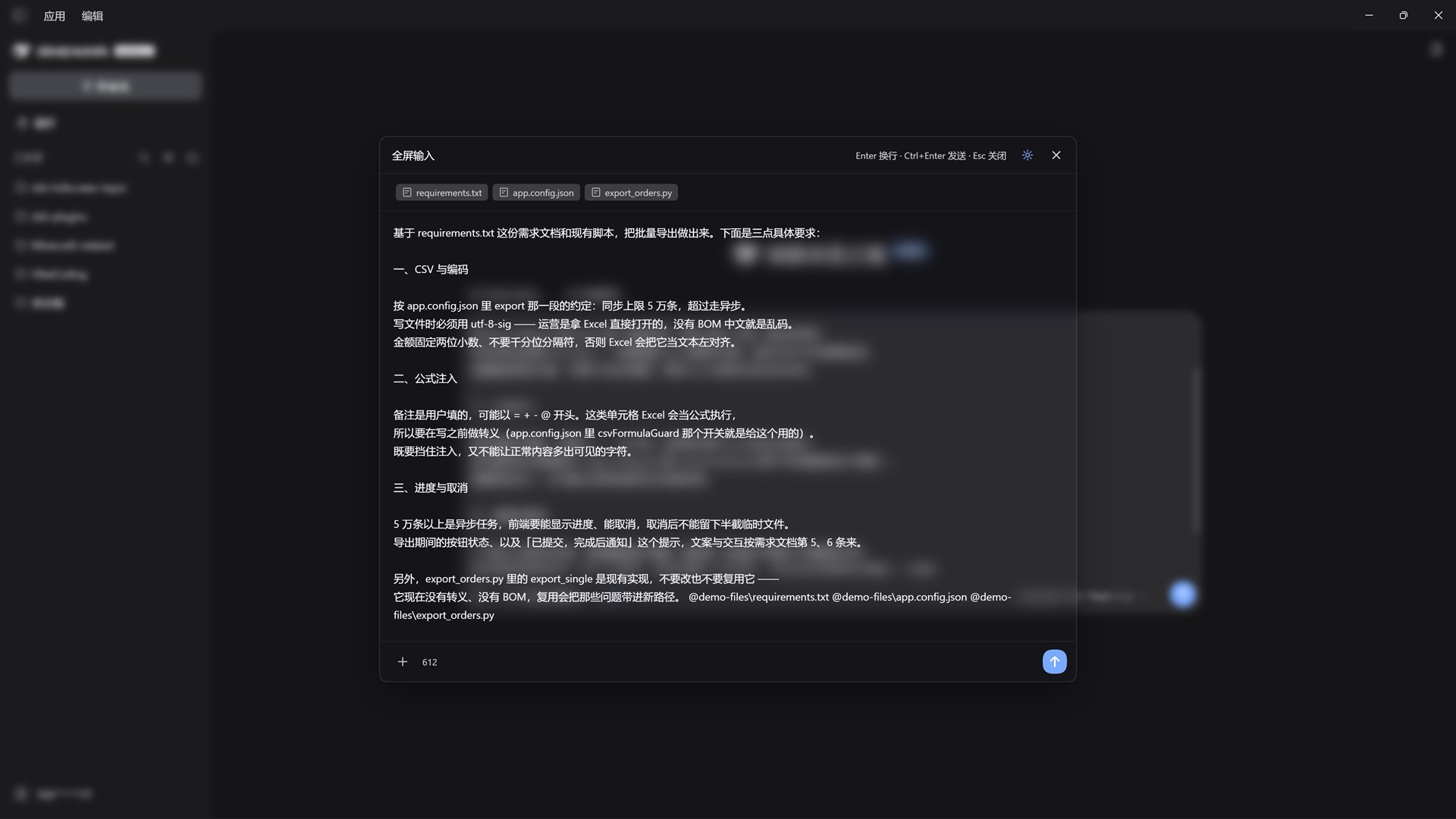
Dark theme. The draft behind the panel is the same one the composer holds — it fits here and gets clipped there.
The problem it solves along the way
DSH's own composer decides whether Shift+Enter inserts a newline or sends by looking at a very short grace window — a keydown within 10 ms of a composition ending still counts as "composing". A Chinese IME uses Shift and Enter constantly (to switch languages and to confirm candidates), so Shift+Enter lands inside that window easily and gets read as "send".
There is no "Enter sends" path in the panel at all, so that problem does not exist here. But it is solved along the way: a full-screen place to write is worth having even without that particular fault.
Install
From the plugins panel (recommended)
Open the Plugins page in DSH's sidebar, click Add plugin, type the package name dsh-fullscreen-input, and install.
That box also accepts a Git URL, an archive, or a local absolute path, so a plugin that was never published to npm installs the same way. The plugin manager only manages packages that declare
dsh.bundle; this one does.
Command line
dsh plugin --profile web add dsh-fullscreen-input
Restart dsh web and refresh the page afterwards.
From a local directory (for development)
git clone <this repository> dsh-fullscreen-input
dsh plugin --profile web add link:<absolute path to the clone>
Windows example: link:D:/example/dsh-fullscreen-input
Because it is a link: install, rebuild once after editing the source with node build-client.mjs and refresh the page — no reinstall needed.
Using it
A new icon appears in the composer's tool row (the line with the "+" button); hovering it says "Full-screen input". Clicking it opens the panel, and F2 summons it too.
Keys
| Key | Behaviour |
|---|---|
Enter |
newline |
Shift+Enter |
newline (same as Enter; Shift only ever means newline here) |
Ctrl+Enter / Cmd+Enter |
send |
Esc |
close the panel (if a settings dialog is open, that closes first and the panel stays) |
Ctrl+0 |
restore the panel's default position and size (same as double-clicking the header). The way back in when the header is out of reach: it does not need focus inside the panel, only the panel to be open |
F2 |
open / close the panel (rebindable to another function key in settings) |
Enter / Ctrl+Enter while an IME is composing |
newline — never sends |
| Click outside the panel | close the panel (same as Esc; does not apply once the mask is switched off) |
Closing the panel loses nothing. The panel and the composer read and write one draft — not two copies kept in sync, but the same value. So text typed in the panel and text typed in the composer are the same text.
What the panel does
| Capability | How |
|---|---|
| Write multi-line | the whole panel is the input area: Enter for a newline, Ctrl+Enter to send |
| Resize | drag any border or corner (eight directions; the cursor changes to the matching resize arrow, and there are no visible grips). Minimum 360×240, never larger than the viewport. The size is remembered; double-clicking the title restores size and position together |
| Move it | drag the title row (free movement, no bounds); double-click the title to recentre. Position is not remembered by default |
| See references | @ references in the draft appear as labelled entries; hover for the full path |
| Remove a reference | the "×" at the top right of the entry. It deletes the matching text from the draft — a reference is not an attachment, so selecting that text in the textarea and deleting it does exactly the same thing. Clicking "×" takes focus away from the textarea (the button took it); click back into the textarea to keep typing |
| See attachments | images show as thumbnails — click to enlarge; files show a type icon and name |
| Remove an image | hover the thumbnail; an "×" appears in the corner |
| Add files | the "+" at the bottom left, which drives DSH's own file picker |
| Paste | Ctrl+V inside the panel; images and files both work |
| Drag and drop | drop files straight onto the panel |
| Scroll behind it | with the pointer outside the panel, the wheel scrolls the conversation behind it — no need to close the panel to consult the model's output while writing. Wheels inside the panel stay inside the panel |
| Summon hotkey | F2 by default: tap to open, tap again to close. Rebindable to any function key (F1–F12); Esc always closes |
| Pane background | want an opaque pane, turn on "solid pane"; want frosted glass, turn on "frosted glass" (the two are mutually exclusive); with both off the pane is fully transparent |
| Turn the mask off | the "enable mask" switch removes the mask entirely, after which the pointer can click and scroll the page behind. The cost is that click-outside-to-close no longer applies — use Esc or the hotkey |
| Intro dialog | shown once, the first time you open the panel. Tick "don't show again" to suppress it; there is a "show tips" button at the bottom of settings to bring it back |
Appearance and behaviour settings
The sun icon in the panel header (an eight-toothed shape, which reads as a sun rather than a gear at this size) opens "Full-screen input settings":
Mask
- Enable mask (on by default)
- Mask opacity: fully transparent by default (0%)
- Mask fog: no fog by default (0%)
Pane background
- Frosted glass: off by default
- Solid pane: off by default, and mutually exclusive with frosted glass — it lays down colour without blur. Turning it on pushes "panel opacity" to 100%, so you get an opaque pane straight away
- Pane fog (default 40%), panel opacity (default 25%), panel colour: "follow theme", six fixed colours, and a system colour picker in the last cell — click it to pick anything
- The background therefore has three states: both switches off = fully transparent; solid only = colour without blur; frosted only = colour plus blur
Panel behaviour
- Remember panel size (on by default) and remember panel position (off by default): independent, and with both off every open returns to the default size and centre
- Summon hotkey (
F2by default): click the button, then press a function key to rebind - Intro dialog: "show tips" displays the first-run dialog again
Settings persist across refreshes and restarts.
Known limits (not faults)
The panel and the host composer are two separate input surfaces, and these limits follow from that:
- There is no
@reference menu inside the panel. The host's@menu is bound to its own rich-text composer and opens at the caret there; the panel is a plaintextarea, so the host has no caret to track and the menu never opens. To add a reference, use the panel's+button, paste a file, or drop one from the system — all three turn the file into a reference of the same kind the composer produces, only placed at the caret (or at the end when pasting files). - Mask fog blurs the entire viewport (including what is directly behind the pane), because the mask itself covers the viewport. That is how the current implementation behaves — not a fault.
- No upload progress or retry inside the panel. Uploads go through the host's own path and the panel only triggers them; taking over progress would mean replacing the host's attachment bar, which is more cost than it is worth.
- No focus trap. The panel handles
EnterandEscapeinside itself and does not claim global keys.
Compatibility
- DSH
>=0.2.0-rc.1 <0.3.0-0(the 0.2.x release line). The panel leans on host internals — slot props,inputActions, and the revision-CAS semantics ofinsertReference— which are exactly what a minor bump moves, so the upper bound is deliberately tight. The previous>= 0.2.0-rc.1silently claimed compatibility with every future0.3.0+. - Node >= 20 (only needed to build from source)
- Browser-side only: the host half is an empty implementation, it makes no network requests, and it does not read or write session data
Permissions
This plugin needs no permission preset, approval relaxation, or sandbox change to work. Its capability surface is deliberately minimal:
| Capability | Why |
|---|---|
ctx.effect |
registers cleanup for the stylesheet and the locale dictionaries (fully rolled back on unload, nothing left behind) |
ctx.inject(['slots','locale','sessions','conversation']) |
waits for and obtains those four services; every use is either a read or a drive of the host's own input actions |
slots.inject + slots.register |
contributes one toolbar button into the conversation.input.left slot |
Not used: ctx.fs, ctx.network, ctx.shell, ctx.resources. It registers no agent tools, so it does not widen the model's tool surface.
Its only local persistence is one localStorage key (panel appearance preferences). Its only path to a file is driving the host's own hidden file input, and asking for a file dialog has to happen inside your click or paste gesture. See SECURITY.md for the full surface and how to report a problem.
Working on the source
node build-client.mjs      # wraps src/client.js into lib/client.js
npm run check              # syntax check (three files)
| File | Purpose |
|---|---|
src/client.js |
the only hand-written implementation (browser side: all UI and logic) |
lib/client.js |
the build artifact — this is what actually loads at runtime |
lib/index.js |
host side, an empty implementation |
build-client.mjs |
build script: plain text wrapping, no dependencies |
cordis.patch.yml |
bundle patch, mounting row id fullscreen-input |
Always rebuild after editing src/, or a page refresh will still run the old code.
License
MIT
Links
More in this category
zhu1090093659/dsh-web#packages/dsh-task-board★ 10172
Task board for the dsh web GUI: a sidebar multi-column kanban whose cards run in real DSH agent sessions and can also be scheduled with cron expressions, executed host-side even with the browser closed.
zhu1090093659/dsh-web#packages/dsh-web-all★ 10172
Plugin and skin collection for the DSH Web UI: task board, Git graph, right-side panel, remote mobile UI, pet, live token stats, and a skin center.
ccch1mneyyy/dsh-TUI★ 7101
Claude Code-style full-screen terminal UI: pixel-whale header, live status line, and streaming thought expansion.
MeteorNOX/DeepSeek-Balance-Whale-Widget★ 6959
A fixed-corner whale widget for the DSH web GUI — balance, today's usage and per-turn cost with peak/off-peak pricing, editable balance-alert and daily-budget bubbles, a module-based custom bubble queue with A/B weighted choices and random lines or images, 30+ vendor templates (OpenAI, OpenRouter, Kimi, SiliconFlow, Ark, Zhipu, MiniMax and more) with per-model balance and subscription quota, plus task-end sound, imported audio, custom roles and a resource manager. Local-only, no telemetry.
omdsh-dev/DSH-better-sidebar★ 4959
Full sidebar workbench with file rendering and editing, terminal, Git, and subagents; third-party plugins can register new tabs.
Devin-AXIS/deepseek-design#deepseek-idesign★ 1744
Visual design studio for websites, app prototypes, posters, cards, reports, and magazines, with templates, direct element editing, selection-aware AI draft handoff, and export.
Community comments
Comments are public GitHub Discussions. Loading them connects to GitHub and Giscus; a GitHub account is required to post.